Integrate Workbench with Databricks
These instructions describe how to configure the Databricks integration in Posit Workbench.
Both Azure Databricks and Databricks on AWS are supported.
Advantages of Workbench’s integration for Databricks
Workbench has a native integration for Databricks that includes support for managed Databricks OAuth credentials and a dedicated pane in the RStudio Pro IDE. For more information, review the Databricks in RStudio Pro guide.
To compare the available Databricks connection methods and see end-to-end examples for each, review Choose a connection for Databricks in the Data Sources documentation. It documents the connection patterns for Workbench-managed credentials and for machine-to-machine (M2M) OAuth authentication.
The Databricks integration allows end users to sign into a Databricks workspace from the home page and, using their existing identity, be immediately granted access to data and compute resources.
Workbench-managed credentials have several security and usability advantages over user-managed credentials, and we recommend them whenever possible:
- Users arrive in a session to find that the Databricks CLI and most official SDKs and database drivers for Python and R work without needing a separate step to configure credentials.
- Anything that implements the Databricks client unified authentication standard will pick up the ambient credentials supplied by Workbench.
- See the Databricks client unified authentication documentation for additional information.
- Users do not need to manage sensitive, long-lived Databricks personal access tokens (PATs) to have individually scoped permissions.
- Administrators can grant or revoke granular permissions for individuals directly through their Databricks account.
Requirements
Currently, this feature is only supported for Positron Pro, RStudio Pro, and VS Code sessions.
Before you begin, you must:
- Ensure that end users are using HTTPS to access Workbench. For security reasons, web browsers do not allow the required OAuth flows to take place without HTTPS in place. For additional information, see the Mozilla Developer - Secure contexts documentation.
- Enable the Job Launcher with the
launcher-sessions-callback-addresssetting configured correctly. See the Job Launcher section for more information. - For the recommended Databricks custom app integration (AWS or Azure), have a Databricks administrator available to create a custom OAuth app integration for Workbench.
- For Azure Databricks using the Entra ID service principal flow, have an Azure administrator available to create Microsoft Entra ID resources and configure your Databricks instance.
- Ensure that the Workbench service is configured to use the proxy if your environment requires an HTTP or HTTPS proxy for outbound requests. See the Outgoing Proxies section for more information.
- Ensure
/tmpis writable by session users.
Databricks configuration
Workbench requires a dedicated OAuth client to manage Databricks credentials. For new setups, on both AWS and Azure, we recommend registering a Databricks custom app integration directly in the Databricks account through the Databricks CLI. Azure Databricks workspaces can alternatively authenticate through an Entra ID service principal registered as a Microsoft Entra ID app. This is the default for a detected Azure workspace unless you set native-oauth=1.
Databricks custom app integration
We recommend this flow for all new Databricks integrations, on both AWS and Azure. It is required to provide the group or role picker that Databricks offers at sign-in, and it avoids maintaining a separate Entra ID app registration.
The following steps use the Databricks CLI to register a custom OAuth app integration directly with Databricks:
- A Databricks administrator needs to register a custom OAuth app integration for Workbench. Reference the Create Custom OAuth App Integration Databricks API documentation.
- There is no Databricks UI for this, so you must use the Databricks CLI. Follow these official guides to:
After you’ve completed the steps above:
Use the CLI to create the integration. The following commands require a Unix-compatible shell such as
bashorzsh:Terminal
databricks account custom-app-integration create \
  --json '{"name":"posit-workbench", "redirect_urls":["https://<my-workbench-url>/oauth_redirect_callback"], "scopes":["all-apis","offline_access"]}'
The output should be similar to the following:
{"integration_id":"<integration-id>","client_id":"<client-id>","client_secret":"<client-secret>"}Record the client ID and secret (which may be empty).
Should you need to delete or disable this integration in the future, use the Databricks CLI as follows:
Terminal
databricks account custom-app-integration delete <integration-id>On Azure Databricks, this integration only takes effect once you set native-oauth=1 on the workspace’s section in /etc/rstudio/databricks.conf (see Workbench configuration). Without it, a detected Azure Databricks workspace uses the Entra ID service principal flow instead.
Azure Databricks via Entra ID service principal
This is the default flow for a detected Azure Databricks workspace (see Workbench configuration). We recommend the Databricks custom app integration above instead for new setups. Use this flow only if you already rely on Entra ID app registrations for Databricks access.
Workbench authenticates Azure Databricks workspaces through this flow by registering a Microsoft Entra ID app:
- Register an application in Microsoft Entra ID and add a client secret under Certificates & secrets. This creates a service principal that Workbench uses to manage Databricks OAuth credentials on behalf of users.
- Add the
AzureDatabricks/user_impersonationdelegated permission to the application under API permissions. See Microsoft - Authenticate with Microsoft Entra service principals for details on Azure Databricks authentication. - Record the client ID and secret during this process and ensure that the Entra ID app’s redirect URLs include:
https://<my-workbench-url>/oauth_redirect_callback
Register the application in Microsoft Entra ID, not in the Databricks console. Azure Databricks supports both Databricks-managed and Entra ID managed service principals, but the flow described above requires an Entra ID managed service principal to authenticate through OAuth.
Workbench configuration
Workbench supports connecting to multiple Databricks workspaces, even across multiple cloud providers. Many organizations have only one Databricks workspace, but others may have production and non-production workspaces or workspaces dedicated to a specific line of business.
Workbench also provides a web-based Configuration Manager for managing Databricks integrations. See the Administrative Dashboard documentation for details. Deploying changes made through the Configuration Manager will not reload Databricks configurations. You must manually restart the Workbench service for changes to take effect.
Configure available Databricks workspaces in the /etc/rstudio/databricks.conf file. Below is an example of what this file could contain:
/etc/rstudio/databricks.conf
[production]
url=https://our-organization.cloud.databricks.com
client-id=12345678-abcd-1234-4567-abcdef123456

[aws-staging]
name=Staging (AWS)
url=https://our-organization-staging.cloud.databricks.com
client-id=12345678-abcd-1234-4567-abcdef123456
client-secret=98765432-dcba-4321-7654-987654fedcba

[azure]
name=Production (Azure), Entra ID service principal
url=https://databricks-workspace.azuredatabricks.net
client-id=12345678-abcd-1234-4567-abcdef123456
client-secret=98765432-dcba-4321-7654-987654fedcba

[azure-native]
name=Staging (Azure), custom app integration
url=https://databricks-workspace-staging.azuredatabricks.net
client-id=12345678-abcd-1234-4567-abcdef123456
client-secret=98765432-dcba-4321-7654-987654fedcba
native-oauth=1
Azure Databricks workspaces are detected automatically when the url ends with one of the following:
azuredatabricks.netdatabricks.azure.usdatabricks.azure.cn
By default, Workbench authenticates a detected Azure Databricks workspace through the Entra ID service principal flow. Set native-oauth=1 on the workspace’s section to use the Databricks custom app integration instead, as recommended above. This has no effect on non-Azure workspaces, which always use the custom app integration.
Each [header] names a section with the following properties:
| Key | Value | Description | Required |
|---|---|---|---|
url |
URL | The URL of a Databricks workspace that services your organization. | Yes |
client-id |
string | The client ID of the OAuth app created for Workbench. See Databricks configuration above. | Yes |
client-secret |
string | The client secret of the OAuth app created for Workbench. See Databricks configuration above. | Not always |
name |
string | An optional user-friendly name for this Databricks workspace. If not specified, Workbench will use the section header. | No |
native-oauth |
boolean | For Azure Databricks workspaces, whether to use the Databricks custom app integration instead of the Entra ID service principal flow. Has no effect on non-Azure workspaces. Defaults to 0. |
No |
The client-secret key is required for Azure Databricks configurations using the Entra ID service principal flow, and for any (Azure or AWS) custom app integration created with the confidential flag. It can be omitted for a non-confidential custom app integration, including one on an Azure workspace with native-oauth=1 set.
Encrypting client-secret
Encrypting the client-secret values in /etc/rstudio/databricks.conf protects your secrets if you back up your configuration, save it to a repository, or share it with Workbench Support.
Use the following steps to encrypt a client-secret:
- Run
sudo rstudio-server encrypt-passwordand enter the client secret. - Copy the resulting encrypted value printed in the terminal.
- Replace the plaintext
client-secretvalue in/etc/rstudio/databricks.confwith the encrypted value. - Restart Workbench, then confirm the Workbench logs contain no warning containing “An unencrypted value is being used for the client-secret”.
Workbench reads encrypted and plaintext values transparently, so pre-existing plaintext configurations continue to work.
Encrypted client secrets are tied to the server’s secure-cookie key. If you rotate that key, follow the re-encryption step before restarting Workbench.
Reload the Workbench service for the changes to take effect:
Terminal
sudo rstudio-server reloadVerify that the Databricks configuration has been picked up correctly by logging into the homepage and clicking New Session.
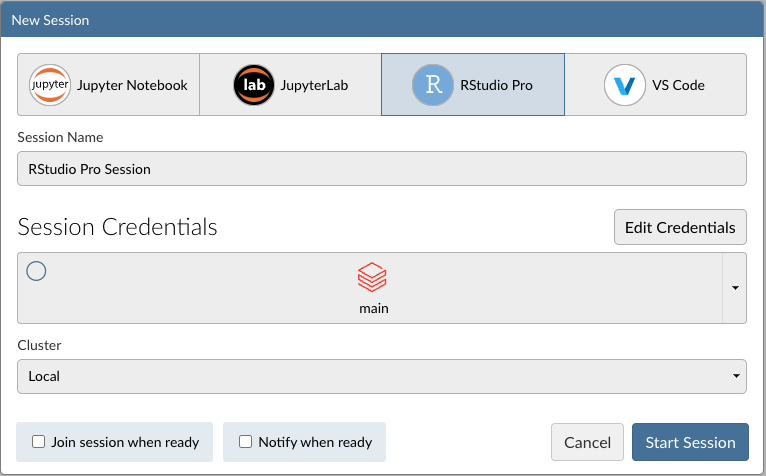
Workbench-managed credentials automatically refresh when sessions are actively using them.
Databricks Pane without Workbench-managed Credentials
Although we strongly recommend Workbench-managed credentials whenever possible, it is still possible to explicitly enable the Databricks pane in the RStudio Pro IDE even for user-managed credentials as follows:
/etc/rstudio/rserver.conf
databricks-enabled=1Removing integrations from configuration
When you remove a Databricks workspace from /etc/rstudio/databricks.conf and restart Workbench, the integration no longer appears on the Workbench homepage for authentication. However, the integration details and all user credentials remain stored in the Workbench database. Sessions accessing Databricks workspace credentials continue to work until the tokens expire or are revoked.
Impact of removing an integration
When you remove a Databricks workspace from the configuration:
- Users cannot reauthenticate through Workbench if their tokens become invalid or are revoked.
- The Databricks workspace will not be available for selection when starting new sessions from the Workbench homepage.
- Existing sessions that are using the removed Databricks workspace can continue to access resources with their existing credentials until the tokens expire or are revoked.
- Token refresh will continue to work automatically in these sessions, so their access persists as long as their refresh token remains valid.
Recommended approach for removal
Before removing a Databricks workspace from the configuration:
- Instruct users to sign out of the Databricks integration through Workbench. See Signing out for more information. This removes their stored credentials from Workbench.
- Give users adequate time to update any sessions or workflows that depend on the Databricks workspace.
- After users have had time to transition, remove the configuration from
/etc/rstudio/databricks.confand restart Workbench.
Troubleshooting
Permission errors:
- This integration relies on a properly configured OAuth client to work. When encountering permissions errors during the Databricks Sign-in flow from the home page, verify that the redirect URL is correct (and includes the schema) on the Databricks side and that the
client-idandclient-secret(if applicable) set in thedatabricks.conffile has been correctly copied from the OAuth app.
Databricks-related environment variables:
- End users configuring their own Databricks-related environment variables for a session may override or interfere with Workbench-managed credentials. We suggest that users who manage their own credentials select the
Noneoption for the Databricks workspace when launching sessions from the home page, which disables Workbench-managed credentials for that session.
If sessions fail to start or produce errors such as ERROR system error 2 (No such file or directory) [path: /tmp/<username>/posit-workbench/...], /tmp might not meet the requirements for the Workbench runtime directory. Verify that:
/tmpis writable by session users- No cleanup service (such as
tmpwatchorsystemd-tmpfiles) removes user directories under/tmpduring active sessions