Active Directory
This document describes the process of integrating Workbench with AD using realmd and sssd. For alternative methods of configuration, refer to the Red Hat and Ubuntu documentation.
Workbench can be configured to use Active Directory (AD) as the user authentication service, which allows users to authenticate to Workbench via their AD credentials. This document describes the process of integrating Workbench with AD using realmd and sssd. For alternative methods of configuration, refer to the Red Hat and Ubuntu documentation. This section is a suggested set of steps that may not be appropriate for your configuration. Therefore, you may have to make changes to the steps below for your specific configuration. This content is not meant to be a step-by-step guide that works across all configurations.
This setup requires the machine with Workbench to be joined to a Windows domain and it requires configuring PAM to use AD as its identity provider. This configuration allows AD accounts to be used along with local system accounts. Workbench requires the use of local system accounts regardless of the authentication method that is used.
This setup can be configured in many different ways and is typically governed by the systems and services that your organization already has in place.
For more information on how Workbench works with PAM sessions, refer to the PAM Sessions section.
Prerequisites
This article assumes that you have an Active Directory server. In this example, the Windows server is configured with a hostname of winserver.demo.rstudioservices.com:
Posit does not provide support for Active Directory configurations outside of Posit products.
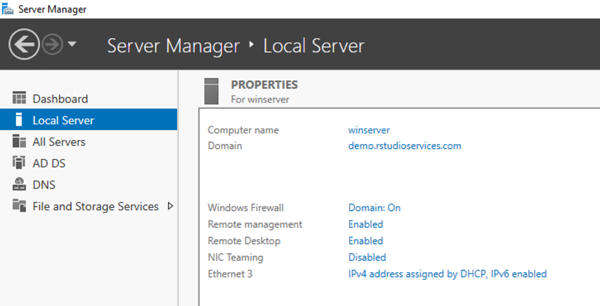
The hostname of the AD server should be resolvable by all of the servers that you want to join to the Windows domain. For this example, the Linux machine where Workbench is installed should be able to resolve the AD hostname:
Terminal
nslookup winserver.demo.rstudioservices.com
Server: 127.0.0.53
Address: 127.0.0.53#53

Non-authoritative answer:
Name: winserver.demo.rstudioservices.com
Address: 172.31.31.231
You should also have Workbench installed with the default configuration that uses local system accounts.
Join AD domain
The steps outlined below are examples of how to join an Active Directory domain in RHEL and Ubuntu operating systems. Additionally, the steps should be similar for other versions of RHEL and Ubuntu but may not be identical.
Posit Workbench supports more operating systems than shown in the examples below. For a full list, visit the Posit Platform Support page.
Install the LDAP client system dependencies for your Linux distribution:
Terminal
sudo yum install samba-common-tools realmd oddjob oddjob-mkhomedir \
    sssd adcli krb5-workstation
Terminal
sudo dnf install samba-common-tools realmd oddjob oddjob-mkhomedir \
    sssd adcli krb5-workstation
Terminal
sudo apt install realmd sssd sssd-tools libnss-sss libpam-sss adcli \
    samba-common-bin oddjob oddjob-mkhomedir packagekit
Use the following
realm joincommand to join the AD domain. In this example, we are using theAdministratoruser on AD (you will be prompted for the password):Terminal
 sudo realm join -v -U Administrator winserver.demo.rstudioservices.com

[... truncated output ...]
Successfully enrolled machine in realm
Confirm the connection by running the
realm listcommand:Terminal
realm list

demo.rstudioservices.com
  type: kerberos
  realm-name: DEMO.RSTUDIOSERVICES.COM
  domain-name: demo.rstudioservices.com
  configured: kerberos-member
  server-software: active-directory
  client-software: sssd
  required-package: sssd-tools
  required-package: sssd
  required-package: libnss-sss
  required-package: libpam-sss
  required-package: adcli
  required-package: samba-common-bin
  login-formats: %U@demo.rstudioservices.com
  login-policy: allow-realm-logins
You can use the
idandgetentcommands to verify that the users on the AD domain can be used on the machine with Workbench, for example:Terminal
id administrator@demo.rstudioservices.com
uid=1684800500(administrator@demo.rstudioservices.com)
gid=1684800513(domain users@demo.rstudioservices.com)
groups=1684800513(domain users@demo.rstudioservices.com),
1684800520(group policy creator owners@demo.rstudioservices.com),
1684800518(schema admins@demo.rstudioservices.com),
1684800512(domain admins@demo.rstudioservices.com),
1684800572(denied rodc password replication group@demo.rstudioservices.com),
1684800519(enterprise admins@demo.rstudioservices.com)

getent passwd administrator@demo.rstudioservices.com
administrator@demo.rstudioservices.com:*:1684800500:1684800513:
Administrator:/home/administrator@demo.rstudioservices.com:/bin/bash
The process of joining the AD domain with realmd resulted in the following changes to the system:
- Joined the domain by creating an account entry for the system in the directory.
- Created the
/etc/krb5.keytabhost keytab file. - Configured the domain in SSSD and restarted the service.
- Enabled domain users for the system services in PAM configuration and the
/etc/nsswitch.conffile.
If you want to configure these items manually, then refer to the documentation described in the PAM Sessions section.
The default configuration created by realm uses LDAP ID mapping. For more details on using POSIX attributes such as UIDs and GIDs, refer to the sssd.conf(5) man page or external SSSD documentation.
Configure PAM profile
On RedHat and SUSE systems, Workbench installs a default PAM profile at /etc/pam.d/rstudio that authenticates against local system accounts only. This profile does not include the System Security Services Daemon (SSSD) modules that the domain join configured for the rest of the system. As a result, AD users cannot log in to Workbench until you update the PAM profile.
On Debian and Ubuntu, Workbench uses the default PAM profile at /etc/pam.d/other, which includes the system-wide common-* configuration files. If the domain join updated those files (via pam-auth-update), Workbench might already authenticate AD users without additional configuration. Verify by testing with pamtester before making changes.
To update the profile:
Copy a system profile that includes your AD authentication modules. The
loginprofile is a common choice because it typically includes the system authentication modules (such aspam_sss.so):Terminal
sudo cp /etc/pam.d/login /etc/pam.d/rstudioIf your organization uses a different profile for AD authentication, copy that profile instead. Review the source profile to confirm it includes
pam_sss.soor the equivalent module for your identity provider. For more details on therstudioPAM profile and alternative approaches, see Customizing the PAM profile for external identity providers.You can test your updated PAM configuration outside of Workbench using the provided
pamtesterutility:Terminal
sudo /usr/lib/rstudio-server/bin/pamtester --verbose rstudio testuser@demo.rstudioservices.com authenticate acct_mgmt setcred open_session close_session pamtester: invoking pam_start(rstudio, testuser@demo.rstudioservices.com, ...) pamtester: performing operation - authenticate Password: [... truncated output ...] pamtester: successfully opened a session pamtester: performing operation - close_session pamtester: session has successfully been closedNoteIf a pam_acct_mgmt error is observed with the following outputpamtester: successfully authenticated pamtester: performing operation - acct_mgmt pamtester: Permission deniedEdit the
/etc/pam.d/common-accountconfiguration file to remove account checking from thepam_sssmodule by commenting out the following line:[... truncated file ...] # account [default=bad success=ok user_unknown=ignore] pam_sss.so
For more information on the pamtester utility, refer to Testing and Troubleshooting.
Configure home directory creation
By default, users from the AD domain do not have a home directory on the Linux server. Because sessions in Workbench require that the user’s home directories are present, we will configure PAM sessions to automatically create the home directories.
In the PAM session configuration file located at
/etc/pam.d/common-session, locate the line that containssession required pam_unix.so, and add the following line immediately below it:/etc/pam.d/common-session
session required pam_unix.so
session required pam_mkhomedir.so skel=/etc/skel/ umask=0022
You can test the automatic creation of home directories by switching to an AD user using the
suorsshcommands:Terminal
su administrator@demo.rstudioservices.com Password: Creating directory '/home/administrator@demo.rstudioservices.com'. ssh -l testuser@demo.rstudioservices.com linux-clientNoteCustomizing the location of home directories for AD usersBy default, home directories are created in
/home.To customize the directory location or template, edit the
/etc/sssd/sssd.conffile by adding theoverride_homediroption in the target domain. This is useful when configuring user data in Workbench in a different location (e.g., when working with an NFS server). If user home directories are going to be created on shared NFS storage, ensure that the storage provider has configuredno_root_squashfor full functionality.For example, the following configuration can be used in
/etc/sssd/sssd.confto specify a home directory location of/usr/home/{ domain_name }/{ user_name }:/etc/sssd/sssd.conf
[domain/demo.rstudioservices.com]
[... file truncated ...]
override_homedir = /usr/home/%d/%u
For additional details on SSSD configuration options, refer to the sssd.conf(5) man page.
Log in to Workbench
You should now be able to log into Workbench using Active Directory users.
To log in, use the format
username@domainfor the username and the corresponding password.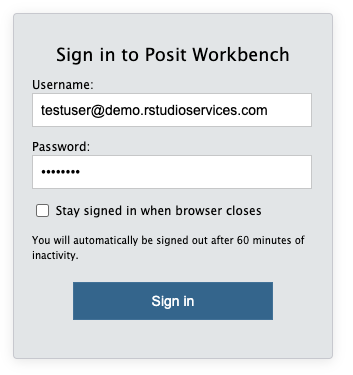
Generating Kerberos tickets
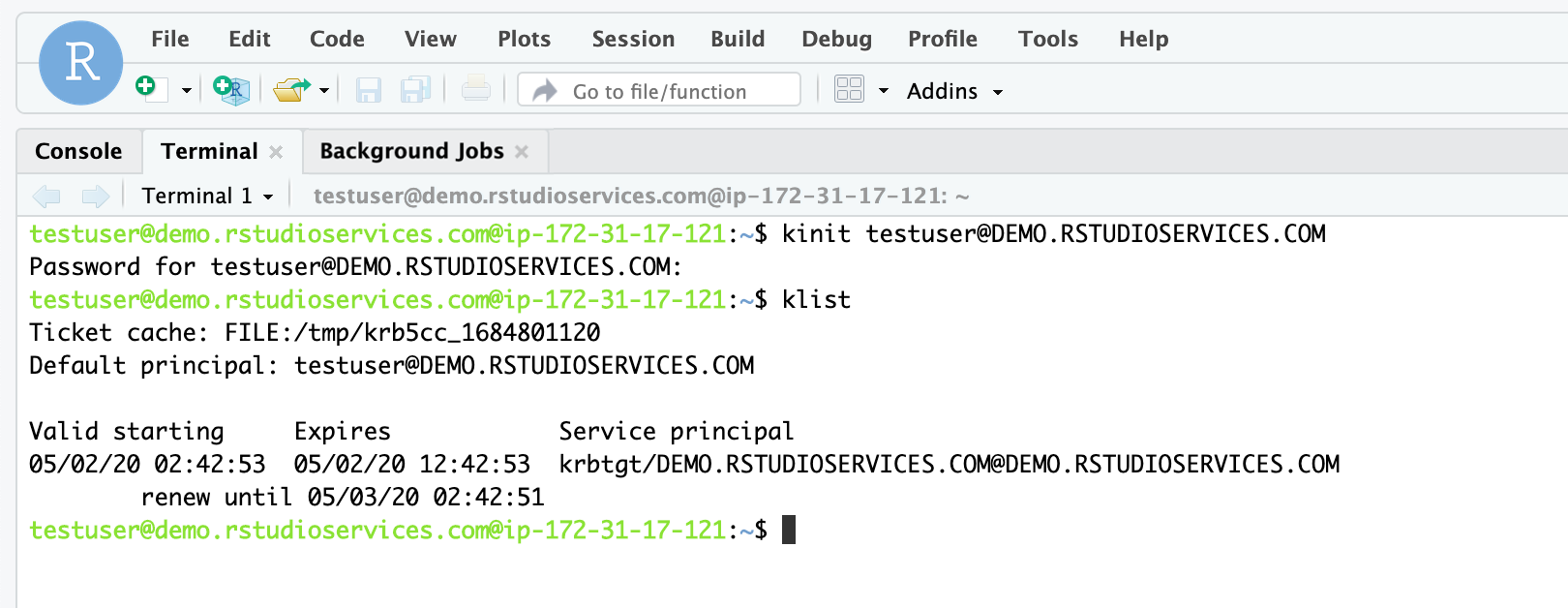
If you installed all of the required dependencies, and a Kerberos Key Distribution Center (KDC) is available on the Windows domain, then you should have access to generate Kerberos tickets from within sessions in Workbench by using the kinit command.
In a terminal, for example, run:
Terminal
kinit testuser@DEMO.RSTUDIOSERVICES.COMYou can also run this command from within the Terminal pane in Workbench: