AI Gateway
Enhanced Advanced Early Access
The AI Gateway lets Posit Connect administrators track and limit spending on large language models (LLMs). It supports these providers:
- Anthropic, through an Anthropic integration.
- Amazon Bedrock, including Bedrock Mantle, through an AWS integration.
Requests to other LLM providers do not go through the AI Gateway, and Connect does not track or limit them.
Connect sends LLM requests through the gateway and records the user, content, model, and token counts of each request. Administrators use this data to see usage and set budgets for users and content. The gateway handles requests from Connect content, Posit Workbench sessions, and local coding tools such as Posit Assistant. It also keeps provider application programming interface (API) keys out of content processes.
When you enable the AI Gateway, content that uses a supported LLM integration sends its requests through the gateway automatically.
How the AI Gateway uses integrations
The AI Gateway has no provider configuration of its own. It uses the integrations that administrators create in Connect. You do not create a different kind of integration for the AI Gateway, and you do not change the configuration of an existing integration. When you enable the AI Gateway, every supported integration uses it.
Each supported integration gives the AI Gateway three things:
- The provider credential. The AI Gateway uses the Anthropic API key, or the AWS credentials of the integration, when it sends a request to the provider.
- A route. Each integration has its own AI Gateway URL,
<server>/__gateway__/<route kind>/<integration guid>. Connect gives this URL to content through environment variables. - Access rules. The content associations and the access control list (ACL) of the integration decide who can send requests on its route. See Authentication.
| Integration | Authentication type | Uses AI Gateway | Route kind | Content on Connect | Callers outside Connect |
|---|---|---|---|---|---|
| Anthropic | Environment variables | Yes | anthropic |
Yes | Yes |
| AWS | Viewer | Yes | bedrock |
Yes | Yes |
| AWS | Service Account | Yes | bedrock |
Yes | No |
| AWS | Workload Identity | No | Not applicable | No | No |
| All others | Any | No | Not applicable | No | No |
Anthropic integrations
When the AI Gateway is enabled, an Anthropic integration does not give content the real Anthropic API key. Instead, the content receives a short-lived Connect API key in ANTHROPIC_API_KEY, and an AI Gateway URL in ANTHROPIC_BASE_URL. The AI Gateway replaces the Connect API key with the real key when it sends the request to Anthropic. The real key never enters the content process.
Connect creates this short-lived key only when Applications.DefaultAPIKeyEnv is on. When you turn off Authentication.APIKeyAuth, Connect also turns off Applications.DefaultAPIKeyEnv. If Applications.DefaultAPIKeyEnv is off, ANTHROPIC_API_KEY is empty, and content cannot reach Anthropic through the AI Gateway. The Anthropic Python and Node.js SDKs and ellmer stop with their own error before they send a request, such as Could not resolve authentication method or Can't find env var `ANTHROPIC_API_KEY`. Because no request arrives, the access log has no entry for the request. A client that sends the empty key anyway gets 401 Unauthorized from the AI Gateway. A publisher cannot fix this with their own API key, because the AI Gateway accepts only ephemeral keys. Keep Applications.DefaultAPIKeyEnv on if content uses Anthropic integrations through the AI Gateway.
AWS integrations
An AWS integration gives content the same temporary AWS credentials when the AI Gateway is enabled. Content signs its requests with these credentials, and the AI Gateway signs the outbound request again with the same credentials.
The AI Gateway handles only Amazon Bedrock requests. These include model calls to the Bedrock runtime and Bedrock Mantle endpoints, and control plane calls such as model lists. Calls to other AWS services go directly to AWS.
Enabling the AI Gateway
The AI Gateway is off by default. Enable it in the configuration file and restart Connect:
/etc/rstudio-connect/rstudio-connect.gcfg
[Gateway]
Enabled = true
The AI Gateway requires an Enhanced or Advanced license tier, or an evaluation license. If the license expires, the AI Gateway keeps working during the 30-day grace period, as the rest of Connect does. After the grace period, Connect refuses every AI Gateway request with 402 Payment Required and the same license message that it returns for other requests.
Connect builds the AI Gateway URLs it gives content from Server.EnvAddress, which defaults to Server.Address.
How the AI Gateway works
When a caller sends an LLM request to the AI Gateway, Connect does these steps:
- Connect authenticates the caller and checks that it can use the integration. See Authentication.
- Connect checks the request against the budgets of the user and the content item.
- Connect checks the model against the model pricing list.
- Connect sends the request to the provider and returns the response to the caller.
- When the response is complete, Connect records the token counts of the request. Connect also keeps a record of the request for the usage export.
Content on Connect does not need code changes to use the AI Gateway. When the AI Gateway is enabled the integration provides the content a gateway URL, in place of the provider URL, via environment variables that the provider software development kits (SDKs) read. Anthropic integrations also give content a short-lived Connect API key in place of the real Anthropic API key.
| Integration | Variable | Value |
|---|---|---|
| Anthropic | ANTHROPIC_BASE_URL |
<server>/__gateway__/anthropic/<guid> |
| Anthropic | ANTHROPIC_API_KEY |
An ephemeral Connect API key, in place of the real Anthropic key |
| AWS (Bedrock) | AWS_ENDPOINT_URL_BEDROCK_RUNTIME |
<server>/__gateway__/bedrock/<guid> |
| AWS (Bedrock) | AWS_ENDPOINT_URL_BEDROCK |
<server>/__gateway__/bedrock/<guid> |
| AWS (Bedrock) | ANTHROPIC_BEDROCK_BASE_URL |
<server>/__gateway__/bedrock/<guid> |
| AWS (Bedrock) | AWS_ENDPOINT_URL_BEDROCK_MANTLE |
<server>/__gateway__/bedrock-mantle/<guid> |
| AWS (Bedrock) | ANTHROPIC_BEDROCK_MANTLE_BASE_URL |
<server>/__gateway__/bedrock-mantle/<guid>/anthropic |
| AWS (Bedrock) | AWS_BEDROCK_BASE_URL |
<server>/__gateway__/bedrock-mantle/<guid>/openai/v1 |
| AWS (Bedrock) | AWS_DEFAULT_REGION |
The region configured on the integration |
Content-level environment variables take precedence over the injected values, so if a publisher sets ANTHROPIC_BASE_URL on their content it overrides the AI Gateway route for that content item.
Authentication
The AI Gateway authenticates requests for Anthropic using the ephemeral Connect API key that Connect injected. Requests include that key in the header where the SDK normally sends the provider key. The AI Gateway validates it, then replaces it with the real provider credential it passes the request on to the provider. The AI Gateway never sends the Connect key to the provider, and content never sees the provider key. The AI Gateway accepts only ephemeral keys. It rejects user API keys and service tokens.
Content that uses an Amazon Web Services (AWS) integration for Amazon Bedrock fetches temporary AWS Security Token Service (STS) credentials from Connect and signs its requests with them, exactly as it does when calling AWS directly. The AI Gateway verifies that signature against the credentials it issued, then re-signs the outbound request with those same credentials.
For a caller running on Connect, the AI Gateway then checks the integration’s associations: the integration must have at least one, and the calling content item must be among them.
Callers outside Connect
Callers outside Connect, such as Workbench or a local Posit Assistant, can also use the AI Gateway. Requests from outside Connect authenticate through identity federation or the Connect OAuth authorization server. To use identity federation, create a federation integration that trusts the caller’s identity provider. For Workbench, use the Posit Workbench Federation template, or a generic OpenID Connect (OIDC) federation integration.
For Anthropic integrations, both identity federation and the OAuth authorization server give the caller a Connect API key that expires after one hour. The caller uses this key in the same way that content does.
AWS Viewer integrations work outside Connect only through identity federation. Bedrock requests need AWS credentials, and the OAuth authorization server only gives a Connect API key. AWS Service Account integrations do not work outside Connect. A Service Account is a shared identity that does not belong to a user, so Connect gives its credentials only to content.
A local tool, such as Claude Code, can use either an Anthropic integration or an AWS Viewer integration:
- For an Anthropic integration, the tool signs in through the OAuth authorization server. Give users the AI Gateway URL of the integration,
<server>/__gateway__/anthropic/<guid>. - For an AWS Viewer integration, the tool uses identity federation. Create an OpenID Connect Federation integration that trusts the identity provider of your users, and enable the external credential exchange that AWS Viewer credentials describes. Give users the AI Gateway URL,
<server>/__gateway__/bedrock/<guid>, and tell them how to get an ID token from your identity provider.
The User Guide shows how to configure a local tool.
AWS Viewer credentials
For an AWS Viewer integration, the caller exchanges the ID token of the user for temporary AWS STS credentials. Connect refuses that exchange unless you enable Server.IdentityFederationExternalCredentialExchange, which is off by default. Enable it in the configuration file and restart Connect:
/etc/rstudio-connect/rstudio-connect.gcfg
[Server]
IdentityFederationExternalCredentialExchange = true
The ID tokens from the federation identity provider must identify each user with the same value as the authentication provider of Connect. Connect reads the claim that match_claim names on the federation integration, or the claim that OAuth2.UniqueIdClaim names if match_claim is not set. OAuth2.UniqueIdClaim is sub by default. The exchange does not create users, so it fails if no user has a unique ID equal to that value. The recommended approach is to use the same identity provider for Connect sign-in and for identity federation. If Connect uses another authentication provider, such as password authentication, the exchange fails. For details, see How Connect finds the user.
Access control
The access control list (ACL) on each integration decides which integrations a caller outside Connect can use. The AI Gateway checks that list on every request. If the user is not on the list, the request fails with 403 Forbidden. Integrations with no ACLs allow every user.
The ACL on the federation integration decides who can exchange an ID token for a credential. It also decides who can publish to Connect from Workbench.
Request attribution
Connect attributes each AI Gateway request to a content item and to one user. The budgets, the usage export, and the AI Usage page all use this attribution.
The content item is the content that made the request. A request from outside Connect has no content item.
The user is the first of these that Connect knows:
- The viewer the request was made for. Connect knows the viewer in two cases. The request uses the credential of an AWS integration with the Viewer authentication type. Or the content sends the session token of the viewer in the
Posit-Connect-User-Session-Tokenheader. - The user who authenticated the request. For an Anthropic integration, this is the user who owns the ephemeral key. Connect gives content a key that belongs to the content owner. For a caller outside Connect, this is the user who signed in.
- The owner of the content.
| Caller | Content item | User |
|---|---|---|
| Interactive content that sends the viewer session token | The content | The viewer |
| Content with an AWS Viewer integration | The content | The viewer |
| Content with an Anthropic integration, with no viewer session token | The content | The content owner |
| Content with an AWS Service Account integration, with no viewer session token | The content | The content owner |
| Rendered or scheduled content | The content | The content owner |
| A caller outside Connect, such as Posit Assistant in Workbench or a local coding tool | None | The user who signed in |
For Python content, Connect sends the viewer session token for requests made with httpx, which the Anthropic Python SDK uses. This works only for Flask, Dash, FastAPI, Gradio, and Shiny content. Connect does not send the token for Streamlit, Bokeh, Panel, or Voila content. For Node.js content, Connect sends it for requests made with fetch or the built-in http and https modules. For R content, ellmer 0.5.0 or later sends the token itself. Other R libraries do not send it. Connect removes the header before it sends the request to the provider.
Connect accepts a viewer session token only if Connect issued it for the content that makes the request. A valid token proves that the viewer is a real user with a current session. If the token is not valid, Connect ignores it and attributes the request as if the content sent no token. The token does not prove that the request was made for that viewer, because the content decides which token it sends. Under the publisher trust model, the publisher is responsible for sending each request with the token of the viewer that the request is for.
Attribution of requests from outside Connect
A request from outside Connect counts against the user who signed in through identity federation or the OAuth authorization server. For example, if a user runs Posit Assistant in a Workbench session, the requests count against that user. A local coding tool that signs in to Connect also acts as the user who signed in.
This has these effects:
- Only the budget of the user applies, because there is no content item. A content budget cannot limit this usage.
- On the AI Usage page, this usage appears when you show by User. It does not appear when you show by Content.
- A caller can add labels with the
Gateway-Metadataheader, such as a Workbench session ID or a project name. Use these labels to tell traffic apart in the usage export. The caller sets the labels, so do not use them for access control.
Usage export
Administrators can export a record of each LLM request through GET /v1/system/gateway/usage/export. Each record contains the timing, provider, model, integration, authenticated user, content owner, viewer, token counts, and response status of a request. The export is a Parquet file by default, and you can query it with DuckDB.
By default, each record contains the username and email address of the authenticated user, the content owner, and the viewer. To keep usernames and email addresses out of new records, set OpenTelemetry.TraceUserEnrichmentEnabled to false in the configuration file and restart Connect:
/etc/rstudio-connect/rstudio-connect.gcfg
[OpenTelemetry]
TraceUserEnrichmentEnabled = false
Connect adds the usernames and email addresses when it records a request. This setting does not change records that Connect already has.
Usage dashboard
The Posit AI Gateway Usage Dashboard is a Shiny for Python app in the Connect Gallery. It reads the usage export, and shows usage in US dollars, tokens, adoption, and attribution by user, content item, model, and provider. The export holds request metadata only, so the dashboard never shows the text of prompts or responses.
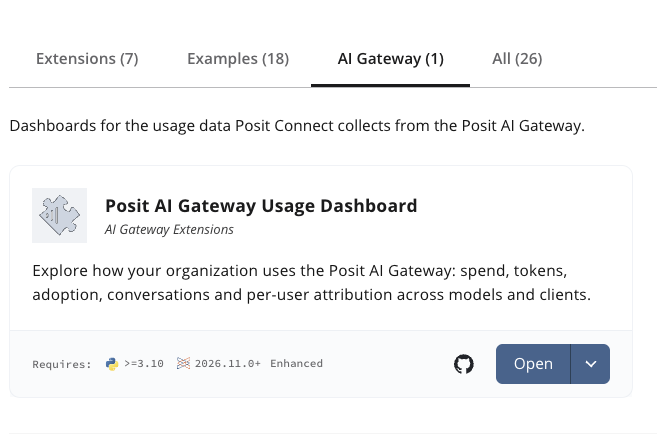
When the AI Gateway is enabled, the Gallery has an AI Gateway tab that lists the dashboard. Only administrators see this tab.
To install the dashboard, open the AI Gateway tab of the Gallery.
The dashboard reads the export as the person who views it, so each viewer must be an administrator. To give the dashboard the identity of the viewer, add a Connect API integration to the dashboard in its content settings. This integration uses the Visitor API Key authentication type. Its maximum role must be Administrator, because the export endpoint is available only to administrators. Connect provides a default Connect API integration with this maximum role.
If the viewer is not an administrator, or the dashboard has no Connect API integration, the dashboard shows an access message and reads no data.
The dashboard reads the export each time a viewer opens it. It keeps the data in memory for that session only, and does not save it to disk or share it with other sessions. Connect builds the export when the dashboard asks for it, so a large server or a long period takes more time to load.
By default, the dashboard shows the last 90 days. To show a different period, set the GATEWAY_FROM and GATEWAY_TO environment variables on the dashboard to RFC 3339 times in UTC, such as 2026-09-10T00:00:00Z.
Request metadata
A caller can add labels to a request in a Gateway-Metadata header. For example, a Workbench session can send its session ID and project.
Gateway-Metadata: team=data%20science,project=churn-modelConnect records the labels in the request_metadata column of the usage export. Connect removes the header before it sends the request to the provider. The caller sets the values and Connect does not check them, so do not use them for access control.
The header follows these rules:
- It has at most 16 entries, separated by commas, and at most 4096 bytes.
- A key has 1 to 32 lowercase letters, digits, and hyphens, and cannot start with a hyphen.
- A value is percent-encoded UTF-8, and is at most 512 bytes before decoding.
Connect ignores an entry that does not follow these rules. Connect refuses the request with 400 Bad Request if the header is longer than 4096 bytes, has more than 16 valid entries, or repeats a key.
Model pricing
Connect calculates the cost of each request from its token counts and the price of its model. Each model has four prices, in US dollars per million tokens: input, output, cache write, and cache read.
Connect includes default prices for the Anthropic and Amazon Bedrock models that the AI Gateway supports. Default model prices are bundled with each version of Connect so a Connect upgrade can change these default prices.
Set model prices
Administrators set model prices on the System > AI Gateway page, in the Models Configuration tab. The tab lists the models that you configured, with their prices.
- To add a model, select Add model, then select a provider and a model. Connect fills in the default prices of the model, and you can change them.
- To change the prices of a model, select its edit button.
- To remove a model, select its remove button. The model then uses its default price again, if it has one.
A price that you set replaces the default price for that model. To set a price for a model that has no default price, use the PUT /v1/system/gateway/models API endpoint.
How prices affect budgets
Connect stores the token counts of each request, not its cost. Each time Connect checks a budget, it calculates usage from the token counts and the current prices. This has these effects:
- When you change a price, Connect recalculates the usage of the current budget period for every user and content item. A price change can put a user or a content item over its budget, or under it, immediately.
- A model with no price has a cost of $0, so requests for that model do not count against a budget. If you add a price for that model later, earlier requests for it in the current budget period count at the new price.
- A budget of $0 is an exception. Every request is over a $0 budget, including requests for a model with no price. See Default budgets.
Models that are not configured
Gateway.UnlistedModelEnforcement controls requests for models that are not on the Models Configuration tab. This includes models that have a default price but that you did not add to the tab.
- With
allow, the default, Connect allows the request. - With
warn, Connect allows the request and writes a warning to the server log. - With
reject, Connect refuses the request with403 Forbidden.
To use reject, add each model that content can use to the Models Configuration tab.
Budgets
A budget limits the AI usage of a user or a content item, in US dollars, over a budget period. Connect checks each request against two budgets: the budget of the content item and the budget of the user. See Request attribution for how Connect selects them. Requests from outside Connect have no content item, so only the user budget applies.
If Connect does not know the viewer, requests from content count against the budget of the content owner. All viewers of that content then accrue token usage against the owner’s budget.
Connect checks the budgets before it sends a request to the provider. Connect counts the usage of a request after the response is complete. So the request that causes usage to exceed the configured budget is allowed, and then subsequent requests over the budget are evaluated according to your budget enforcement configuration.
Default budgets
Gateway.UserBudget and Gateway.ContentBudget set the default budget, in US dollars, for every user and every content item:
/etc/rstudio-connect/rstudio-connect.gcfg
[Gateway]
UserBudget = 25
ContentBudget = 100- If you do not set a default budget, the budget is unlimited.
- A value of
0allows no AI usage. Every request is over the budget, including requests for a model with no price. The enforcement setting decides whether Connect allows these requests. - A budget can have at most two decimal places, and can be at most 9,000,000.
To see the default budgets, open the System > AI Gateway page, then select the Budget Policy tab. The tab shows the default budget and the enforcement for users and for content, and the current budget period. It shows Unlimited when you did not set a default budget.
Budget overrides
Administrators can override the default budget for one user or one content item:
- For a user, open the profile of the user and change AI budget (USD).
- For a content item, open its content settings, select the Runtime tab, and change AI budget.
An override can be an amount, including $0. To give the user or the content item no limit, select Set Unlimited Budget. To remove the override, select Reset. The user or the content item then follows the default budget again.
An override does not change when you change the default budget.
When an administrator changes an override, Connect sends an in-app notification. For a user budget, Connect notifies the user. For a content budget, Connect notifies the owner and the collaborators of the content item. Connect does not notify the administrator who made the change.
Budget period
Gateway.BudgetPeriod sets the budget period: day, week, or month, the default. Usage resets at the start of each period, at 00:00 Coordinated Universal Time (UTC). A change to the period takes effect when you restart Connect.
Enforcement
Gateway.UserBudgetEnforcement and Gateway.ContentBudgetEnforcement control what happens when usage is over a budget. With warn, the default, Connect allows the request. With reject, Connect refuses the request with 429 Too Many Requests and a message that says when the budget resets.
Notifications
When usage reaches 80% of a budget, Connect notifies the user, or the owner and collaborators of the content item. When usage reaches 100%, Connect also notifies the administrators. Connect sends each notification one time in each budget period. Connect sends no notifications for a budget of $0.
Viewing budget usage
To see usage against budgets, open the System > AI Usage page. The page shows the current budget period and the enforcement policy for users and content. Select Content or User to see each content item or user with its budget, the percentage of the budget it used, its cache hit rate, and its token count.
Administrators see all users and content. Publishers see only their own usage and the usage of their content. Viewers cannot open this page.
Denials and errors
| Status | Meaning |
|---|---|
400 Bad Request |
The Gateway-Metadata header breaks a limit or repeats a key. See Request metadata. |
401 Unauthorized |
The credential of the caller is missing, invalid, expired, or of the wrong type, or its signature did not verify. For Anthropic content, see Anthropic integrations. |
402 Payment Required |
The license expired and its grace period ended. See Enabling the AI Gateway. |
403 Forbidden |
The license does not permit the AI Gateway, the caller is not allowed to use this integration, or the model is not on the Models Configuration tab and Gateway.UnlistedModelEnforcement is reject. |
404 Not Found |
The route does not support the request path. For example, the Bedrock runtime route does not support the Anthropic Messages API. |
421 Misdirected Request |
No integration matches this route. The integration does not exist, does not use the AI Gateway, or, for content on Connect, is not attached to any content. |
429 Too Many Requests |
Usage is over a budget and budget enforcement is reject. The message says when the budget resets. |
502 Bad Gateway |
The request to the provider failed. |
503 Service Unavailable |
Connect cannot read the integration or its access control list from its database. |
See also
- Integrations routed through the AI Gateway in the User Guide: what publishers need to know about content that uses the AI Gateway.
- AI Gateway in the User Guide: budgets, notifications, and the AI Usage page for publishers.
- Credential delivery: the ephemeral API keys and AWS STS credentials that the AI Gateway uses to authenticate requests.
- Integrations overview: how to create integrations and set their access control lists.