Content execution environments
In Posit Connect, an execution environment refers to the metadata that defines the characteristics of a container image. Once Connect selects an execution environment, Connect uses the image associated with that environment to build and execute your content on Kubernetes.
This appendix explains:
- The concept of execution environments.
- How to declaratively manage execution environments via a configuration file.
- How to use the Environments tab in the Connect UI to manage execution environments.
- How execution environments are selected to build and execute content.
- How to build images for use as execution environments.
Overview
Execution environments in Connect should not be confused with environment variables. Environment variables let you provide named values used when running your content and are configured in the Runtime tab of the Content Settings panel.
Execution environments describe the capabilities of a given container image: the available R, Python, Quarto, and Node.js installations and the version of each. Connect uses these capabilities to determine whether an environment is compatible with a piece of content. The process used by Connect to select a compatible environment is discussed later in this appendix.
There is a one-to-many relationship between an image name and execution environments in Connect. For example, the image named ghcr.io/posit-dev/connect-content:R4.4.3-python3.11.15 may be referenced by multiple execution environments. Because the Python, R, and Node.js package caches are tied to the container image name, this also means that execution environments which reference the same container image will also share a package cache.
When content is first deployed, Connect uses the selected environment to create a build container, which installs the Python, R, and Node.js packages required by your content. Each time your content runs, Connect uses that same environment to create an execution container. Execution environments do not share Python, R, and Node.js package caches.
Users can interact with execution environments by visiting the System > Environments tab in the Connect UI, or by interacting with the Connect server API.
Installation versions
Each installation in an environment has a version. A valid version has two parts:
major.minor.patch: three whole numbers with a dot between each pair, for example3.12.4.An optional suffix, for example
rc1in3.14.0rc1,.dev0in3.15.0a1.dev0, ortin3.13.0t. The suffix contains only letters, digits,.,+, and-. It must not contain two dots together or end with a dot.
Use a suffix to label a development, release candidate, or free-threaded build.
Connect ignores the suffix when it matches content to an environment. For example, Connect treats 3.13.0t and 3.13.0 as the same version. Do not put two builds with the same major.minor.patch in one image. Connect cannot tell them apart, and it can select either build for your content. To offer a development or free-threaded build, put it in its own image and set the matching strategy of that environment to exact.
Versions with a v prefix are allowed. For example, v3.11.5 is a valid version.
The result of an invalid version depends on how you add the environment:
With System > Environments or the Connect API: Connect rejects the version. When you update an environment, Connect keeps an installation with an invalid version if you do not change its path or version.
With declarative management: Connect does not sync the file.
- If the file has an invalid version when you start Connect, Connect logs an error and exits.
- If you change the file while Connect runs, Connect logs an error and keeps the environments from the last successful sync.
Environment supervisors
Under the local execution model, it is possible to configure Posit Connect to invoke a program supervisor before building or executing content. The supervisor is a script or program that must be available and executable on the Connect server.
Under the off-host execution model, you can still use a supervisor, but supervisor scripts must be configured on a per-image basis, since the same script or program may not be installed on every image.
Please see the Program Supervisors section of the Posit Connect Admin Guide to read more about the uses and requirements of supervisors.
It is still possible to configure a global supervisor in the Connect configuration file when using off-host execution; it is only used when invoking processes local to the Connect server (like git processes). A warning is printed at startup to remind you that the supervisor will not be invoked when building or executing content.
Unlike the global supervisor, per-environment supervisors cannot be validated at startup. Please ensure that any supervisor you configure is available and executable in the relevant image and that it conforms to the rules described in the Admin Guide.
The configured supervisor script or program must exist and be executable within the image you are describing. One way to accomplish this is to add the supervisor script to the image when it is built.
Matching strategy
An environment’s matching strategy tells Connect if/how the environment is available for selection. The default value, any, means that Connect can consider the environment for selection if one is not explicitly requested by the content. The value exact indicates that the environment should never be selected automatically by Connect, and it can only be used if it is requested by the content. See the section on Publisher environment selection for details about how to request a specific environment for a given piece of content. The value none means that the environment is disabled and cannot be used.
Declarative management
Connect supports declarative management of execution environments through a YAML configuration file. When configured, Connect reads environment definitions from the file on startup and polls it for changes, syncing environments to the database automatically without requiring a restart.
Getting started
To enable declarative management, add an executionEnvironments list to your Helm chart values.yaml. Each entry uses the same fields as the Environments API. At minimum, each entry requires a name field specifying the container image:
values.yaml
executionEnvironments:
  - name: ghcr.io/posit-dev/connect-content:R4.4.3-python3.14.4
    title: R 4.4 / Python 3.14
    matching: any
    python:
      installations:
        - version: 3.14.4
          path: /opt/python/3.14.4/bin/python3
    r:
      installations:
        - version: 4.4.3
          path: /opt/R/4.4.3/bin/R

  - name: ghcr.io/posit-dev/connect-content:R4.4.3-python3.11.15
    title: R 4.4 / Python 3.11
    matching: any
    python:
      installations:
        - version: 3.11.15
          path: /opt/python/3.11.15/bin/python3
    r:
      installations:
        - version: 4.4.3
          path: /opt/R/4.4.3/bin/R
Run helm upgrade to apply the changes. The chart renders the list into a ConfigMap, mounts it into the Connect pod, and sets the ExecutionEnvironments.ConfigFilePath configuration automatically. Changes take effect on every helm upgrade without requiring a pod restart or database reset. The kubelet updates the mounted file automatically when the ConfigMap changes, and Connect detects the update within seconds.
See the Execution environments section of the Helm chart README for additional configuration options.
ExecutionEnvironments.ConfigFilePath accepts YAML or JSON. You can save the response from the Environments API at the configuration file path to bootstrap your definitions from existing environments.
After the upgrade completes, environments from the file appear in the Environments tab and are available for content execution.
How sync works
Connect syncs the environments file to the database using the following process:
- On startup, Connect reads the file and syncs all definitions to the database. If the file cannot be read or contains invalid definitions, Connect fails to start.
- While running, Connect polls the file for changes every few seconds. When a change is detected, Connect re-reads the file and syncs again. If errors occur during a runtime sync, Connect logs the error and retries on the next poll without modifying the database.
- All operations within a single sync are transactional. If any definition fails validation, the entire sync rolls back and the database remains in its previous state.
- If the file is removed, Connect removes all file-managed environments from the database.
An empty file is valid and removes all file-managed environments, just like removing the file.
Environment matching and adoption
When syncing, Connect matches each definition in the file to an existing environment in the database using a two-phase process:
- Globally Unique Identifier (GUID) matching: If the definition includes a
guidfield, Connect matches by GUID only. If no environment with that GUID exists, Connect creates a new one with that GUID. Connect does not fall back to name matching when a GUID is provided. - Name matching: If no
guidis provided, Connect matches byname. It first looks for an environment already managed by the file with that name. If none is found, it looks for an unmanaged environment with that name to adopt.
If you already have environments created through the UI or API and you enable declarative management, Connect adopts each existing environment whose name matches a definition in the file. Connect only adopts environments with a matching name. Environments that do not appear in the file remain unmanaged, and the sync process does not affect them.
During adoption, Connect preserves the existing environment’s GUID so that content deployments and permission assignments that reference it continue to work. After adoption, the environment is managed by the file and subsequent syncs match it directly.
When to use explicit GUIDs
In most cases, name matching handles everything and you do not need to specify GUIDs. You only need an explicit guid when:
- The name you want to use already exists in the database from another config entry or an environment created through the API, causing ambiguity.
- Multiple environments in the file share the same name, for example two entries for different tags of the same image. Connect rejects duplicate names in the file unless each entry has an explicit GUID.
GUIDs must be valid RFC 4122 v4 Universally Unique Identifiers (UUIDs). You can generate one using a standard UUID tool:
Terminal
uuidgenThen add it to the definition:
values.yaml
executionEnvironments:
  - guid: a1b2c3d4-e5f6-4a7b-8c9d-0e1f2a3b4c5d
    name: ghcr.io/posit-dev/connect-content:R4.4.3-python3.14.4
title: R 4.4 / Python 3.14If multiple environments in the database share the same name and your definition does not include a GUID, Connect cannot determine which one to adopt. The sync fails with an error listing the matching GUIDs. To resolve this, add the GUID of the environment you want to manage to your definition. For example, if the error lists GUIDs aaa... and bbb... and you want to manage aaa..., add guid: "aaa..." to the corresponding entry in your values.yaml.
Mixed management
File-managed environments and environments created through the UI or API coexist in Connect. The sync process only modifies environments that it manages:
- Adding an environment to the file creates or adopts it as file-managed.
- Updating a definition in the file updates the corresponding file-managed environment in the database.
- Removing an environment from the file deletes it from the database.
- The sync process never modifies or deletes environments created through the UI or API.
The API and UI do not allow edits to file-managed environments. To update a file-managed environment, edit the values.yaml and run helm upgrade.
Limitations
- Name is immutable. Connect does not allow changes to the
namefield after creating an environment. Thenameis the container image reference. To change the image associated with an environment, remove the old entry from the file and add a new one. - Access control lists are not supported in the configuration file. Manage environment permissions through the API or the Environments tab. Permissions set through the API or UI are preserved across syncs. See Execution environment permissions for details.
Migrating from legacy bootstrapping
If you are currently using launcher.customRuntimeYaml in your Helm chart values, you can migrate to declarative management:
- Move the environment definitions from
launcher.customRuntimeYaml.imagestoexecutionEnvironments. Eachimagesentry becomes a top-level list item inexecutionEnvironments, without thename: "Kubernetes"andimages:wrapper. - Run
helm upgrade. On the first sync, Connect adopts existing environments by name so that content and permission references remain valid.
When both executionEnvironments and launcher.customRuntimeYaml are set, only the declarative management runs. The legacy bootstrapping path is skipped.
Environments tab
To view and manage available environments in the Connect UI, click System in the top menu bar, then click Environments under Manage. Capabilities for the Environments tab vary by role:
- Administrators: create, update, or remove environments, and configure permissions and volume mounts for specific execution environments
- Publishers: view available environments created by an Administrator
- Viewers: no access to view available environments
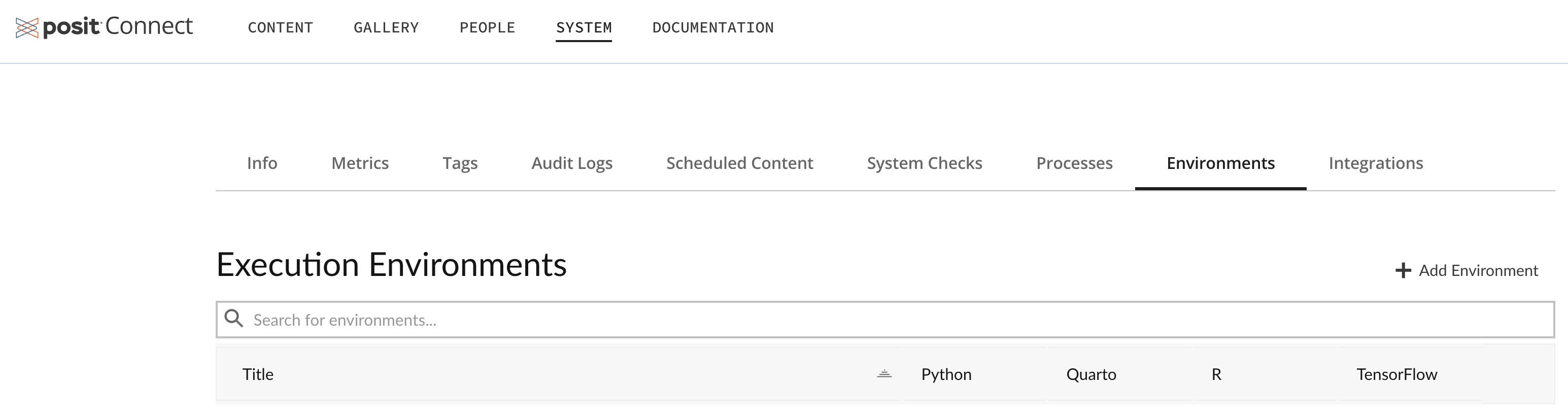
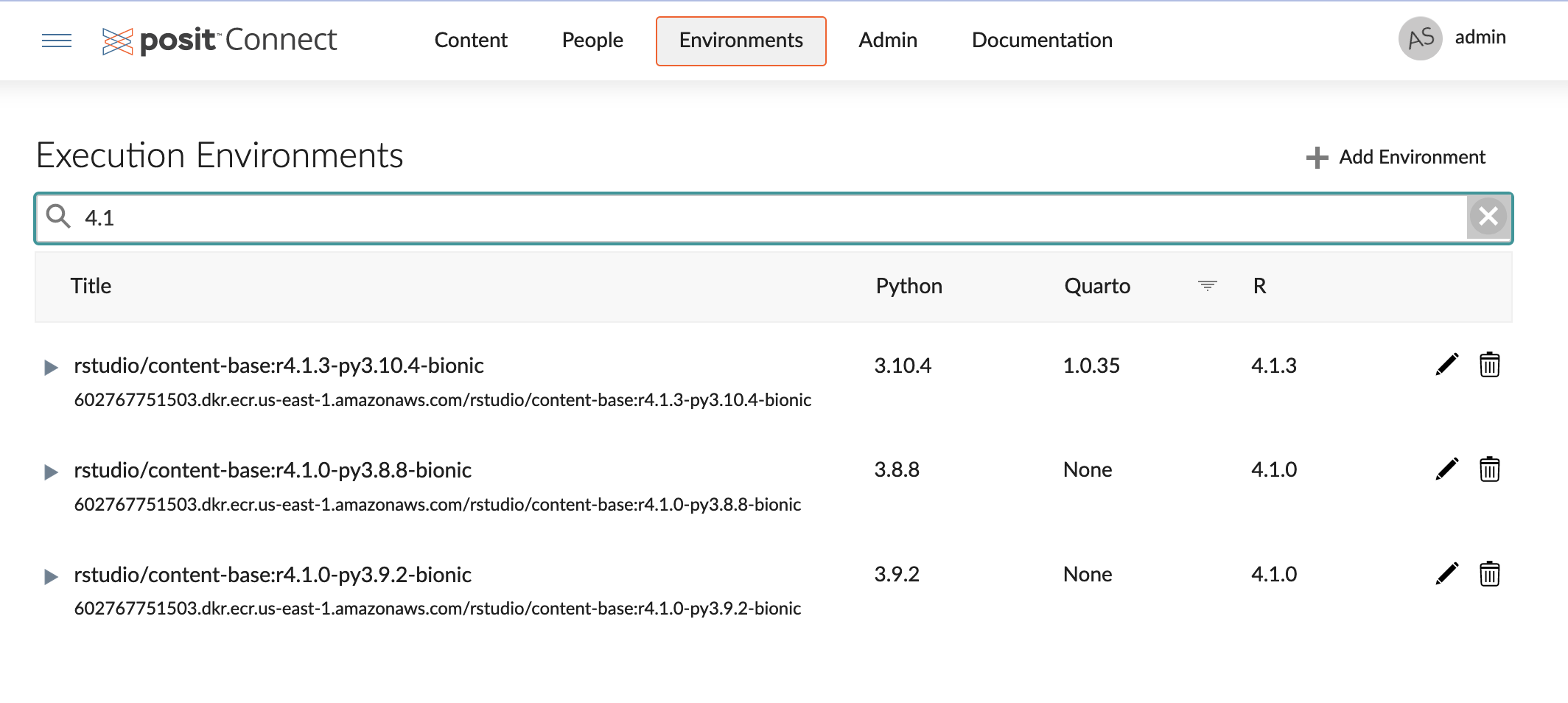
Searching environments
You can use the Environments tab to search for execution environments based on the environment’s capabilities. You can search the list of environments by title, description, image name, image GUID, supervisor script path, or installation versions. You can use the column headers to sort the results.
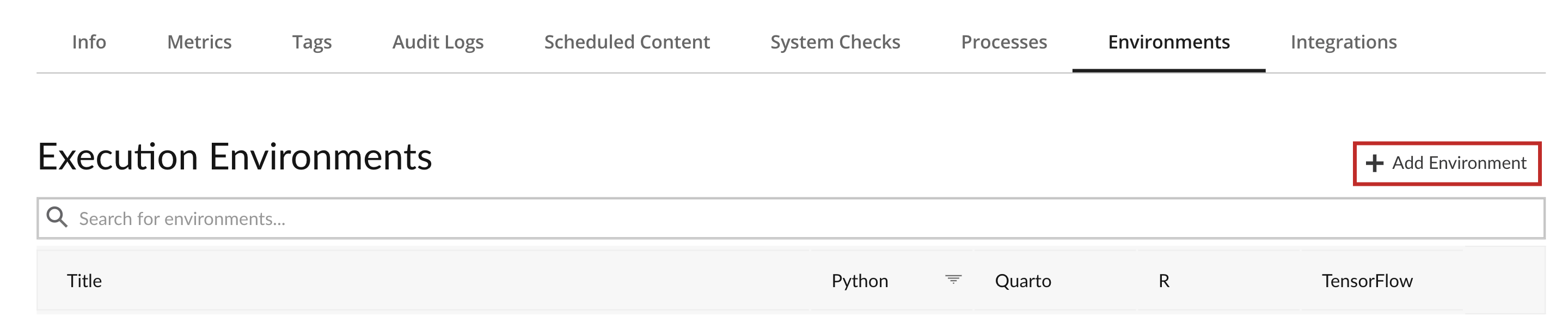
Adding new environments
To add a new execution environment:
Click + Add Environment.
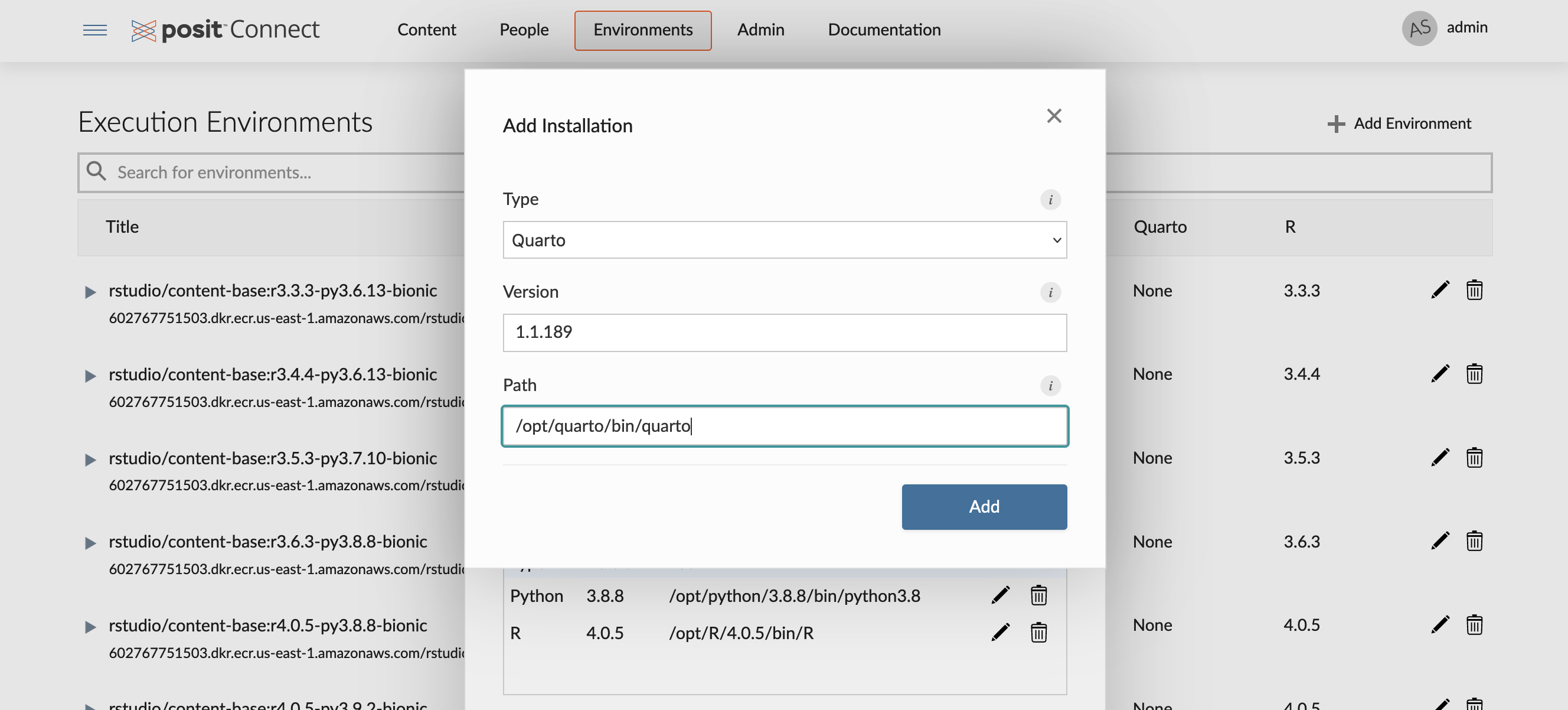
An Add Environment dialog appears. Fill in the fields as appropriate:
Include a human-readable title and description for the environment, which is useful for Publishers when they select an execution environment for their content.
Add an installation. Select the installation type, then enter the version of the language runtime and the absolute path to its executable.
Installation Add Add Volume Mounts. See the Volume Mounts section of this guide for more information.
Add users or groups in the Access Control section. See the Environment Permissions section of this guide for more information.
If needed, click Advanced to add a matching strategy and/or a supervisor for the environment.
Example configuration:
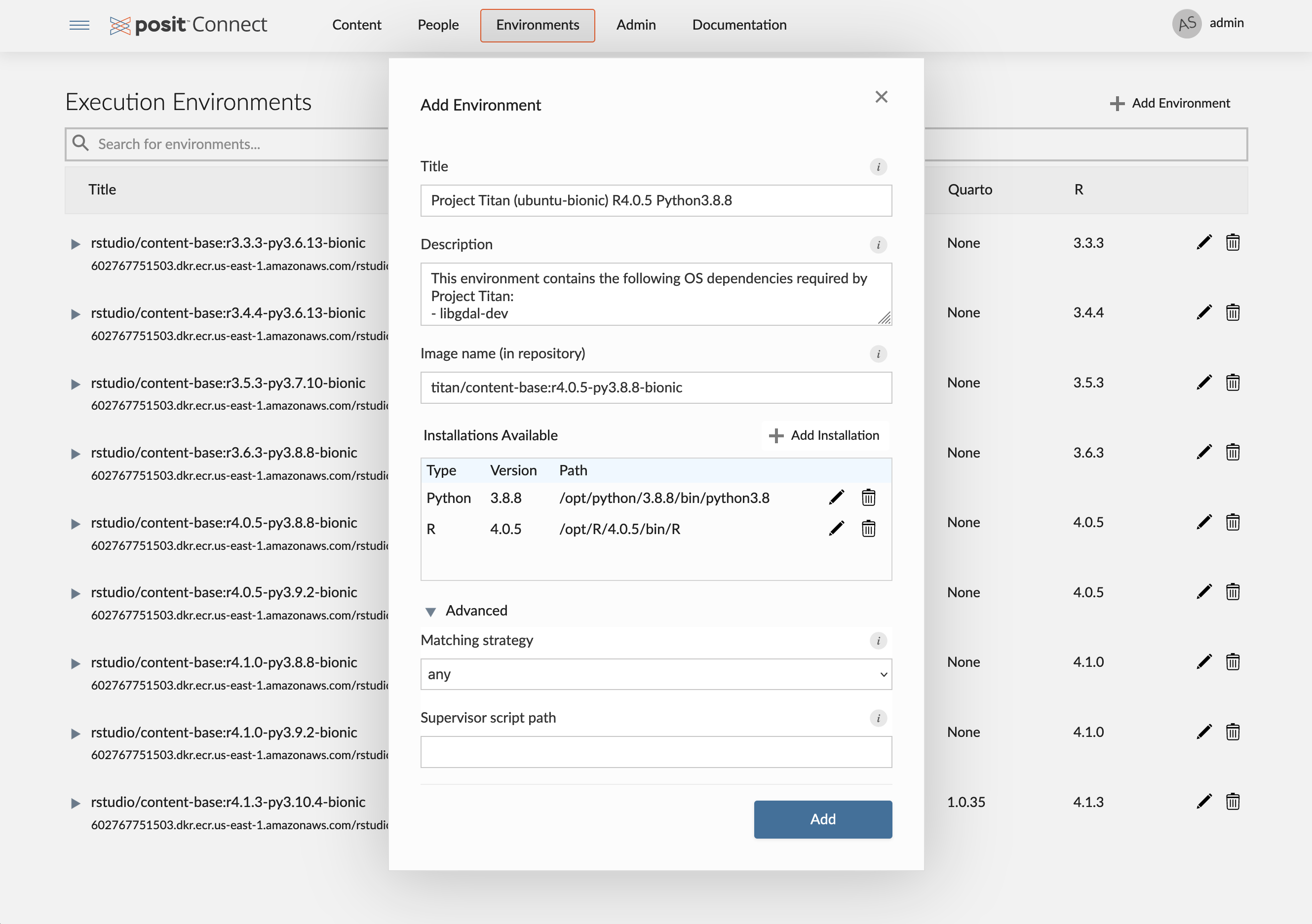
Environment Add
Restricting versions for new content
Supporting several runtime versions keeps existing content running, but you might still want new content to target a more recent version. From the Environments tab, administrators can restrict which R, Python, and Node.js versions new content is first published on. A restriction set in the configuration file takes precedence and cannot be changed from this page. See R, Python, and Node.js for the syntax each runtime accepts and how Connect selects a version.
In each environment’s installation list, a version that new content cannot use is marked with a warning. Content already published on that version continues to run and can still be updated.
Environment selection
When your content is deployed, Connect can automatically determine the most appropriate environment based on the R, Python, and Node.js version constraints declared by the content. R and Python constraints come from the bundle’s manifest.json file, while Node.js constraints come from the bundle’s package.json file.
Example manifest.json file segment:
manifest.json
"environment": {
    "python": {
        "requires": ">=3.8,<4.0"
    },
    "r": {
        "requires": ">=4.2.0,<5.0"
    }
}
For Node.js content, Connect reads the version constraint from the engines.node field in package.json:
package.json
{
  "engines": {
    "node": ">=22.18.0"
  }
}
With this information, Connect discards images that do not have compatible R, Python, and Node.js installations. From the remaining images, the best candidate is chosen by performing a pairwise comparison of the R, Python, and Node.js version components.
For content without an environment section in manifest.json, Connect uses the configured R and Python version matching algorithms for image selection. Node.js matching always uses the constraint declared in package.json.
The R.VersionMatching setting controls which R installations are considered compatible with your content. We recommend a setting of major-minor rather than the default nearest configuration. The Connect Admin Guide contains more information about R version matching.
The Python.VersionMatching setting controls which Python installations are considered compatible with your content. The default of major-minor is appropriate for most installations. The Connect Admin Guide contains additional details about Python version matching.
For Node.js, Connect selects the highest installation that satisfies the SemVer range in engines.node. If engines.node is not set, Connect uses the latest available Node.js installation. The Connect Admin Guide contains additional details about Node.js version matching.
Once an environment and appropriate R, Python, and Node.js installations are selected, Connect uses that environment to install R packages, Python packages, and Node.js packages before using that same environment to run your content.
Publisher selection
Publishers can select a specific environment for their content through the content settings in the dashboard, or the bundle’s manifest.json file. Selection is limited to the environments that they have access to, as determined by execution environment permissions.
Dashboard selection
To select an environment through the dashboard, navigate to the content settings. Under the Runtime tab, the Execution Environment section allows Publishers to select an environment to use the next time their content builds and executes. Publishers can choose between Automatic and Use a specific environment.
Modifying this selection will cause your content to rebuild the next time it runs.
If Automatic is selected, then Connect will attempt to choose an environment that meets the requirements of your content using the strategy described above. If Use a specific environment is selected, then the Publisher is presented with a dialog where they must select an environment.
The environment selection dialog provides the same filter and sort functionality as the main Environments dashboard. Publishers can use this dialog to select a compatible environment for their content.
The environment selected must satisfy the Python, R, and Node.js version requirements of your content using the same version-matching criteria listed above. If the environment is not compatible, then Connect cannot run the content.
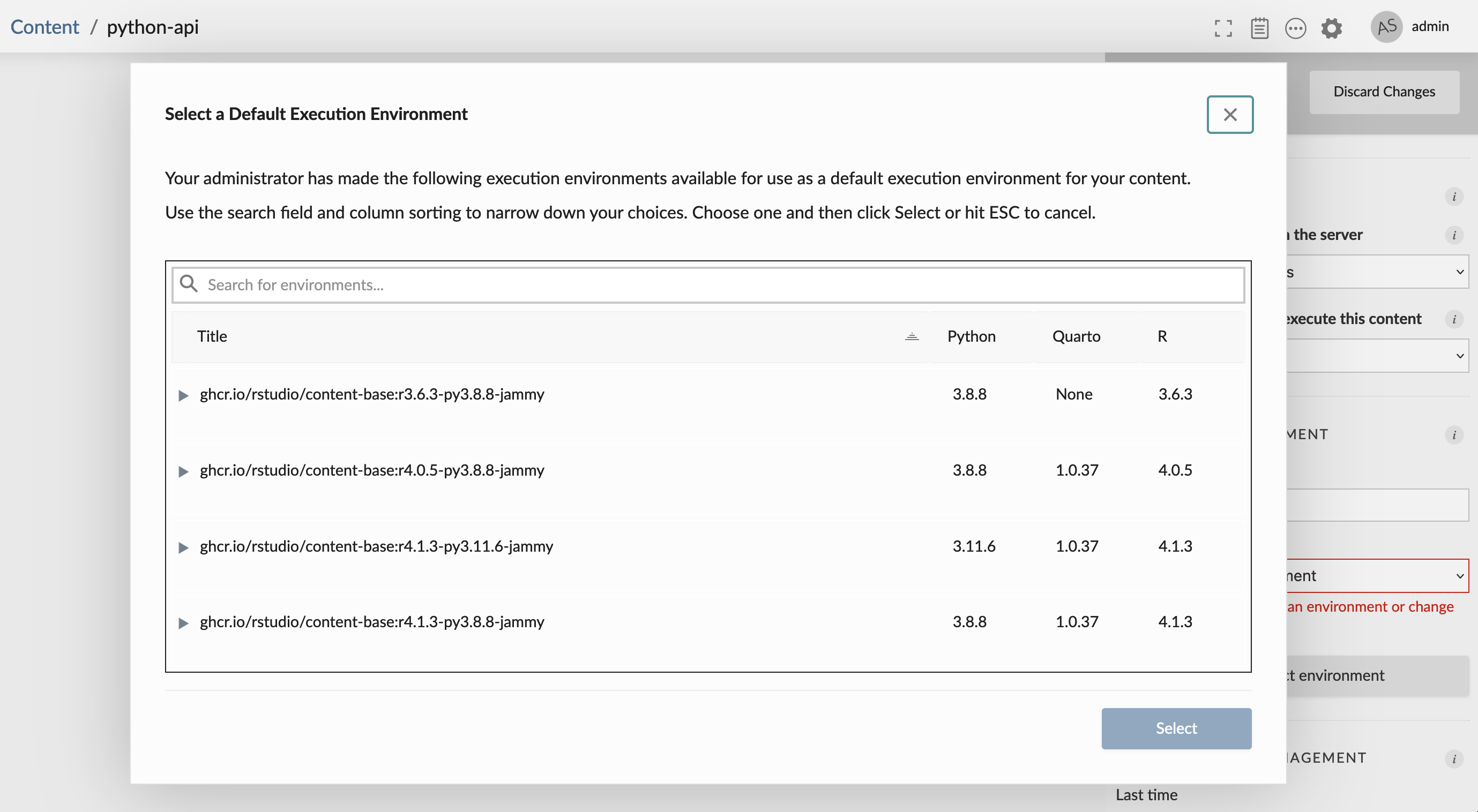
The environment selected through the content settings serves as the default environment that will be used when building and executing the content. If an image is specified by the bundle’s manifest.json, then the manifest selection is used instead. This means that bundle activation continues to work, even when the manifest selects a different image than the content’s default execution environment.
Manifest selection
Publishers can optionally set the environment.image field in the content’s manifest.json to select a container image to be used for building and executing content. This option provides a code-first approach to deployments and allows Publishers to have fine-grained control over the image used to build and execute content. It also supports image selection with git-backed deployments.
The Python client package, rsconnect-python (1.8.0+), supports an --image parameter when deploying content. Similarly, the rsconnect (0.8.26+) R package supports an image argument so that users can specify an image when deploying content to Posit Connect.
The image selected by the manifest must also have a corresponding environment entry in Connect, and the Python, R, and Node.js version requirements of your content must be satisfied using the same version-matching criteria listed above. If the environment is not compatible, then Connect cannot run the content.
Push-button deployment from the IDE does not currently support image selection.
About automatic environment selection
In some cases, it is useful to exclude an image from automatic selection. For example, a highly customized content image that is only suitable for running a very specific content item might not be generally suitable to run most content. In this scenario, users can set the matching field in the runtimes.yaml configuration to control image selection.
There are three possible values accepted by the matching field:
any(default) indicates that the image can be selected automatically by Connect, or it can be explicitly targeted by a bundle’smanifest.json.noneindicates that the image is effectively disabled. It will never be considered for selection.exactindicates that the image can only be used when it is explicitly targeted by the bundle’smanifest.json. It will not be selected automatically by Connect, even if it is compatible with the content.
Building images for use as execution environments
Images
You probably want a selection of container images that reflect the versions of Python, R, and Node.js used by your organization. We recommend images which:
Cover each MAJOR.MINOR version of R in active use.
For example, images with R 4.2.x, 4.3.x, and 4.4.x, where x is the latest patch for each release.
Cover each MAJOR.MINOR version of Python in active use.
For example, images with Python 3.10.x, 3.11.x, and 3.12.x, where x is the latest patch for each release.
Include a Quarto version compatible with your content.
A single Quarto version per image is typically sufficient.
Cover each MAJOR version of Node.js in active use.
For example, images with Node.js 22.x and 24.x, where x is the latest minor and patch combination for each release line. Connect supports Node.js 22.18.0 and later.
Posit has created a set of basic images that are available to use in your environment. Each image uses the Ubuntu 22.04 LTS (Jammy Jellyfish) release and includes single versions of R, Python, and Quarto, and system libraries commonly used by content packages.
- The Python installation is available at
/opt/python/<VERSION> - The R installation is available at
/opt/R/<VERSION> - The Quarto installation is available at
/opt/quarto/<VERSION>
Available images are provided in the table below. New images may be added as new Python, R, and Quarto releases occur. If these images do not suit your organization, you can create and use custom images.
These images are available from GitHub Container Registry at posit-dev/images-connect.
The source that builds these images is available from GitHub: https://github.com/posit-dev/images-connect
The stock posit-dev/images-connect images do not include Node.js. To run Node.js content under off-host execution, register a separate execution environment that points at an image with Node.js installed. See Creating a Node.js execution environment in the cookbook for a step-by-step walkthrough using the official Docker node image.
Custom images
You are welcome to create your own images by extending the ghcr.io/posit-dev/connect-content images or by creating new images from scratch.
Some general guidance when creating your own images:
Prefer smaller images where possible. Large images lead to increased launch times, as images may need to be downloaded from their hosting repository.
An image should contain at least one R, Python, Quarto, or Node.js installation.
Images should include the system dependencies of the Python, R, and Node.js packages you use.
Consider having Posit Connect use different, smaller images than you use during development.
You do not need to include R, Python, and Node.js in every image; choose combinations that mirror what you use during development.
You do not need to produce an image for every patch release of Python, R, and Node.js the most recent patch for each MAJOR.MINOR release is usually sufficient.
For further information, see Environment Management.
Runtime components
Custom images do not need to contain any runtime components of Posit Connect. When a Job is launched, the container is augmented with the required runtime components using an init-container, which means the content image does not need to be rebuilt for a particular version of Posit Connect. For more details about the init-container, see the Runtime Init-Container section.