Overview page
The Overview page is where you check what version of Posit Package Manager you are running and which features it exposes. Open it from Settings > Overview.
Common reasons to visit:
- Confirming your license tier, expiration date, and how many repositories you have left before you hit the cap.
- Checking whether Single Sign-On (SSO), vulnerability scanning, or a specific capability is actually on in this instance.
- Deciding what is worth setting up next — the page shows what you have not enabled yet.
- Finding the docs for a feature you are about to configure, without hunting through the sidebar.
- Filing a support ticket and needing the system information at a glance.
You cannot change anything from this page. Follow the linked documentation for configuration steps.
Signing in
You need a session with global:admin scope — either an API token or a Single Sign-On (SSO)-authenticated user mapped to the admin role. Package Manager redirects anything less to the home page.
- Sign in with an admin API token or an SSO-authenticated user. See Token Authentication for CLI-based token creation or Authentication for OpenID Connect / SSO setup.
- Click the Settings icon in the top navigation bar.
- Overview is the settings landing page.
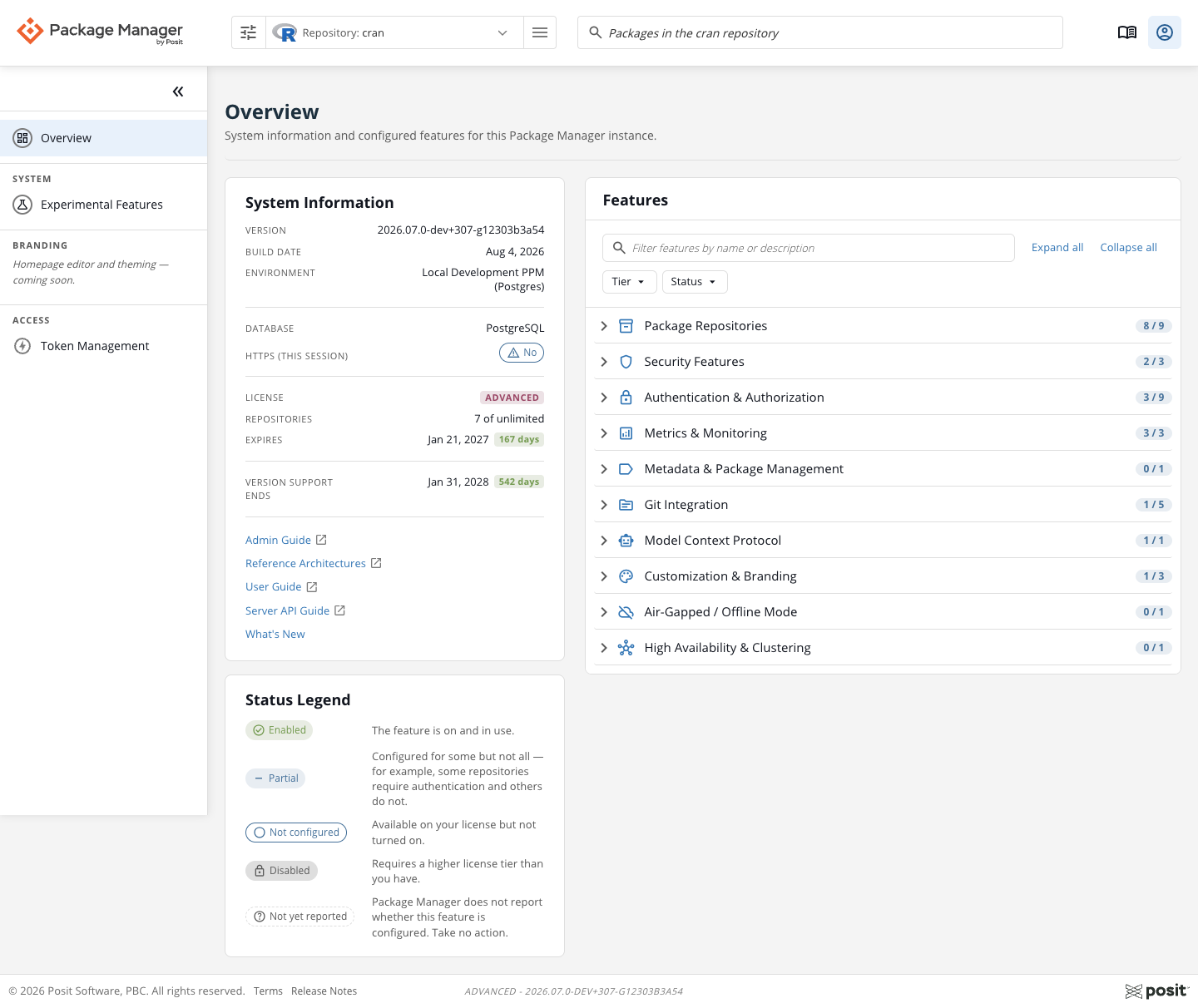
What the left column tells you
System Information: version, build date, and environment. Copy the version string when you file a support ticket; that number is the first thing support will ask for.
Configuration: database backend (SQLite or PostgreSQL, with version if reported), HTTPS status, Hide Version, Product Update Check, and any active feature flags. If something on your instance is behaving unexpectedly, this is the fastest check of the environment.
License: tier badge, expiration date, and repository count against your entitlement. The Repositories row (N of M, or N of unlimited) is the same count the license enforcer uses. On an Enhanced license, 9 of 10 means one repository left before creation starts failing. N of unlimited means the license sets no repository cap.
Under the license section: quick links to Admin Guide, Reference Architectures, User Guide, Server API Guide, and the in-app What’s New page.
The Status Legend card underneath keeps the pill-color definitions visible while you scan the Features area on the right.
What the right column tells you
The right column groups reported features by category. Categories include Package Repositories, Security Features, Authentication & Authorization, Metrics & Monitoring, Git Integration, Model Context Protocol, Experimental Features (present only when the release contains experimental features), Customization & Branding, Air-Gapped / Offline Mode, and High Availability & Clustering. Each category shows enabled features out of the features visible under the active filters, so the count updates as you filter.
Each feature row shows one of five status pills:
| Status | What it means | What to do |
|---|---|---|
| Enabled (green) | The feature is on and in use. | Take no action. |
| Partial (blue) | Configured for some but not all — for example, some repositories require authentication and others do not. | Review the feature’s setup if you want it applied uniformly. |
| Not configured (blue outline) | Available on your license but not turned on. | Open the feature’s docs menu (see below) for setup steps. |
| Disabled (gray) | Requires a higher license tier than you have. | Contact your Posit account team to discuss upgrading. |
| Not yet reported (dashed) | Package Manager does not report whether this feature is configured. | Take no action. |
Enhanced and Advanced features show a tier badge. Basic features do not. Use the Tier filter to show features from a specific tier.
Finding something specific
Three filters on top of the Features area, all combinable:
- Keyword search: feature name and description (case-insensitive substring).
- Tier: Basic, Enhanced, Advanced.
- Status: Enabled, Partial, Not configured, Disabled, Not yet reported.
Clear filters appears above the categories while any filter is active. Filters reset on reload — a fresh visit always starts unfiltered.
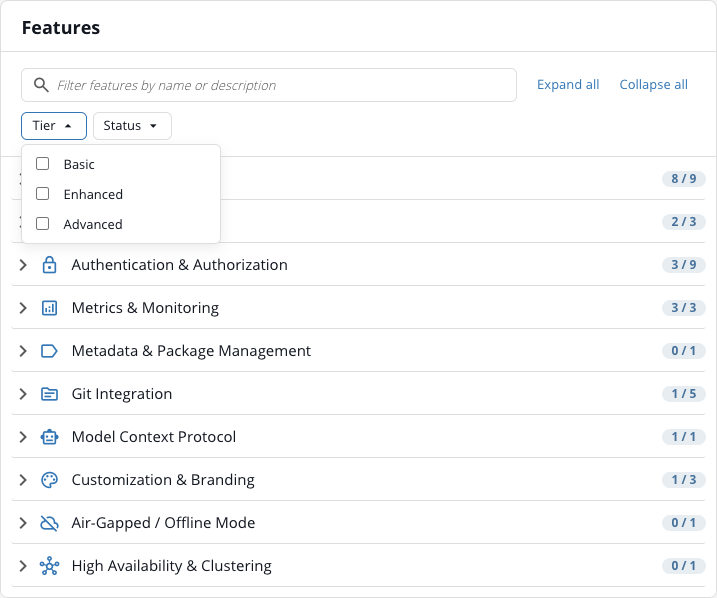
Useful filter combos:
- Select Status = Not configured to show available features that are not enabled.
- Select Tier = Advanced and Status = Disabled to show Advanced features unavailable under the current license.
- Select Tier = Basic to show Basic features.
- Search for
authto show features whose names or descriptions contain that text.
Focusing on one category
Click a category heading to collapse or expand just that group. Your collapse choices persist per browser — if you only care about Package Repositories, hide everything else once and it stays hidden across visits.
Expand all and Collapse all at the top of the Features area update the persisted state for every visible category. While a filter is active, categories that match the filter are always shown expanded so their matches stay readable — the collapse-all click still records your preference, and it takes visible effect the moment you clear the filter.
Jumping to a feature’s docs
When a feature has documentation, a small book icon appears next to its name. Click it for a menu of the targets that exist for that feature:
- Admin Guide: setup and configuration.
- User Guide: how end users interact with it.
- CLI Reference: the matching
rspmsub-command. - Server API: the API reference (Swagger).
The menu lists only configured documentation links.