Posit Team Native App
Posit Team hosted in Snowpark Container Services
Overview
Running Posit Team as a Snowflake Native App gives data scientists a familiar development environment, a content and reporting management system, and a vendored package manager. Everything runs within Snowpark Container Services (SPCS).
The Posit Team Native App includes:
- Posit Workbench Generally Available
- A cloud development environment for data scientists. Learn more in the Workbench documentation.
- Posit Connect Generally Available
- A publishing platform for the work your teams create in R and Python. Learn more in the Connect documentation.
- Posit Package Manager Generally Available
- A repository management server to organize and centralize R and Python packages across your team, department, or entire organization. Learn more in the Package Manager documentation.
Administrators choose which products to install.
Requirements
Use of Posit Team within Snowpark Container Services requires an Advanced tier license for Posit Team.
Posit recommends the ACCOUNTADMIN role (Snowflake AccountAdmin role details) to install Posit Team as a Snowflake Native App. Alternatively, you can use a custom role with equivalent privileges. See installation prerequisites for details.
AWS PrivateLink
Posit Team supports installation into a Snowflake account configured to use AWS PrivateLink.
To use AWS PrivateLink with Posit Team, your Snowflake account must:
- Be a Business Critical account
- Have AWS PrivateLink enabled and authorized
- Be able to resolve AWS PrivateLink traffic via private connectivity with a valid Network Load Balancer DNS
The AWS PrivateLink documentation contains instructions to check and adjust your account configuration.
Azure Private Link
Posit Team supports installation into a Snowflake account configured to use Azure Private Link.
To use Azure Private Link with Posit Team, your Snowflake account must:
- Be a Business Critical account
- Have Azure Private Link enabled and authorized
- Be able to resolve Azure Private Link traffic via private connectivity with a valid Network Load Balancer DNS
The Azure Private Link documentation contains instructions to check and adjust your account configuration.
Getting started with Posit Team Native App
Accessing Posit Team
If you already have the Posit Team service URL, you can access it directly. Otherwise, use Snowflake to discover the Posit Team Native App.
Visit Catalog > Apps and click Posit Team.
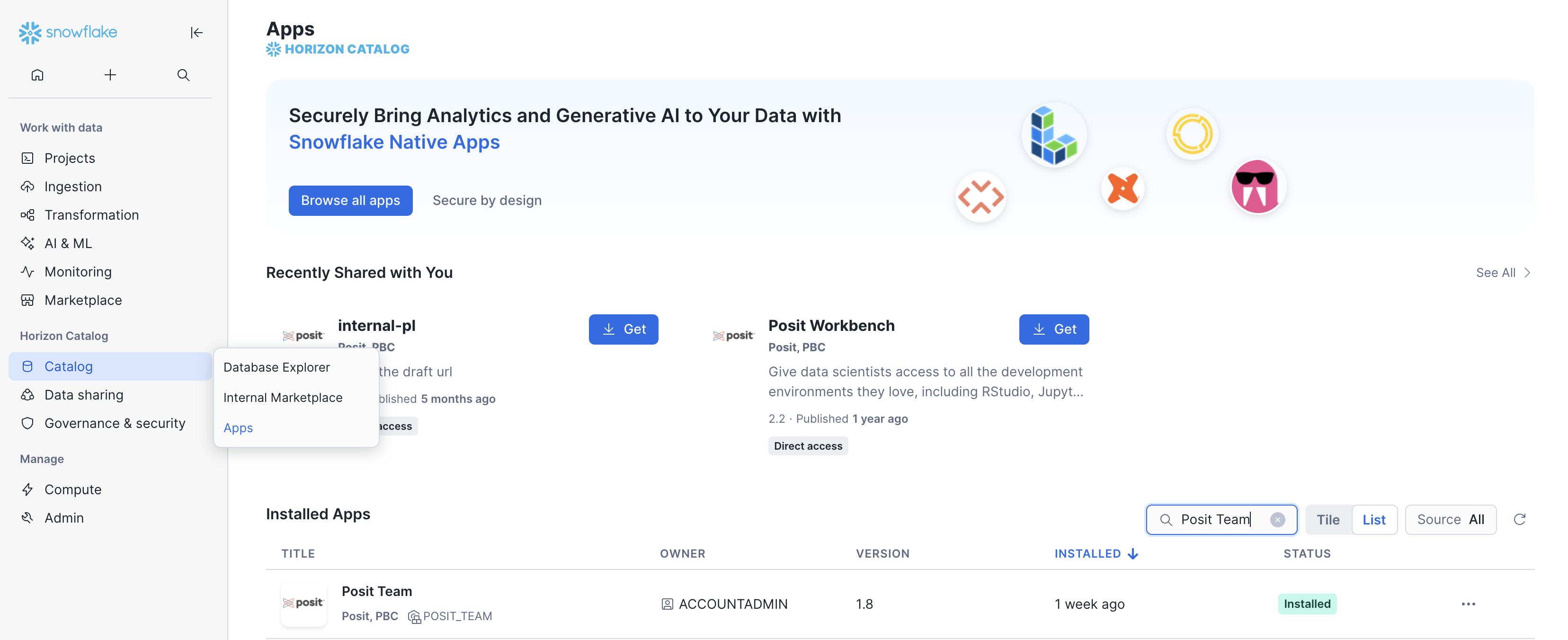
Posit Team app in the Snowflake Catalog Apps section Click Launch app.
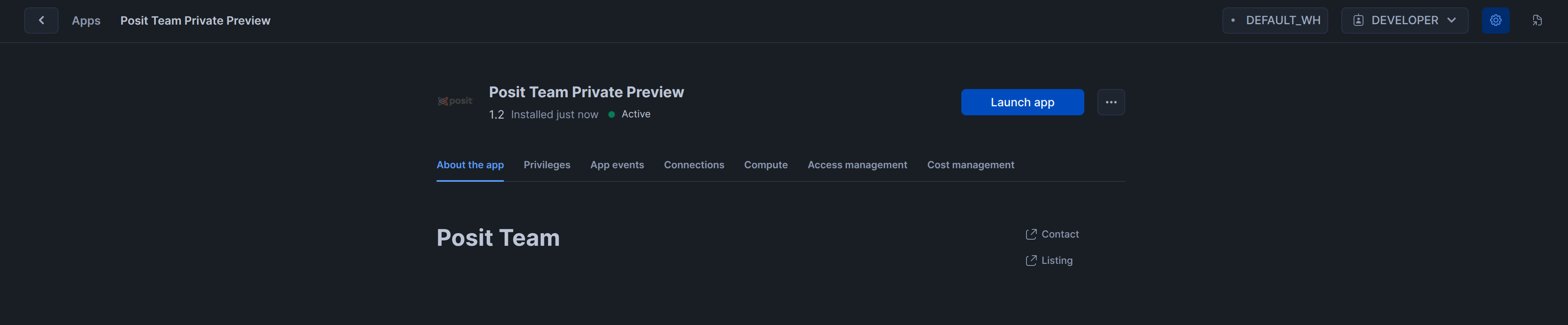
Launch the Posit Team Native App
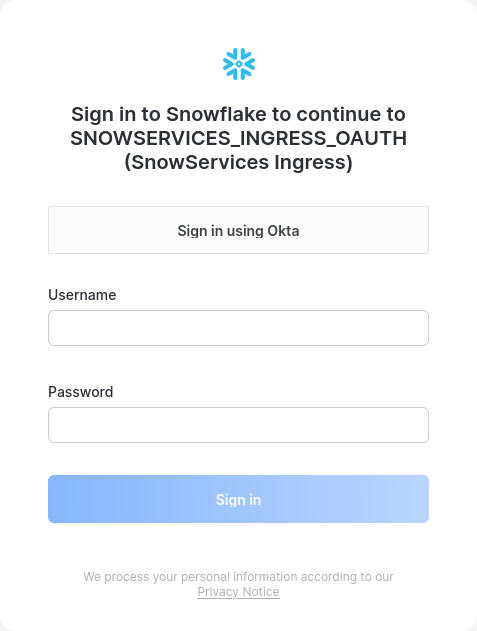
Posit Team prompts you to log in when you visit. Sign in using the authentication method configured for your Snowflake account. Posit Team uses the single sign-on (SSO) workflow supported by Snowflake.
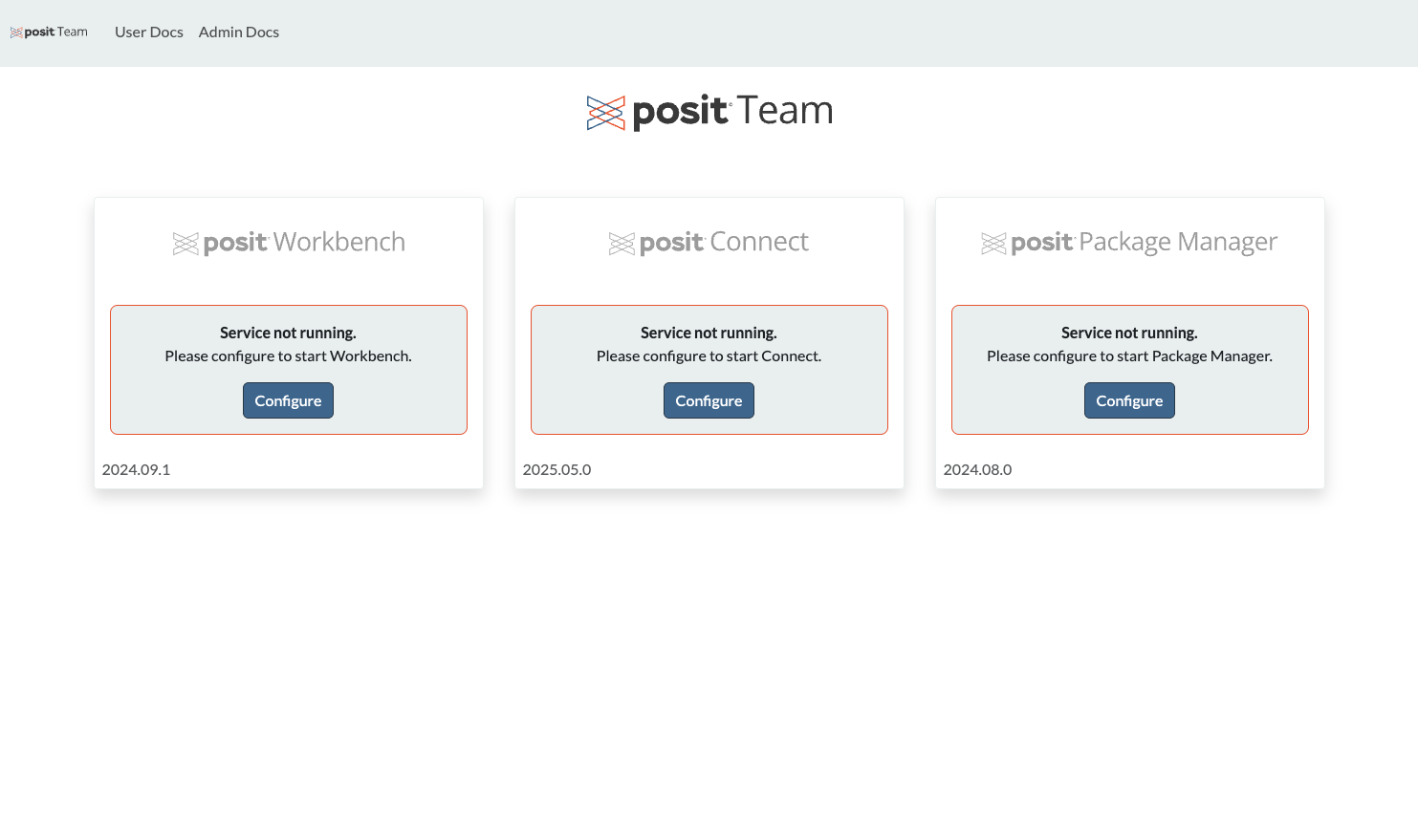
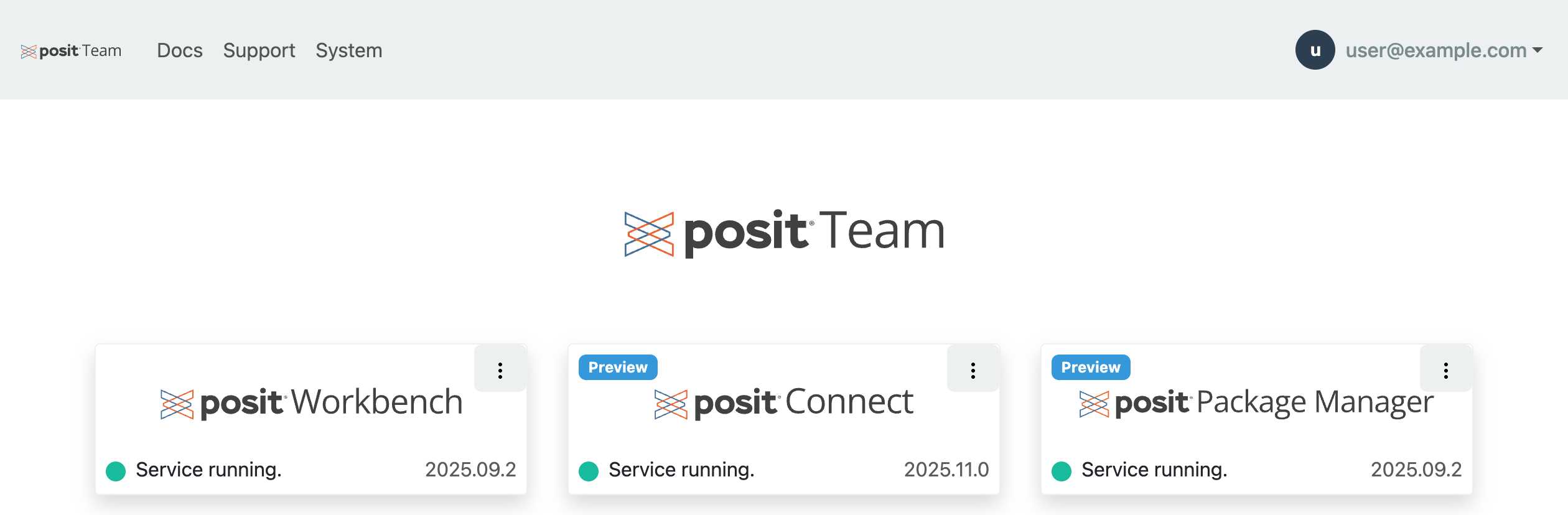
After you sign in, the Posit Team landing page loads.

Users can access Posit Team through Launch app in their Snowflake accounts or by accessing the Posit Team URL directly.
Set up products
After installing Posit Team, configure and launch the products you want to run. Click the individual product card from the Posit Team landing page to get started.
Product access
After configuring and installing a product, users can visit that product by clicking the individual product card from the Posit Team landing page.
Manage products
Once a product is installed, you can use the management page to modify its configuration. From the Posit Team landing page, click the menu icon (vertical dots) for each product and click Manage.
Application roles
The Posit Team Native App has POSIT_* application roles which are similar to account roles but scoped to the application. Refer to the Snowflake roles documentation for a detailed explanation.
| Role | Purpose |
|---|---|
POSIT_TEAM_ADMIN |
Grants all admin permissions across Posit Team products. Includes all permissions from POSIT_CONNECT_ADMIN, POSIT_PACKAGE_MANAGER_ADMIN, and POSIT_WORKBENCH_ADMIN.We recommend granting this application role sparingly. A user with this role can manage all Posit Team products. |
POSIT_TEAM_USER |
Grants all user permissions across Posit Team products. Includes all user permissions from POSIT_CONNECT_PUBLISHER, POSIT_CONNECT_VIEWER, POSIT_PACKAGE_MANAGER_USER, and POSIT_WORKBENCH_USER. |
POSIT_WORKBENCH_ADMIN |
Grants access to Workbench administrative functions. Also grants all permissions that the POSIT_WORKBENCH_USER has.We recommend granting this application role sparingly. A user with this role can manage Workbench. |
POSIT_WORKBENCH_USER |
Can access Workbench and view the status of the service. |
POSIT_CONNECT_ADMIN |
Grants access to Connect administrative functions. Also grants all permissions that the POSIT_CONNECT_PUBLISHER and POSIT_CONNECT_VIEWER have.We recommend granting this application role sparingly. A user with this role can manage Connect. |
POSIT_CONNECT_PUBLISHER |
Can publish content within Connect. |
POSIT_CONNECT_VIEWER |
Can view content within Connect. |
POSIT_PACKAGE_MANAGER_ADMIN |
Grants access to Package Manager administrative functions. Also grants all permissions that the POSIT_PACKAGE_MANAGER_USER has.We recommend granting this application role sparingly. A user with this role can manage Package Manager. |
POSIT_PACKAGE_MANAGER_USER |
Can access Package Manager and view the status of the service. |
You can manage access through the Snowsight UI or by using SQL. Replace the placeholder role names in the example below with the names of the desired roles in your Snowflake account. You can grant users either specific product user roles (such as POSIT_CONNECT_PUBLISHER, POSIT_WORKBENCH_USER, etc.) or the POSIT_TEAM_USER role, which is a superset that includes all product-level user roles.
Snowsight UI
GRANT APPLICATION ROLE posit_team.posit_team_user_role to ROLE my_user_role;
GRANT APPLICATION ROLE posit_team.posit_team_admin_role to ROLE my_admin_role;
To grant access through the UI, click Access management in the top navigation bar.
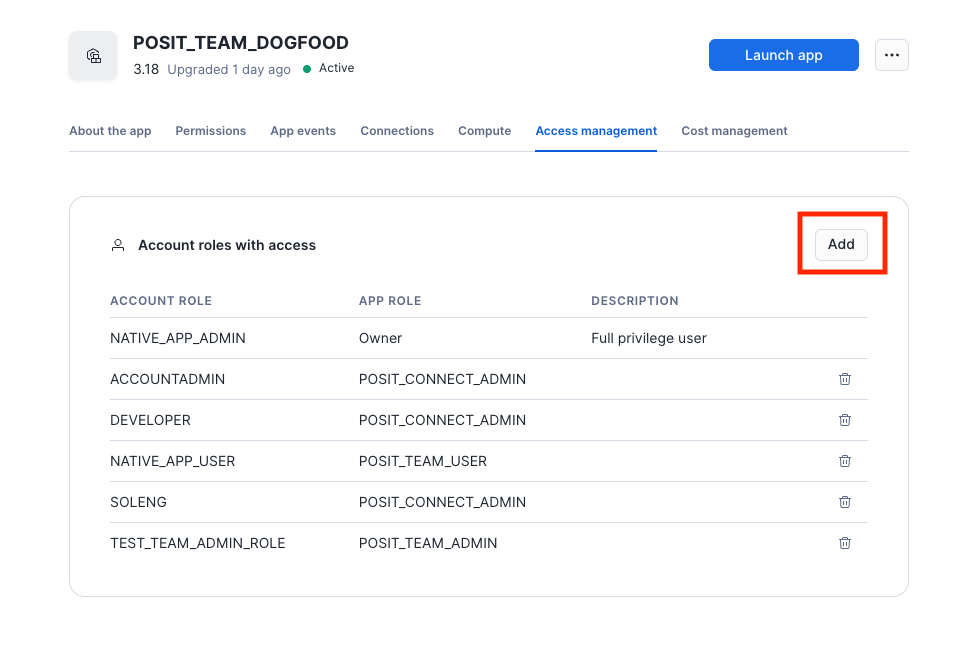
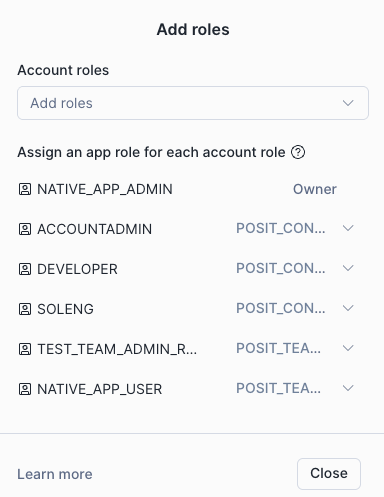
Select a role and grant the desired application role(s).
Snowflake sets all users’ DEFAULT_SECONDARY_ROLE to ALL (BCR-1692). This allows roles to inherit all the privileges of any other roles that they have been granted. In the context of the Posit Team Native App, users with higher privileges (for example, ACCOUNTADMIN) can access the Native App even if they have not been granted access explicitly in the UI.
To disable this setting, admins can enforce a session policy blocking secondary roles. However, users might encounter authentication issues. In that case, ensure that the default role for any user authenticating to the Posit Team App is set to either POSIT_TEAM_ADMIN or POSIT_TEAM_USER.