Troubleshooting Posit Team
Support
If the troubleshooting steps on this page do not help, please submit a request through the Posit support form or click Support in the navigation header.

Debugging
Diagnostics
The Posit Team diagnostics bundle is an archive that includes service logs and other information about the environment. Share the diagnostics bundle with Posit when filing a support ticket.
Download the diagnostics bundle from the System page in the Posit Team UI.
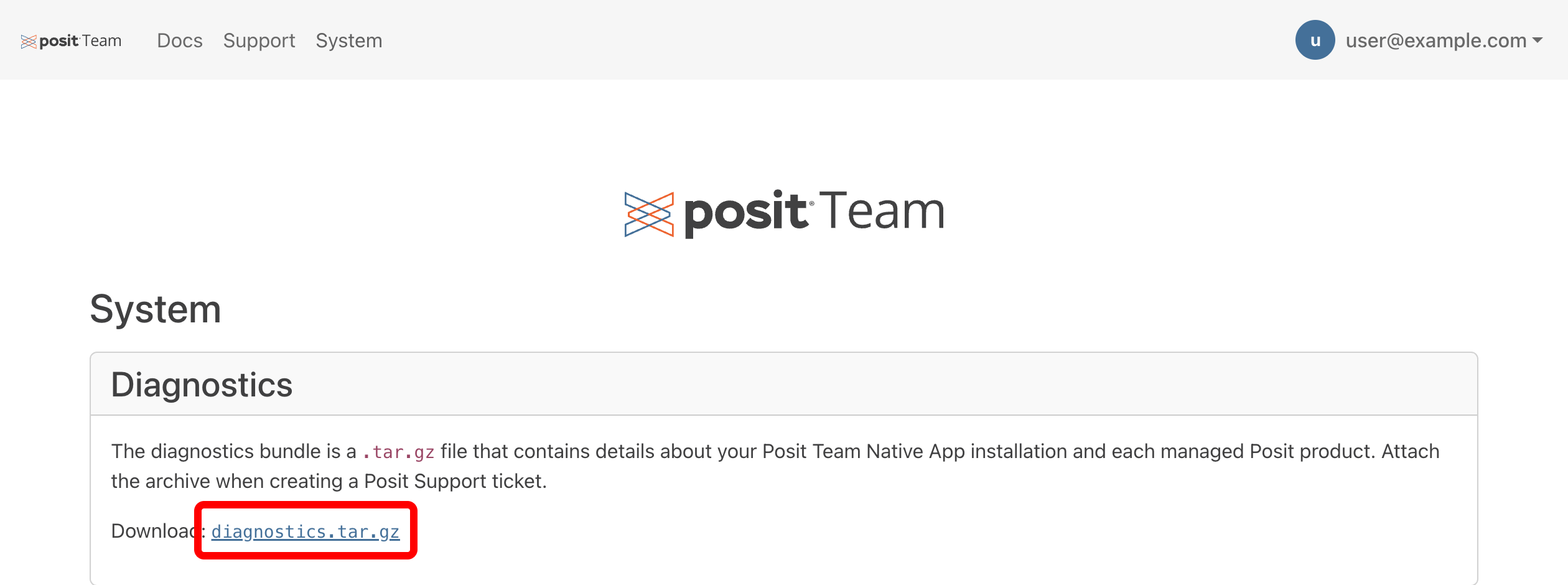
Posit Team logs
Logs for the Posit Team application are available in the diagnostics bundle, which can be downloaded from the System page in the Posit Team UI.
You can also access logs for the Posit Team controller using the SYSTEM$GET_SERVICE_LOGS Snowflake SQL function.
Snowsight UI
-- controller service logs
SELECT SYSTEM$GET_SERVICE_LOGS('POSIT_TEAM.services.controller', 0, 'controller');
If you do not have access, be sure that one of your user roles is granted the POSIT_TEAM_ADMIN application role.
Snowsight UI
GRANT APPLICATION ROLE POSIT_TEAM.POSIT_TEAM_ADMIN TO ROLE YOUR_USER_ROLE;Product health and logs
The management page for each product shows the system health and service logs for that product.
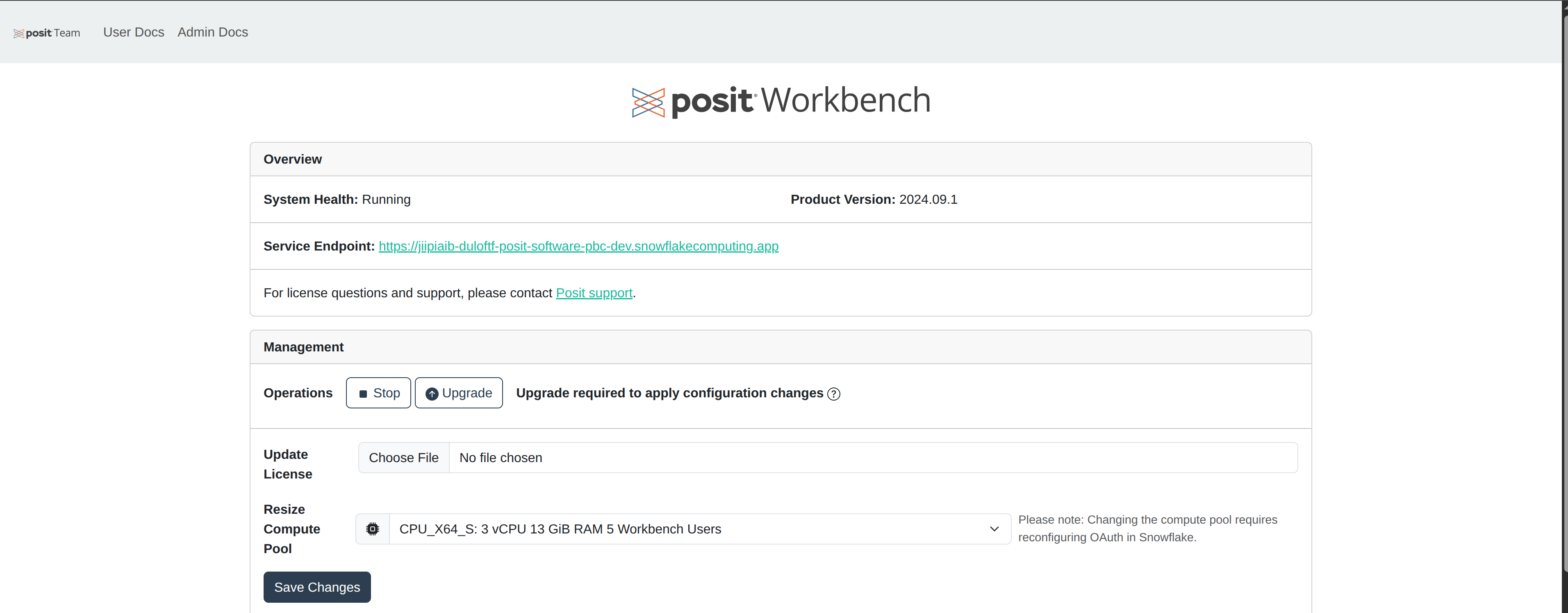
Run the following to access individual product service logs:
Snowsight UI
-- workbench service logs
SELECT SYSTEM$GET_SERVICE_LOGS('POSIT_TEAM.services.workbench', 0, 'workbench');
-- connect service logs
SELECT SYSTEM$GET_SERVICE_LOGS('POSIT_TEAM.services.connect', 0, 'connect');
-- package manager service logs
SELECT SYSTEM$GET_SERVICE_LOGS('POSIT_TEAM.services.package_manager', 0, 'package-manager');
If you do not have access, be sure that one of your user roles is granted the POSIT_TEAM_ADMIN application role.
Snowsight UI
GRANT APPLICATION ROLE POSIT_TEAM.POSIT_TEAM_ADMIN TO ROLE YOUR_USER_ROLE;Customized account parameters
To identify all non-default account parameters for troubleshooting:
Snowsight UI
SHOW PARAMETERS IN ACCOUNT;
SELECT "key" AS parameter_name, "value" AS current_value, "default" AS default_value
FROM TABLE(RESULT_SCAN(LAST_QUERY_ID()))
WHERE "value" != "default"
ORDER BY "key";
Known issues
Failed authenticating user error
By default, Snowflake assigns secondary roles as ALL. If your account has modified this default behavior, users might encounter authentication issues. In that case, users authenticating to the Posit Team Native App must set their default role to one of the application roles for Posit Team. Snowflake authentication into Posit Team uses your default role. When secondary roles are disabled, the system can only infer application roles from the default role.
We are aware of two solutions:
- Enable secondary roles for users who need access to the Native App
ALTER USER "..." SET DEFAULT_SECONDARY_ROLES=('ALL')(recommended and is the Snowflake default value). - Grant one of the application roles for the Posit Team Native App to the default role for your users. This might not be ideal because your default roles might apply to many users, including some who must not have access to Posit Team. Additionally, the user only receives the application roles attached to their default role.
Invalid consent request error
Snowflake restricts the roles which can authenticate per their Snowflake Blocked OAuth roles docs. The Workbench Native App authenticates with your default role. This error indicates that your default role is ACCOUNTADMIN, SECURITYADMIN, or ORGADMIN. To fix this issue, visit the Snowsight UI and change your default role to something other than these roles.
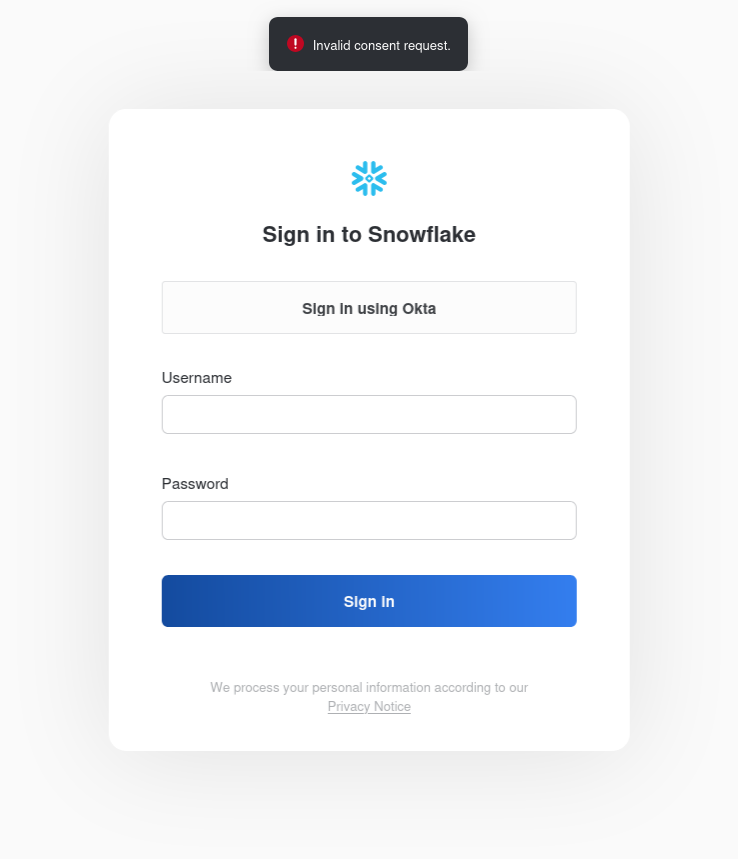
Workbench hangs in PENDING state after high memory usage
The Snowpark Container Services (SPCS) container runtime does not limit memory per user within the same container.
For an immediate fix, restart the Workbench service.
We suggest modifying your compute pool to prevent this issue from recurring.
Snowflake Cortex cross-region errors
When using Snowflake Cortex, Cortex might not be enabled on your specific account even though it is enabled on another account in your organization. You see an error message like the following.
Snowflake Cross-Region Issue ...The solution is for an administrator to enable cross region inference. The simplest solution is to enable any region, but read the docs for more specific solutions.
Snowsight UI
ALTER ACCOUNT SET CORTEX_ENABLED_CROSS_REGION = 'ANY_REGION';Workbench managed credentials or Connect Snowflake integration not working
If you use AWS PrivateLink, Azure Private Link, or an active network policy, complete the additional steps documented in AWS PrivateLink docs, Azure Private Link docs, or Network Policy docs.
Viewing backup snapshots
Posit Team intentionally blocks root and elevated access on Workbench, Connect, and Package Manager. To inspect the underlying storage of a product, use Snowflake snapshots produced by product backups. You can mount the snapshot into an SPCS container, separate from the Posit Team Native App.
We provide a bash script to start up a JupyterLab container to inspect the contents of the given snapshots at /data and then properly clean up those resources. The script takes about 2 minutes to start up JupyterLab.
Before running the script, make sure to:
- Install the snow cli, docker, and jq
- Configure at least one Snowflake connection using the snow cli. See Snowflake connection configuration docs for more information
- Use a role that has access to the database you need to copy snapshots from, and has
CREATE COMPUTE POOLprivileges
Download the script and run it with the following command:
Terminal
bash ./snapshot_viewer.shThe script guides you through:
- Selecting a Snowflake connection from your configured connections
- Entering the database name that contains the snapshots
- Selecting a snapshot from the available snapshots (size is automatically detected)
Review the script before executing. The script keeps JupyterLab running until you press Enter in the command line, at which point it cleans up the compute pool, service, and image repository.