Management
Posit Team includes a Posit Package Manager management page for an administrator to perform post-installation operations.
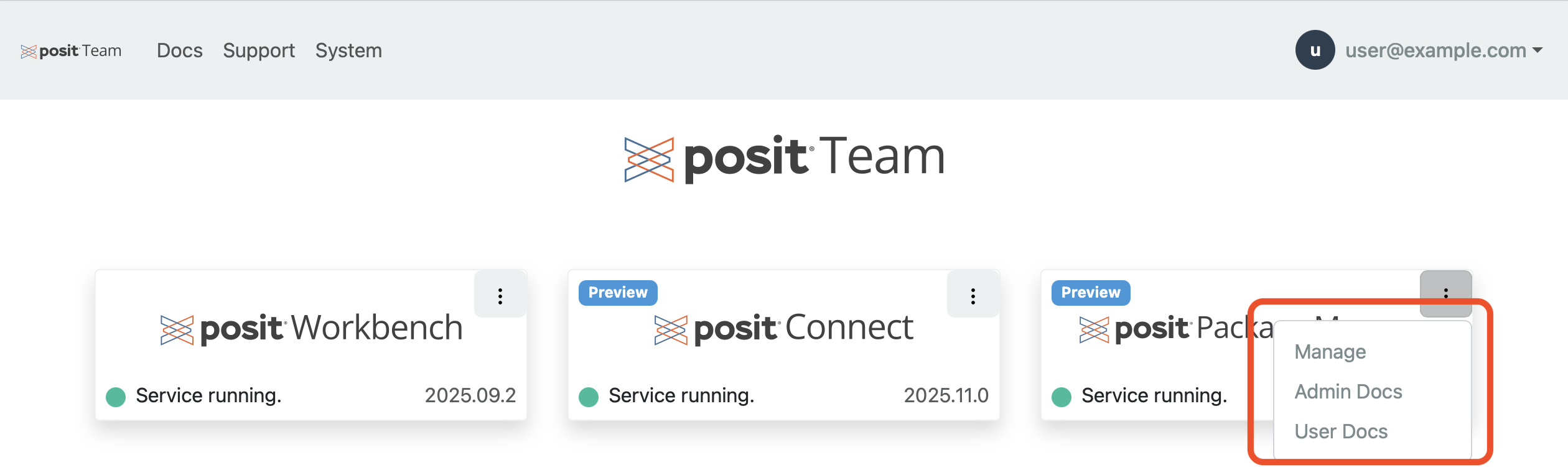
To manage Package Manager, click the menu icon (vertical dots) on the Package Manager card and click Manage.
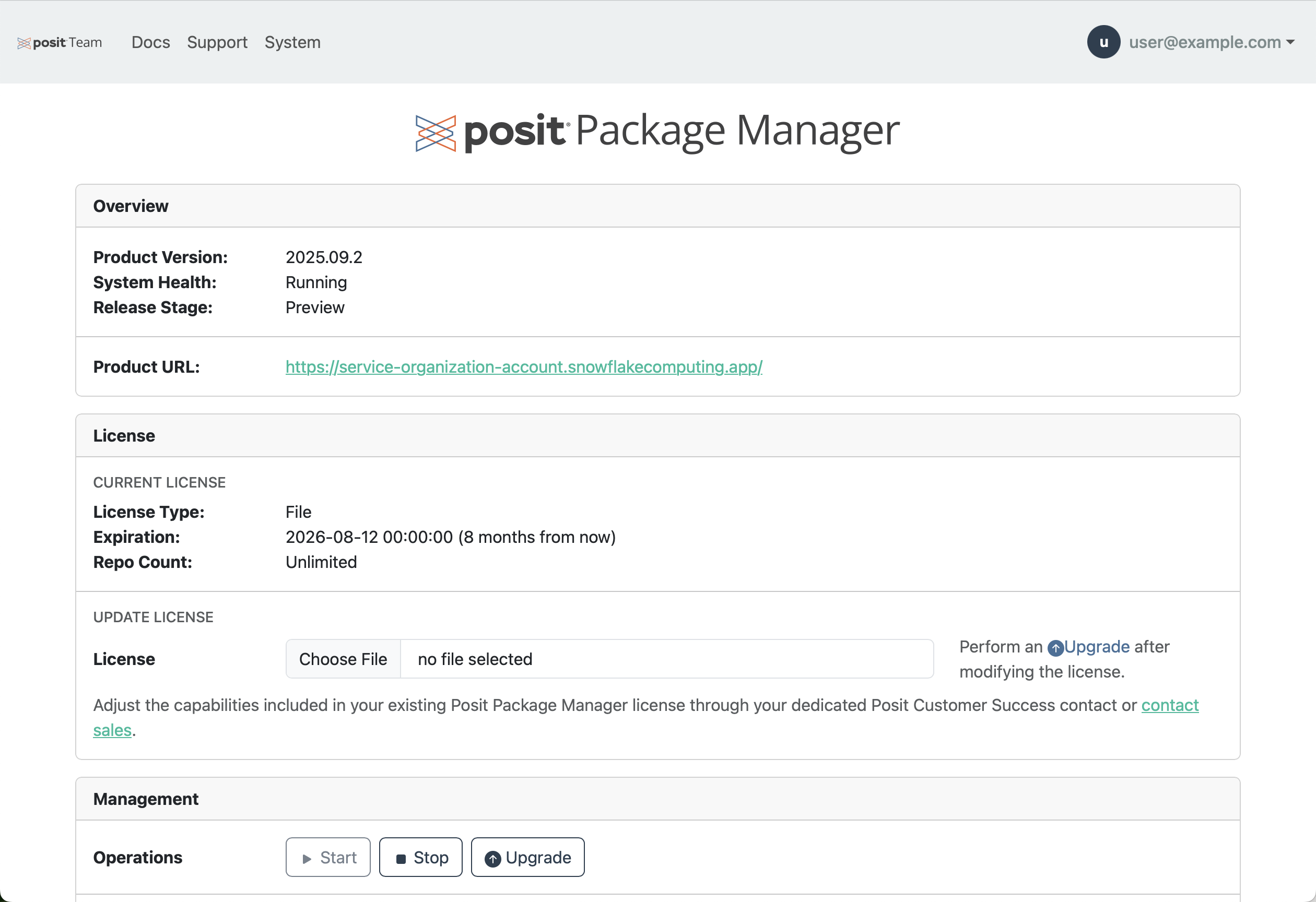
Stop, start, restart
The Package Manager service can be managed in several ways:
- Manually triggered operations
- Programmatic operations
- Scheduled operations
If there are times when Package Manager is not used, such as on weekends and holidays, stopping (suspending) the service can help reduce your Snowflake compute costs. By default, a suspended service resumes when a user visits it.
Some features of Package Manager, such as scheduled syncs, do not run while the service is suspended.
Manual operations
You can manually stop, start, and restart the Package Manager service from the Manage page.

Programmatic operations
You can start, stop, and restart the Package Manager service using SQL commands.
Start service
Starts the named product service.
Syntax
START_SERVICE(product VARCHAR)Start Package Manager within the POSIT_TEAM Native App:
Snowsight UI
SELECT POSIT_TEAM.app.START_SERVICE('package-manager');Stop service
Stops the named product service.
Syntax
STOP_SERVICE(product VARCHAR, allow_resume BOOLEAN DEFAULT TRUE)The optional allow_resume argument indicates whether or not user activity is allowed to resume the service. With allow_resume = TRUE (the default), a user visiting the product resumes the service. With allow_resume = FALSE, the service does not resume on user activity. This setting persists until an administrator starts the service from the management page or a SQL call.
The Posit Team management page for Package Manager shows a badge indicating when auto-resume is disabled. Users visiting the product through Posit Team see that the service is stopped.
Stop Package Manager within the POSIT_TEAM Native App, allowing the service to resume on user activity:
Snowsight UI
SELECT POSIT_TEAM.app.STOP_SERVICE('package-manager');Stop Package Manager within the POSIT_TEAM Native App, preventing automatic resume on user activity:
Snowsight UI
SELECT POSIT_TEAM.app.STOP_SERVICE('package-manager', FALSE);Restart service
Restarts the named product service.
Syntax
RESTART_SERVICE(product VARCHAR)Restart Package Manager within the POSIT_TEAM Native App:
Snowsight UI
SELECT POSIT_TEAM.app.RESTART_SERVICE('package-manager');Scheduled operations
Schedule the start and stop of Package Manager with Snowflake tasks. This example stops Package Manager with allow_resume = FALSE so user activity does not resume the service.
Snowsight UI
-- Create a task to stop Package Manager at 6 PM daily.
CREATE OR REPLACE TASK task_packagemanager_stop
    SCHEDULE = 'USING CRON 0 18 * * * America/New_York'
AS
    SELECT POSIT_TEAM.app.STOP_SERVICE('package-manager', FALSE);

-- Enable the stop task.
ALTER TASK task_packagemanager_stop RESUME;

-- Create a task to start Package Manager at 8 AM daily
CREATE OR REPLACE TASK task_packagemanager_start
    SCHEDULE = 'USING CRON 0 8 * * * America/New_York'
AS
    SELECT POSIT_TEAM.app.START_SERVICE('package-manager');

-- Enable the start task.
ALTER TASK task_packagemanager_start RESUME;
Upgrade
Posit frequently upgrades the Posit Team Native App and its associated version of Package Manager. When the Posit Team Native App is updated, Posit Team automatically upgrades Package Manager.
Some configuration changes require a service upgrade before they take effect. The management page indicates when configuration changes require an upgrade. Click Upgrade to upgrade Package Manager.

Change configuration
In the management page you can change the license, modify the compute pool instance family, or update user roles and access. Some changes require a service upgrade. Follow the upgrade section instructions.
Modify compute pool
The Manage page lets you change the instance family of the compute pool that runs Package Manager. Choose an instance family appropriate to your workload requirements.

Click Upgrade to apply an instance family change and restart Package Manager.
Backup and restore
Posit Team supports creating Package Manager backups. Specify a backup name or leave it blank for a randomly assigned name and click Save New Backup.

Next, wait several minutes for the backup to be created.

Restoring from a backup takes about 10 minutes. You can delete backups that are no longer needed.
Logs
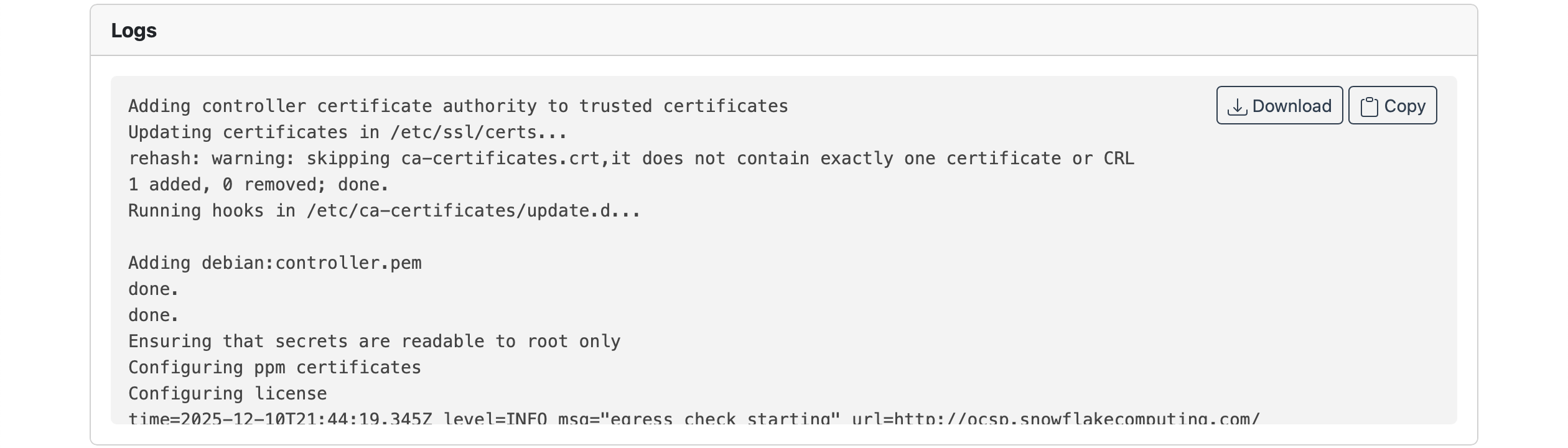
You can view logs of the Package Manager installation.
User access
Snowflake users can access Package Manager after you grant the appropriate application role to their user roles. We recommend you grant the application role POSIT_TEAM_USER to most users.
Snowsight UI
GRANT APPLICATION ROLE POSIT_TEAM.POSIT_TEAM_USER TO ROLE YOUR_USER_ROLE;To restrict user access to Package Manager only, give the application role POSIT_PACKAGE_MANAGER_USER to those users. See Managing Application Roles to learn more.
Snowsight UI
GRANT APPLICATION ROLE POSIT_TEAM.POSIT_PACKAGE_MANAGER_USER TO ROLE YOUR_USER_ROLE;Package Manager groups
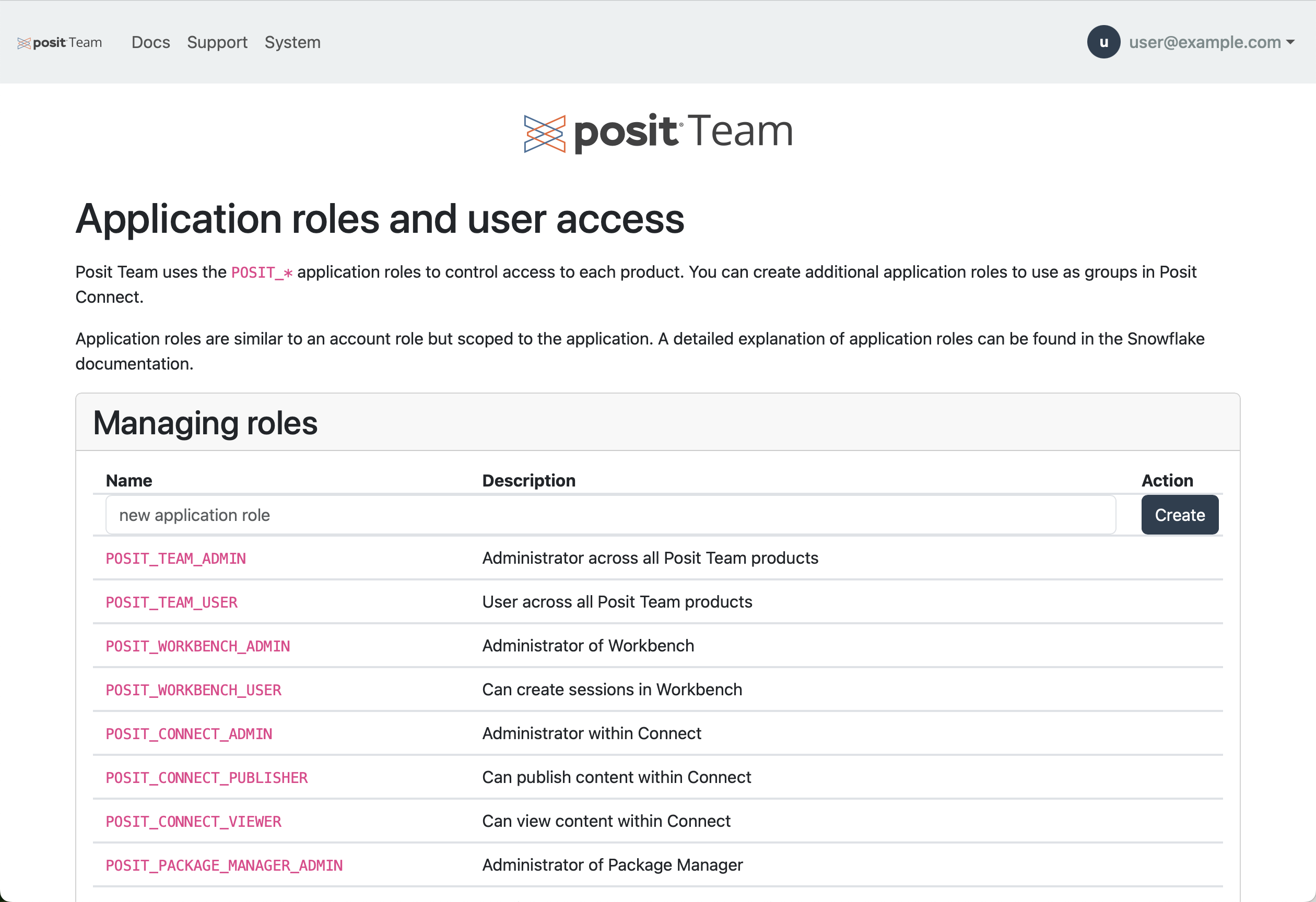
You can create additional application roles to use as groups in Package Manager. Administrators can use “groups” to associate or control access to repositories for users to view, publish, or download packages.
To add a new application role, click User Roles and Access on the Package Manager management page.

Add your custom application role to the Managing roles table and click Create.
Package Manager administration
You can only administer Package Manager through Workbench due to Snowflake Snowpark Container Services (SPCS) authentication requirements.
Within Workbench, log in to Package Manager using the pre-installed rspm command. Note that Package Manager admin credentials are only available to users with the POSIT_PACKAGE_MANAGER_ADMIN or POSIT_TEAM_ADMIN application role.
Terminal
rspm login sso --address=https://package-managerClick the single sign-on (SSO) link and copy the device code.
Once logged in, visit the Package Manager Admin CLI docs to learn how to configure repositories, sources, Git builders, package security, and much more.
Change the egress
Package Manager requires external access to two endpoints to function. Additional endpoints like github.com might be required for Git Builder functionality. See the following table for endpoints.
| Endpoints | Required | Description |
|---|---|---|
rspm-sync.rstudio.com:443 |
Yes | Required for syncing Python, R, Bioconductor packages, and VSX extensions to the internal Package Manager |
github.com:443 |
No | Required for Git builders that need to pull packages from GitHub |
Editing the default egress policy requires the ACCOUNTADMIN role. You can modify the default egress policy for Package Manager by:
- Using the Snowsight UI (recommended) or
- Writing your own SQL
To edit network rules via the Snowsight UI:
Visit Governance & security > Network policies > Network Rules.

Edit the Package Manager egress network rule and remember to include the required endpoints detailed in the security egress documentation.
Snowflake generates the egress network rule and external access integration from the application egress references at install time. Each of these names begins with your application name, so substitute your application name for POSIT_TEAM below. For an application installed as POSIT_TEAM, the Package Manager network rule is POSIT_TEAM_APP_DATA.CONFIGURATION.POSIT_TEAM_PACKAGE_MANAGER_EGRESS_NETWORK_RULE.
To edit network rules via SQL:
Find the network rule bound to the Package Manager external access integration, then modify it.
Snowsight UI
-- The ALLOWED_NETWORK_RULES property lists the fully qualified network rule
DESCRIBE EXTERNAL ACCESS INTEGRATION POSIT_TEAM_PACKAGE_MANAGER_EGRESS_EXTERNAL_ACCESS;

-- Inspect the current network rule
DESCRIBE NETWORK RULE posit_team_app_data.configuration.posit_team_package_manager_egress_network_rule;

-- include custom <host>:<port>
-- host names are allowed
-- this example policy allows all ips on port 80 and 443
ALTER NETWORK RULE posit_team_app_data.configuration.posit_team_package_manager_egress_network_rule SET VALUE_LIST('0.0.0.0:80', '0.0.0.0:443');
Modify the egress rules only after a successful installation, and only change one rule at a time, allowing two to three minutes for each rule to take effect.
Troubleshooting and support
Visit the troubleshooting page for known issues and troubleshooting steps. If none of the troubleshooting steps help, please submit a request through the Posit support form or click Support in the navigation header.
