External OAuth integrations
Posit Workbench supports external OAuth integrations with third-party data platforms, letting users securely access external resources using managed OAuth credentials. The Posit Team Native App lets you configure Databricks as an external OAuth provider.
Databricks OAuth integration
Workbench includes a native integration with Databricks, letting users access Databricks resources from their IDE sessions.
Databricks OAuth works alongside Snowflake managed credentials in Workbench, providing unified OAuth-based authentication across both platforms.
Prerequisites
Before configuring Databricks OAuth in Posit Team, complete the following:
- Create a Databricks OAuth App: In your Databricks workspace, create an OAuth application for Workbench integration
- Configure the redirect URI: Set the OAuth redirect URI to match the callback URL displayed in Posit Team
- Obtain credentials: Copy the Client ID and Client Secret from your Databricks OAuth app
For detailed instructions on creating a Databricks OAuth app, see the Posit Workbench Administration Guide - Databricks Integration.
Configuration steps
1. Access the External OAuth page
From the Workbench Manage page, select External OAuth to open the external OAuth configuration page.

2. Note the OAuth callback URL
The External OAuth page displays the specific OAuth redirect callback URL to configure in your Databricks OAuth app. Copy this URL for use in Databricks.
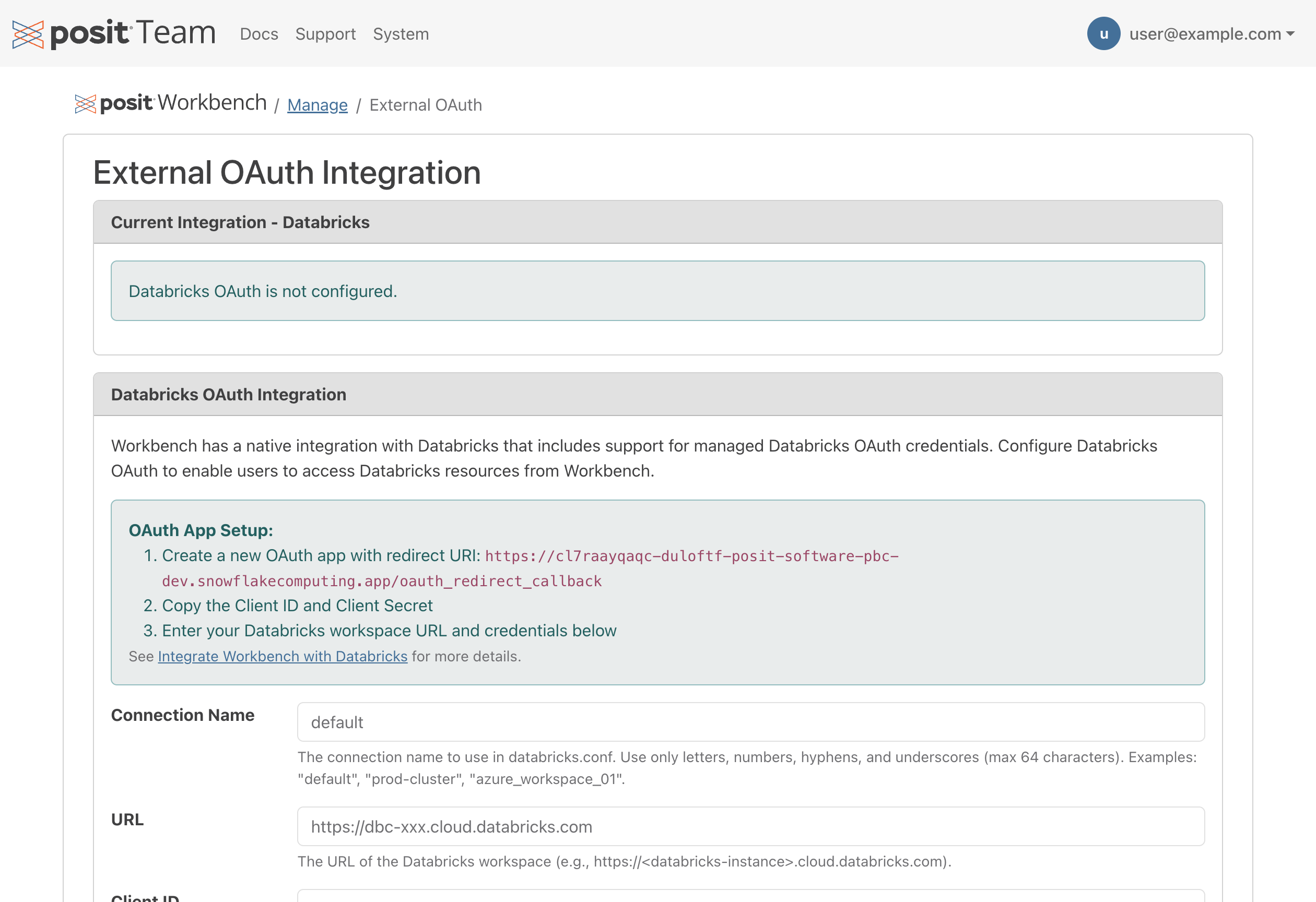
Configure the OAuth callback URL exactly as shown in your Databricks OAuth application settings. Any mismatch causes authentication to fail.
3. Configure Databricks OAuth credentials
Fill out the Databricks OAuth integration form with the following information:
Connection Name: A unique identifier for this Databricks connection (e.g., “default”, “production”, “aws-cluster”). Use only letters, numbers, hyphens, and underscores.
URL: The full URL of your Databricks workspace (e.g.,
https://dbc-a1b2c3d4-e5f6.cloud.databricks.com).Client ID: The Client ID from your Databricks OAuth application.
Client Secret: The Client Secret from your Databricks OAuth application.
4. Save the configuration
Select Configure Databricks OAuth to save your settings. The system stores the configuration in the desired state and applies it on the next service upgrade.
5. Upgrade Workbench
After saving the Databricks OAuth configuration, you must perform a Workbench service upgrade to apply the changes. The management page indicates when an upgrade is required.
Navigate to the Workbench Manage page and click Upgrade. The upgrade process takes approximately 3-4 minutes.
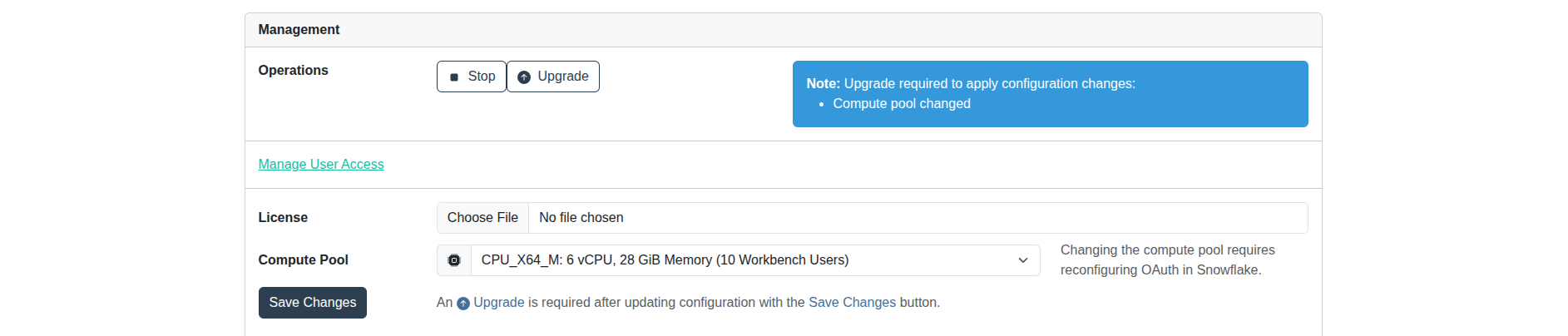
Once the upgrade completes, Databricks OAuth is active and available to all Workbench users.
How users access Databricks
After the administrator configures Databricks OAuth, users can connect to Databricks from within their Workbench sessions.
Updating the configuration
To update the Databricks OAuth configuration:
- Navigate to the External OAuth page from the Workbench Manage page
- Modify the connection name, URL, Client ID, or Client Secret as needed
- Select Configure Databricks OAuth to save changes
- Perform a Workbench service upgrade to apply the updated configuration
When updating the Client Secret, you must re-enter the full secret value. The existing secret is not displayed for security reasons.
Multiple Databricks workspaces
Posit Team supports configuring Workbench with a single Databricks OAuth integration. If your organization uses multiple Databricks workspaces, you can:
- Configure the primary workspace through the Posit Team External OAuth page
- Allow users to configure additional workspaces using personal access tokens or other authentication methods
If your organization requires multiple Databricks OAuth integrations, contact your Snowflake representative or Posit support to discuss custom configuration options.
Troubleshooting
OAuth callback URL mismatch
If users encounter authentication errors, verify that the OAuth callback URL configured in Databricks exactly matches the URL displayed in the External OAuth page.
Service not running
You can only update the External OAuth configuration when Workbench is running. If you receive an error about service status, start Workbench from the Manage page before attempting to configure OAuth.
Invalid connection name
Connection names must contain only alphanumeric characters, hyphens, and underscores. Special characters, spaces, or other symbols cause validation errors.
URL validation errors
Ensure your Databricks workspace URL is from a recognized Databricks domain. Contact Posit support if you use a custom domain that is not recognized.
Additional resources
For more information on Databricks integration with Workbench, see: