Set up Package Manager
Get started
If Posit Package Manager is not already configured from the landing page and running, select the Package Manager logo.
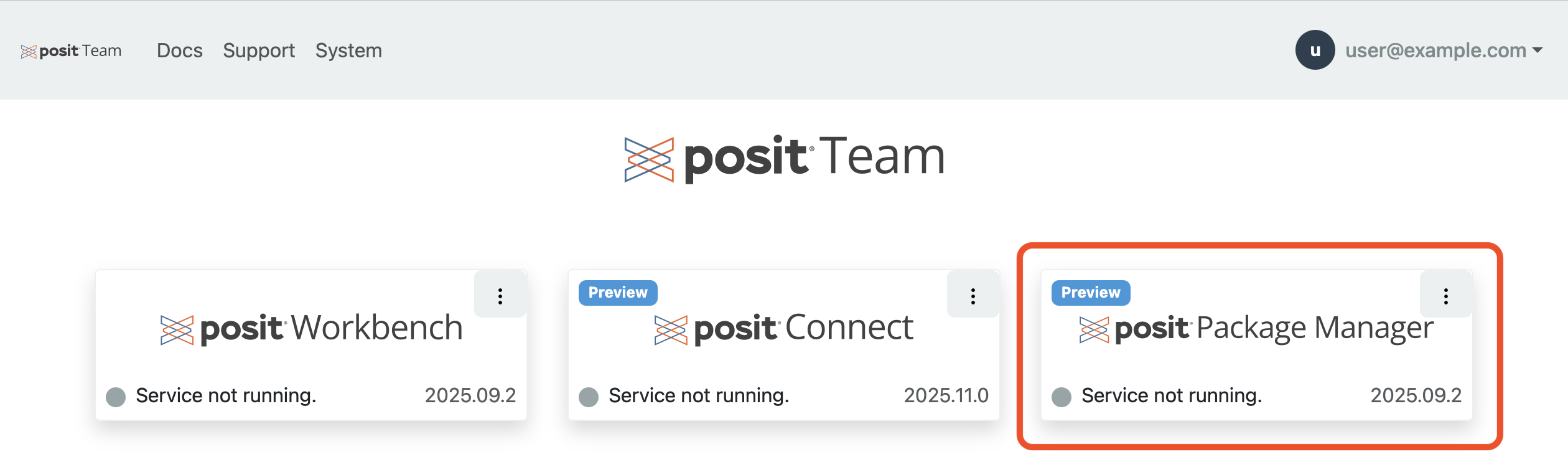
Package Manager setup requires application roles POSIT_TEAM_ADMIN or POSIT_PACKAGE_MANAGER_ADMIN. See the top right corner to view your permissions. If you originally installed the Posit Team Native App, you already have all roles.
Configuration
License
Package Manager requires an Advanced license file. If you have a license file, upload it via the file input to validate it. If you do not have a license file, please contact Posit sales.
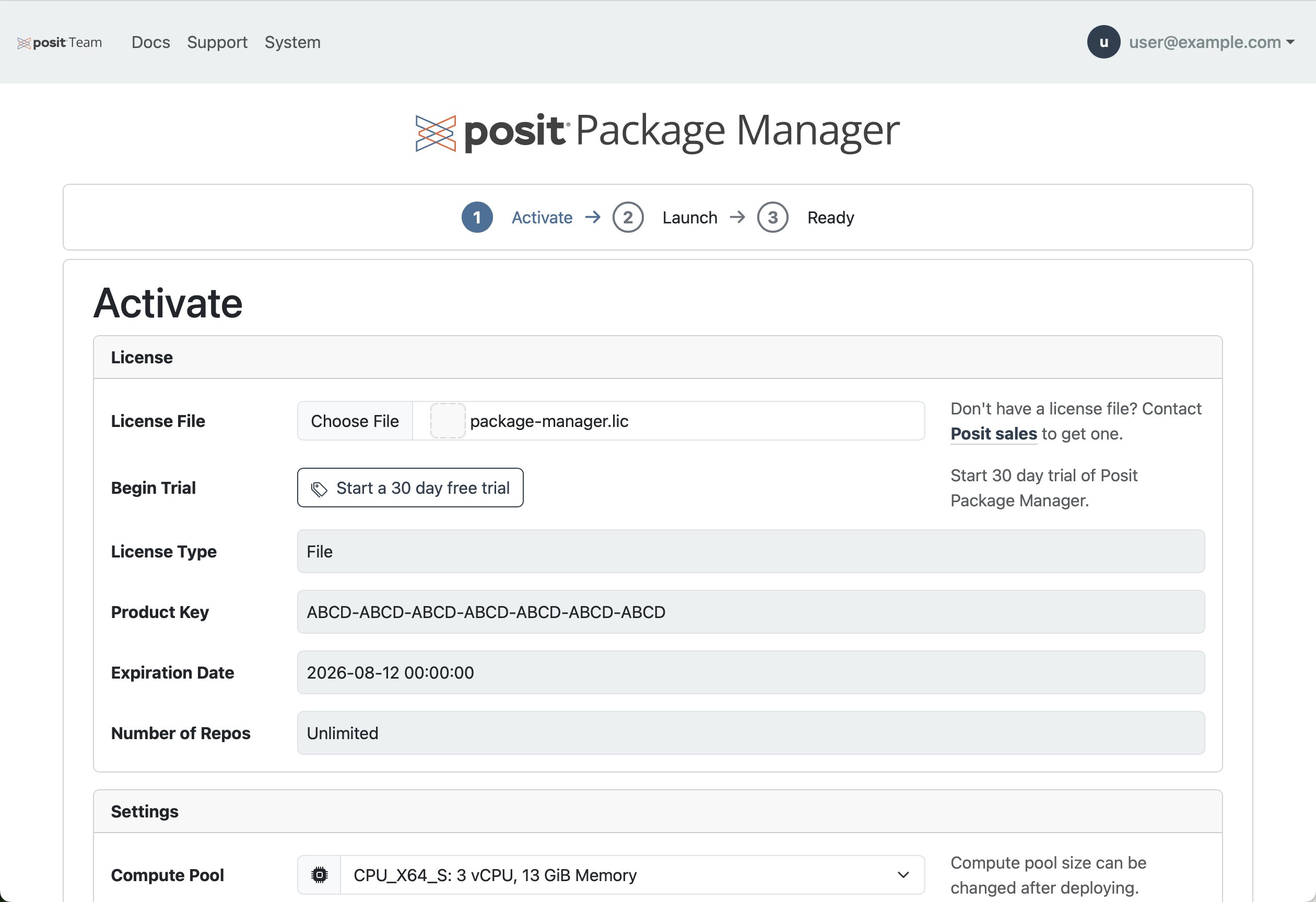
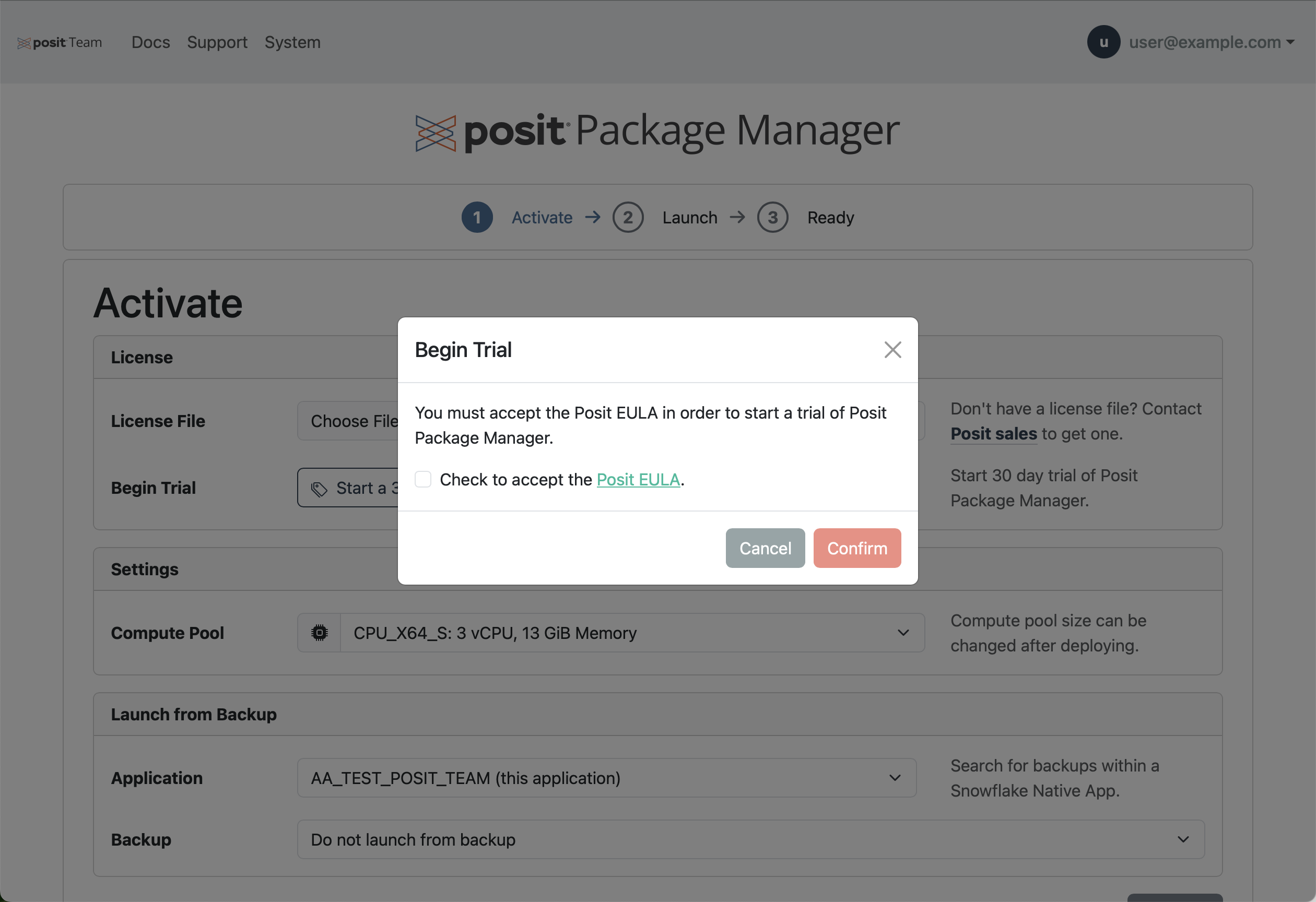
Alternatively, Posit Team supports a free 30-day trial of Package Manager that you can start by clicking Get a free trial license. A dialog appears asking you to agree to the Posit End User License Agreement (EULA). Contact snowflakemarketplace@posit.co to purchase a license before the 30-day trial expires to continue normal operation of Package Manager.
Compute pool
The compute pool instance family you choose depends on how you plan to use Package Manager.
Package Manager is generally not CPU or memory intensive. Load is driven by how often packages are consumed or published, not by the number of users. For light usage (packages consumed a few times each day or published weekly), start with CPU_X64_S. Sizing on Snowpark Container Services (SPCS) is iterative: monitor resource usage and change the instance family as your usage patterns evolve.
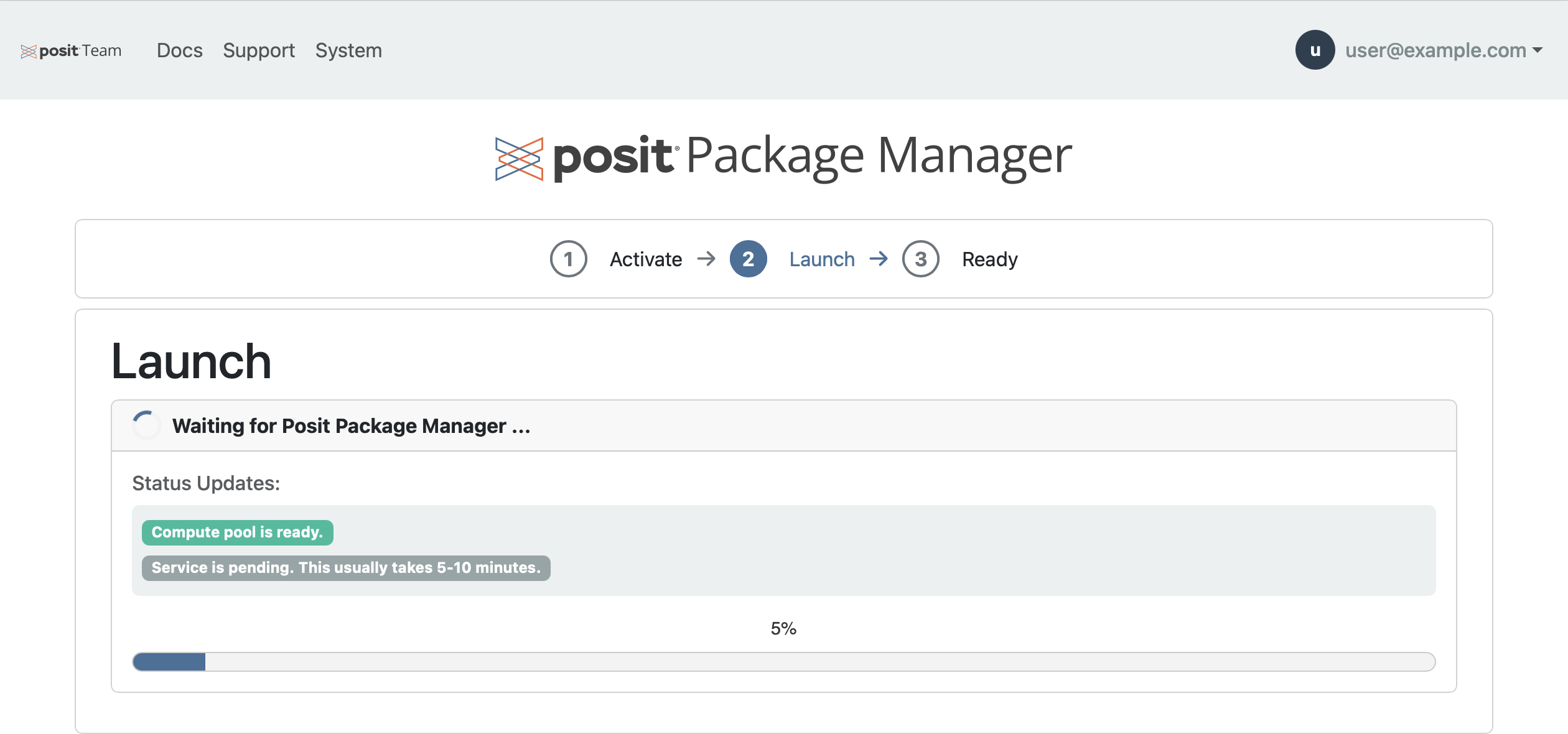
Once you click Continue, Package Manager begins to provision. It takes roughly 10 minutes to create the compute pool and start the Package Manager container. You can change the instance family after initial configuration, which takes about 15 minutes.
Using backups from another Posit Team Native App
You can launch Posit Package Manager within the Posit Team Native App using a previously created backup. Posit Team can use backups from other installations as well as backups created by the same installation.
You must grant the target Posit Team Native App the POSIT_TEAM_ADMIN application role to enumerate and access the backups associated with your source Posit Team Native App.
Assuming that your source Posit Team Native App is named POSIT_TEAM_SOURCE and your target Posit Team Native App is named POSIT_TEAM_TARGET, run the following Snowflake SQL to grant access:
Snowsight UI
GRANT APPLICATION ROLE POSIT_TEAM_SOURCE.POSIT_TEAM_ADMIN TO APPLICATION POSIT_TEAM_TARGET;After running this code, you can ask that backups from POSIT_TEAM_SOURCE be used when launching Package Manager in the Posit Team Native App named POSIT_TEAM_TARGET.
Ready
Once Package Manager is fully configured and ready, Posit Team redirects you to the product management page.
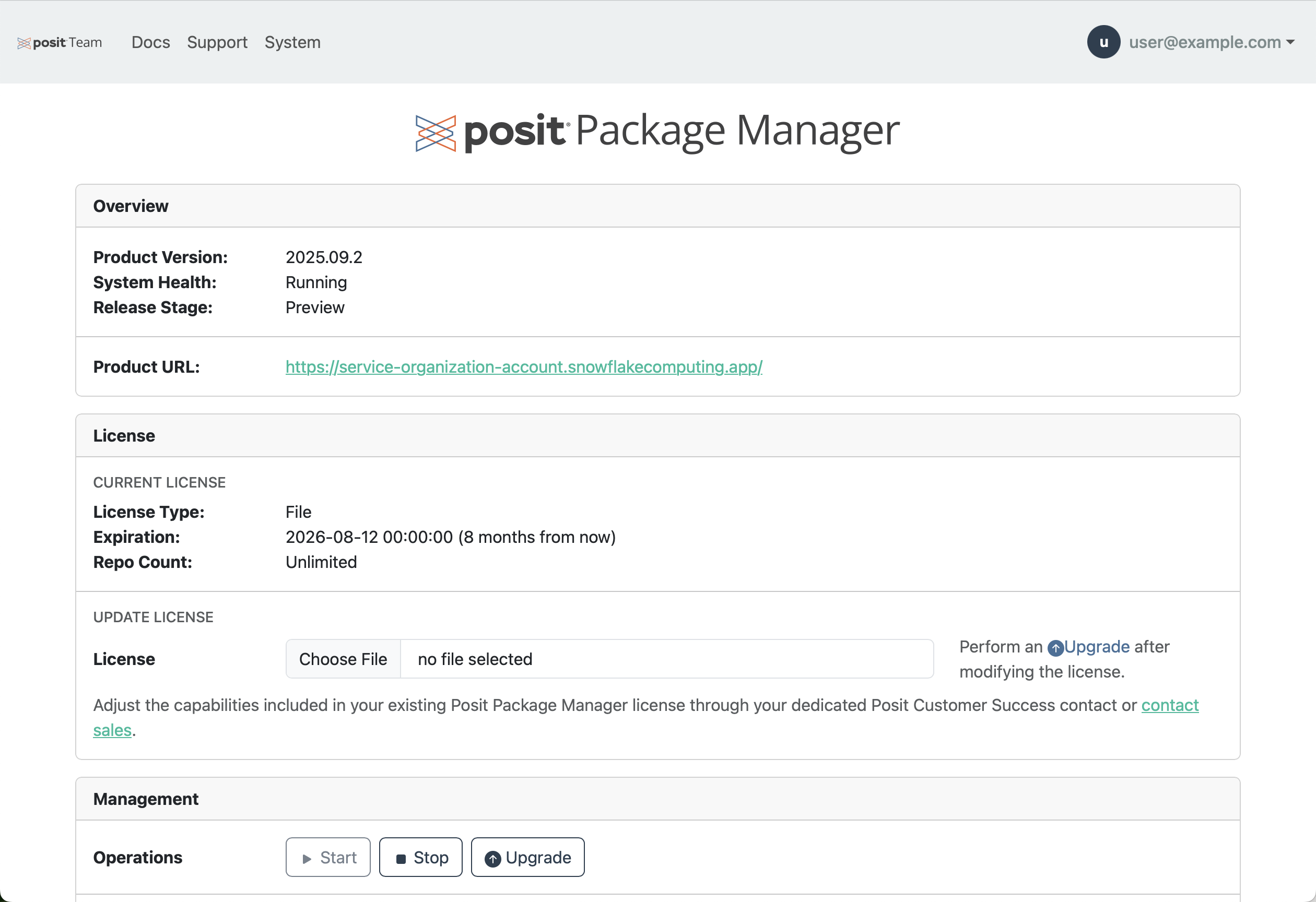
Click the Product URL to open Package Manager.
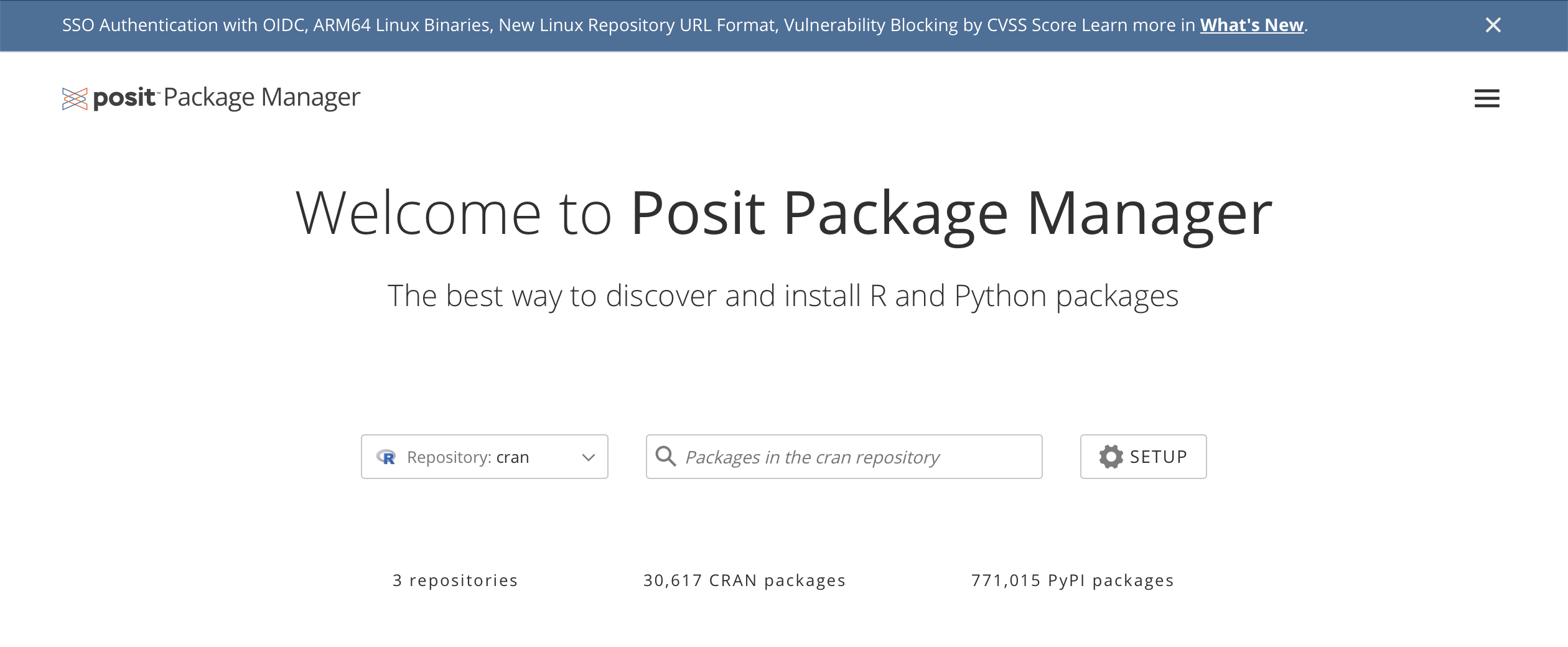
Users typically access Package Manager from the landing page.
Using Package Manager in Workbench and Connect
The Posit Team Native App automatically configures Workbench and Connect to use the internal Package Manager. On startup, Workbench and Connect detect if the internal Package Manager is running and use it if available. If Workbench or Connect were launched before you started Package Manager, restart those services to enable the integration.
You can validate that Workbench is using the internal Package Manager by running cat /etc/pip.conf. An index URL of https://package-manager/pypi/latest/simple indicates that Workbench is using the internal Package Manager.
For Connect, check the logs of a published Python application. The Python environment restore section shows a line similar to Looking in indexes: https://package-manager/pypi/latest/simple.
FAQ
Are Package Manager product updates automatic?
Yes. When the Posit Team Native App is updated, Posit Team automatically upgrades Package Manager.