Private connectivity
Overview
When you install the Posit Team Native App in a Snowflake account with AWS PrivateLink or Azure Private Link configured, Posit Team automatically detects the private endpoints at startup. An administrator can then control whether traffic routes through those private endpoints using the Private Connectivity toggle.
When private connectivity is active, all traffic between Posit Team and Snowflake, including OAuth authentication, SQL queries, and managed credentials, routes through private endpoints instead of the public internet.
Prerequisites
Before you can use private connectivity, you must complete the cloud-specific setup for your environment:
- AWS: Follow the AWS PrivateLink guide to configure a VPC Endpoint Service, Network Load Balancer, and Snowflake external access integration.
- Azure: Follow the Azure Private Link guide to configure an Application Gateway with Private Link and Snowflake external access integration.
Private connectivity requires an environment which includes private endpoints. You can configure the toggle before private endpoints are available. The setting takes effect when Posit Team starts in an environment where it detects private connectivity.
Outbound connectivity to cloud resources
After you configure private connectivity between Posit Team and Snowflake, you might also need to connect to other resources within your cloud environment. Both AWS PrivateLink and Azure Private Link support outbound connectivity to additional services within your virtual network.
Common use cases include:
- Internal APIs accessible only within your Virtual Private Cloud (VPC) or Virtual Network (VNet)
- Database servers or data stores hosted in your cloud environment
- Self-hosted Posit products such as Workbench, Connect, or Package Manager
- On-premises package repositories connected via VPN or ExpressRoute
To enable outbound connectivity to additional resources:
Create additional private endpoints using the same infrastructure pattern as your Snowflake private connectivity setup:
- AWS: Configure additional Network Load Balancers targeting your internal resources, then provision private endpoints in Snowflake. See the AWS outbound connectivity section.
- Azure: Configure additional Application Gateways targeting your internal resources, then provision private endpoints in Snowflake. See the Azure outbound connectivity section.
Update your network rules to include the new hostnames. Add the additional endpoints to your existing
POSIT_TEAM_PRIVATE_EGRESSnetwork rule. Changes to network rules apply immediately without requiring Posit Team restarts.Verify connectivity from within a Posit Workbench session by testing connections to your internal resources.
Snowflake limits each account to a maximum of 10 registered private endpoints. Plan your outbound connectivity requirements accordingly. Each unique hostname or service requires a separate private endpoint configuration.
Enable or disable private connectivity
Posit Team enables private connectivity by default. You can toggle private connectivity from the Posit Team UI or using SQL.
Changing the private connectivity setting:
- Restarts all running products (Posit Workbench, Posit Connect, Posit Package Manager).
- Changes product URLs from public to private endpoints (or vice versa).
- Requires OAuth integration reconfiguration to target the new OAuth redirect URLs.
- Snowflake OAuth integration for Workbench
- Snowflake OAuth integration for Connect
- External OAuth integrations for Workbench
- Other OAuth integrations configured directly in Connect
Using the Posit Team UI
- Navigate to the System page using the top navigation bar.
- In the Settings card, locate the Private Connectivity toggle.
- Click the toggle to change the setting. A confirmation dialog appears warning about the impact of the change.
- Confirm to apply the change.
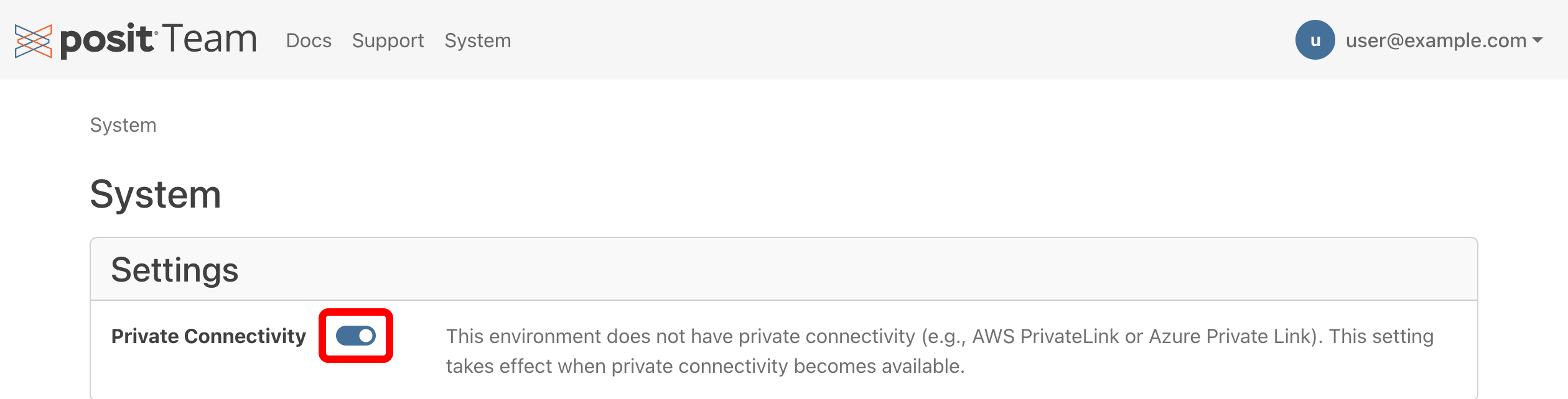
The status text next to the toggle indicates the current state:
| Status | Meaning |
|---|---|
| “Traffic routing through technology endpoints.” | Private connectivity is active. All traffic uses private endpoints. |
| “Technology is available but not enabled.” | Private endpoints are available, but the toggle is off. Traffic uses public endpoints. |
| “This environment does not have private connectivity.” | No private endpoints detected. Posit Team saves the setting and applies it when private endpoints become available. |
Using SQL
You can also control private connectivity using a Snowflake service function:
Snowsight UI
-- Enable private connectivity
SELECT {POSIT_TEAM}.app.SET_PRIVATE_CONNECTIVITY(TRUE);

-- Disable private connectivity
SELECT {POSIT_TEAM}.app.SET_PRIVATE_CONNECTIVITY(FALSE);
Replace {POSIT_TEAM} with your application name.
Verify private connectivity
After enabling private connectivity:
Visit the Posit Team landing page and confirm all products are accessible. Product URLs use private endpoints rather than public hostnames.
Check the Private Connectivity toggle on the System page. The status text confirms that traffic is routing through private endpoints.
If Workbench is configured, start a session and open a terminal:
Terminal
cat $SNOWFLAKE_HOME/connections.tomlThe
accountentry references a private endpoint.If OAuth integrations are configured, complete a managed credential flow and confirm that authentication URLs use private endpoints.
When private connectivity is disabled, follow the same steps and confirm the use of public URLs and endpoints.