External sessions
Posit Workbench normally runs each user session inside the Workbench service, called local sessions. When configured to run external sessions, each user session runs as a separate Snowflake job service, using a Snowflake filesystem to store user home directories.
Local vs. external sessions
| Local sessions | External sessions | |
|---|---|---|
| Where a session runs | Inside the Workbench service | As its own Snowflake job service, on a dedicated session compute pool |
| Session startup | Seconds | Minutes |
| Isolation | Sessions share the Workbench service’s resources | Each session is isolated in its own job service |
| Storage | Block storage volume | Snowflake shared filesystem |
| Backup and restore | Supported | Not supported |
Choose external sessions when session isolation matters more than startup latency, for example to prevent one user’s session from affecting the resource availability of another. You cannot switch between local and external sessions after activating Workbench. This choice is permanent for a given installation.
Prerequisites
External sessions require two private preview features that are not available by default:
- Posit Team private preview access. Contact Posit support to request access.
- Snowflake shared filesystem private preview access. Open a support case with Snowflake to request access for your account.
Complete both requests before continuing.
Set up external sessions
Create a filesystem
If your account does not already have a Snowflake filesystem, create one. For example, you might create a 1024 GiB filesystem named MY_FILESYSTEM with the following SQL:
Snowsight UI
CREATE FILESYSTEM IF NOT EXISTS MY_FILESYSTEM TYPE=PREMIUM SIZE=1024;Filesystem provisioning is not immediate. Check its state and wait until it reads AVAILABLE:
Snowsight UI
DESCRIBE FILESYSTEM MY_FILESYSTEM;Install the Posit Team private preview application
Install the Posit Team Native App from the private preview Snowflake Marketplace listing. This is a separate listing from the generally available listing used for other installations. Follow the installation guide to complete installation and configuration. This documentation assumes that you used the application name POSIT_TEAM_PREVIEW when installing, keeping it distinct from your existing POSIT_TEAM application.
Grant filesystem access to the application
Grant the application permission to create filesystem volumes. Run the following SQL as ACCOUNTADMIN in a Snowflake Worksheet:
Snowsight UI
GRANT CREATE VOLUME ON FILESYSTEM MY_FILESYSTEM TO APPLICATION POSIT_TEAM_PREVIEW;Configure Workbench
Begin Workbench setup as usual, starting with the license.
In the Settings card, choose the smallest compute pool instance family for the primary Workbench compute pool. With external sessions, this pool only runs the Workbench service itself. Workbench sessions run on the session compute pools you configure below, not on this pool.
The Sessions control defaults to Local sessions.
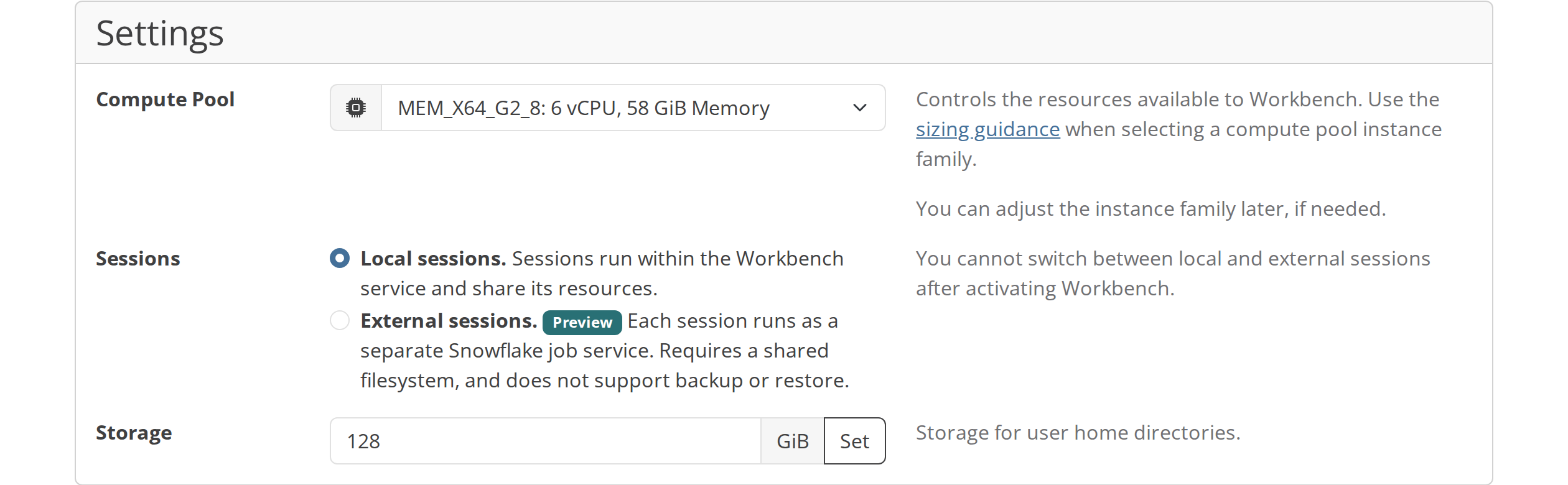
Select External sessions.
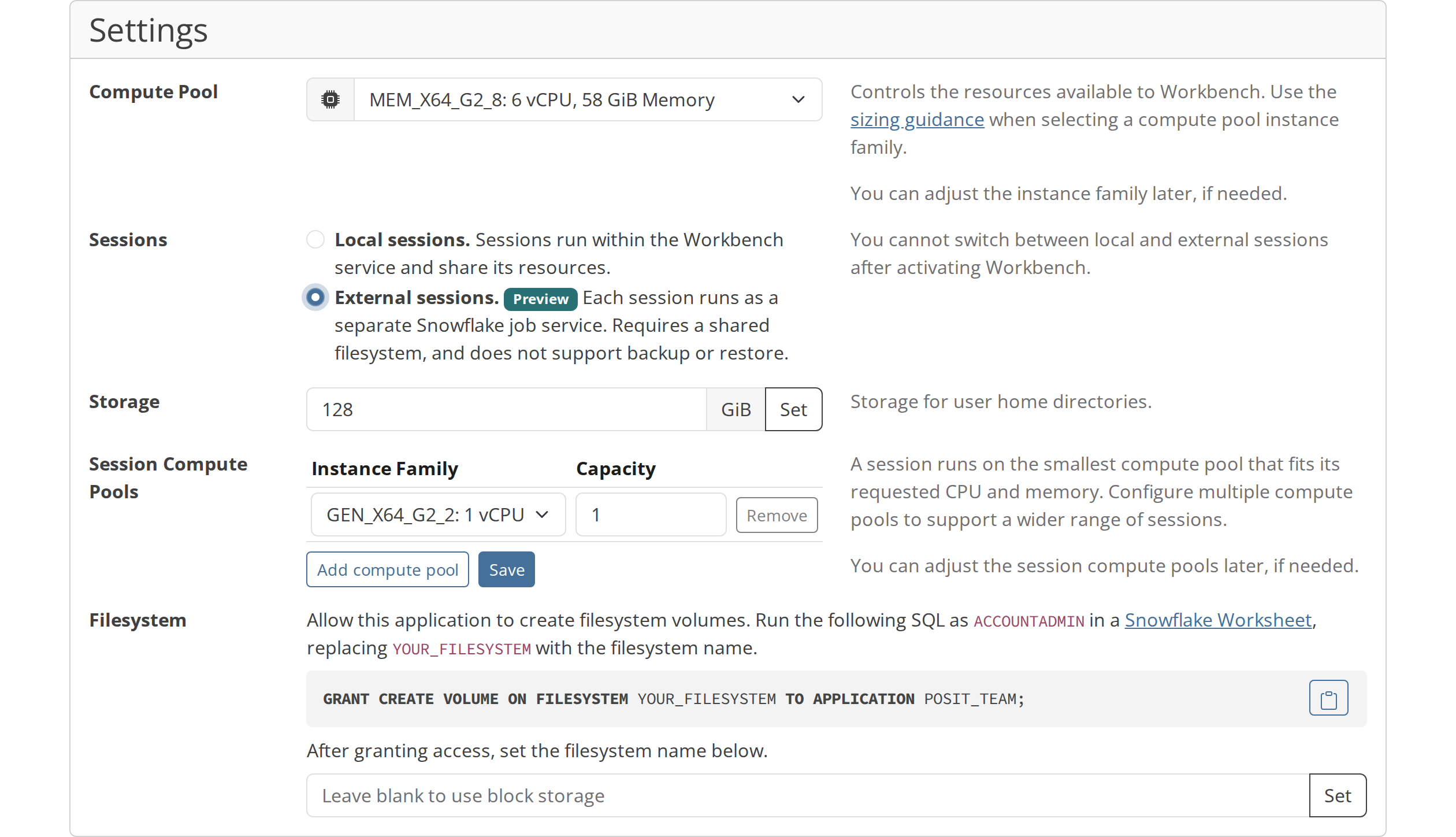
Selecting external sessions adds two controls: Session Compute Pools and Filesystem.
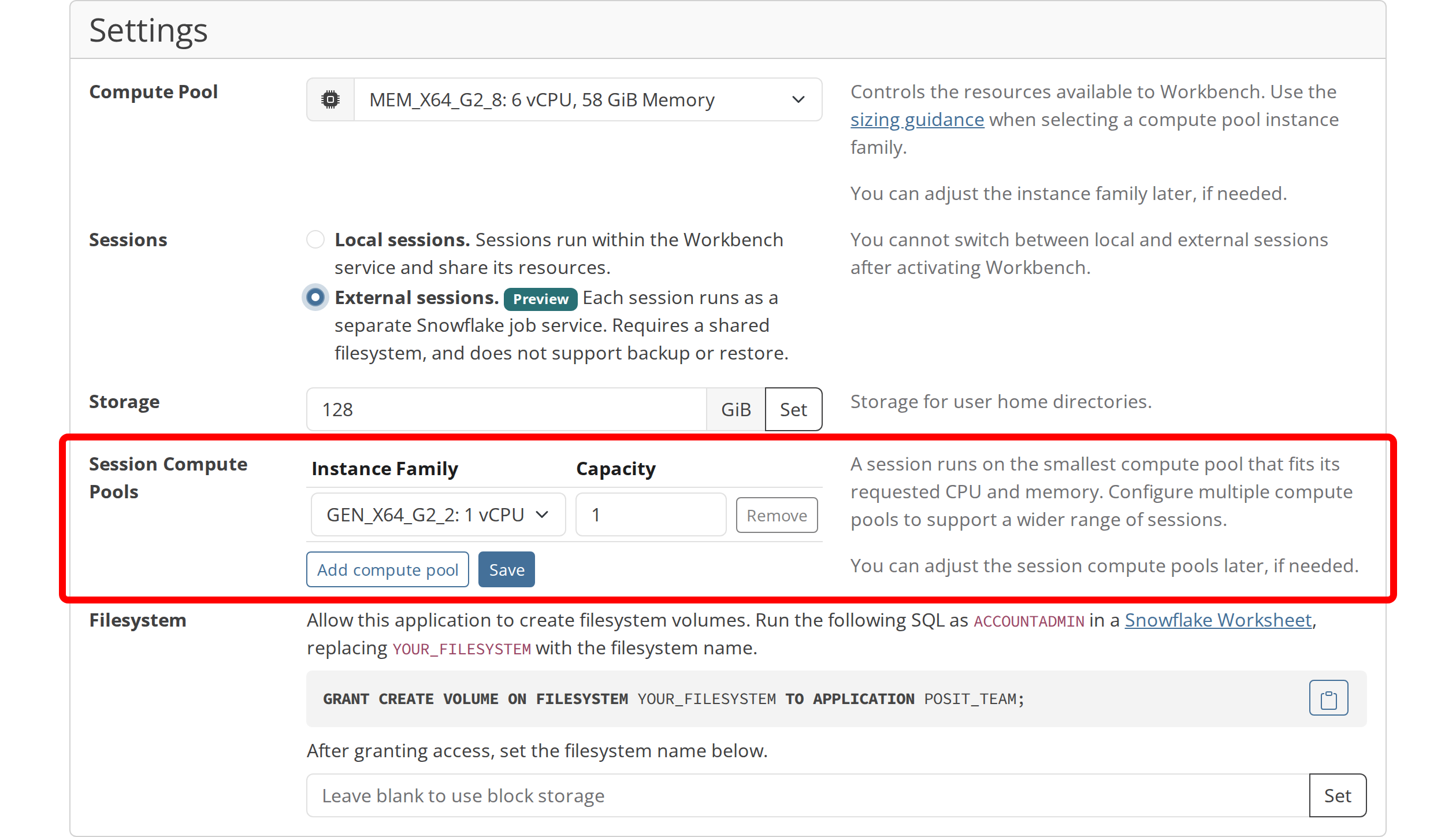
Configure one or more compute pools to host sessions. A session runs on the smallest compute pool that fits its requested CPU and memory. Click Save to save the session compute pools.
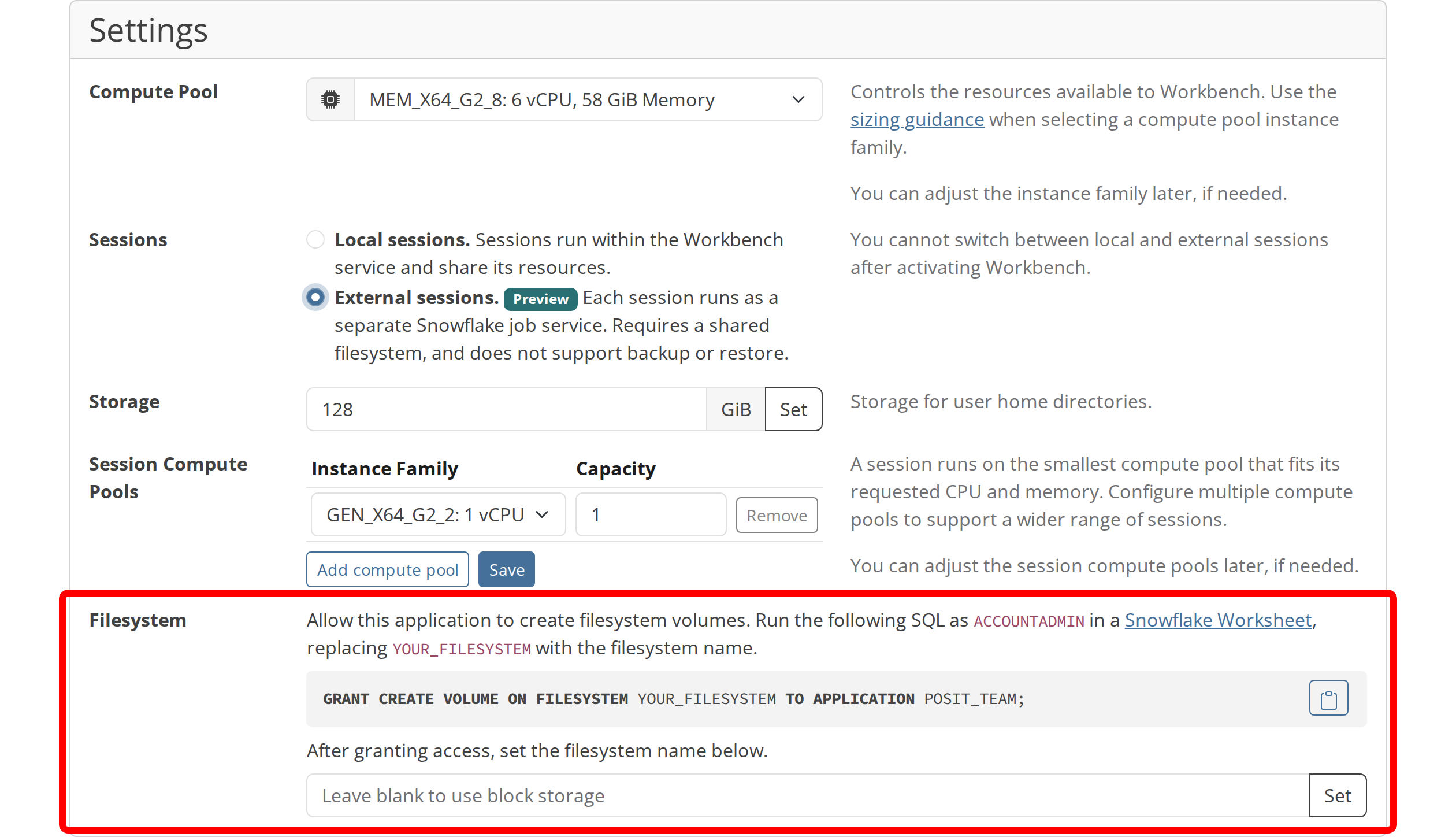
Enter the name of the filesystem you created and granted access to above, then click Set.
Selecting external sessions disables Launch from Backup. Backup and restore are not supported with external sessions.

Continue through the rest of setup (Snowflake managed credentials) as described in the setup guide.
Launching sessions
Users launch sessions from Workbench as usual, for example by clicking New Session. Each session launches as a separate Snowflake job service on one of the configured session compute pools rather than inside the Workbench service.
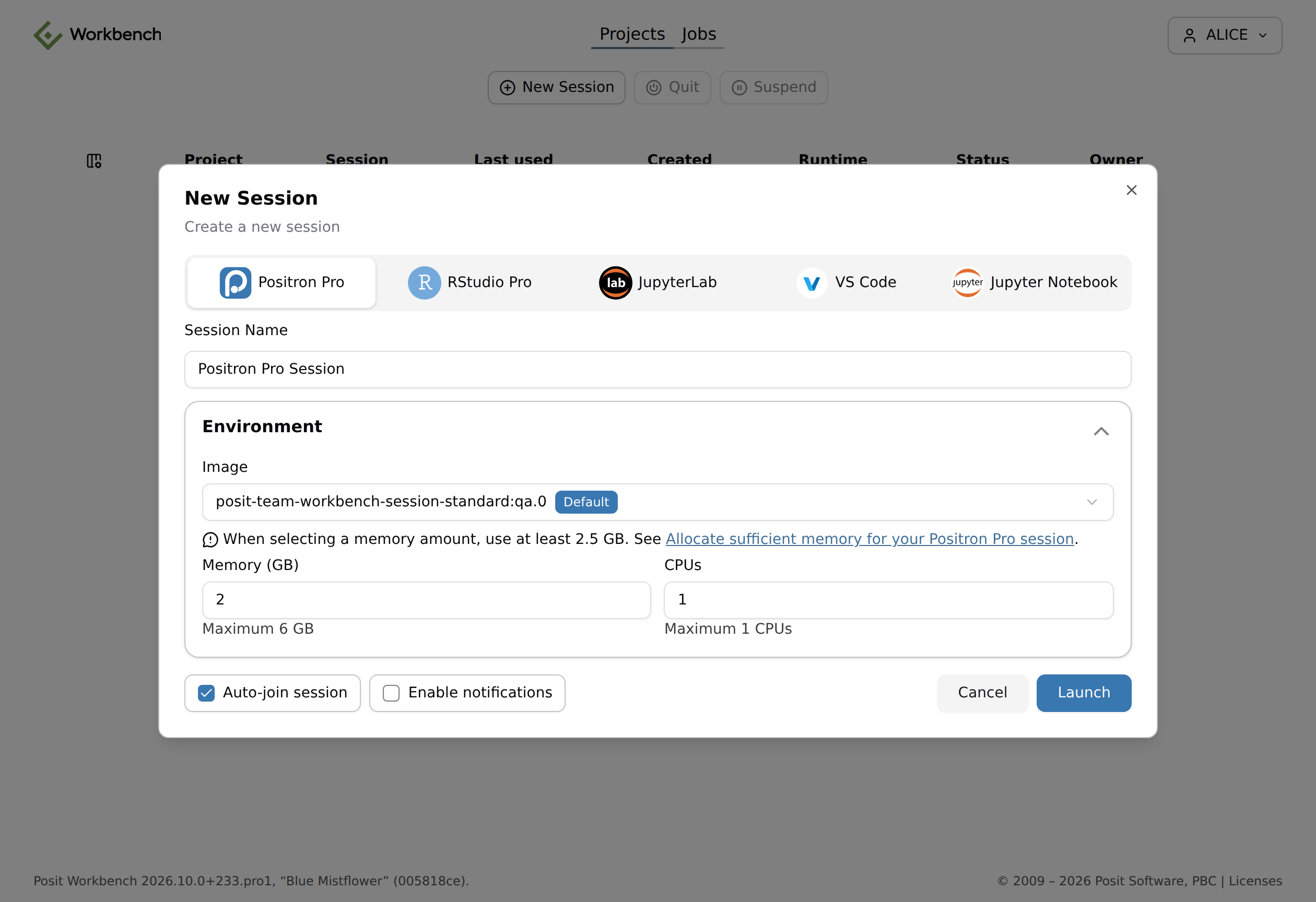
Sessions can take several minutes to start.
Management
The Workbench management page shows you the configured filesystem and lets you modify the Workbench compute pool and its session compute pools.
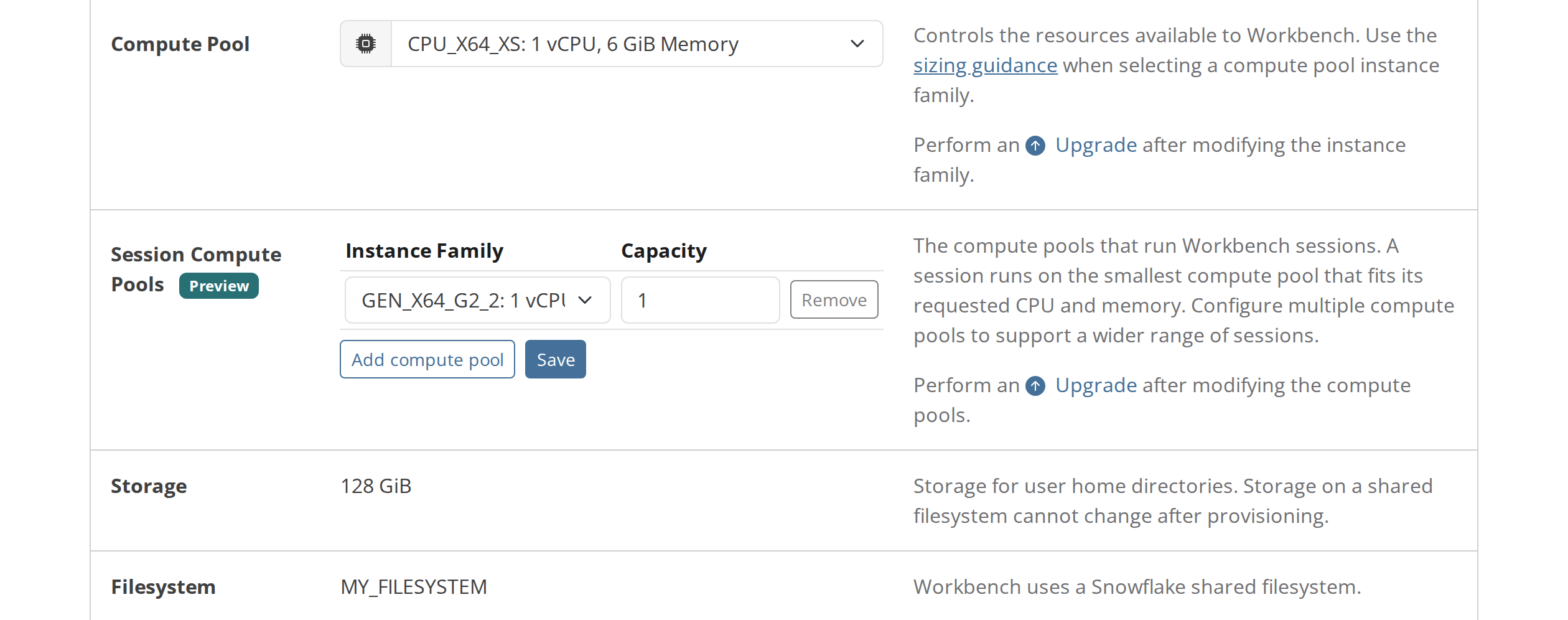
Change the instance family of the Workbench compute pool, or add, remove, or resize session compute pools. Perform an upgrade after making changes to apply them. You set the filesystem name during activation and cannot change it here.
The Backups panel is disabled. Backup and restore are not supported with external sessions.

Troubleshooting
The diagnostics bundle includes the session compute pool configuration and logs for every session job service.