Email configuration
Posit Connect uses SMTP to send scheduled reports, notifications, and administrative alerts. The default Connect configuration does not support sending email.
Email is optional. Connect functions without it, but features like scheduled report delivery and user notifications require SMTP configuration.
Prerequisites
Snowflake blocks standard SMTP ports and does not include user email addresses in ingress requests by default. Complete the following steps before configuring email settings in Posit Team. The first two steps require Snowflake support cases.
Open SMTP ports
Request that Snowflake open the SMTP port your mail server uses (typically 465 or 587). Mention that you are using the Posit Team Native App.
Snowflake blocks standard SMTP ports (25, 465, 587) by default in Snowpark Container Services. Snowflake must allow outbound traffic on the port before Connect can reach your mail server.
Enable user email header
Request that Snowflake enable the Sf-Context-Current-User-Email ingress header for your account. Snowflake does not enable this header by default.
Connect cannot send reports and notifications without email addresses. When Sf-Context-Current-User-Email is available, Posit Team provides user email addresses to Connect.
Allow SMTP egress
Connect requires a network rule allowing outbound traffic to your SMTP server. Add your SMTP server to the existing Connect egress network rule.
Snowflake generates the Connect egress network rule from the application egress references at install time. Its name begins with your application name. Substitute your application name for POSIT_TEAM below. Use the ACCOUNTADMIN role to modify it:
Snowsight UI
-- The ALLOWED_NETWORK_RULES property lists the fully qualified network rule
DESCRIBE EXTERNAL ACCESS INTEGRATION POSIT_TEAM_CONNECT_EGRESS_EXTERNAL_ACCESS;

-- View the current network rule
DESCRIBE NETWORK RULE posit_team_app_data.configuration.posit_team_connect_egress_network_rule;

-- Add your SMTP server (include existing values)
ALTER NETWORK RULE posit_team_app_data.configuration.posit_team_connect_egress_network_rule SET
    VALUE_LIST = ('0.0.0.0:443', '0.0.0.0:80', 'smtp.example.com:587');
Replace smtp.example.com:587 with the hostname and port of your SMTP server.
If you have restricted the default egress policy, ensure your SMTP server is included in the allowed network rules.
For more details, see the Snowflake network rules documentation.
Configure email settings
Open the Connect Manage page and click Email Configuration.

Enter your SMTP server details and email delivery preferences. At minimum, you must configure the Sender Email (From) and SMTP Host.
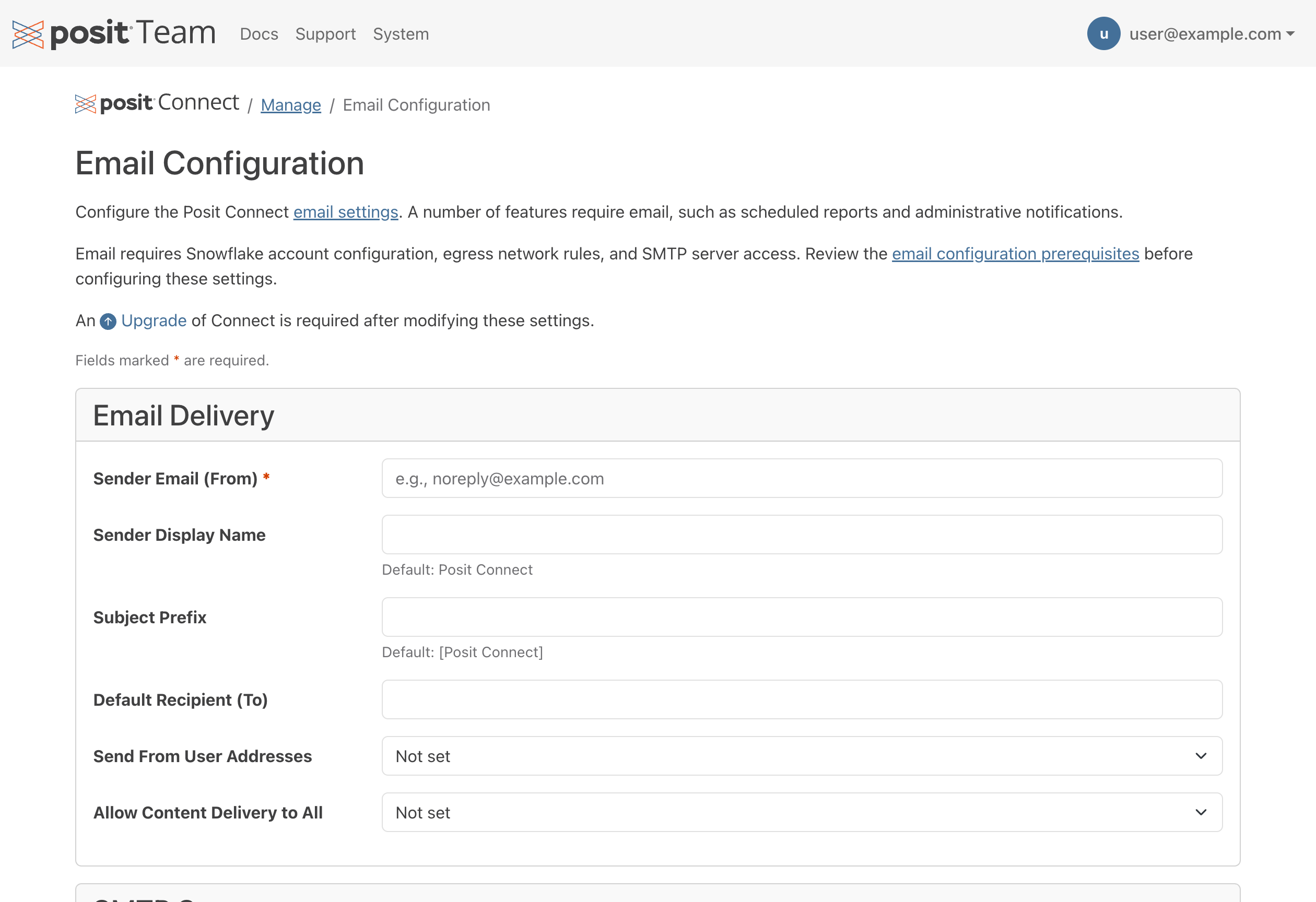
See the Connect email and SMTP configuration documentation for detailed descriptions of each setting.
Save your email configuration settings, then run an Upgrade from the Connect Manage page. The upgrade applies your changes and restarts Connect.
After Connect restarts, test that the email configuration is working with Send Test Email on the Connect System > Info page.