Migrate from Workbench Native App to Posit Team Native App
Overview
This guide provides instructions to use when migrating from the Posit Workbench Native App into a Workbench installation within the Posit Team Native App. The migration process preserves all your data, user configurations, and content. If you encounter any issues during the migration process, please submit a request through the Posit support form.
The Workbench Native App reaches end of life at the end of December 2026. Complete your migration by that date.
Why migrate to Posit Team Native App
Migrating to the Posit Team Native App offers several benefits:
- Complete Posit Platform: Access to all three Posit products in one application: Workbench, Connect, and Package Manager
- Simplified Management: Significantly reduced administrative overhead compared to the Workbench standalone application
- Advanced Network Features: Support for additional security features such as PrivateLink for secure, private connectivity to Snowflake
Migration process
Migration preserves all data, user accounts, content, permissions, and configurations.
Step 1: Create a backup of your existing Workbench Native App
Work with your existing Posit Workbench application to create a backup:
Navigate to your Posit Workbench Native App in Snowflake (found under Catalog > Apps in Snowsight)
Click your app then select Administer Workbench in the page header
In the interactive interface, select the backup tab in the sidebar
Create a descriptive name for your backup (e.g., “migration-backup-YYYY-MM-DD”)
Click Create Backup
The backup will enter the
INITIALIZEDstate.Backups take a few minutes to complete. Wait for the backup to enter the
CREATEDstate.Note the backup name and location for use in the following steps
Step 2: Identify current configuration settings for your existing Workbench Native App
This step extracts the current configuration settings for your Workbench Native App. You must use a role that has permissions to administer the app. Apply these settings to your new Posit Team Native App once it is installed.
Network egress rule
Identify current network egress rules for your Workbench Native App:
Snowsight UI
-- substitute your application name for {posit_workbench}
DESCRIBE NETWORK RULE posit_workbench_app_data.configuration.posit_workbench_egress_network_rule;
This will output a value list of IP endpoints that your application is permitted to send network traffic to. Once your new Posit Team App is installed, apply the above network rule to the new application.
Compute pool
Identify the current compute pool for your Workbench Native App with the command:
Snowsight UI
DESCRIBE COMPUTE POOL posit_workbench;For more information, see the Workbench Native App guide on administering the application.
Application role
Identify which account and application roles have been granted ownership or usage on your Workbench Native App:
Snowsight UI
SHOW GRANTS ON APPLICATION posit_workbench;Identify which additional account roles have been granted application access:
Snowsight UI
SHOW GRANTS OF APPLICATION ROLE posit_workbench.workbench_user;
SHOW GRANTS OF APPLICATION ROLE posit_workbench.workbench_admin;
The Workbench Native App has two native application roles, workbench_user and workbench_admin, that can be granted to account roles. The Posit Team Native App includes additional roles per product for more granularity.
See the Workbench Native App guide on roles and granting access to users.
See the Posit Team Application roles section for more information.
Once your new Posit Team App is installed, you can mirror access patterns using the account roles identified above.
Step 3: Install the Posit Team Native App and grant access to the backup
First, install the Posit Team Native App from the Snowflake Marketplace.
Then, grant the target Posit Team application access to the backups from your existing Workbench application. You must grant the target Posit Team Native App the WORKBENCH_ADMIN application role from your source Workbench Native App to enumerate and access the backups.
Run the following SQL in a Snowsight worksheet to grant access:
Snowsight UI
-- Grant the target Posit Team app access to the source Workbench app's backups
GRANT APPLICATION ROLE <SOURCE_WORKBENCH_APP>.WORKBENCH_ADMIN TO APPLICATION <TARGET_POSIT_TEAM_APP>;
Replace the placeholders with your specific application names:
<SOURCE_WORKBENCH_APP>: The name of your existing Posit Workbench Native App (e.g.,POSIT_WORKBENCH)<TARGET_POSIT_TEAM_APP>: The name of your new Posit Team Native App (e.g.,POSIT_TEAM)
Step 4: Launch Posit Team using the backup and complete configuration
Navigate to your newly installed Posit Team Native App in Snowflake (found under Catalog > Apps in Snowsight)
Begin the Workbench setup and select the option to launch from a backup
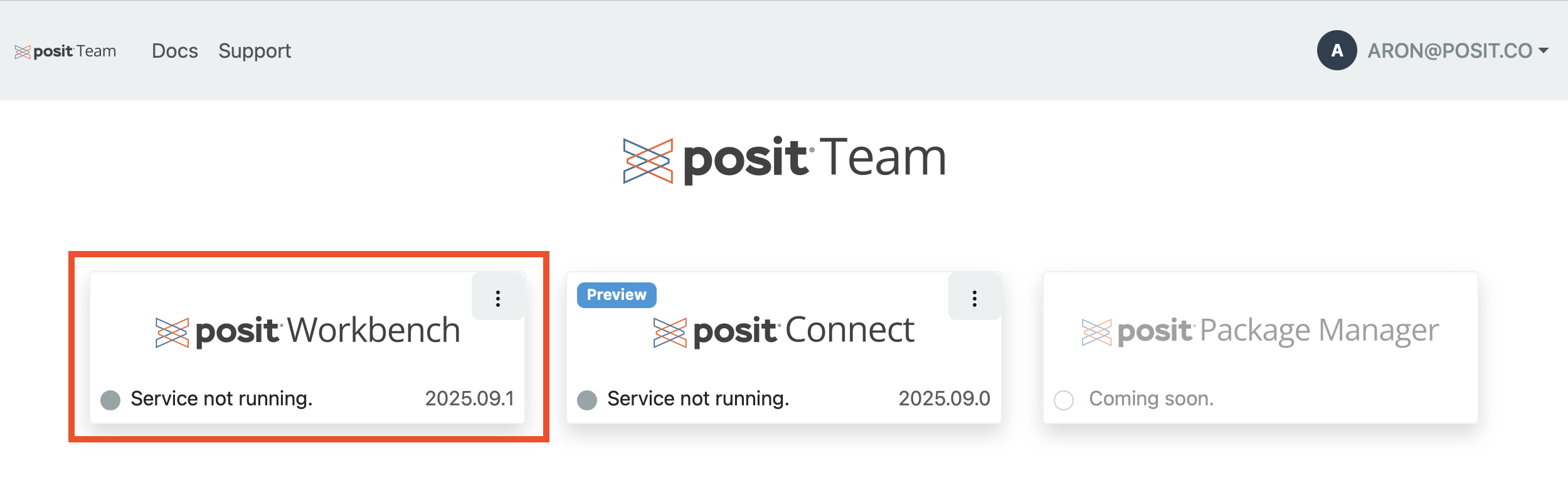
Begin installation Select the backup created in Step 1 from your existing Workbench application
Complete the remaining configuration steps as outlined in the setup guide and manage guide, including:
- License configuration
- Compute pool sizing
- OAuth setup for Snowflake managed credentials
- User access configuration
If preferred, use the configuration settings identified in Step 2 to set up your new application.
Post-migration verification
After migration completes, we recommend that you:
- Review user permissions and roles
- Verify that all users can access the new application
- Confirm that all content and projects are available
- Test key workflows to ensure functionality