Restricted Caller’s Rights
Restricted Caller’s Rights (RCR) keeps Snowflake traffic from Posit Workbench and Posit Connect on the Snowflake internal network. With RCR, you can:
- Skip the AWS PrivateLink and Azure Private Link configurations, which Posit plans to deprecate.
- Stop updating network policies when the outbound SPCS egress public IP addresses change.
- Remove most Workbench and Connect egress rules. See Reduce egress rules.
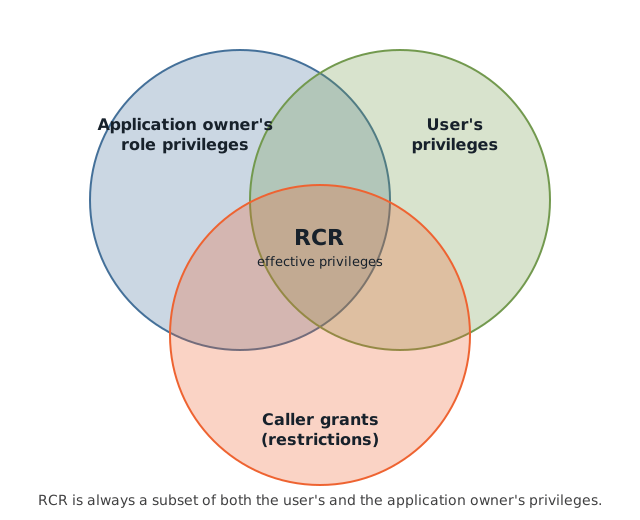
RCR is a Snowflake feature that runs SQL as the signed-in user (the caller), limited by restrictions you place on the Posit Team application. RCR works with customer-provided credentials in Snowpark Container Services (SPCS).
How RCR routes traffic
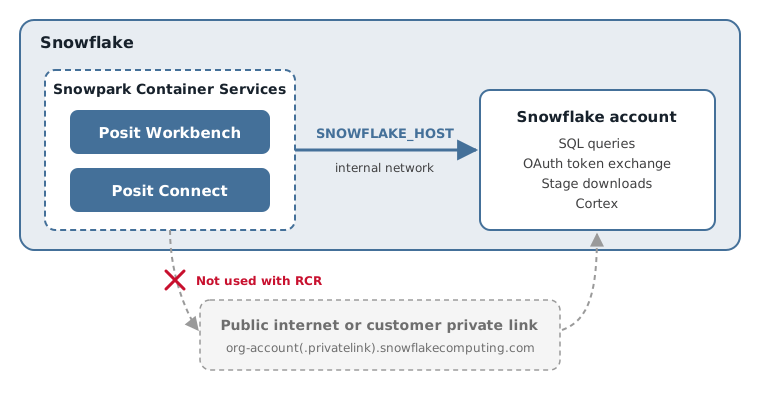
Without RCR, Posit Team reaches your Snowflake account at https://org-account.snowflakecomputing.com or https://org-account.privatelink.snowflakecomputing.com, over the public internet or your cloud virtual network. Inside SPCS, Snowflake provides a SNOWFLAKE_HOST environment variable with an endpoint similar to https://account-identifier.az.region.cloud.snowflakecomputing.com that is routable only within SPCS. With RCR, queries use this internal endpoint. Large query results that Snowflake downloads in batches from a stage also stay on the Snowflake internal network.
Traditional OAuth vs. RCR OAuth
RCR OAuth has a subset of the capabilities of traditional OAuth (caller’s rights). You control that subset through the caller grants you give the Posit Team application. In our experience, you can grant everything except the most sensitive security SQL operations. Snowflake documents both high-level and fine-grained caller grants.
We strongly recommend granting CALLER FULL MANAGEMENT ON ACCOUNT unless you have a specific need to restrict access. The effective privileges when running SQL in the Posit Team application are always a subset of the user’s normal Snowflake privileges.
Prerequisites
To configure RCR, you need the following:
- The
ACCOUNTADMINrole, or a role that can create network rules, alter your active network policy, and grant caller privileges to the application - The name of your Posit Team application
- The name of your active network policy
To find the application name, run SHOW APPLICATIONS and use the name column. To find the active network policy, run the following and use the value column:
Snowsight UI
SHOW PARAMETERS LIKE 'NETWORK_POLICY' IN ACCOUNT;Configure Snowflake
RCR is opt-in for all Posit Team applications. Complete both steps below in a Snowflake Worksheet, then enable RCR in each product.
Allow SPCS RCR network traffic to reach your account.
Create a
COMPUTE_POOLingress network rule and add it to your active network policy. Substitute your application name forPOSIT_TEAMand your policy name for<your-active-network-policy>.Snowsight UI
CREATE OR REPLACE NETWORK RULE POSIT_TEAM_APP_DATA.CONFIGURATION.ALLOW_SPCS_RCR
  TYPE = COMPUTE_POOL
  MODE = INGRESS
  VALUE_LIST = ('ALL');
Snowsight UI
ALTER NETWORK POLICY <your-active-network-policy>
  ADD ALLOWED_NETWORK_RULE_LIST = ('POSIT_TEAM_APP_DATA.CONFIGURATION.ALLOW_SPCS_RCR');
For details, see the Snowflake CREATE NETWORK RULE and SPCS customer-provided credentials documentation.
Grant the
FULL MANAGEMENTcaller privilege to the application.Snowsight UI
GRANT CALLER FULL MANAGEMENT ON ACCOUNT TO APPLICATION POSIT_TEAM;For details, see the Snowflake FULL MANAGEMENT documentation.
NoteFull management is always a subset of the user’s normal capabilities. See the Snowflake high-level caller privileges documentation for alternative privileges.
Enable RCR in Workbench
On the Workbench management page, turn on Enable RCR under Restricted Caller’s Rights, then click Upgrade to activate RCR on Workbench.
RCR is in public preview and has known rough edges:
- Posit Assistant does not work with RCR
- To switch Snowflake roles, sign in again with the new role in managed credentials
Enable RCR in Connect
On the Connect management page, turn on Enable RCR under Restricted Caller’s Rights, then click Upgrade to activate RCR on Connect.
With RCR enabled, Connect content must connect to Snowflake through SNOWFLAKE_HOST. Existing content that connects without SNOWFLAKE_HOST fails after you enable RCR. Update the code as shown below and republish it.
For Python, add host=os.environ['SNOWFLAKE_HOST'] to the connection in the Connect Snowflake Python cookbook:
con = snowflake.connector.connect(
    ...,
    authenticator=auth.authenticator,
    token=auth.token,
    host=os.environ['SNOWFLAKE_HOST'],
)
For R, add host = Sys.getenv("SNOWFLAKE_HOST") to the connection in the Connect Snowflake R cookbook:
DBI::dbConnect(odbc::snowflake(), "Snowflake",
  authenticator="OAUTH",
  token = token,
  host = Sys.getenv("SNOWFLAKE_HOST"),
  ...
)
Check caller’s rights
RCR restricts each user’s own Snowflake privileges, so it is not a single on or off setting. Posit Team checks specific capabilities when a user signs in. The Caller’s Rights row on the System page in the Posit Team UI lists each capability as Allowed or Not allowed for the signed-in user:
- Describe user: Posit Team can read the user’s Snowflake profile. Connect and Workbench need it to receive the user’s first name, last name, and email. See User names and email.
If a capability shows Not allowed, review the caller grant in Configure Snowflake. Posit Team checks again when the user next signs in, or right away when the user clicks Refresh in the Posit Team profile menu.
User names and email
With the caller grant from Configure Snowflake in place, Posit Team reads each user’s first name, last name, and email from their Snowflake user profile when they sign in. Posit Team passes these values to Connect and Workbench. Connect uses them for the user’s account, so users cannot edit their first and last name in Connect.
This does not depend on the Enable RCR toggle in each product. Only the caller grant is required.
Without the caller grant, first and last name are empty in Connect, and the email comes from the Sf-Context-Current-User-Email ingress header if Snowflake has enabled it for your account.
Posit Team reads only the values set in Snowflake. To set them, run ALTER USER:
Snowsight UI
ALTER USER <username> SET FIRST_NAME = '<first name>' LAST_NAME = '<last name>' EMAIL = '<email>';Posit Team reads the profile again at least once an hour, or right away when a user clicks Refresh in the Posit Team profile menu. Connect shows the new values the next time the user signs in to Connect.
Reduce egress rules
With RCR enabled, Snowflake queries no longer leave the Snowflake network, so you can remove the Snowflake account endpoints from the Workbench and Connect egress network rules. Remove the following rules:
host_portnetwork rules toorg-account.snowflakecomputing.com:443- private link
private_host_portnetwork rules toorg-account.privatelink.snowflakecomputing.com:443 ocsp.snowflakecomputing.com:80for Snowflake certificate validation
With RCR enabled, the egress endpoints Workbench and Connect need depend on whether Posit Package Manager runs in your Posit Team application.
Package Manager runs in your Posit Team application (recommended)
Connect requires no egress rules.
| Endpoint | Workbench | Connect | Why it is needed |
|---|---|---|---|
*.vscode-resource.vscode-cdn.net:443 |
Yes | No | Posit Publisher and Snowflake extensions in VS Code and Positron |
Package Manager does not run in your Posit Team application
| Endpoint | Workbench | Connect | Why it is needed |
|---|---|---|---|
*.vscode-resource.vscode-cdn.net:443 |
Yes | No | Posit Publisher and Snowflake extensions in VS Code and Positron |
p3m.dev:443, packagemanager.posit.co:443, rspm-sync.rstudio.com:443 |
Yes | Yes | R and Python package installation |
Public traffic does not use *.vscode-resource.vscode-cdn.net. Restrictive Snowflake content security policy rules prevent VS Code service workers from running without it. You can omit it, but the Posit Publisher and Snowflake extensions do not work.
To edit the egress network rules, see Change the egress for Workbench and Connect.