Notifications
Posit Connect tells you about events that involve you, such as a request for access to your content or a change to a schedule you rely on. Connect delivers these events as in-app notifications.
Notifications appear in two places:
- The notification bell in the Connect header, which previews your notifications
- The Notifications page, which lists your notification history
Notifications tell you about something another person did. If you approve an access request or change a schedule, only the other people involved receive a notification.
Connect delivers in-app notifications to every user, and no setting turns the notification feed off. Administrators can turn off the What’s New page, the only notification source that can be disabled. Your notification history has no limit, so notifications stay in your feed until you delete them.
Notifications and email
In-app notifications do not replace the email that Connect sends. The two are separate: an event can produce an in-app notification, an email, or both. The Notification types table lists every event that adds a notification to your feed. Other events, such as a report that fails to render outside a deployment, reach you by email only.
For information about email, see the following topics:
- Failure notifications covers the email Connect sends when a report fails to render.
- Viewers, reviewers, and collaborators covers the email Connect sends when you grant someone access to content.
Notification bell
The bell appears in the Connect header on every page, including content items. A blue dot on the bell means you have unread notifications. The dot stays until you read them, whether or not you open the bell.
When notifications arrive after you last opened the bell or the Notifications page, the dot pings for a few seconds. The ping does not play if you turn on reduced motion in your system settings. Screen readers announce “New notifications” when the ping starts, and the bell’s label states how many notifications are unread. Opening the panel or the Notifications page ends the ping but does not clear the dot. Connect refreshes the count about every 30 seconds, so a notification can take a moment to appear.
Select the bell to open a panel that previews your notifications. The Only show unread switch at the top of the panel controls which notifications the panel lists:
- Off: Your most recent notifications, both read and unread
- On: Only your unread notifications
Your browser remembers the setting, so the panel opens the same way next time. The switch affects only this panel. The Notifications page has its own tabs.
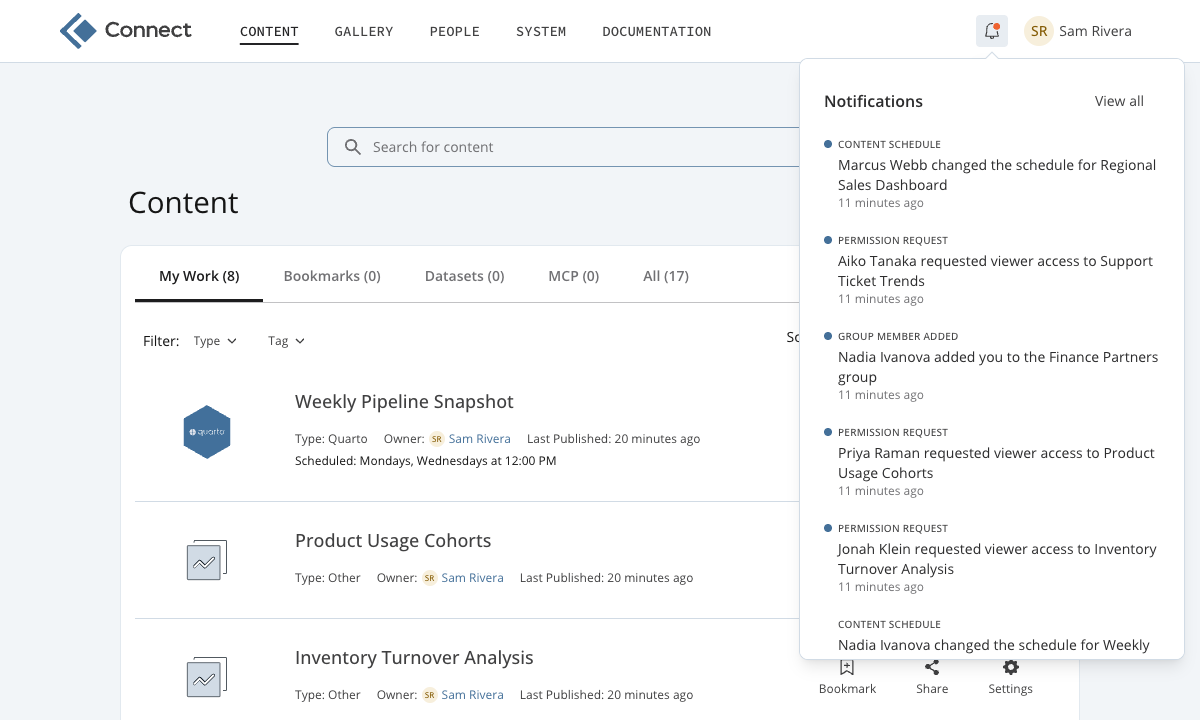
From this panel, you can do the following:
- Select a notification to open the item it describes
- Select the dot beside a notification to mark it as read or unread without opening it
- Select View all notifications to open the Notifications page
A filled dot marks an unread notification. On a read notification, an outlined dot appears when you point to the row or move keyboard focus to the dot. Touch screens always show the outlined dot. When Only show unread is on, marking a notification as read removes it from the panel. It stays on the Notifications page.
Selecting a notification marks it as read, takes you to the item it describes, and closes the panel. Selecting the dot leaves the panel open. Opening the panel does not mark anything as read.
You cannot delete notifications from this panel, or mark several as read at once. Use the Notifications page instead. The View all notifications button does not appear while you are on the Notifications page.
Posit product and event announcements appear here as What’s New notifications, unless an administrator turns off the What’s New page.
Notifications page
The Notifications page lists your notifications, most recent first. Open it with Notifications in the navigation panel, or with View all notifications in the notification bell panel.
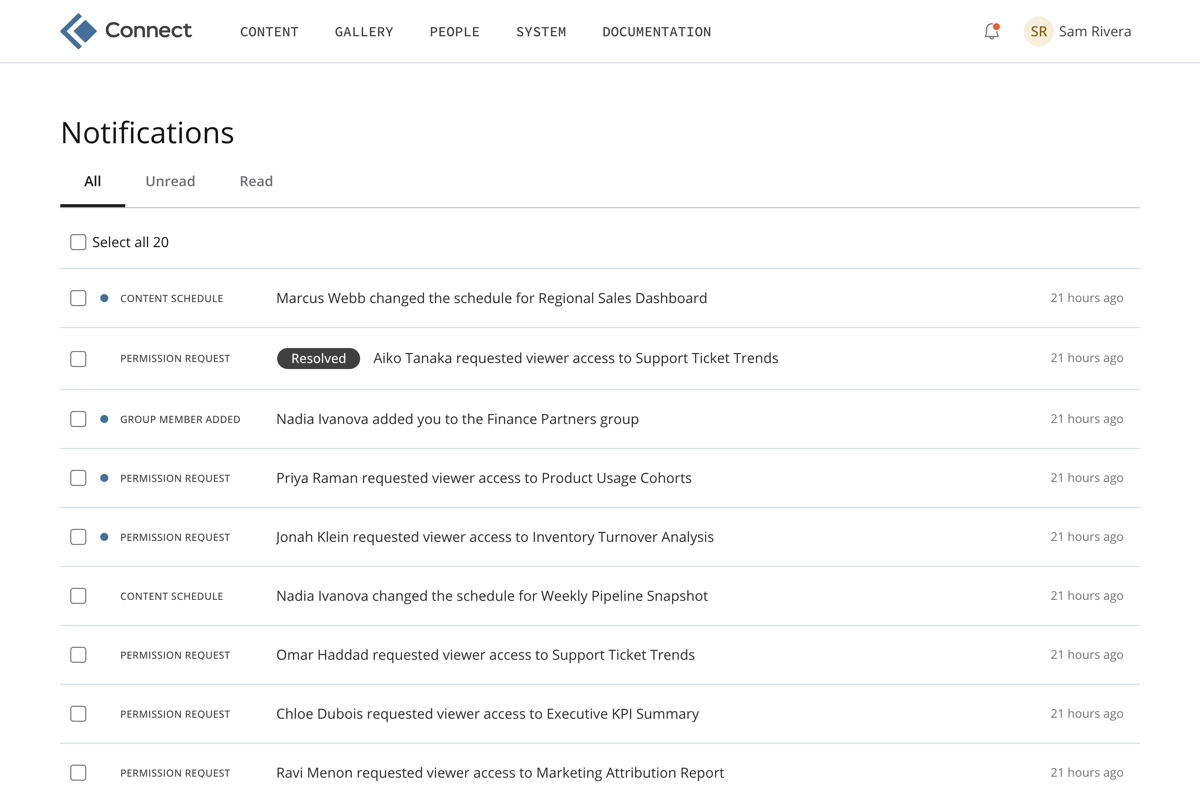
Each row shows the following information:
- Unread indicator: A dot on a notification you have not read
- Type: The kind of event, such as permission request or content schedule
- Resolved: A pill on a permission request that someone already granted
- Message: A sentence describing what happened
- Time: How long ago the event occurred
Three tabs filter the list:
- All: Every notification you have received
- Unread: Only the notifications you have not read
- Read: Only the notifications you have read
Each tab has its own message when the list is empty:
- All: “No notifications yet.”
- Unread: “You’re all caught up.”
- Read: “No read notifications.”
Select notifications
To act on several notifications at once, select the checkbox on each row you want. The Select all checkbox above the list selects every notification on the page. Its label counts the notifications on the page until you make a selection, and then counts what you selected.
A Select all button appears beside the checkbox once you have selected every row on the page and more notifications match the tab you are on. That button counts everything matching the tab, and selecting it extends your selection past the page.
The action buttons appear above the list while at least one row is selected:
- Mark as read: Appears when every notification you selected is unread
- Mark as unread: Appears when every notification you selected is read
- Mark as: Appears when your selection mixes read and unread notifications, and opens a menu with both directions
- Delete: Always appears
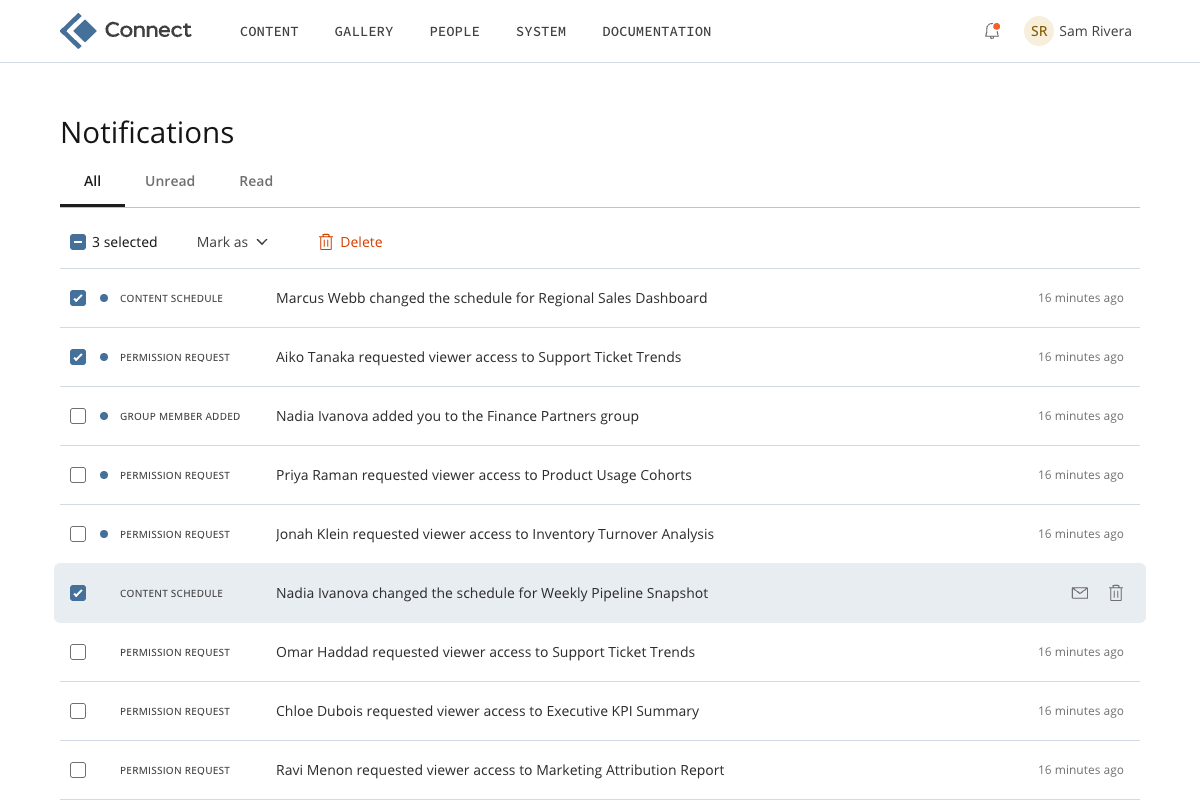
Mark as read and Mark as unread change only the rows in the matching state. Delete removes everything you selected.
These actions work the same after you extend your selection past the page: Connect applies them to everything matching the tab, not just the rows you have loaded.
Mark notifications as read
Select a notification to open the item it describes. Connect marks the notification as read at the same time.
To mark notifications as read without opening them, use one of the following methods:
- One notification: Select the mark-as-read icon at the right end of the row. On a large screen, the row icons appear when you point to the row.
- Several notifications: Select the rows you want, and then select Mark as read. If your selection mixes read and unread notifications, select Mark as > Mark as read instead.
The What’s New page marks its announcements as read as you view them. To return an announcement to the Unread tab, mark it as unread on the Notifications page.
Mark notifications as unread
Marking a notification as unread returns it to the Unread tab.
- One notification: Select the mark-as-unread icon on a notification you already read.
- Several notifications: Select the rows you want, and then select Mark as unread. If your selection mixes read and unread notifications, select Mark as > Mark as unread instead.
Delete notifications
Deleting a notification removes it from your list only. Other people who received the same notification keep theirs.
- One notification: Select the delete icon at the right end of the row.
- Several notifications: Select the rows you want, and then select Delete.
- Everything on a tab: Select the Select all checkbox, then the Select all button that appears beside it, and then Delete.
Deleting everything on a tab reaches past the notifications you can see, so Connect asks you to confirm it first.
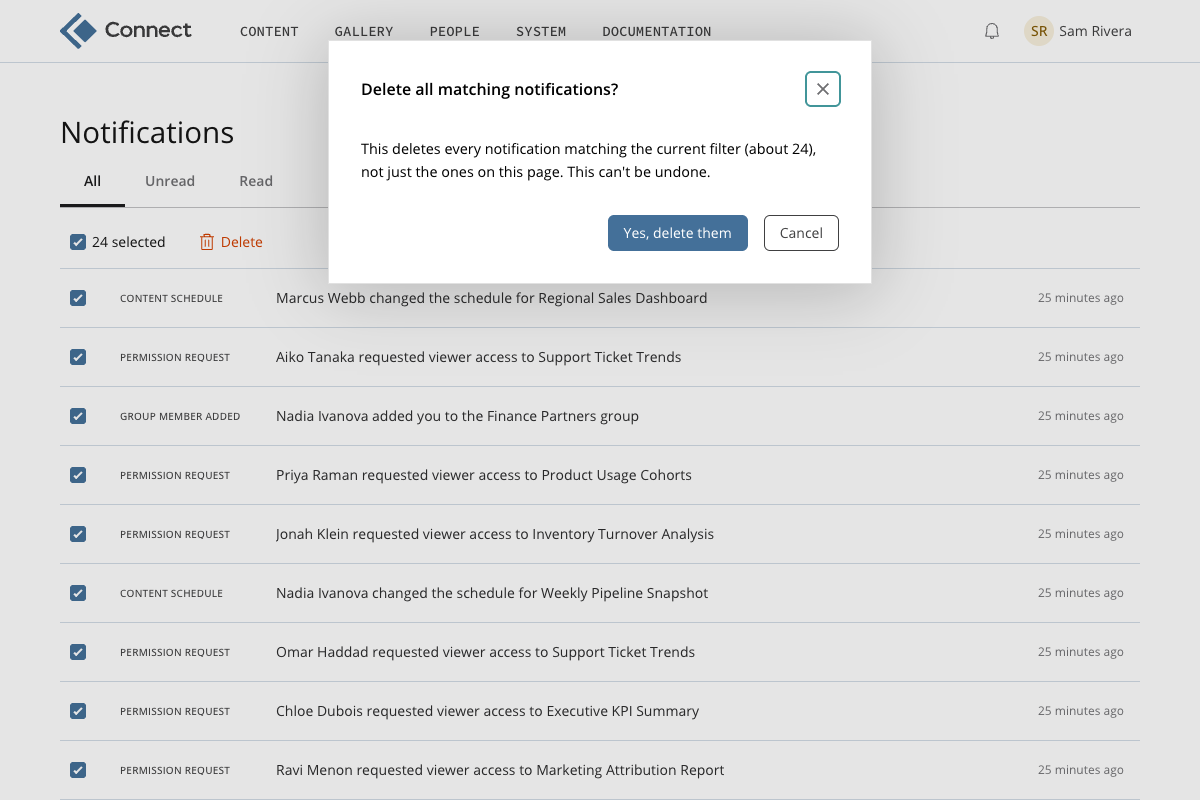
A deleted notification cannot be recovered.
Move through the list
The Notifications page shows up to 20 notifications at a time. Select Older to see earlier notifications, and Newer to return toward the most recent ones. The tab and the page you are viewing appear in the address, so you can bookmark a view or return to it with the browser back button.
Notification types
Connect sends the following notification types.
| Type | Connect sends it when | Who receives it | Where it takes you |
|---|---|---|---|
| Permission request | Someone requests access to content | The content owner and collaborators, unless an administrator restricts notifications to owners | The access settings for the content, with the request selected |
| Permission granted | An owner or collaborator approves a pending access request | The people whose request was approved | The content |
| Content shared | Someone adds you to a content item’s access list directly | The person added individually | The content |
| Access type changed | Someone changes who can view a piece of content | The content owner and collaborators, except the person who made the change | The access settings for the content |
| Self-grant | An administrator gives themselves access to content, or a wider role on it | The content owner and collaborators, except the administrator | The access settings for the content |
| Account upgrade request | A user requests a higher account role, such as a viewer asking to become a publisher | Administrators, and the recipients configured for permission requests | The user’s page |
| Group member added | Someone adds you to a group | The person added to the group | The group |
| Content schedule | Someone creates, changes, or deletes a schedule, or a schedule reaches its end time | The variant owner for a private variant, or the content owner and collaborators for a public variant | The schedule settings for the content |
| What’s New | Posit publishes a product announcement | Every user whose role the announcement targets | The announcement |
| Deployment failed | A deployment of a bundle fails while building, preparing, or launching the content | The person who deployed, and the content owner | The log of the job that failed, or the content when no job failed |
Adding a group to content does not create a Content shared notification for its members. Those members do receive the email Connect sends when you share content. A group member who already has a pending access request on that content also receives a Permission granted notification, because adding the group approves the request.
In-app notifications for a share do not follow the Notify people by email when added checkbox or the Applications.NotifyOnShare setting. Both govern email only, so the person you add receives an in-app notification either way.
Collaborators do not receive content schedule notifications for a private variant, because a private variant is visible only to its owner. Connect also confirms that the owner still has access to the content, so an owner who loses access stops receiving these notifications.
The Applications.NotificationsToOwnerOnly setting controls whether collaborators receive permission request notifications. Administrators can also name additional recipients for permission requests in the Notifications section of the server configuration file. Those recipients can be people who are neither the owner nor a collaborator. An additional recipient receives an in-app notification only if the configured email address belongs to a Connect user. Other addresses receive email only.
If an administrator turns off the What’s New page, Connect stops creating What’s New notifications. Notifications you already received stay in your feed. Selecting one opens the Connect release announcements on the Posit documentation site in a new tab, so it requires internet access. A server without internet access never receives the What’s New feed, so it does not create these notifications at all.