Report History
You can view past renders of reports in Posit Connect using the History tool. This includes both manually triggered and scheduled execution of content (see the Scheduling chapter).
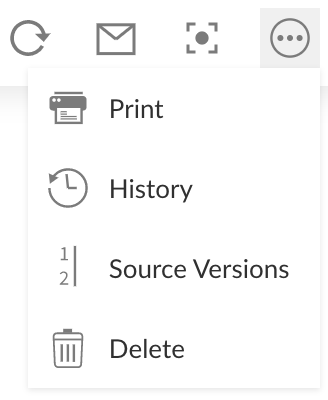
To access the history of a report, click History in the content toolbar.
A panel opens below the toolbar listing previous executions of this report. It outlines the most recent execution and highlights the version of the output you are viewing. Timestamps use your local browser time.

For parameterized R Markdown reports, different variants have a separate rendering history associated with them. The Saved Variants section provides information about variants with parameterized R Markdown.

Each collection of output is saved to disk and is available at a unique URL, along with any output files. The R Markdown Output Files section provides information about creating output files from R Markdown reports. The permissions that apply to the parent document and its source code also apply to saved output files.
Failed renders
The history panel lists only successful renders. When a render fails, Connect discards the partial output and makes no change to the report history.
This means that after a failed render:
- No new entry appears in the history panel.
- The most recent successful render remains the version that viewers see at the content URL.
- Every URL for a previous render continues to serve the output it served before.
If the content has never rendered successfully, Connect continues to show the “This output has not been rendered” message.
Because the history panel omits the failure, investigate a failed render in these two places:
- The email notification that Connect sends to the content owner and collaborators. For more information, see failure notifications.
- The render log for the failed attempt, which Connect retains in the logs viewer. Failed renders appear in the Logs Selection dropdown alongside successful ones.
Email preview
For content that sends custom emails (see email customization), you can preview the email sent for any rendering in the history panel. This allows you to review the email content and formatting that recipients received.
To preview an email:
- Open the History panel for your content
- Select a specific rendering from the list
- Click the See email toggle button
The email preview displays inline within the history panel, showing the complete email sent to recipients.
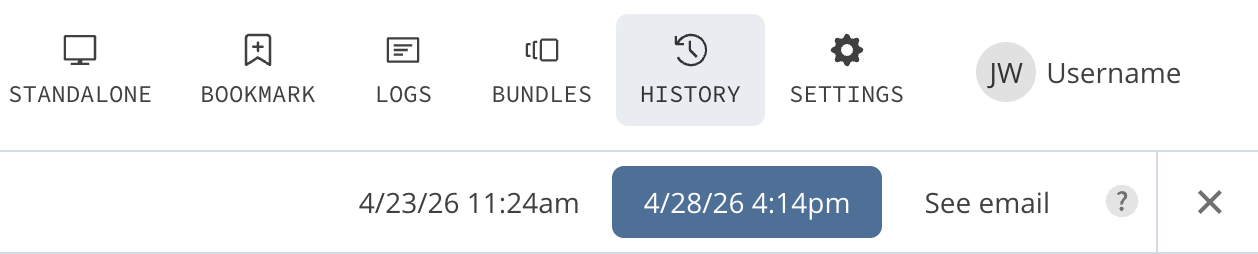
A record of the email send history is also displayed from the history panel for content that sends custom emails.