Custom Documentation
Overview
Users with the Administrator role can add optional custom content on the Documentation page of Posit Connect. This feature is useful for adding organization-specific documentation or links to external resources that Connect users frequently visit.
Users with the Administrator, Publisher, and Viewer roles can view custom documentation.
Connect server administrators can block Viewers from seeing the Documentation page, including custom documentation, by setting HideViewerDocumentation to true. For more information on this setting, see the Configuration Appendix of the Connect Admin Guide.
Custom documentation uses Markdown formatting. For information on basic Markdown syntax, see the commonmark.org documentation.
Adding custom documentation
If you are a Connect Administrator, you can add custom documentation by following these steps:
Click Documentation in the Connect top navbar.
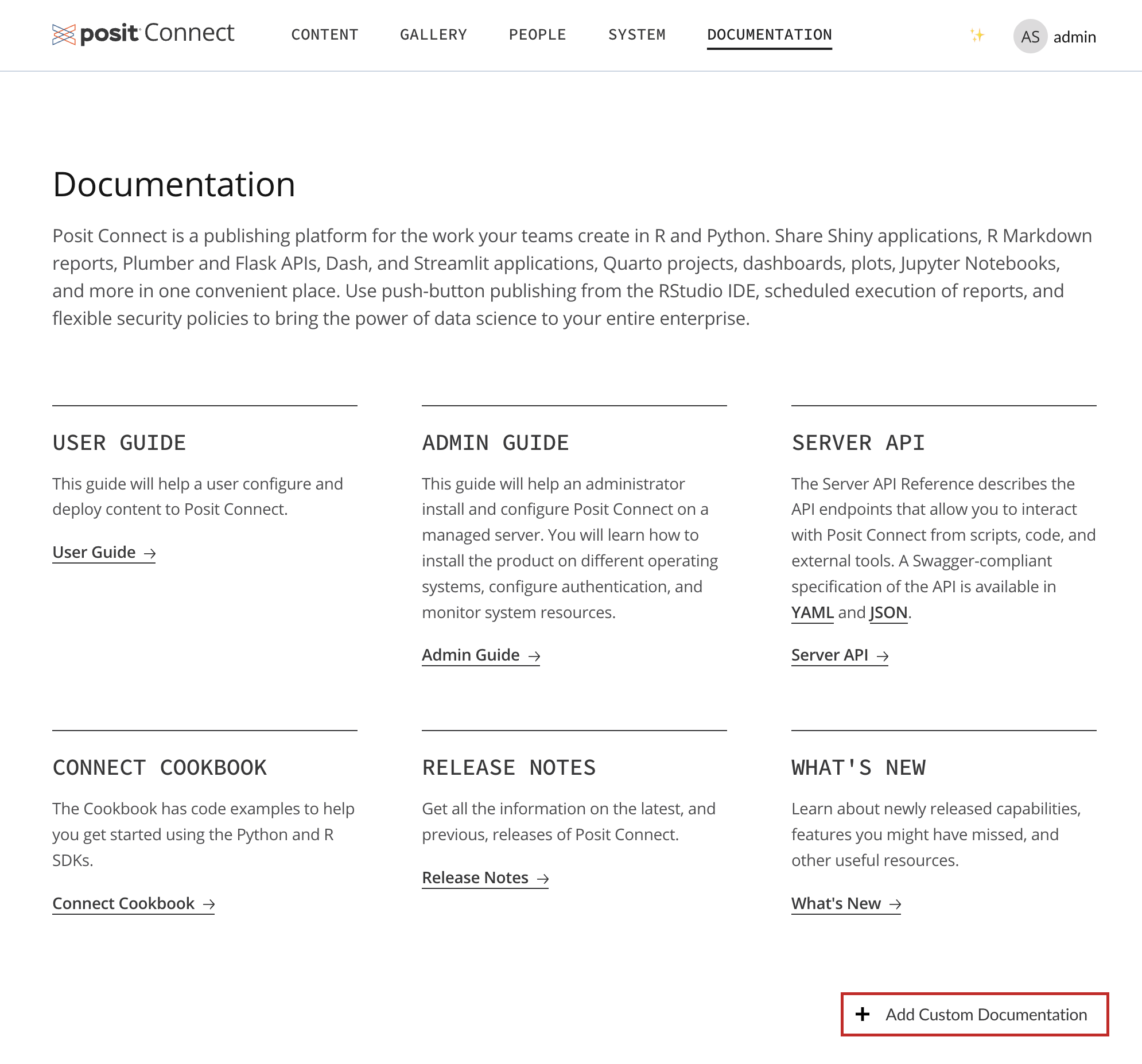
Below the grid of Posit-provided documentation cards, click + Add Custom Documentation.
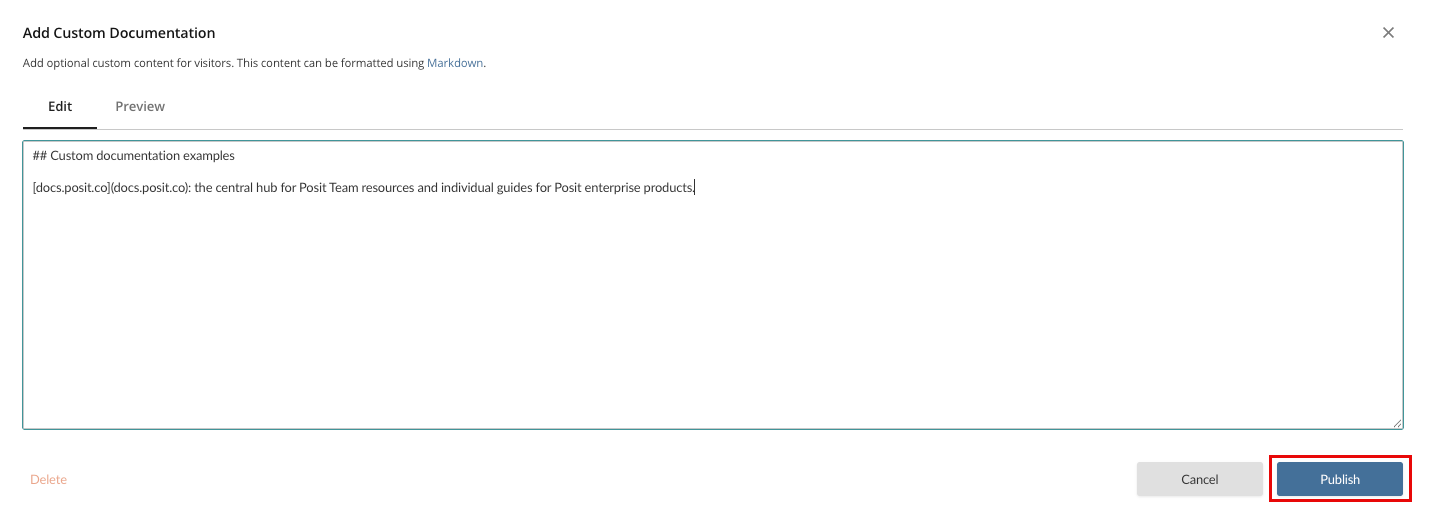
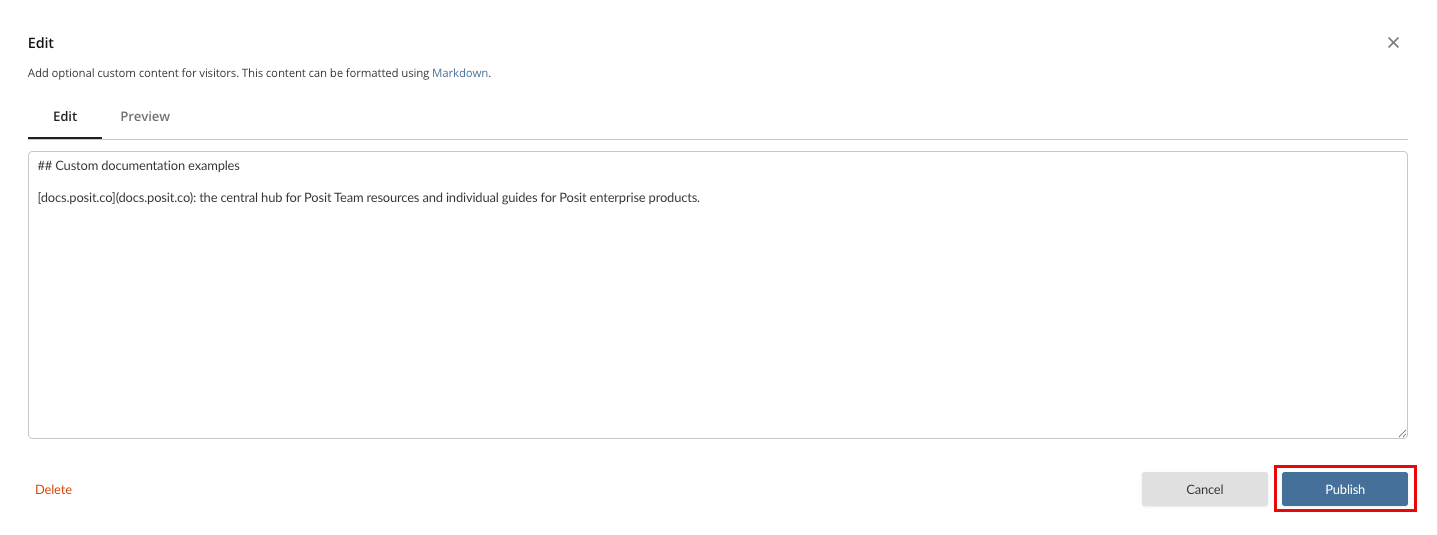
Enter the documentation you want to include and check the Preview, if desired.
Click Publish.
Editing custom documentation
If you are a Connect Administrator, you can edit custom documentation by following these steps:
Click Documentation in the Connect top navbar.
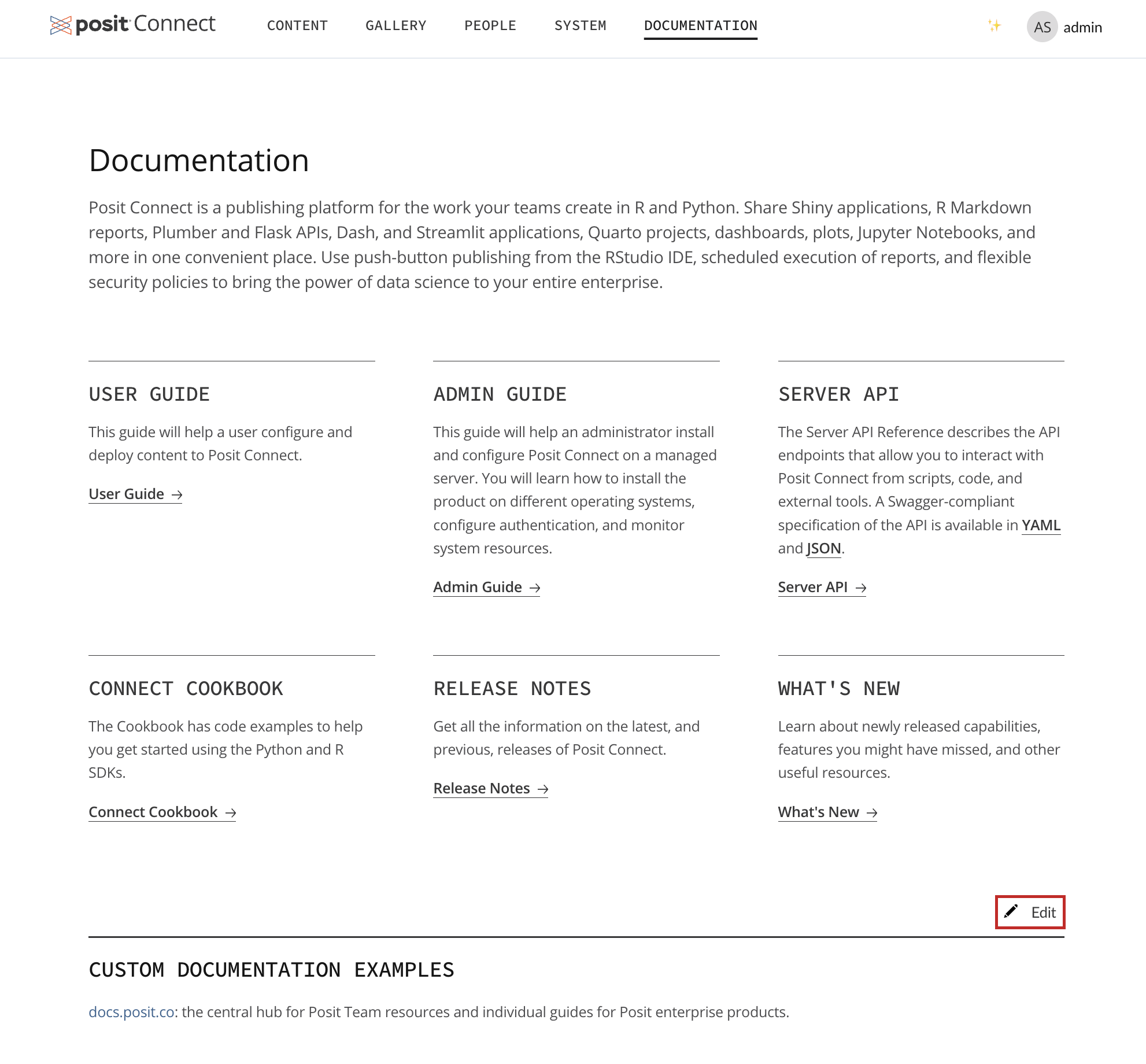
Below the grid of Posit-provided documentation cards, click Edit above the existing custom documentation.
Make your changes and check the Preview, if desired.
Click Publish.
Removing custom documentation
If you are a Connect Administrator, you can remove custom documentation by following these steps:
Click Documentation in the Connect top navbar.
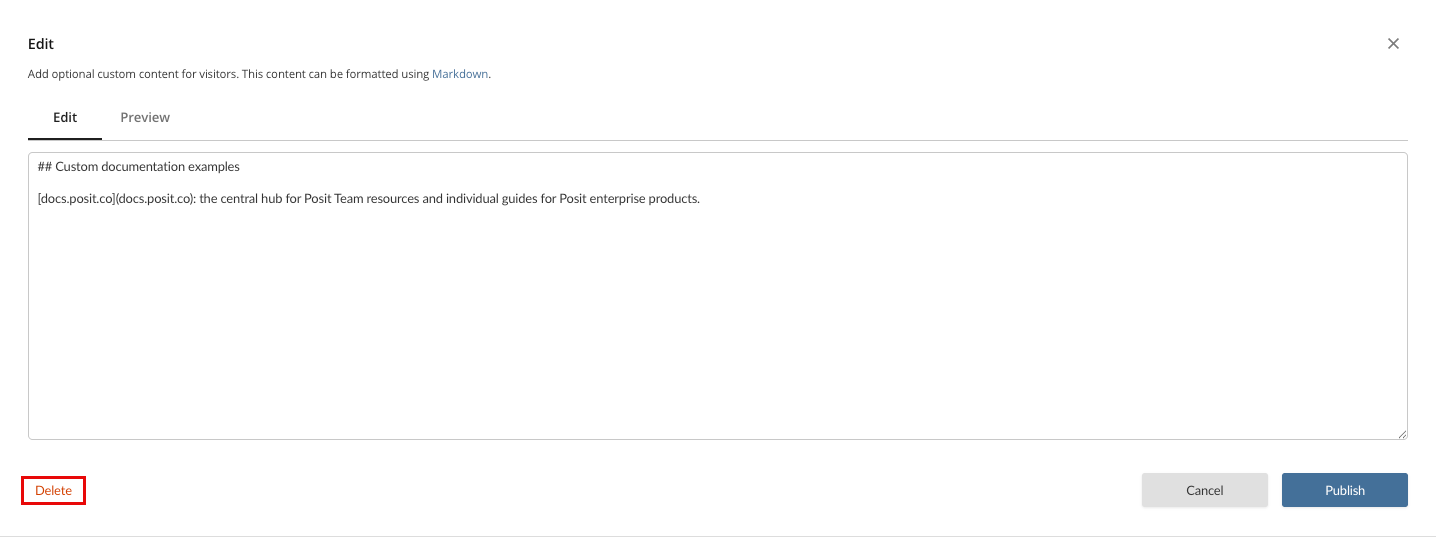
Below the grid of Posit-provided documentation cards, click Edit above the existing custom documentation.
Click Delete below the text field, and then Delete in the dialog that appears.