Custom messaging
Overview
Posit Connect administrators can customize user-facing messages that Connect displays throughout the UI. For example, you can add a notice to the sign-in page or a banner to the top of the content list. Use custom messaging for announcements, maintenance notices, or organization-specific guidance.
To open the Custom Messaging tab, click System in the top menu bar, then click Custom Messaging under Manage.
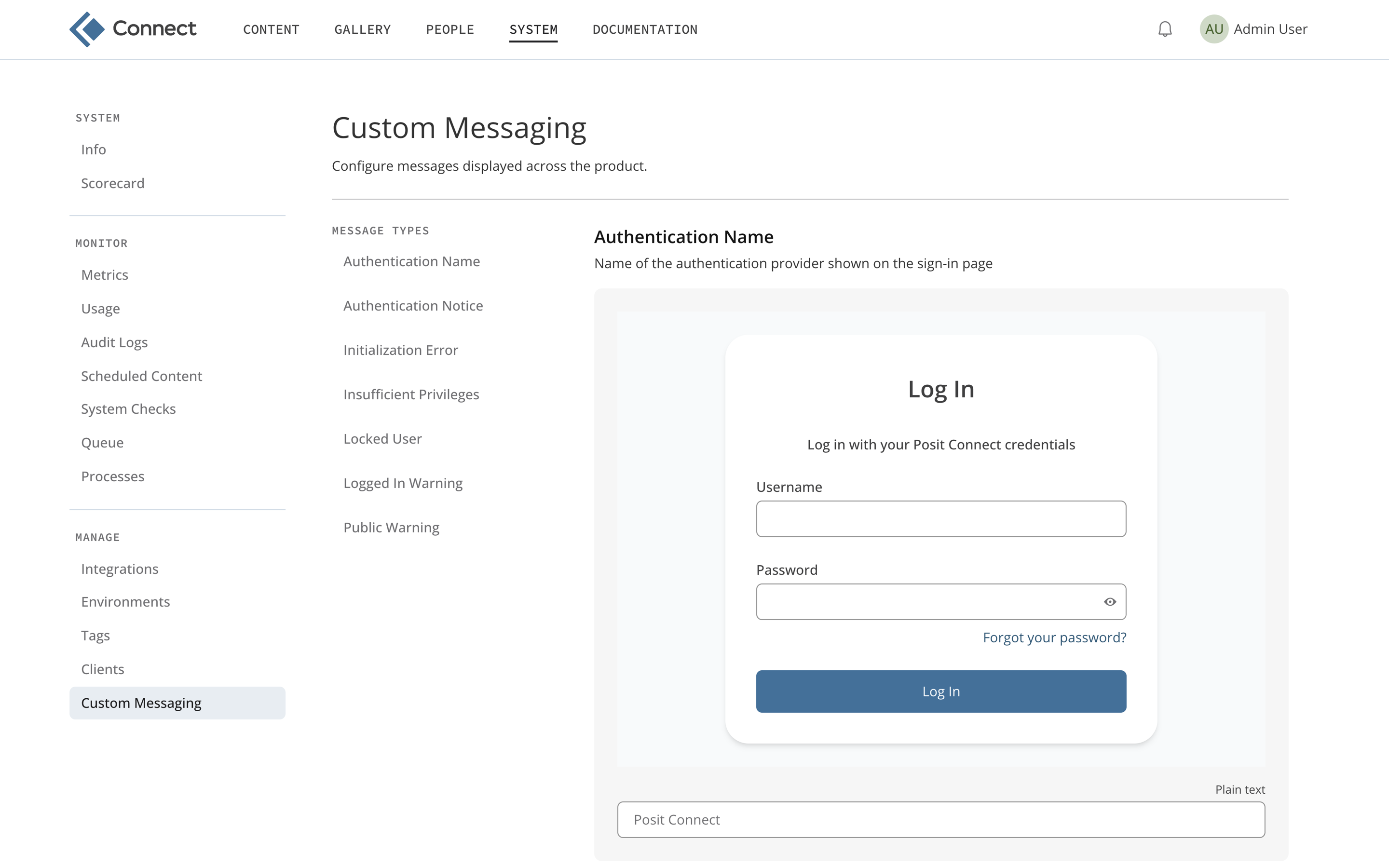
Connect stores custom messages in its database. Changes take effect immediately and apply to every Connect server in a high availability cluster, without editing the configuration file or restarting Connect.
Custom messaging is available by default and needs no server configuration. For details about how custom messaging replaces the older configuration settings, see the Custom messaging appendix of the Connect Admin Guide.
Messages you can customize
The Message types list on the left of the tab shows each message you can customize. A dot next to a message type indicates that it has a saved custom value.
| Message | Where it appears | Formatting | Default |
|---|---|---|---|
| Authentication Name | Name of the authentication provider on the sign-in page | Plain text | Depends on the authentication provider, for example Posit Connect for password authentication |
| Authentication Notice | Sign-in, sign-up, and account completion pages | Markdown | None |
| Initialization Error | Added to the error message shown when interactive content fails to start | Plain text | Contact the author or review the logs for more information. |
| Insufficient Privileges | Dialog shown when a user requests a higher role | Markdown | Are you sure you want to request **{privilege}** permissions on this server? This will contact the **{serverName}** administrator on your behalf to request these additional privileges. |
| Locked User | Shown when a locked user tries to sign in | Plain text | Your account has been locked. Please contact your administrator. |
| Logged In Warning | Top of the content list for signed-in users | Markdown | None |
| Public Warning | Connect landing page for signed-out visitors | Markdown | None |
Messages with a default of None do not appear until you save a value.
The Insufficient Privileges message supports two placeholders, which Connect replaces when it displays the message:
{privilege}: the role the user requests{serverName}: the name of this Connect server
Editing a message
To edit a message:
Click System in the top menu bar, then click Custom Messaging under Manage.
Click a message type in the Message types list, or scroll to the message you want to change.
Enter the new message in the text field. Fields that support Markdown show a Markdown icon above the field. Fields that do not support Markdown show Plain text.
Review the preview above the text field, which shows how the message appears to users as you type.
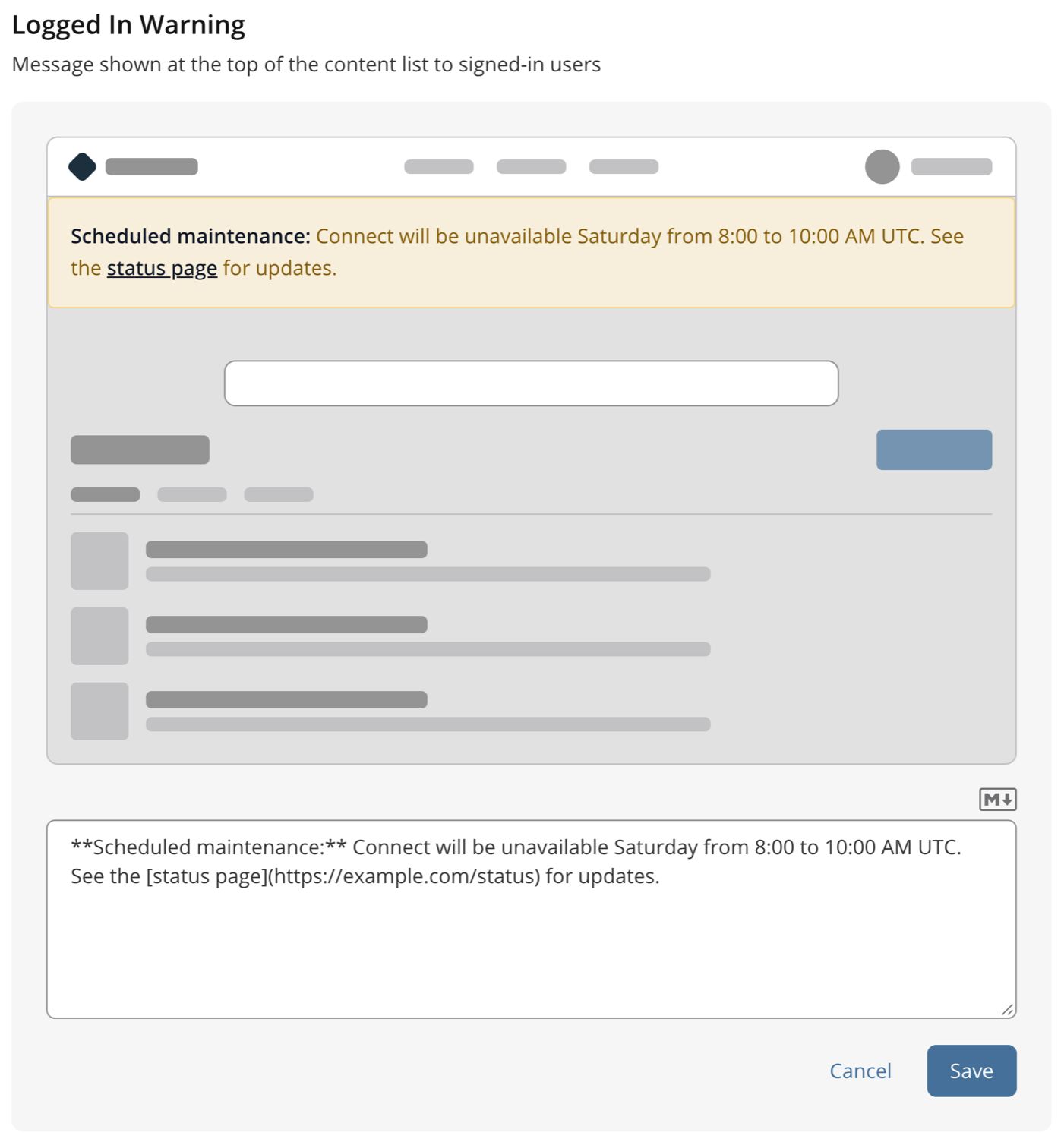
Click Save to apply the change, or click Cancel to discard your edits.
Resetting a message to its default
To discard a custom message and return to the default:
On the Custom Messaging tab, go to the message you want to reset.
Click Reset to default.
Click Reset in the dialog that appears.
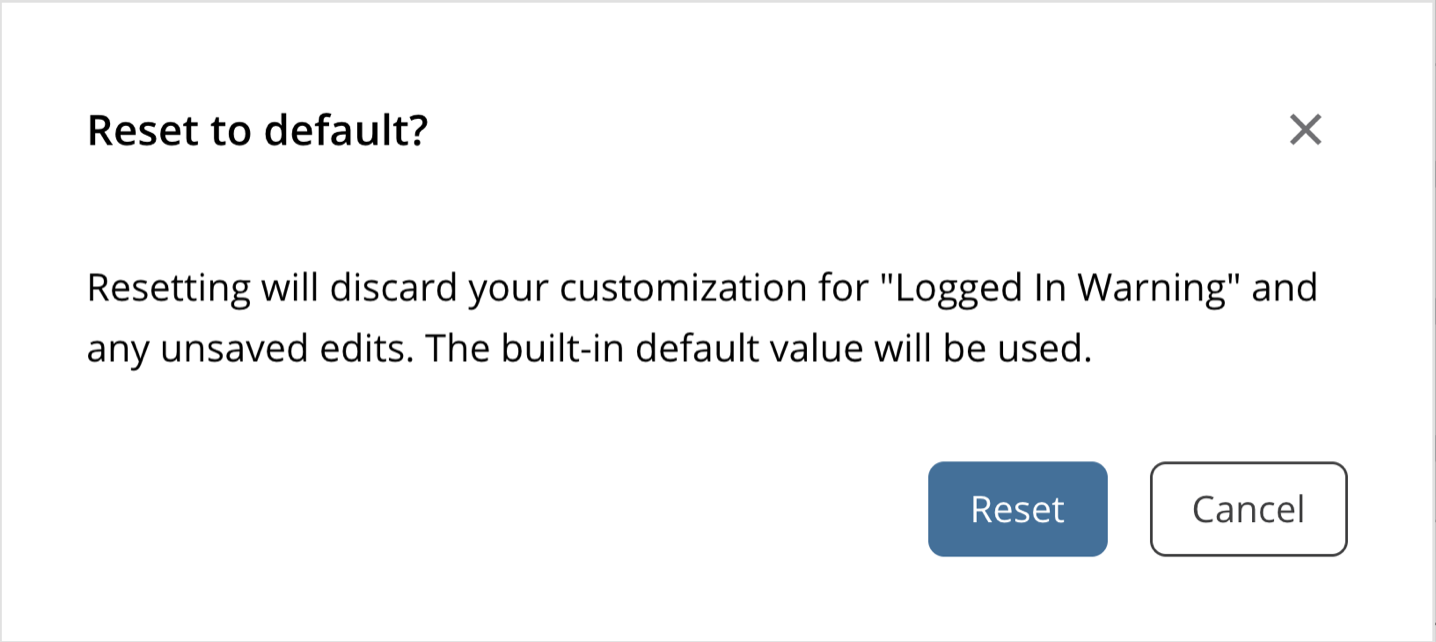
Saving an empty text field also resets the message.
If the message has a deprecated configuration setting with a value, Connect displays that value instead of the built-in default. For more information, see How Connect chooses which message to display.
How Connect chooses which message to display
For each message, Connect displays the first value it finds, in this order:
- The custom message saved on the Custom Messaging tab.
- The value of the deprecated configuration setting, if the message has one.
- The built-in default.
| Message | Deprecated configuration setting |
|---|---|
| Authentication Name | Authentication.Name |
| Authentication Notice | Authentication.Notice |
| Initialization Error | Applications.InitializationErrorMessage |
| Logged In Warning | Server.LoggedInWarning |
| Public Warning | Server.PublicWarning |
The Insufficient Privileges and Locked User messages have no configuration setting.
When Connect starts, it copies the value of each deprecated configuration setting into the database, unless the message already has a saved custom value. After that, the Custom Messaging tab shows the copied value as a custom message, and later changes to the configuration setting have no effect. Connect converts HTML in Server.PublicWarning and Server.LoggedInWarning to Markdown when it copies them.
Manage these messages on the Custom Messaging tab rather than in the configuration file. After Connect copies the values into the database, ask your Connect server administrator to remove the deprecated settings from the configuration file. The copied messages stay in place.
Until the settings are removed, a message you reset displays the configuration value, and Connect copies that value back into the database on the next restart.