Content Bundles
You can view previous versions of content bundles deployed to Posit Connect within the Bundles dialog.
Content bundles are created and uploaded to Connect as part of the publishing process, and can contain source code, environment specifications, or other files. Old bundles are retained until you reach the limit imposed by Applications.BundleRetentionLimit, at which point older bundles are deleted. You can override this limit for an individual content item by setting bundle_retention_limit with the Connect Server API. This is useful if the content’s full history must be retained for business purposes, or conversely if your content’s bundles are known to be large and do not need to be retained. The active bundle is always retained in addition to the limit.
To view the bundles associated with a piece of content, open the Settings panel and select the Source tab. In the Active Bundle section, click View all bundles to open the Bundles dialog.
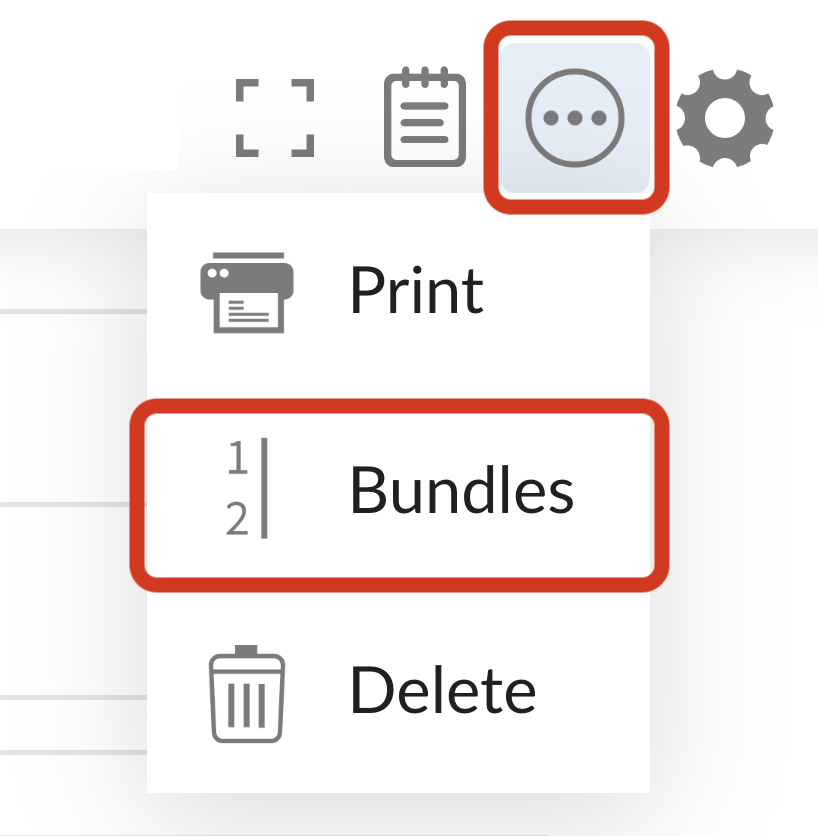
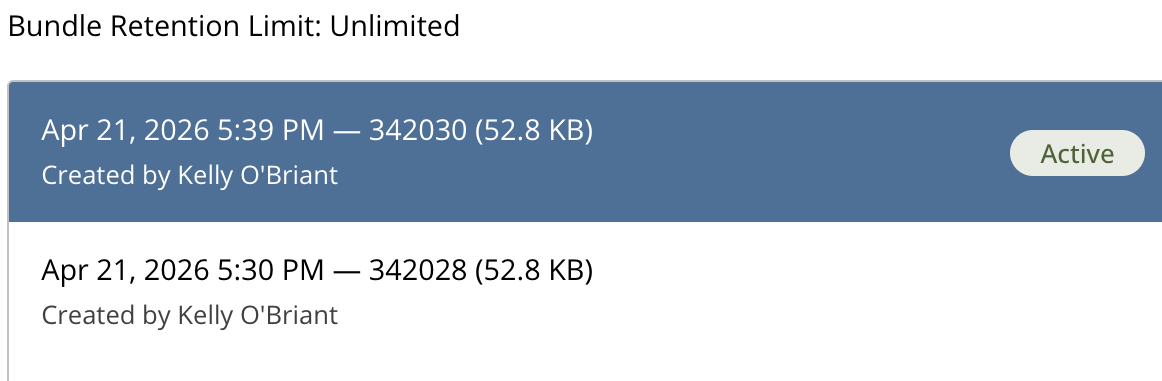
Each bundle tracks the user who created it. You can see the creator in the Bundles dialog and in the Active Bundle section of the Settings panel.
For more information about managing content, see the Content Management section of the Posit Connect Admin Guide.
Inspecting bundle files
You can browse the files inside a bundle directly in Connect, without downloading it. Click View files to open a read-only file browser for that bundle. The View files button appears in two places:
- In the Active Bundle section of the Source settings tab, for the active bundle.
- In the Bundles dialog, after you select a bundle from the list.
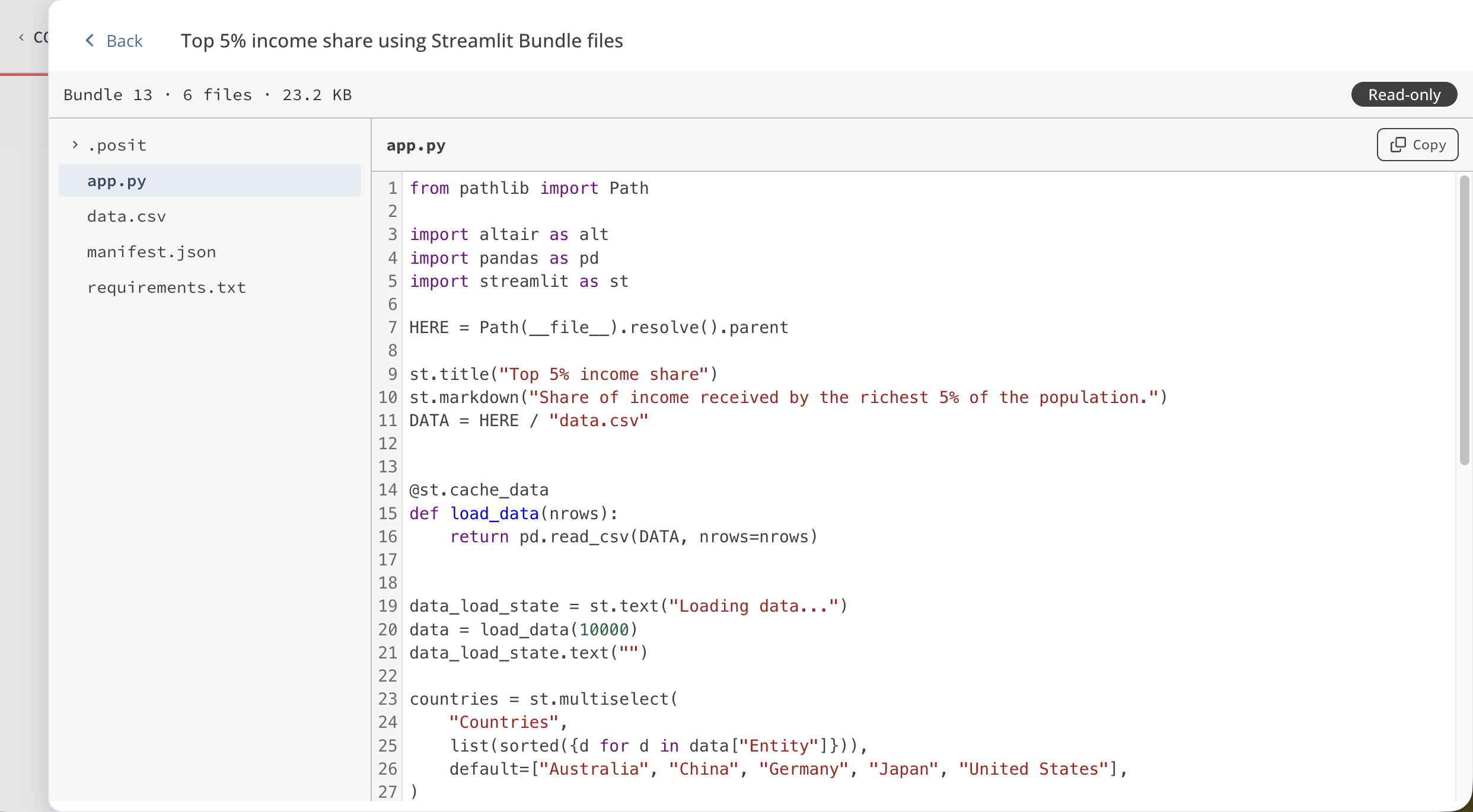
The file browser lists every file in the bundle. Select a file to view its contents, and use the Copy button to copy them. The header shows the bundle ID, the number of files, and the total size of the bundle. If Connect cannot load the file list, the header shows the bundle ID alone.
The browser cannot preview files larger than 5 MB, or binary files such as images and compiled objects. Download the bundle to view these files.
Only content owners, collaborators, and reviewers can inspect bundle files.
Changing an active bundle
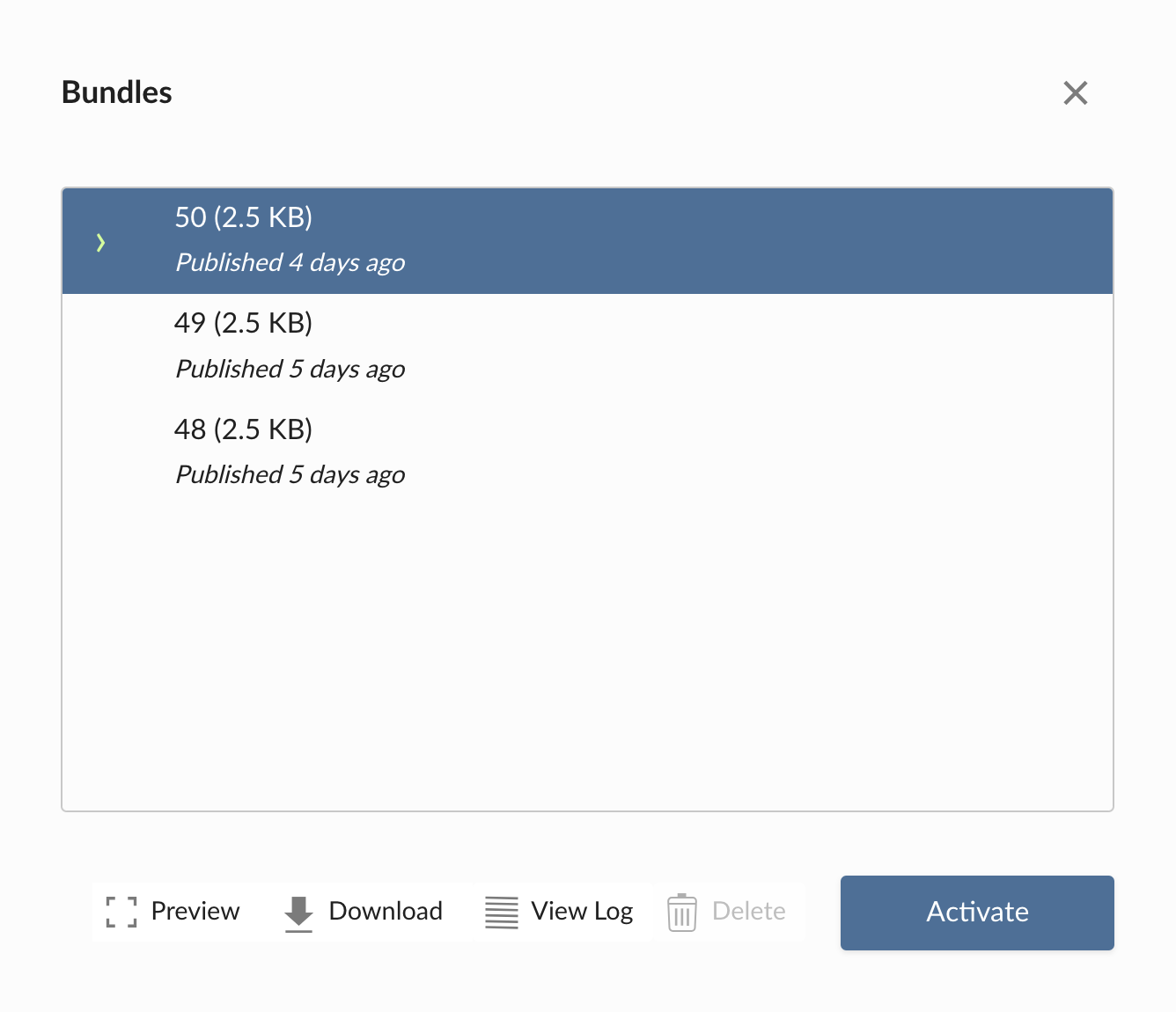
Publishing new content or updates to an existing content item will set that bundle to active. You can activate a different bundle for a piece of content by selecting it and clicking the Activate button. To deploy the active bundle of an application or API again, click Rebuild in the content toolbar.
For interactive applications
Activating an alternate bundle causes new incoming users to be directed to the new version of the application. Existing users of the application who are viewing the previously active bundle are not interrupted.
For APIs
Activating an alternate bundle causes new requests to be serviced by new processes running the new code. Existing requests are serviced by processes already launched running the old code.
For documents
Activating an alternate bundle immediately renders the newly activated bundle and promotes it to be the authoritative version of that document. For parameterized documents, only the default variant is rendered. Other instances of the report are not automatically regenerated, but the next manual or scheduled rendering is performed on the newly active bundle.
Content owners and collaborators can delete and activate their content bundles. Content owners, collaborators, and reviewers can download a bundle and view its activation logs.
Failed deployments
If a deployment fails after Connect activates the new bundle, Connect activates the previous bundle again. The content continues to serve its last working version, and you do not have to activate the previous bundle yourself.
Connect activates the new bundle after it builds the environment for that bundle. A failure in one of these later steps causes Connect to go back to the previous bundle:
- The initial render of a report or document fails.
- Connect cannot associate the integrations that the bundle requests.
- Connect cannot extract the parameters of the content.
If the environment build fails, Connect does not activate the new bundle. The previous bundle stays active.
In each case, Connect labels the bundle Deployment failed in the Bundles dialog and in the Source settings tab. Hold the pointer over the label to see when the deployment failed. Connect also sends a Deployment failed notification to the person who deployed and to the content owner. When a later deployment of the bundle succeeds, Connect removes the label.
Connect does not go back to a previous bundle in these cases:
- First deployment: The content has no previous bundle, so the failed bundle stays active. Connect still labels the bundle and sends the notification. To fix the content, deploy a corrected bundle.
- Deleted previous bundle: If the previous bundle no longer exists, the failed bundle stays active.
- Later activation: If you activate or deploy a different bundle while the failed deployment runs, that bundle stays active.
A deployment does not check whether an application or API starts. If an application or API fails when it starts, Connect still counts the deployment as successful. Connect keeps the new bundle active and does not label it. To find the cause of a startup failure, open the content logs.
Reviewing content before it goes live
Publishing a new bundle does not have to change what your audience sees. A draft is any content bundle that is not the currently active (served) version — a newly deployed bundle that has not been activated, or an earlier bundle. Viewing a draft lets you open and exercise that version in its real running environment without changing what viewers see, so you can confirm it behaves before promoting it.
This supports a review-before-release workflow, where a new version is deployed but held back for a person to check before it replaces the live version:
Deploy from CI without activating. Trusted publishing lets a CI/CD pipeline — such as GitHub Actions or GitLab CI/CD — publish a content item without storing a long-lived API key. For example, on pull requests, configure the deploy step to publish without activating, and each pipeline run produces a draft rather than immediately replacing the live version.
Deploy from
rsconnect-pythonwithout activating. Deploying withrsconnect-python deploy --draft ...will upload a bundle to Connect without making it the active version, leaving it as a draft to review, and providing a URL to get to the draft.
Then review the draft in place. Open the draft and you will see the running application or rendered report — the same environment your audience uses — and validates it before anyone activates it.
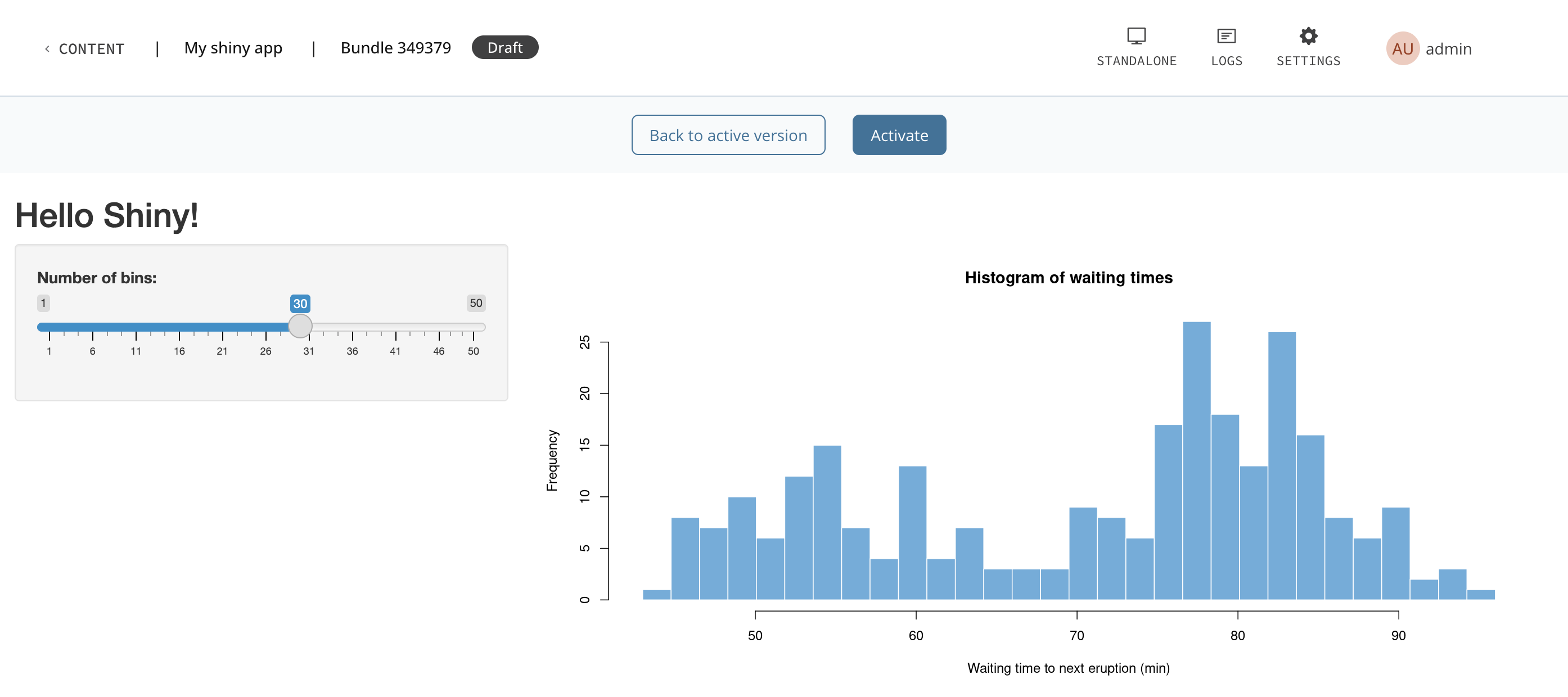
Drafts are visible only to a content item’s owners, collaborators, and reviewers. Viewers always see the active version, never the draft.
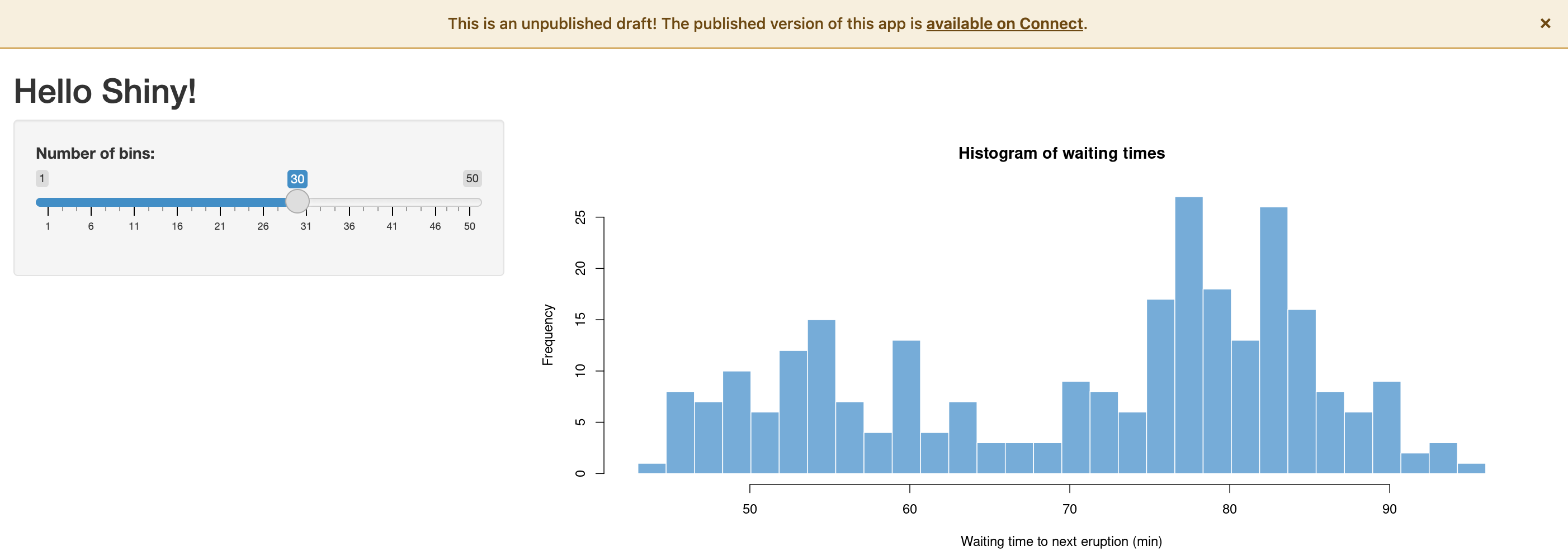
You can also open the draft in standalone mode to see it exactly as it would look in this mode, without the surrounding Connect dashboard. In standalone mode, a banner across the top of the content marks it as an unpublished draft and links to the published version on Connect, so the draft is never mistaken for the active version. This is also helpful if you need a direct URL to an API, MCP, or applications without an interface.
What a draft reflects
A draft runs the code and dependencies from the bundle you are previewing, but it shares the content item’s configuration with the active version:
Specific to the draft: the bundle’s source code, along with the package dependencies and language versions (R, Python, Quarto, and so on) recorded with that bundle. The dependencies shown in the Source tab reflect the draft you are viewing, not the active version.
Shared with the active version: environment variables, access permissions, and runtime and scheduler settings. The draft inherits these from the content item’s configuration. You can add or remove people and groups from the Access tab while you view a draft. The change applies to every version. You cannot change environment variables, the access type, the private link, or runtime and scheduler settings while you view a draft. Connect runs a draft in its own processes and counts them separately from those that serve the active version. Connect also counts each draft separately from other drafts, so a draft does not consume the Max processes allowance of the active version.
Keep this in mind when a change depends on an environment variable that does not exist yet. The draft does not reflect that variable until you activate the bundle and update the configuration.
Viewing earlier versions
You can also use View Draft to look back in time. From the content’s Settings, click Bundles to open the Bundles dialog, select the bundle you want to inspect, and click View Draft. The draft is clearly labeled with a banner, so it is never mistaken for the active version.