Azure Private Link
Overview
The Posit Team Native App supports installation into a Snowflake account configured to use Azure Private Link. An Azure Private Link configuration is automatically detected and used by Posit Team.
Reach out to your Snowflake representative for more information about using Snowflake Native Apps and Snowpark Container Services with Google Cloud Private Service Connect.
Azure Private Link provides secure connectivity between the Snowflake containerized environment (SPCS) and your Azure VNet. This works well for inbound traffic to your VNet resources. Snowflake Native Apps have a limitation: they cannot send outbound traffic directly to Snowflake endpoints (e.g. OAuth and SQL APIs) through the standard Azure Private Link setup. This affects how the Posit Team Native App communicates back to Snowflake.
To avoid this limitation, Snowflake recommends and supports the use of an Azure Application Gateway with Private Link as documented in Snowflake’s outbound connectivity guide. This enables applications to proxy outbound traffic back to the Snowflake Azure Private Link interfaces.
All resources created in this setup — Application Gateway with Private Link configuration, Private Endpoints, and Snowflake external access configurations — are standard Azure networking primitives, deployed in accordance with both Snowflake’s validated Azure Private Link architecture and Azure Private Link best practices. No public-facing infrastructure is created, and all traffic remains confined within your Azure environment, maintaining strong security and network boundaries.
Network architecture
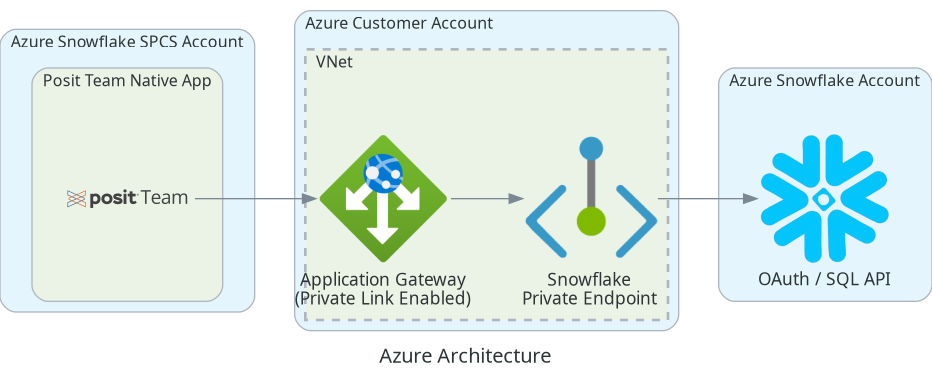
A high level overview of the required Azure resources is shown below.
This architecture uses:
- A Private Endpoint to connect to Snowflake privately.
- An Application Gateway with Private Link enabled that proxies SPCS outbound requests to Snowflake.
- Snowflake creates a Private Endpoint connection to your Application Gateway.
Summary of steps
This guide assumes you have already followed the Posit Team Native App installation steps. Once you have completed this additional configuration, all Snowflake data and OAuth will travel through your configured VPC.
In order to use the Posit Team Native App with Azure Private Link you must:
- Configure Azure Private Link access for your Snowflake account.
- Create an Application Gateway with Private Link enabled.
- Provision the Application Gateway endpoint in Snowflake.
- Approve the Private Endpoint connection from Snowflake.
- Update the Native App network rules to use Private Link.
For more information see the Snowflake instructions describing how to configure Azure Private Link and setting up private endpoints.
Configure Azure Private Link to Snowflake
You must configure your Azure platform to access Snowflake via your Private Link VPC. Snowflake provides detailed instructions on getting this set up. If you are already using Azure Private Link to access your Snowflake account and the Snowsight UI you likely already have this setup.
This setup process is complicated and easy to get wrong; we highly advise that you meet with your Snowflake Account representative while getting this set up. Failure to get this set up properly will result in weird errors later in the setup that are difficult to debug.
You must configure all Snowflake DNS entries, even if you previously set up Azure Private Link. Snowflake recently added SPCS endpoints that may be missing from older configurations.
Once you have this step complete, please take note of the ips of the Private Link endpoint you created that snowflake instructions ask you to create.
Validate DNS
Ensure your Private Hosted Zones are set up and resolve the following endpoints inside your VPC:
<org-account>.privatelink.snowflakecomputing.com*.registry.snowflakecomputing.com- OAuth endpoints (/oauth/authorize, etc.)
In order to determine your <org-account>.privatelink.snowflakecomputing.com use the following SQL. The Private Link account url should be lowercase and substitute - for all _ characters.
Snowsight UI
SELECT REPLACE(LOWER(CURRENT_ORGANIZATION_NAME() || '-' || CURRENT_ACCOUNT_NAME() || '.privatelink.snowflakecomputing.com'), '_', '-');Determine the internal IPs for the Private Endpoint
After creating the Private Endpoint to Snowflake, you need to retrieve its private IP addresses. These IPs will be used as backend targets for the Application Gateway.
Steps to find the Private Endpoint IPs:
- Navigate to your Private Endpoint resource in the Azure Portal
- Go to Network Interface in the left menu
- Click on the network interface name
- Go to IP configurations
- Note the Private IP address(es) displayed
You should get one or more IPs within your VNet (e.g., 10.0.1.10). Keep track of these IP addresses - you’ll use them when configuring the Application Gateway backend pool.
Create and configure Azure Application Gateway with Private Link
To allow Snowflake to send egress traffic from the Posit Team Native Application, you need to create an Application Gateway with Private Link enabled for Snowflake to connect to. The Snowflake documentation details outbound connectivity for Azure, and for our specific use case we must configure an Application Gateway with Private Link.
The Application Gateway must be in the same Azure region as your Snowflake account and must use the Standard_v2 or WAF_v2 SKU to support Private Link.
TCP Proxy Support: Application Gateway’s Layer 4 TCP/TLS proxy feature may be in Preview. This feature enables TLS passthrough, preserving end-to-end encryption without certificate termination at the gateway.
The setup involves creating an Application Gateway configured as a Layer 4 TCP proxy that forwards encrypted traffic to the Snowflake Private Endpoint IPs, then enabling Private Link on the Application Gateway so Snowflake can create a Private Endpoint connection to it.
Configure Application Gateway
Azure Application Gateway acts as a Layer 4 TCP proxy, forwarding encrypted traffic from Snowflake SPCS to your Snowflake Private Endpoint without decryption (TLS passthrough). You’ll need to configure:
- Backend Pool: Contains the Private Endpoint IP addresses
- Frontend IP: Private IPv4 address for the gateway
- Backend Settings: TCP port 443 configuration
- Listener: TCP listener on port 443 with private frontend IP
- Routing Rule: Connects the listener to the backend pool
Using TCP protocol preserves the original TLS certificate end-to-end, as the Application Gateway does not terminate or decrypt the TLS connection.
Configuration Steps
Using the Azure Portal, create and configure the Application Gateway:
1. Create Application Gateway - Navigate to Create a resource → Application Gateway - Select your subscription and resource group - Choose Standard_v2 or WAF_v2 SKU - Select your VNet and a dedicated subnet for Application Gateway (requires /24 or larger)
2. Configure Frontend IP - Add a Private frontend IP configuration - Name it appGwPrivateFrontendIpIPv4 (this name will be used with Snowflake) - Select a private IP from your Application Gateway subnet
3. Create Backend Pool - Add a backend pool with the Private Endpoint IP addresses resolved earlier - Target type: IP address or FQDN - Add the Snowflake Private Endpoint IP(s)
4. Configure Backend Settings - Create backend settings with: - Protocol: TCP - Port: 443 - Timeout: 30 seconds (or as needed)
5. Create TCP Listener - Add a listener with: - Protocol: TCP - Port: 443 - Frontend IP: Select the private frontend IP created in step 2
6. Create Routing Rule - Create a routing rule connecting: - Listener: The TCP listener from step 5 - Backend pool: The pool created in step 3 - Backend settings: The TCP settings from step 4 - Rule type: Basic - Priority: 100
Wait for the Application Gateway to report “Succeeded” provisioning state, which takes 5-10 minutes.
If the backend health is unhealthy, check that: - Network Security Groups allow TCP traffic on port 443 between the Application Gateway subnet and the Private Endpoint - The Private Endpoint IP addresses are correct - The Application Gateway subnet has sufficient address space
Enable Private Link on Application Gateway
Now configure Private Link on your Application Gateway so that Snowflake can create a Private Endpoint connection to it. This requires creating a Private Link configuration and associating it with the frontend IP.
Private Link for Application Gateway allows cross-subscription and cross-tenant connections, which is required for Snowflake to connect from their Azure subscription to your Application Gateway.
Configuration Steps
1. Create Private Link Subnet - Create a new subnet in your VNet for Private Link - Minimum size: /28 (at least 8 available IPs recommended) - Example: PrivateLinkSubnet with address space 10.0.3.0/28 - Navigate to the subnet and disable network policies: - Go to Subnet settings - Set Private link service network policies to Disabled
2. Configure Private Link on Application Gateway - Navigate to your Application Gateway - Go to Private Link in the left menu - Click Add to create a new Private Link configuration - Configure: - Name: snowflake-private-link-config (or your preferred name) - Frontend IP configuration: Select the private frontend IP (appGwPrivateFrontendIpIPv4) - Subnet: Select the Private Link subnet created in step 1
3. Get Application Gateway Resource ID - Navigate to your Application Gateway - Go to Properties - Copy the Resource ID - it will look like: /subscriptions/{subscription-id}/resourceGroups/{resource-group}/providers/Microsoft.Network/applicationGateways/{gateway-name} - Save this Resource ID - you’ll provide it to Snowflake in the next step
Provision endpoint in Snowflake
Now inform Snowflake to route outbound connectivity through your newly created Application Gateway, as detailed in the Snowflake outbound connectivity docs.
Execute the following SQL in Snowsight, substituting your values:
- Application Gateway Resource ID: The full Azure resource path from the previous step
- Private Link hostname: Your
<org-account>.privatelink.snowflakecomputing.comfrom DNS validation - Frontend IP configuration name:
appGwPrivateFrontendIpIPv4(or the name you chose)
Snowsight UI
CALL SYSTEM$PROVISION_PRIVATELINK_ENDPOINT(
    -- Application Gateway Resource ID (replace with your actual Resource ID)
    '/subscriptions/{subscription-id}/resourceGroups/{resource-group}/providers/Microsoft.Network/applicationGateways/{gateway-name}',
    -- Private Link snowflake account hostname (replace with your account)
    '<org-account>.privatelink.snowflakecomputing.com',
    -- frontend IP configuration name
    'appGwPrivateFrontendIpIPv4'
);Snowflake allows for a maximum of 10 registered private endpoints per account.
If SYSTEM$PROVISION_PRIVATELINK_ENDPOINT() is provided the wrong values, you must contact Snowflake support to revoke the endpoint. This process can take 1-3 days.
Approve endpoint connection
After executing the Snowflake SQL, Snowflake will create a Private Endpoint connection to your Application Gateway. You must approve this connection request in Azure.
Approval Steps:
- Navigate to your Application Gateway resource in the Azure Portal
- Go to Private Link in the left menu
- Click on Private endpoint connections
- Find the pending connection from Snowflake (it will show as “Pending” status)
- Select the connection and click Approve
- Optionally add a description for the approval
Application Gateway Private Endpoint connections can be set to auto-approve or require manual approval. The connection from Snowflake will appear with a connection name that you can approve or reject.
Verify the endpoint setup - this may take up to an hour to fully provision:
Snowsight UI
SELECT SYSTEM$GET_PRIVATELINK_ENDPOINTS_INFO();

SELECT * FROM SNOWFLAKE.ACCOUNT_USAGE.OUTBOUND_PRIVATELINK_ENDPOINTS;You must approve the endpoint connection request before continuing. The connection will remain in “Pending” status until approved.
Modify Snowflake app configuration
Snowflake does not currently provide support for the Posit Team Native App to present users with multiple configuration options for external access. Thus we have to give instructions for customers to modify the existing external access integration and network rule setup on initial install.
Create network rules
You will need to create one network rule. A private host port rule to route traffic through the Private Link Service you set up in Azure. Use DNS name <org-account>.privatelink.snowflakecomputing.com from DNS validation.
Substitute your application name in {POSIT_TEAM} below and your Snowflake account URL in the value list. Both host and port 443 need to be specified.
Snowsight UI
CREATE OR REPLACE NETWORK RULE
  {POSIT_TEAM}_APP_DATA.DATA.POSIT_TEAM_PRIVATE_EGRESS
  MODE = EGRESS
  TYPE = PRIVATE_HOST_PORT
  VALUE_LIST = ('<org-account>.privatelink.snowflakecomputing.com:443');

GRANT OWNERSHIP ON NETWORK RULE {POSIT_TEAM}_APP_DATA.DATA.POSIT_TEAM_PRIVATE_EGRESS TO ROLE NATIVE_APP_ADMIN;
Alter External Access Integration
Modify the existing external access integration to only allow private egress using your network rules. You can find the correct integration name by running SHOW EXTERNAL ACCESS INTEGRATIONS.
Snowsight UI
ALTER EXTERNAL ACCESS INTEGRATION {POSIT_TEAM}_EGRESS_EXTERNAL_ACCESS
  SET ALLOWED_NETWORK_RULES = (
    {POSIT_TEAM}_APP_DATA.DATA.WORKBENCH_PUBLIC_EGRESS
    {POSIT_TEAM}_APP_DATA.DATA.POSIT_TEAM_PRIVATE_EGRESS) ENABLED = TRUE;

ALTER EXTERNAL ACCESS INTEGRATION {POSIT_TEAM}_EGRESS_EXTERNAL_ACCESS
  SET ALLOWED_NETWORK_RULES = (
    {POSIT_TEAM}_APP_DATA.DATA.CONNECT_PUBLIC_EGRESS
    {POSIT_TEAM}_APP_DATA.DATA.POSIT_TEAM_PRIVATE_EGRESS) ENABLED = TRUE;
Test connection
Everything should just work at this point. In fact if your Posit Team Native App starts, it means that our checks for Private Link have already succeeded. Visit your Posit Team Native App.
- Complete the normal OAuth managed credential flow in Posit Workbench; you should see OAuth authentication go through
.privatelinkURLs and complete successfully - Start a session in any Posit Workbench IDE
- Open a terminal and run
cat $SNOWFLAKE_HOME/connections.tomland you should see a.privatelinkin the text
- Follow the Posit Workbench user guide for connecting with R in RStudio or Positron
- Follow the Posit Workbench user guide for connecting with Python in VS Code, Jupyter, or Positron
Troubleshooting
Setting up Private Link properly can go wrong in many ways. When troubleshooting, we suggest starting from the Private Endpoint to Snowflake and then moving towards the Posit Team Native App when debugging. All customers’ VNets can look entirely different. We have marked important checks throughout this guide on things to check.
Check that the Application Gateway backend health is healthy. This step gives you high assurance that the Application Gateway is properly connected to your Private Endpoint for Snowflake (basically all Azure-specific components are configured properly). Note that Network Security Groups are a common way that health checks fail.
Verify that Private Link is enabled on your Application Gateway and that the Private Link configuration is associated with the correct frontend IP.
Check that you have approved the Private Endpoint connection from Snowflake on your Application Gateway. This step confirms that Snowflake is connected to your Application Gateway.
Check that
<org-account>.privatelink.snowflakecomputing.commatches in the provision Snowflake endpoint and the network rule that you created, and that the hostname is the one generated from validating DNS.Verify that the Application Gateway Resource ID used in
SYSTEM$PROVISION_PRIVATELINK_ENDPOINT()is correct and includes the full path with subscription, resource group, and gateway name.Confirm that the frontend IP configuration name (typically
appGwPrivateFrontendIpIPv4) matches what you provided to Snowflake.Confirm that Network Security Groups (NSGs) allow traffic on port 443 between:
- Application Gateway subnet and Snowflake Private Endpoint
- Private Link subnet and Application Gateway
If you are still running into issues, please contact support@posit.co and detail which step is currently failing.