Configuring R Environments
Once you have obtained the repository URL, your environment must be configured to use the URL to download and install packages.
Base R
To configure R to use Package Manager as its CRAN repository, set the repos option to use the repository URL:
R
options(repos = c(CRAN = "https://packagemanager.posit.co/cran/__linux__/rhel9/latest"))Alternatively, instead of replacing your default URL, additional repositories can be added to your existing configuration. For example:
R
local({
  repos <- c(PackageManager = "https://packagemanager.posit.co/cran/__linux__/rhel9/latest")
  repos["LocalPackages"] <- "https://packagemanager.posit.co/local/__linux__/rhel9/latest"

  # add the new repositories first, but keep the existing ones
  options(repos = c(repos, getOption("repos")))
})

# verify the current repository list
getOption("repos")
Result:
                                                PackageManager
 "https://packagemanager.posit.co/cran/__linux__/rhel9/latest"
                                                 LocalPackages
"https://packagemanager.posit.co/local/__linux__/rhel9/latest"
                                                         CRAN
                                 "https://cloud.r-project.org"
The same code can be added to your R startup file (~/.Rprofile) to maintain the repository configuration across R sessions. See our article on managing R startup files for more information.
If your repository requires authentication, follow the additional steps to configure R to use authenticated repositories.
If you are installing packages on Linux and want to take advantage of pre-built binary packages for speed and reliability, follow the instructions in Configuring the R User Agent Header to set up or verify your configuration.
RStudio IDE
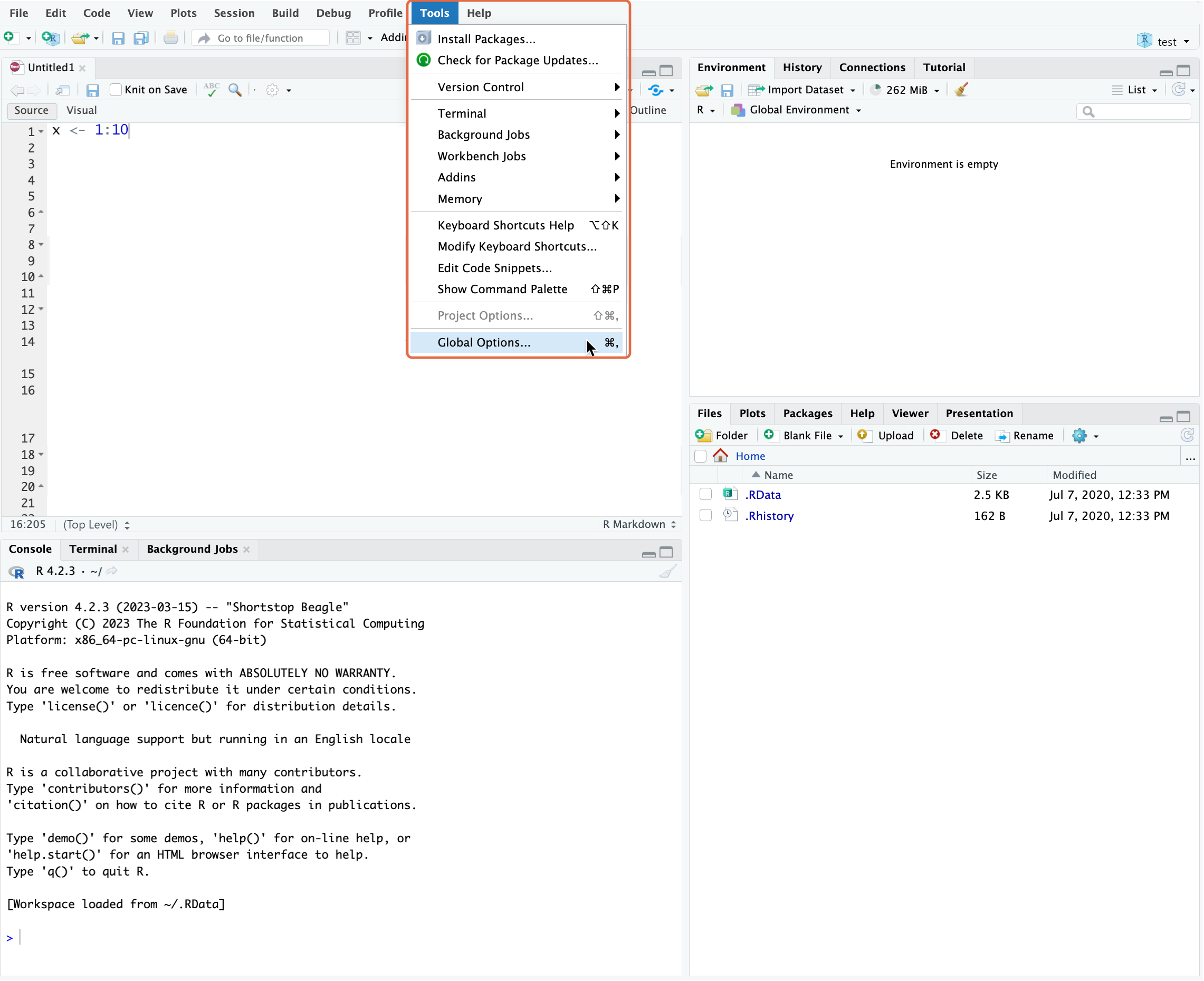
In the RStudio IDE, repository settings are configured through the Global Options menu available from the Tools section of the main toolbar.
If your repository requires authentication, follow the steps to configure R to use authenticated repositories before proceeding.
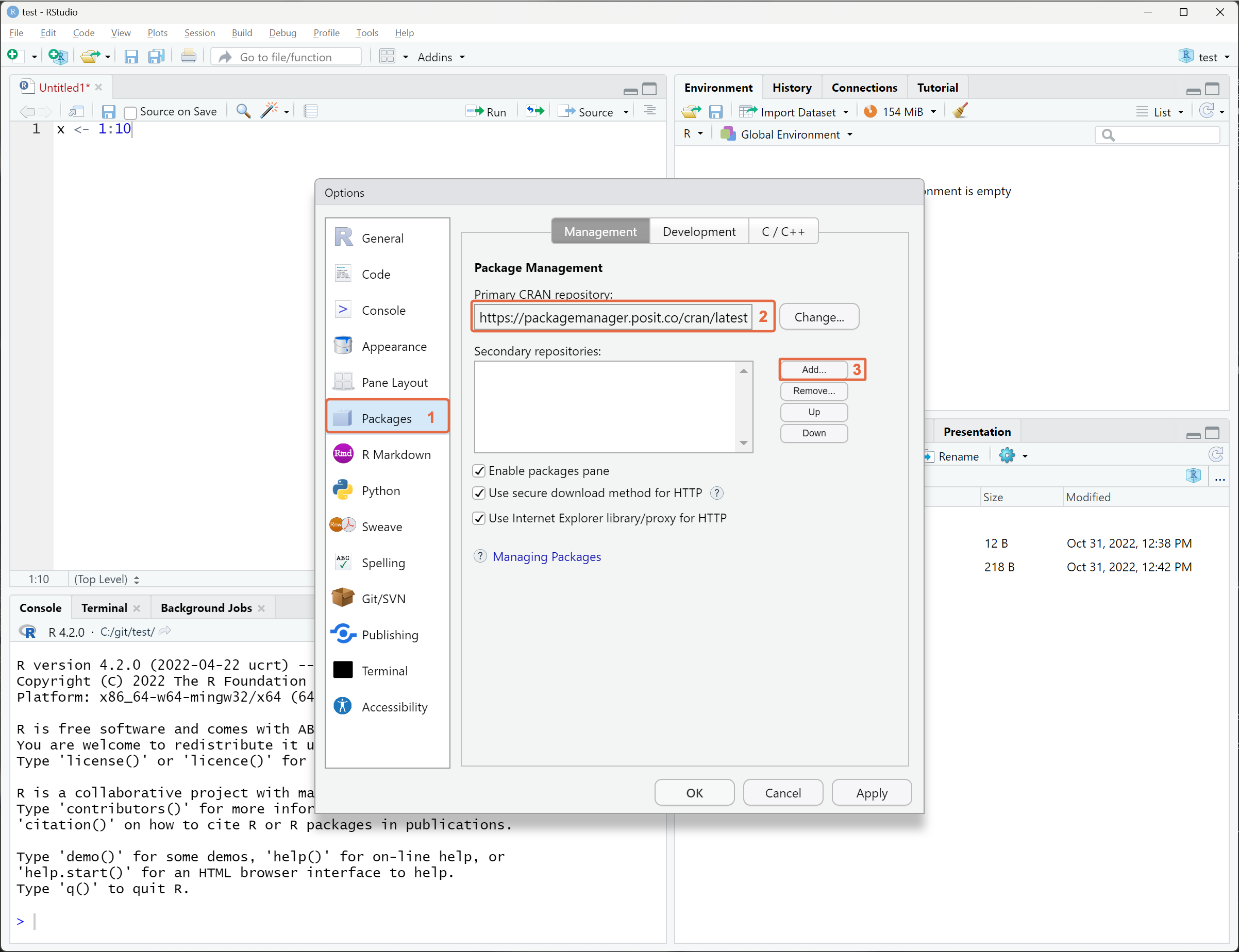
From the left pane, click Packages 1, paste the repository URL into the Primary CRAN repository field 2 or click Add 3 to include this repository as a secondary repository.
If you are using RStudio from Posit Workbench, your administrator can also configure the default repository for all users. See Configuring Posit Workbench for more information.
Positron
Positron only supports R 4.2 and higher.
Positron provides built-in settings for configuring R package repositories.
Option 1: Use Posit Public Package Manager
If you are using the public Posit Package Manager instance at https://packagemanager.posit.co:
- Open Positron Settings.
- Configure the
positron.r.defaultRepositoriessetting to use"posit-ppm". - Restart Positron.
Option 2: Use an internal Posit Package Manager
If your organization runs an internal Package Manager instance:
- Copy your repository URL.
- Open Positron Settings and confirm that
positron.r.defaultRepositoriesis set to"auto". - Navigate to the
positron.r.packageManagerRepositorysetting and override the default URL with your copied repository URL. - Restart Positron.
Option 3: Configure base R directly
Positron also supports configuring repositories using the standard R repos option. Refer to the instructions for configuring base R.
If your repository requires authentication, follow the additional steps to configure R to use authenticated repositories.
If you are using Positron from Posit Workbench, your administrator can also configure the default repository for all users. See Configuring Posit Workbench for more information.
Authenticated repositories
If your Package Manager repository requires authentication, you can configure R two ways. Fetch credentials from a single sign-on (SSO) provider (recommended if you use pak), or use an API token stored in a .netrc file.
You can use these methods with various R tools and IDEs, including install.packages(), devtools, rsconnect, renv, BiocManager, pak, RStudio, and Positron. Note that SSO only flows through pak-based workflows. All other R tools continue to require a .netrc file.
Some tools, such as renv and BiocManager, require additional configuration to use the .netrc file with curl. See Additional configuration for renv, BiocManager, and pak for details.
Using single sign-on (SSO)
If your server has been configured with an OpenID Connect provider, you can use pak version 0.10.0 or later to authenticate via your organization’s SSO provider.
SSO authentication only flows through pak-based workflows. install.packages(), renv, BiocManager, devtools, rsconnect, and the RStudio package pane all continue to require a .netrc file. See Using API tokens below if you use those tools.
Install
pakfrom a non-authenticated source such as Posit Public Package Manager. If your only configured repository is the authenticated one, installpakdirectly from Posit Public Package Manager first:R
install.packages("pak", repos = "https://p3m.dev/cran/latest")Set the
PACKAGEMANAGER_ADDRESSenvironment variable to the URL of your Package Manager instance. Add this line to your~/.Renvironfile (or set it in your shell profile on macOS or Linux, or in your System or User environment variables on Windows):~/.Renviron
PACKAGEMANAGER_ADDRESS=https://packagemanager.example.comConfigure
options(repos)to include your authenticated repository, using__token__as the username in the URL. Add this to your~/.Rprofileso it applies to every R session:~/.Rprofile
options(repos = c(
  PPM = "https://__token__@packagemanager.example.com/cran-auth/latest",
  getOption("repos")
))
Restart R, then trigger the login flow by installing a package with
pak:R
pak::pkg_install("shiny")pakdisplays a one-time device code in the R console and opens a browser tab for you to authenticate through your organization’s SSO provider, confirming the device code when prompted. After you authenticate,pakcaches the token at~/.ppm/tokens.toml.You can also trigger login explicitly without installing a package:
R
pak::ppm_sso_login()To inspect the cached token or check whether it is still valid, use
ppm_sso_status():R
pak::ppm_sso_status(connect = TRUE)To log out and remove the cached token, use
ppm_sso_logout():R
pak::ppm_sso_logout()
SSO tokens expire after a period configured by your administrator. When the cached token expires, the next pak operation against an authenticated repository automatically reopens the browser to re-authenticate. In headless or shared sessions, run pak::ppm_sso_status() first to check expiration.
The cached token at ~/.ppm/tokens.toml uses the same format as rspm login sso and the posit-keyring Python package. Logging in once with any of these tools makes the credential available to all three.
For more information, see Posit Package Manager SSO authentication and the ppm_sso_login() function reference in the pak documentation.
Using API tokens
If you use R tools other than pak (such as install.packages(), renv, BiocManager, devtools, or rsconnect), you need an API token stored in a .netrc file. You can obtain a token in one of two ways:
Option 1: Generate your own token via the CLI (recommended)
If your Package Manager instance is configured with OpenID Connect authentication, you can generate a short-lived token using the rspm CLI. This is the same SSO provider that pak uses. The token is stored at the same ~/.ppm/tokens.toml location, so a rspm login sso session and a pak::ppm_sso_login() session share state.
Download the standalone Package Manager CLI, ensuring that the CLI version matches the server version. You can find the download link in the Remote User Setup documentation or ask your administrator.
Set the server address and authenticate via SSO:
Terminal
export PACKAGEMANAGER_ADDRESS=https://packagemanager.example.com
rspm login sso
The
rspm login ssocommand will start a device authorization flow, display a URL and device code for you to enter, and authenticate you through your organization’s single sign-on provider.After successful authentication, your token will be stored in
~/.ppm/tokens.toml. You can view this file to retrieve your token:Terminal
cat ~/.ppm/tokens.tomlThe file will contain an entry like:
~/.ppm/tokens.toml
[tokens]
"https://packagemanager.example.com" = "your-token-here"
Copy the token value and use it in your
.netrcfile as described in the Configure R to use.netrcandcurlsection below.
SSO-generated tokens are typically short-lived and will expire. If you encounter authentication errors, you may need to run rspm login sso again to obtain a fresh token.
Option 2: Request a token from your administrator
Your Package Manager administrator can create a long-lived API token for you. Refer to Creating API Tokens for details that you can share with your administrator.
Configure R to use .netrc and curl
Create a
.netrcfile in your home directory at~/.netrc.Add the following content, replacing
[packagemanager.example.com]with your Package Manager server address and[your-token]with your actual token.~/.netrc
machine [packagemanager.example.com]
login __token__
password [your-token]
The machine field should not contain a protocol, port, or repository path. If your repository URL is https://packagemanager.example.com/cran/latest, use packagemanager.example.com for the machine field.
Since the credentials are stored in plaintext, ensure that the
~/.netrcfile is only accessible to you by running:Terminal
chmod 600 ~/.netrcConfigure R to use
curlas the download method by adding the following lines to your R startup file (~/.Rprofile).~/.Rprofile
# Use curl with a netrc file for authenticated repo access
options(download.file.method = "curl")

options(download.file.extra = paste(
  "--netrc",
  # Follow redirects, show errors, and display the HTTP status and URL
  '-fsSL -w "%{stderr}curl: HTTP %{http_code} %{url_effective}\n"',
  # Configure the R user agent header to install Linux binary packages
  sprintf('--header "User-Agent: R (%s)"', paste(getRversion(), R.version["platform"], R.version["arch"], R.version["os"]))
))
You will need additional configuration to install Linux binary packages with
curl, so that is also included here.
Create a
.netrcfile in your home directory at~/.netrc.Add the following content, replacing
[packagemanager.example.com]with your Package Manager server address and[your-token]with your actual token.~/.netrc
machine [packagemanager.example.com]
login __token__
password [your-token]
The machine field should not contain a protocol, port, or repository path. If your repository URL is https://packagemanager.example.com/cran/latest, use packagemanager.example.com for the machine field.
Since the credentials are stored in plaintext, ensure that the
~/.netrcfile is only accessible to you by running:Terminal
chmod 600 ~/.netrcConfigure R to use
curlas the download method by adding the following lines to your R startup file (~/.Rprofile).~/.Rprofile
# Use curl with a netrc file for authenticated repo access
options(download.file.method = "curl")

options(download.file.extra = paste(
  "--netrc",
  # Follow redirects, show errors, and display the HTTP status and URL
  '-fsSL -w "%{stderr}curl: HTTP %{http_code} %{url_effective}\n"'
))
Create a
.netrcfile in your home directory at~/.netrc. This may be your Documents folder (typicallyC:\Users\username\Documents). You can find the location by runningpath.expand("~/.netrc")in an R console.Add the following content, replacing
[packagemanager.example.com]with your Package Manager server address and[your-token]with your actual token.~/.netrc
machine [packagemanager.example.com]
login __token__
password [your-token]
The machine field should not contain a protocol, port, or repository path. If your repository URL is https://packagemanager.example.com/cran/latest, use packagemanager.example.com for the machine field.
Configure R to use
curlas the download method by adding the following lines to your R startup file (~/.Rprofile).~/.Rprofile
# Use curl with a netrc file for authenticated repo access
options(download.file.method = "curl")

options(download.file.extra = paste(
  "--netrc",
  # Follow redirects, show errors, and display the HTTP status and URL
  '-fsSL -w "%{stderr}curl: HTTP %{http_code} %{url_effective}\n"'
))
.netrc files only support configuring a single set of credentials per server. This means that if you have multiple repositories, you need to use the same token for all of them. The token must have access to each repository.
Additional configuration for renv, BiocManager, and pak
You can configure renv to use credentials from .netrc by adding the following line to your R startup file (~/.Rprofile).
~/.Rprofile
# Configure renv to install from authenticated repos
Sys.setenv(RENV_DOWNLOAD_METHOD = "curl")
To install packages from an authenticated Bioconductor repository, ensure you have BiocManager version 1.30.24 or later.
Once updated, follow the Setup page instructions in the Package Manager UI to configure your Bioconductor mirror in R.
pak is the recommended R tool for installing packages from authenticated Package Manager repositories. It supports authentication in two ways:
- SSO (recommended if your server has OpenID Connect configured): see Using single sign-on (SSO) above. No additional configuration is required.
- API tokens via
.netrcor the system keyring service: supported inpak0.9.0 and later. For details, refer to thepakdocumentation on Authenticated repositories.
Checking for Success
If you changed any R startup files (e.g., ~/.Rprofile), restart your R session to apply the changes.
For CRAN or internal package repositories, running getOption("repos") in R should show the URL of the Package Manager instance. For Bioconductor repositories, running getOption("BioC_mirror") should also show the URL of the Package Manager instance.
For a complete test, you can also confirm that packages are installed from the Package Manager instance by default. To test a CRAN or internal package repository, run the following commands to install a package in the repository:
R
# Show the configured repos
getOption("repos")

# Install a package in the repository, such as A3
install.packages("A3")
While you can install any package as a test, one that is small and has few dependencies will be the quickest. The A3 package on CRAN is the first alphabetically that meets this criteria.
To test the Bioconductor repository, you can download and install a Bioconductor package:
R
# Show the configured Bioconductor repo
getOption("BioC_mirror")

# Install the BiocManager package from CRAN
install.packages("BiocManager")

# Check that BiocManager uses Package Manager for the Bioconductor repositories
BiocManager::repositories()

# Install a Bioconductor package
BiocManager::install("BiocVersion", update = FALSE)