Other Versions Tab
The Other Versions tab on the package details page lists every release of a package or extension that this repository currently serves. Use it to install a specific older version, audit the hash of a download artifact, or see which releases have been blocked or yanked.
To open the tab, click Other Versions in the tab row above the package layout.
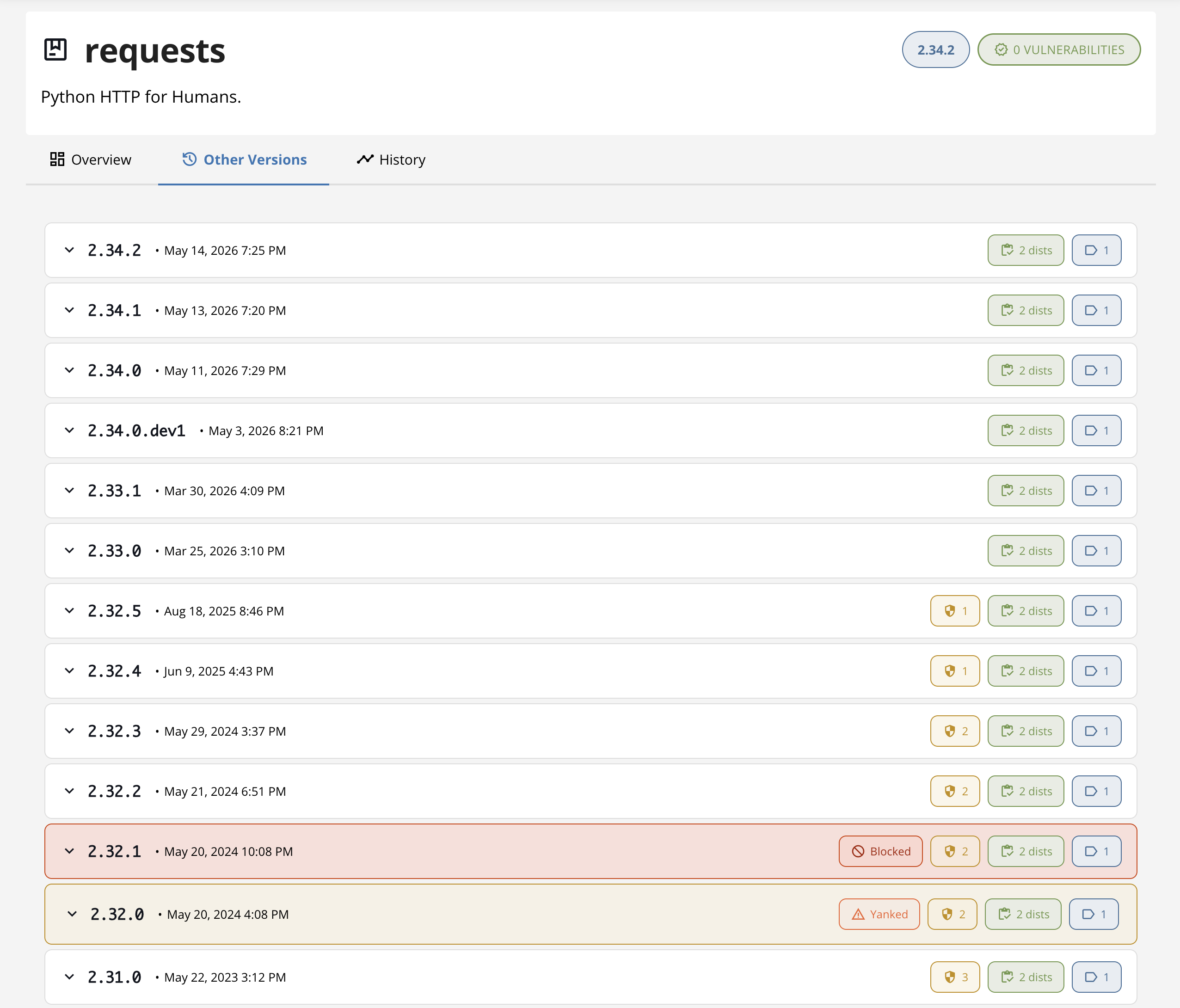
R and Bioconductor packages list each archived version with its path (when the version is pinned to a specific architecture or distribution variant), publication date, and dependency declarations. Click a row to expand its details.
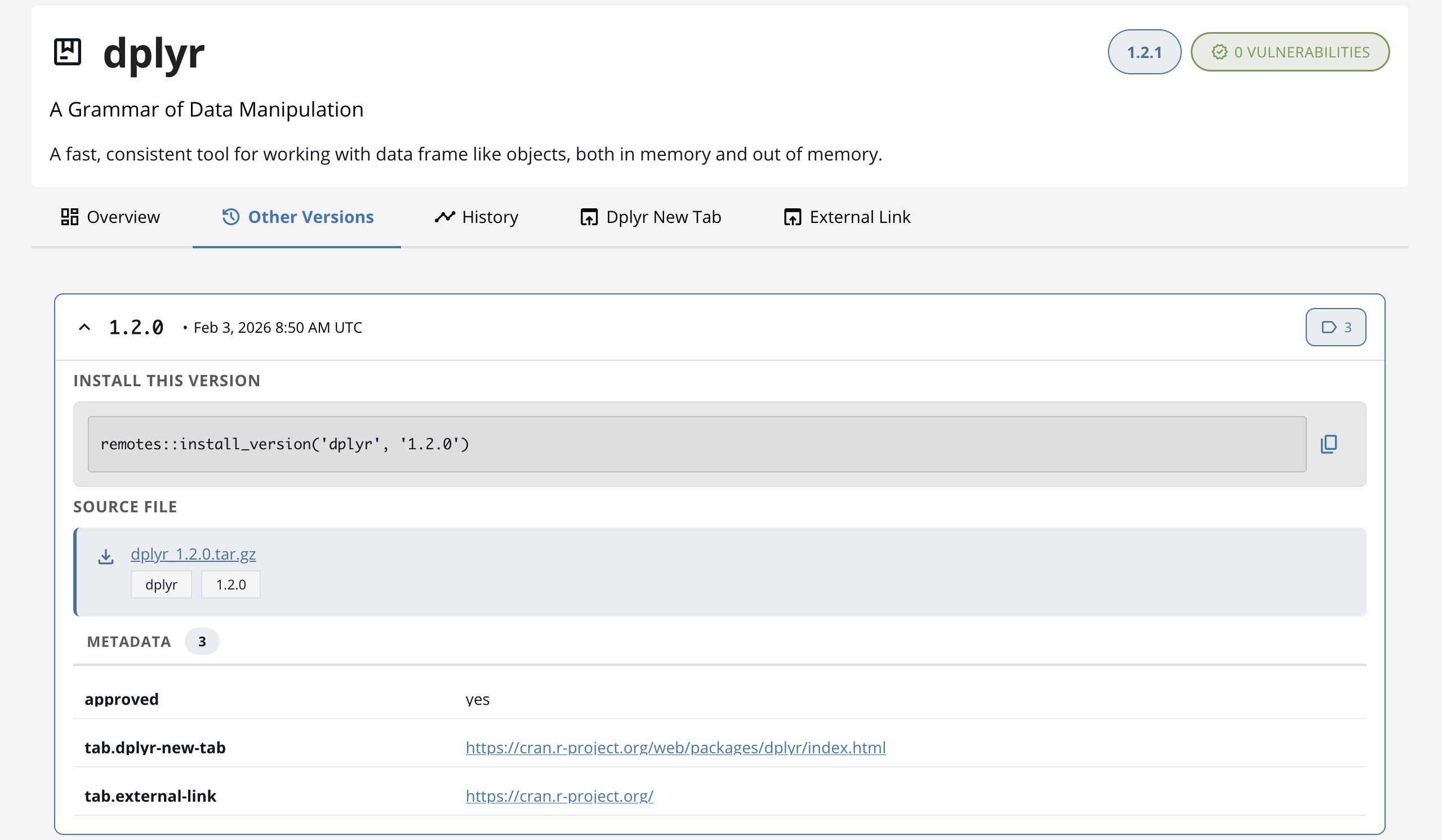
In R and Bioconductor repositories, only the latest version is installable via install.packages(). Older versions are kept for inspection and reproducibility — to install a specific older version, use the snapshot URL for the date that version was the latest.
Python releases show every version your repository serves, newest first. Each release header shows:
- The version number and publication date.
- A distribution count badge (the number of wheels and sdists available for that version).
- A vulnerability count badge when known CVEs affect the version.
- A metadata count badge when the version has custom metadata entries.
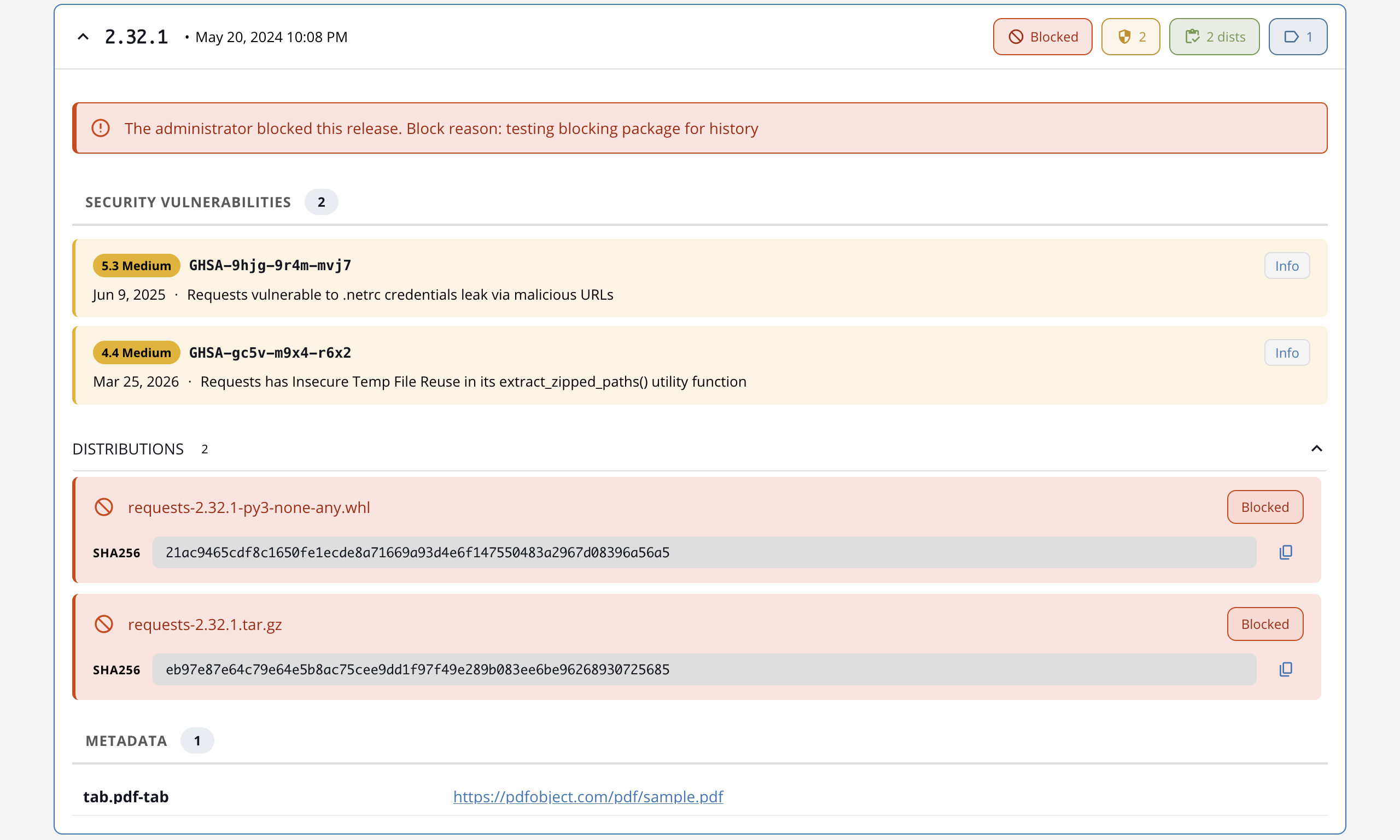
- A Blocked badge when an administrator has blocked the version, or a Yanked badge when the upstream publisher has yanked it.
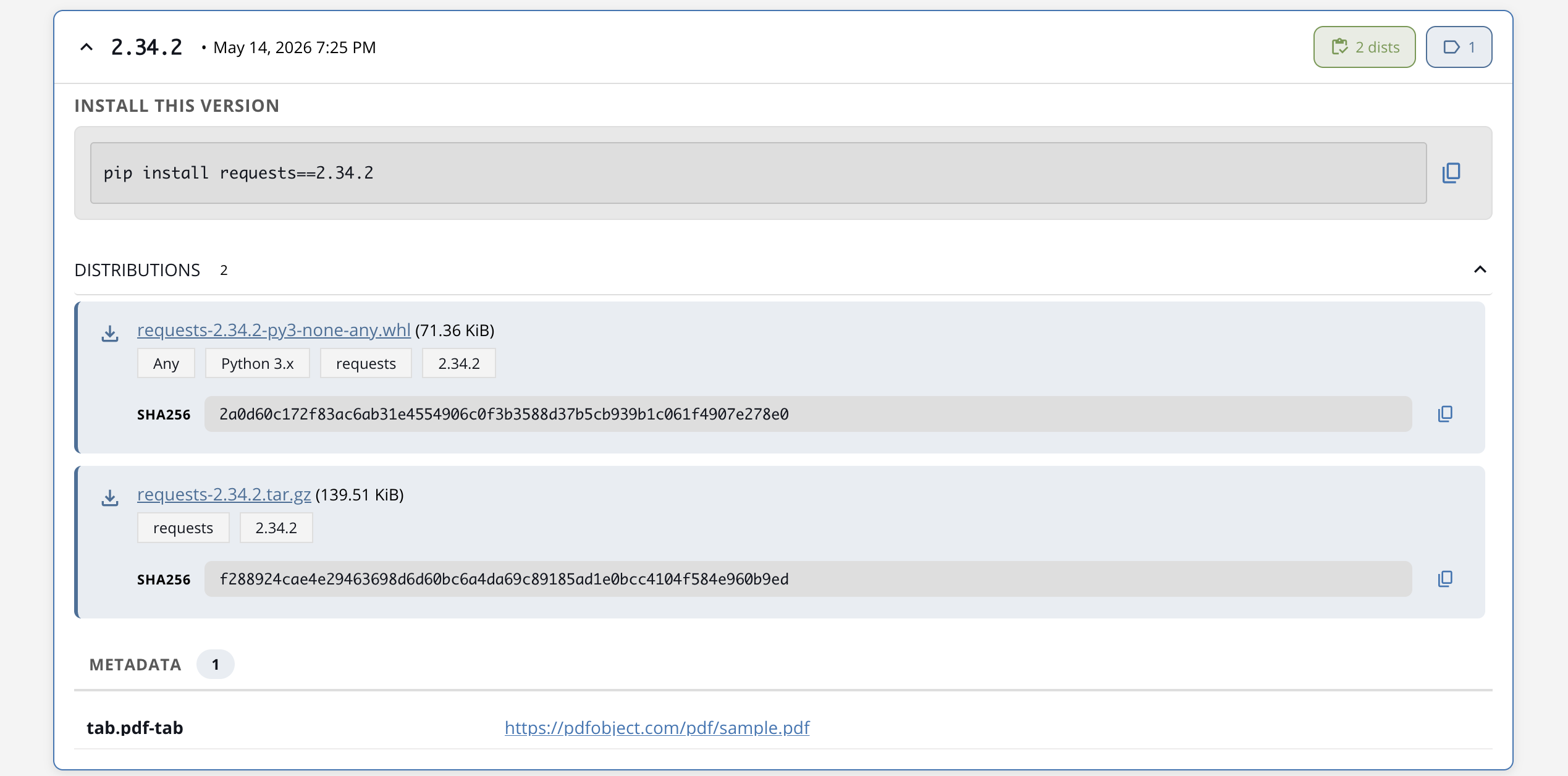
Click a release to expand and see:
- An Install code block (
pip install package==<version>) when the version is installable. - The Available Distributions list. Each row shows the filename, file size, package and Python version compatibility badges, the SHA256 hash inline, and a copy button for the hash.
- Security Vulnerabilities that apply to this specific release.
- Metadata for this specific release.
Blocked and yanked distributions render with a warning-tinted row, a non-clickable filename, and the relevant status badge. The SHA256 is still available inline for auditing.
Open VSX extensions list every published version of the extension in descending order. Each version row shows:
- The version number (in monospace).
- The publication date.
- One or more status badges on the right side of the row:
- Current — the latest version.
- Blocked — an administrator has blocked this version.
- Pre-release — the publisher marked this version as a pre-release.
- A vulnerability count badge when known CVEs affect the version.
- A platform count badge (for example, 3 platforms) when the version ships multiple platform-specific
.vsixartifacts. - A metadata count badge when the version has custom metadata entries.
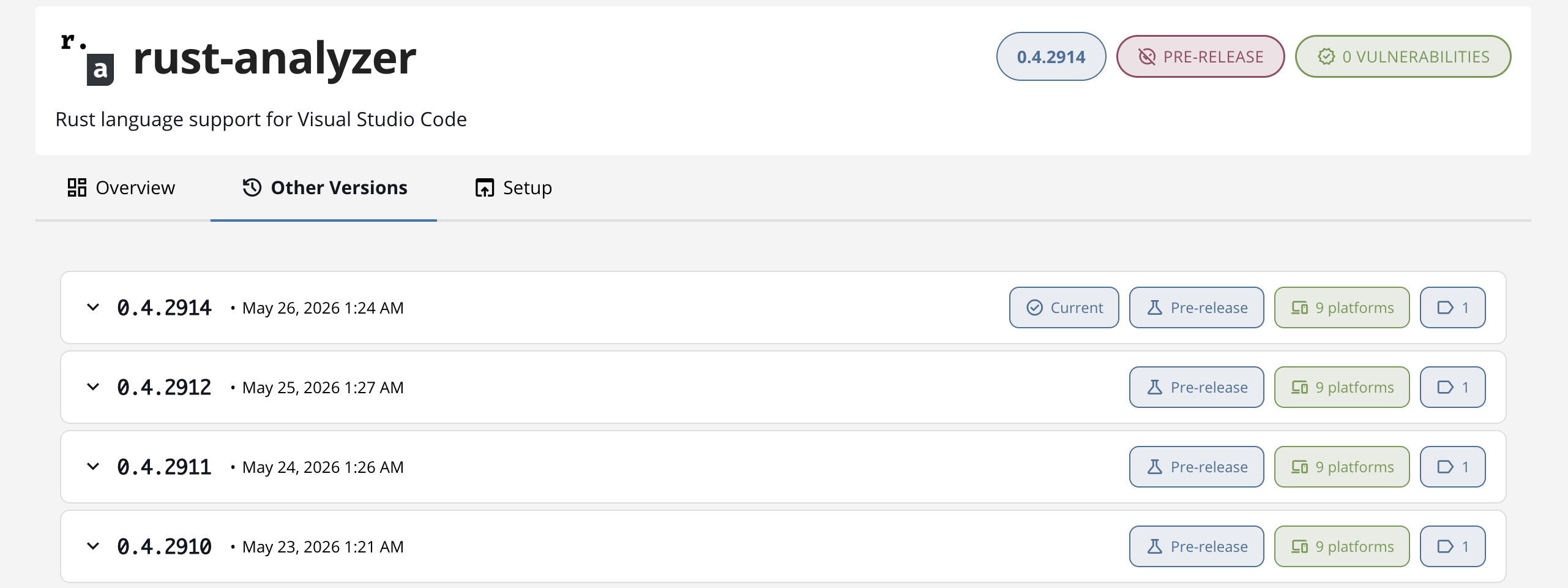
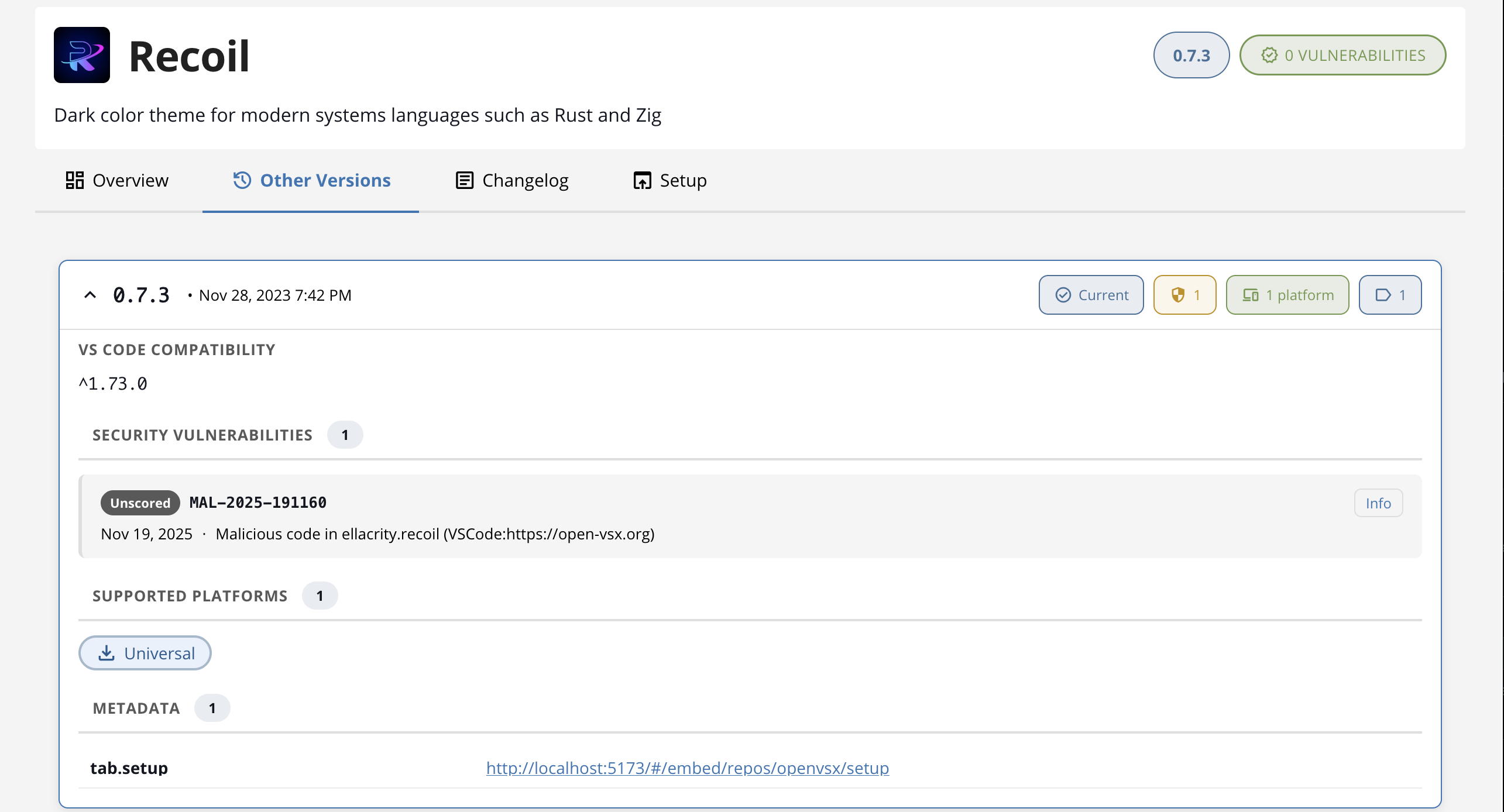
Click a row to expand it. The expanded view shows:
- A Blocked banner with the rule description when the version is blocked.
- VS Code Compatibility — the VS Code version range this version declares (for example,
^1.77.0). - Positron Compatibility — the Positron version range, when the version declares one.
- Security Vulnerabilities that apply to this specific version.
- Supported Platforms — one chip per platform variant, each linking to the matching
.vsixartifact. Chips are disabled (non-clickable) when the version is blocked. - Download — a single chip for platform-independent extensions that do not ship per-platform artifacts.
- Metadata — any custom metadata for this version.
Pre-release is a marker on a specific version. It is separate from the Preview banner on the Overview tab, which marks the whole extension as experimental.
Loading more releases
The list loads its first batch when the tab opens. Use the Load more button at the bottom of the list to fetch older releases on demand.