Installing AI Agent Plugins
An AI agent plugin is a bundle of extensions for AI coding tools, such as skills, sub-agents, hooks, and Model Context Protocol (MCP) and Language Server Protocol (LSP) servers. Plugins use the Claude Code plugin format and install into tools such as Posit Assistant (built into Positron, and also available for RStudio and the terminal), Claude Code, and VS Code. A plugin can be as small as a single skill.
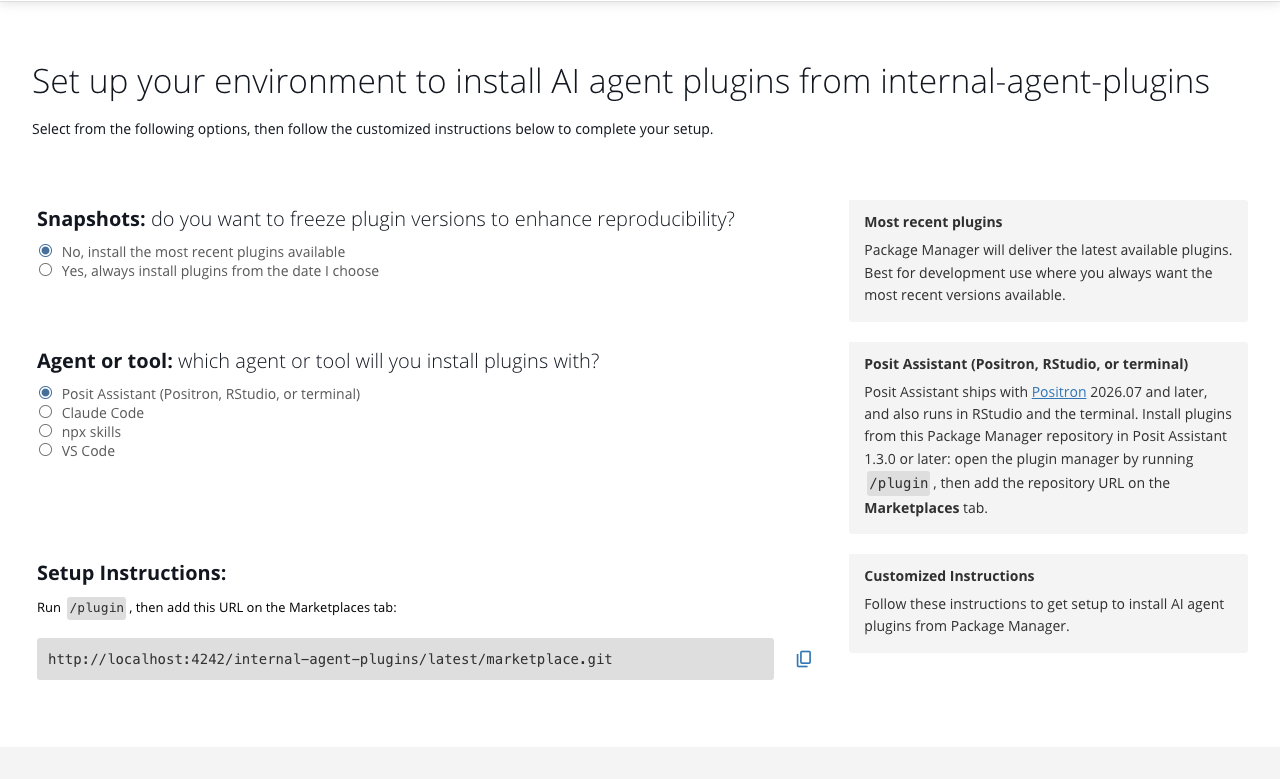
Your administrator creates an agent plugin repository (a plugins repository) in Posit Package Manager. You can then install its plugins into your AI coding tools, such as Posit Assistant, Claude Code, and VS Code. A plugin can include skills, sub-agents, hooks, and MCP and LSP servers. Package Manager serves plugins over a read-only Git endpoint. Your tool installs them with its standard “add marketplace” workflow against a Package Manager URL.
The repository is served at:
https://<package-manager-address>/<repo>/latest/marketplace.gitReplace <package-manager-address> with your Package Manager server address and <repo> with the repository name. The exact URL is available on the Setup page of your agent plugin repository in the Package Manager web interface, and on each plugin’s detail page.
Because the endpoint is a standard git remote, any tool that can install plugins or skills from a git repository can use a Package Manager agent plugin repository. The recipes below cover the most common tools.
Posit Assistant
Posit Assistant is the built-in AI experience in Positron 2026.07 and later. It also runs in RStudio and in the terminal. The plugin workflow is the same everywhere.
Open the plugin manager by running /plugin. In Positron and RStudio, you can also open it from the More (⋯) menu by choosing Plugins. In the terminal, press Ctrl+G.
On the Marketplaces tab, add the repository URL:
https://<package-manager-address>/<repo>/latest/marketplace.gitInstallable plugins then appear on the Browse tab.
The plugin manager requires Posit Assistant 1.3.0 or later. See Plugins in the Posit Assistant documentation.
Positron
Because Posit Assistant ships with Positron, there is nothing extra to install: open the plugin manager as described above and add the repository URL on the Marketplaces tab. In Positron the manager opens as an editor tab rather than as a dialog.
Your administrator can also pre-register the repository as a known marketplace for Positron, so that its plugins appear without you adding the URL by hand. See AI Agent Plugins in the Admin Guide.
Claude Code
Add the repository as a marketplace, then install plugins from it. The marketplace name is the repository name (<repo>):
Terminal
claude plugin marketplace add https://<package-manager-address>/<repo>/latest/marketplace.git
claude plugin install <plugin>@<repo>
VS Code
In VS Code, open the Command Palette (Cmd+Shift+P on macOS, Ctrl+Shift+P on Windows/Linux), run the Chat: Install Plugin from Source command, and provide the repository URL:
https://<package-manager-address>/<repo>/latest/marketplace.gitIn Positron, install plugins with Posit Assistant instead.
npx skills
The skills CLI installs a plugin’s skills into the skills directory of any agent that reads the shared skills format. Run it against the repository URL:
Terminal
npx skills add https://<package-manager-address>/<repo>/latest/marketplace.gitThis is the recommended path for agents that have no marketplace command of their own, such as Codex and Cursor. Target a specific agent with --agent:
Terminal
npx skills add https://<package-manager-address>/<repo>/latest/marketplace.git --agent codexPinning a version
Plugin versions are immutable, and each version is published as a git tag of the form <plugin>-v<version>. To install a specific version instead of the latest, check out or reference that tag with your tool’s git ref support. For example, to pin the my-plugin plugin to version 1.2.0, reference the tag my-plugin-v1.2.0.
Private repositories
If your administrator has restricted the agent plugin repository to authenticated users, you authenticate to it with a Package Manager API token. Because the repository is a standard git remote served over a read-only Git endpoint, clients authenticate using HTTP Basic authentication with the username __token__ and your API token as the password. This is the same way git authenticates to any private repository. No Package Manager-specific tooling is required.
You can create an API token from the Package Manager web interface. See Signing In for more information about obtaining a token.
There are three ways to supply the token. Which one applies depends on your tool:
Use a git credential helper
Claude Code and npx skills shell out to git, which honors your existing git credential configuration. You can use the plain (token-free) URL with those tools and let git supply the credentials. For example, store credentials in ~/.netrc:
~/.netrc
machine <package-manager-address>
login __token__
password <your-token>
or configure a credential helper (git config --global credential.helper ...). When git needs credentials for the endpoint, supply __token__ as the username and your token as the password. This keeps the token out of each tool’s own configuration.
On Windows, place the .netrc file in your Windows user folder (typically C:\Users\[user], where [user] is your Windows username).
Configure a token in Posit Assistant
Posit Assistant uses a bundled git implementation rather than shelling out to git, so it does not read ~/.netrc or a git credential helper. Instead, it reads per-host credentials from plugins.hostTokens in its global settings file, ~/.posit/assistant/settings.json (on Windows, C:\Users\[user]\.posit\assistant\settings.json, where [user] is your Windows username):
~/.posit/assistant/settings.json
{
  "plugins": {
    "hostTokens": {
      "<package-manager-address>": "{env:PACKAGEMANAGER_TOKEN}"
    }
  }
}
The value must be an {env:VAR} reference rather than the token itself, so set the token in your environment before starting Posit Assistant. This is the same variable the rspm command line interface reads, so a token you already set for rspm works as-is:
Terminal
export PACKAGEMANAGER_TOKEN=<your-token>This sets the variable for the current shell session only. To persist it, add the export command to your shell profile, such as ~/.bashrc or ~/.zshrc.
Powershell
$Env:PACKAGEMANAGER_TOKEN = "<your-token>"This sets the variable for the current PowerShell session only. To persist it for your user account, run:
Powershell
[Environment]::SetEnvironmentVariable("PACKAGEMANAGER_TOKEN", "<your-token>", "User")Then restart Posit Assistant so that it reads the new value.
Posit Assistant matches hosts exactly and reads hostTokens only from the global settings file. A project settings file cannot supply it. Positron, RStudio, and the terminal all read that same global file, so one entry authenticates the repository in all three. Posit Assistant also warns you if a value is a literal token rather than an {env:VAR} reference. See Configuration file in the Posit Assistant documentation.
Embed the token in the URL
Add __token__:<your-token>@ to the URL and use that everywhere you use the plain URL:
https://__token__:<your-token>@<package-manager-address>/<repo>/latest/marketplace.gitThis writes the token into your shell history and into any configuration that records the remote. Tools that remember a marketplace by its URL (such as Claude Code) store the URL, including the embedded token, in their on-disk configuration in plain text. Prefer one of the options above, or use a token scoped only to the repository you need (repos:read).
Package detail pages
Each plugin in the Package Manager web interface has a detail page. Depending on how your administrator has configured the repository, a plugin’s detail page might display:
- Custom metadata: administrator-defined key-value pairs such as a risk score, team owner, or approval status.
- Custom tabs: additional tabs linking to external or embedded pages (for example, a Docs tab or a Setup guide), added by an administrator using
rspm create metadatawith atab.*key. - README: if the plugin bundle includes a top-level
README.md, the detail page renders its contents. - Other Versions: a list of all published versions of the plugin, allowing you to reference or pin to a specific version.
Contact your administrator if you need metadata or tabs added to a plugin.