Searching for Packages
The Packages page lets you search and browse every package or extension a repository serves. To open it, open the main menu and select Packages, or pick a specific repository from the home page.
Search
The search input matches package names and descriptions. Type at least three characters to see results — shorter queries display a prompt to keep typing. Results update automatically a moment after you stop typing.
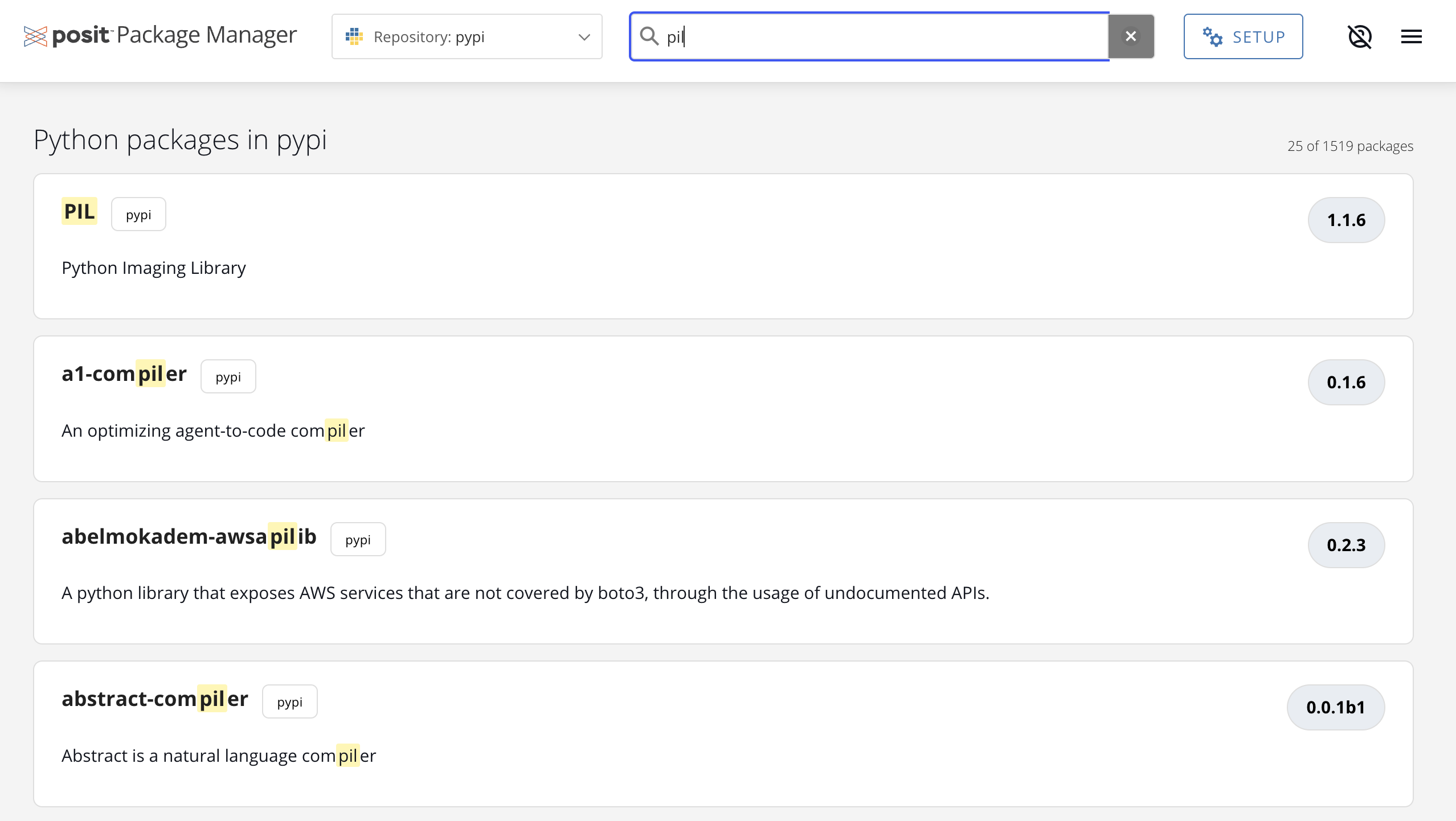
Press Enter in the search field to submit immediately without waiting for the debounce delay. Click × inside the search field to clear the query and return to the default browse view.
The search query is preserved in the page URL, so you can bookmark or share a link to a specific search result.
Result cards
Each result is a clickable card. Click anywhere on the card to open the package’s details page. The card layout adapts to the repository type:
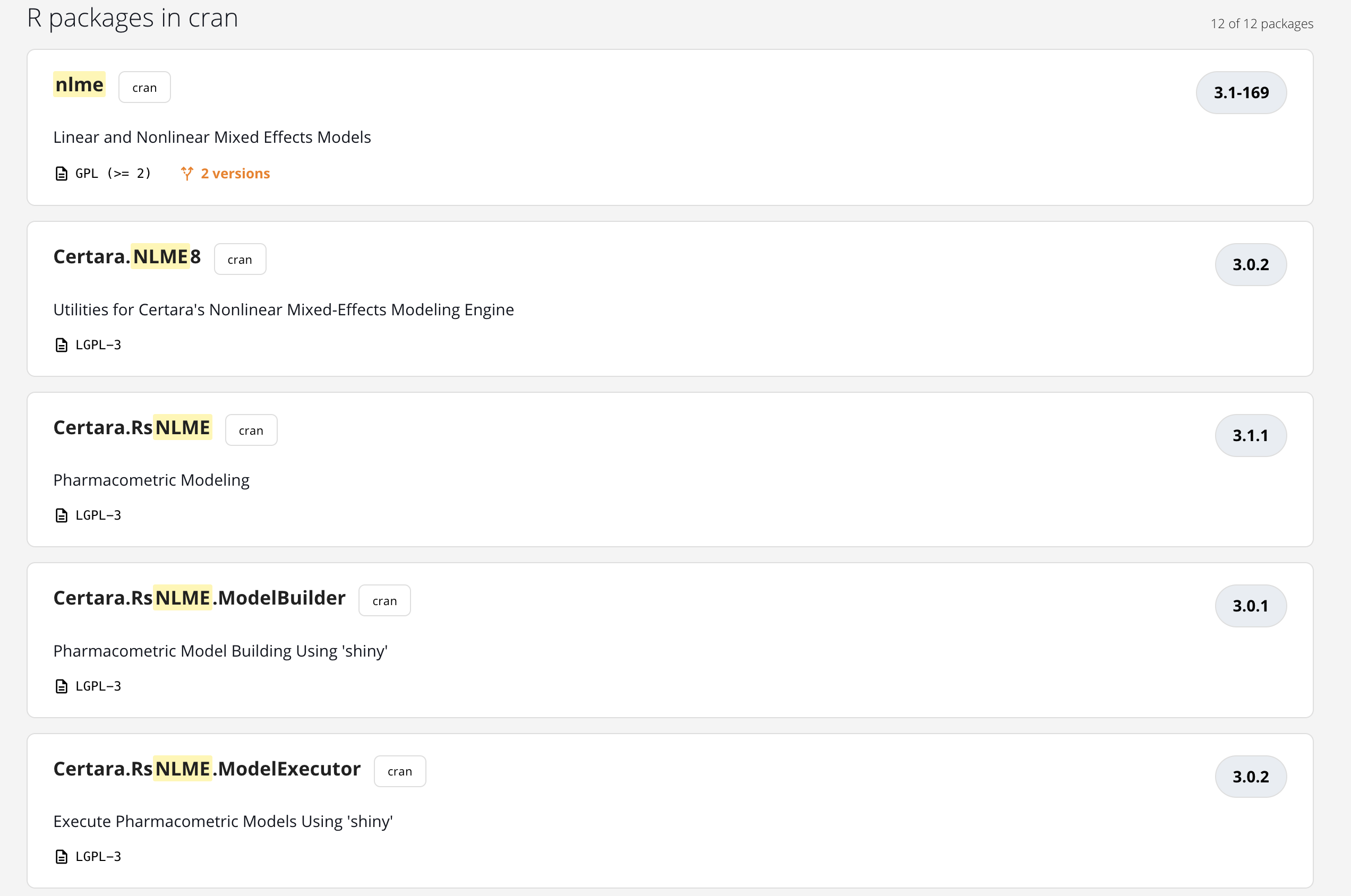
R and Bioconductor cards show:
- Package name with the search term highlighted, and a version badge in the top-right corner.
- Author and source chip (the source the package comes from — for example, CRAN or a local source).
- Status badges — Blocked, Archived, Yanked, or a Vulnerability count badge — when applicable.
- A short description with the search term highlighted.
- License, publication date, and (when the package exists in more than one source) a multi-version indicator.
- Up to three bioc_views or CRAN task view tags. If more tags exist, the card shows a +N chip.
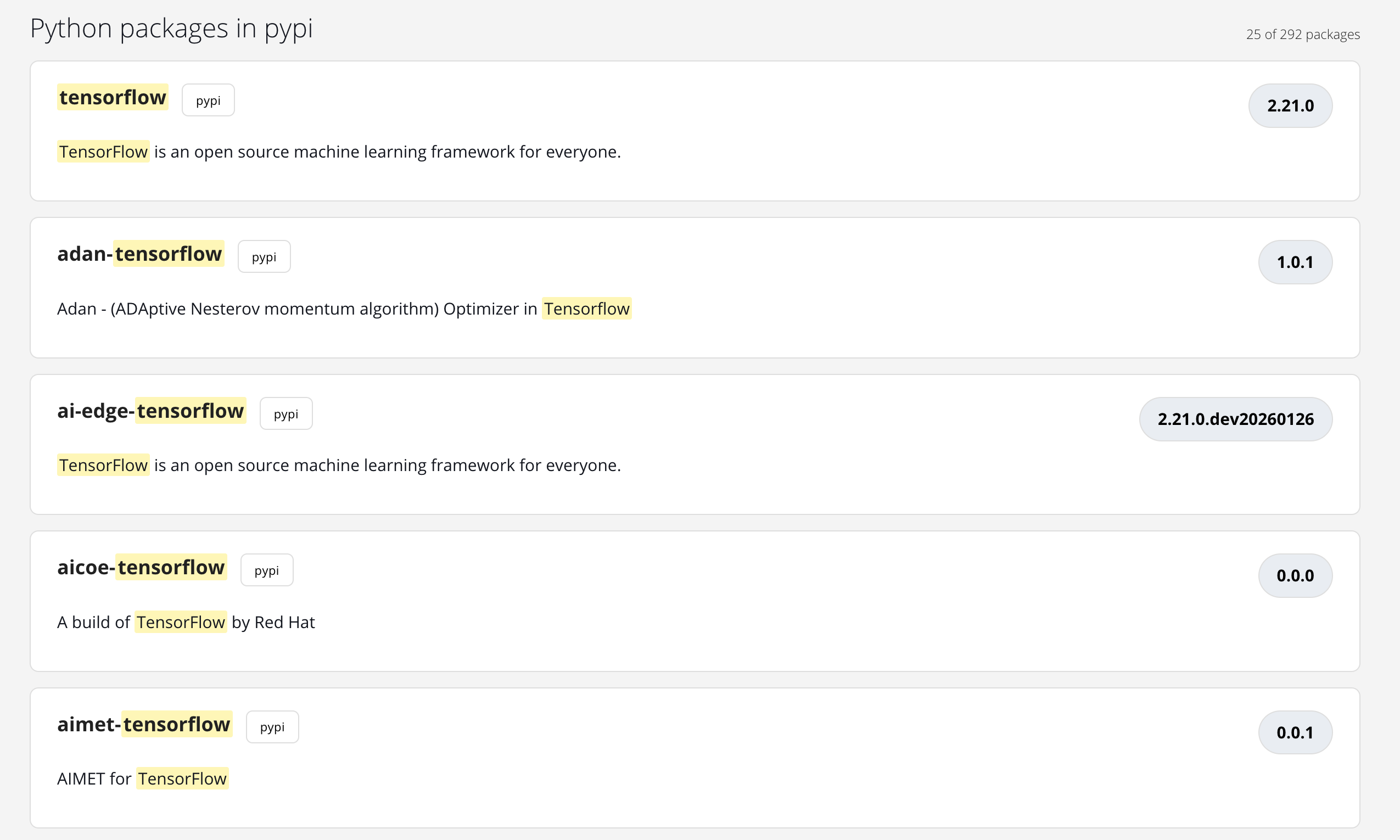
Python cards show:
- Package name with the search term highlighted, and a version badge in the top-right corner.
- Author and source chip.
- Status badges — Blocked, Yanked, or a Vulnerability count badge — when applicable.
- A short description with the search term highlighted.
- License, download count, and publication date.
- Up to three keywords from the package’s
info.keywords. If more exist, the card shows a +N chip.
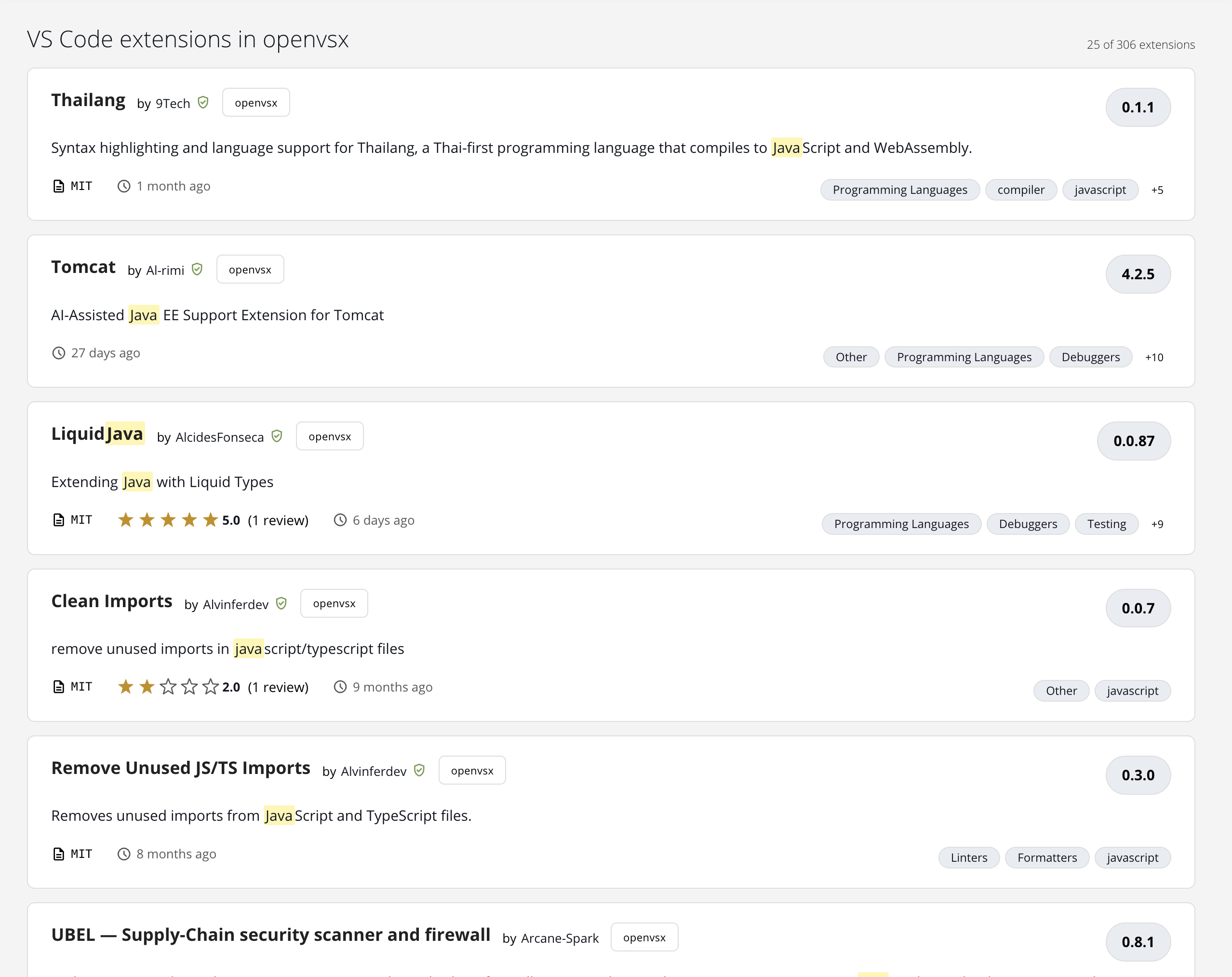
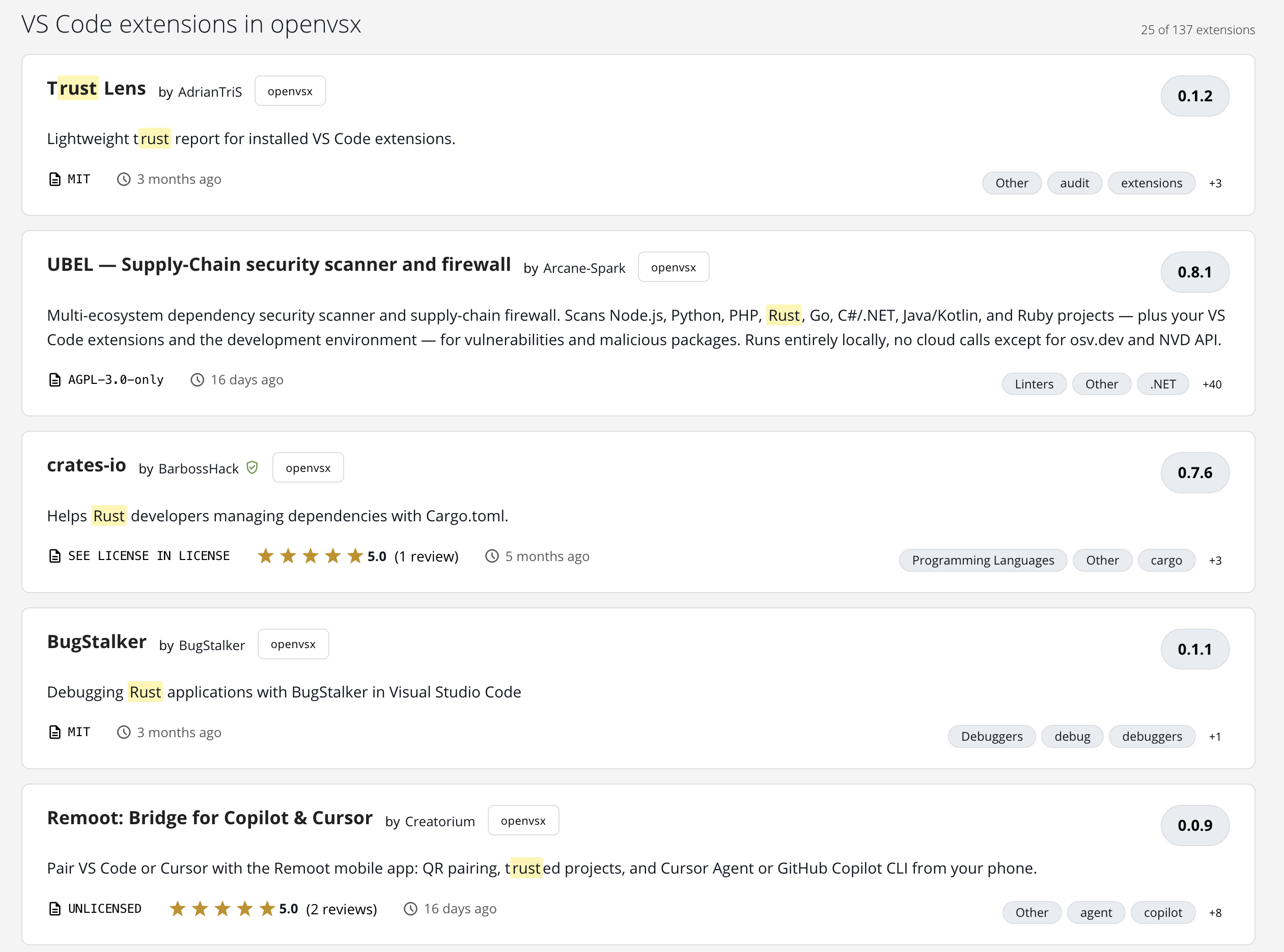
Open VSX cards show:
- Extension icon (if the publisher provides one), display name, and a version badge in the top-right corner.
- Publisher namespace prefixed with “by”. A green verified-publisher badge appears next to the namespace when the publisher is verified on Open VSX.
- Status badges — Blocked, Deprecated, or a Vulnerability count badge — when applicable.
- A short description.
- Open VSX rating (stars with review count, when the extension has reviews), license, and a relative published date (for example, “2 months ago”).
- Up to three categories or tags. Internal markers prefixed with
__are hidden. If more visible items exist, the card shows a +N chip.
Initial view
If you have not entered a search yet, the page shows a starting view appropriate to the repository:
- PyPI repositories show a curated Top N popular packages list — common starting points like
numpy,pandas, andrequests. - R, Bioconductor, and Open VSX repositories show a Start Searching prompt with a handful of well-known example packages or extensions to help you get going.
The “Top N popular packages” list for PyPI repositories is curated server-side. It is not affected by your search history or by which packages have actually been installed from your repository.
No results
When a search has no matches, the page tells you exactly why:
- No exact match for
<query>with a suggestion to type more characters, when the query is shorter than three characters. - No packages match your query:
<query>when the search finished and found nothing. - There are no packages in
<repository>when the repository itself is empty. The message includes a link to the admin guide. - No sources subscribed when the repository has no sources configured. The message includes a link to the admin guide.
Open VSX repositories use extensions instead of packages in these messages.
Pagination
Results are paginated 25 per page. Use Previous and Next at the bottom of the list to move between pages. The center label shows Page X of Y. The pagination controls hide automatically when there is only one page of results.

The current page is preserved in the page URL as a page parameter. Changing the search query resets you to page 1.
Returning from a package details page
When you open a package from search and then return using Back to Search Results on the details page, your query and page number are both restored, so you land back at the same spot in the result list. This works across the browser’s Back button as well.
If you opened a package details page directly from a bookmark or shared link instead of from a search, the button reads View All Packages (or View All Extensions for Open VSX) and takes you to the unfiltered list.