Getting started
Follow the instructions below to set up your Posit AI Pass account and get started with Posit Assistant and Next Edit Suggestions.
RStudio
Install RStudio
Download and install the current version of RStudio. We recommend using RStudio Desktop (open source).
Open RStudio.
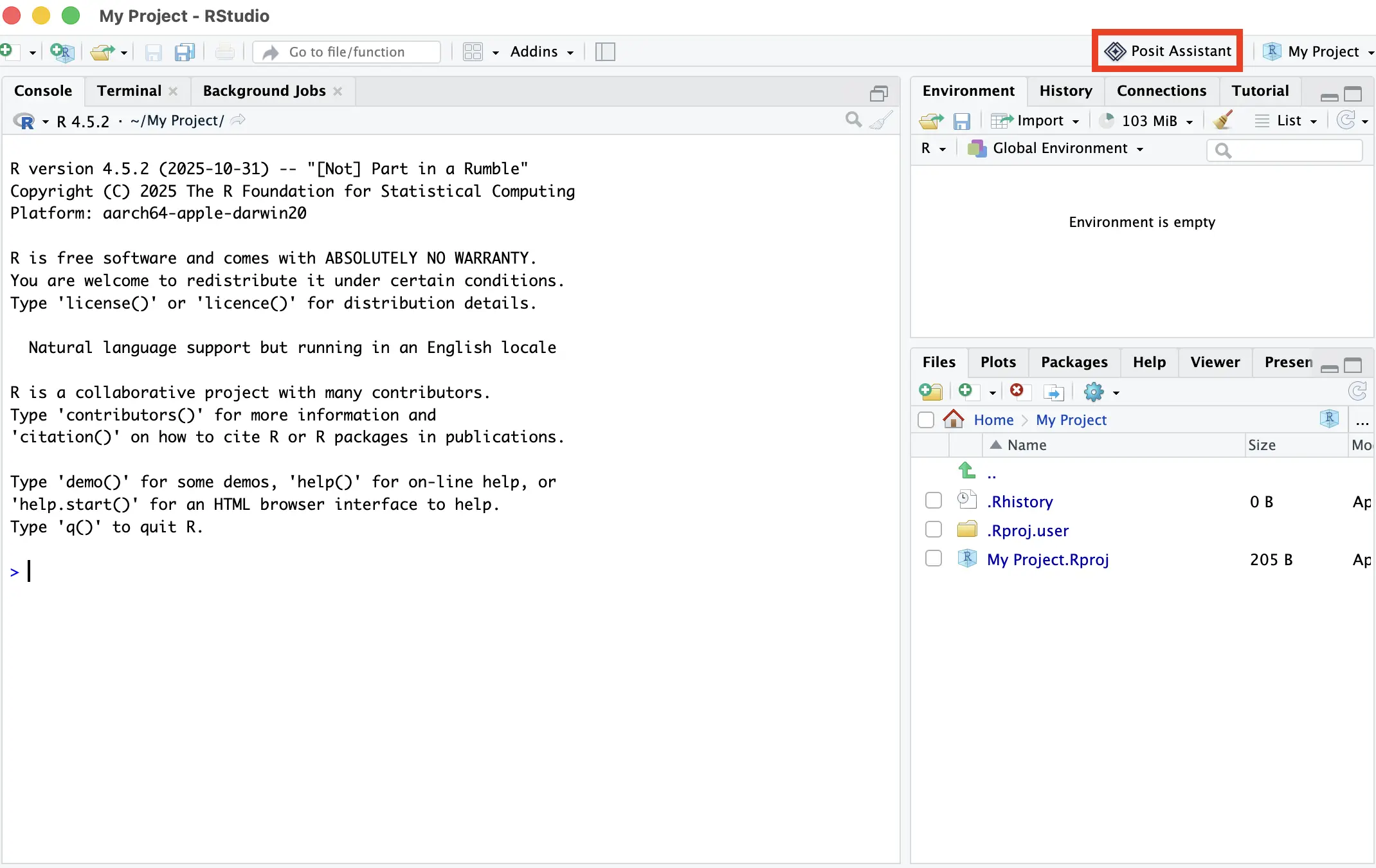
Show Posit Assistant via the toolbar icon in the top right of the IDE.
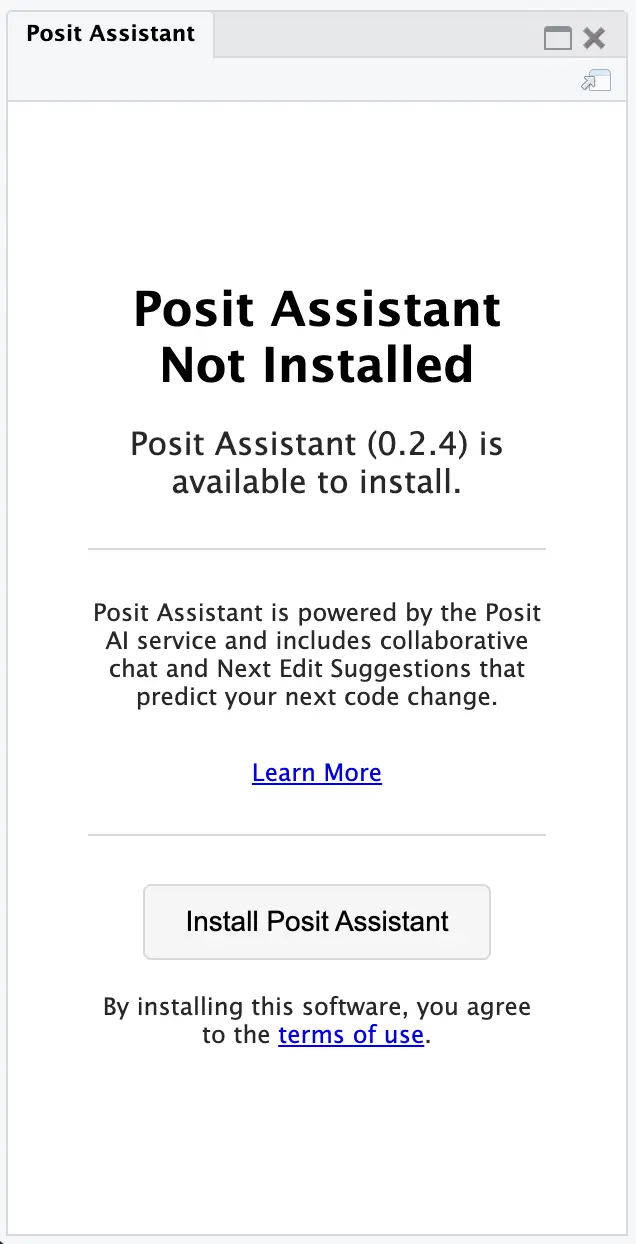
- The pane asks you to install Posit AI Pass. Click the button to do so.
- After the installation completes, a prompt asks you to verify that you trust the workspace. Once verified, you will see Posit Assistant and a Sign In button.
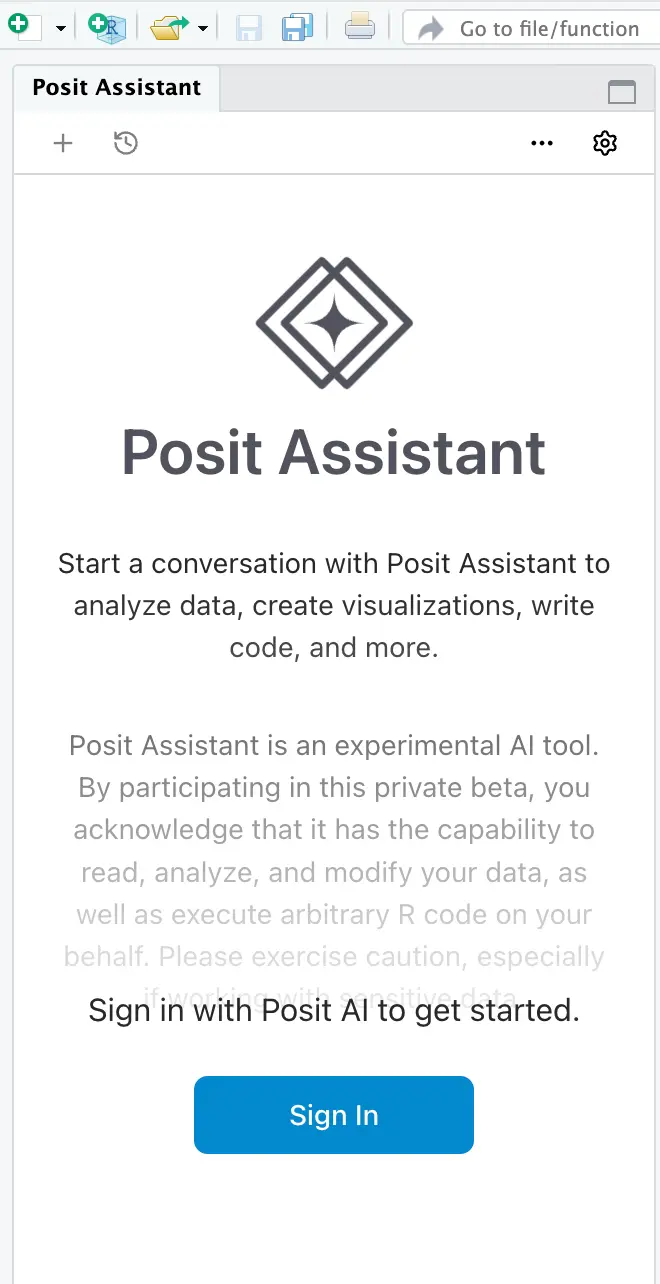
Sign in to Posit AI Pass
- Click Sign In.
- Open your browser to authorize.
- Confirm the codes match and authorize access.
If you are already logged in to Posit AI Pass, a prompt asks you to close the window and return to RStudio.
If you are not already logged in, create an account or log in with existing credentials. After you create your account or log in, the system redirects you to your Posit AI Pass home page.
Start your work
- After successfully authenticating, Posit Assistant is now ready for use in the IDE.
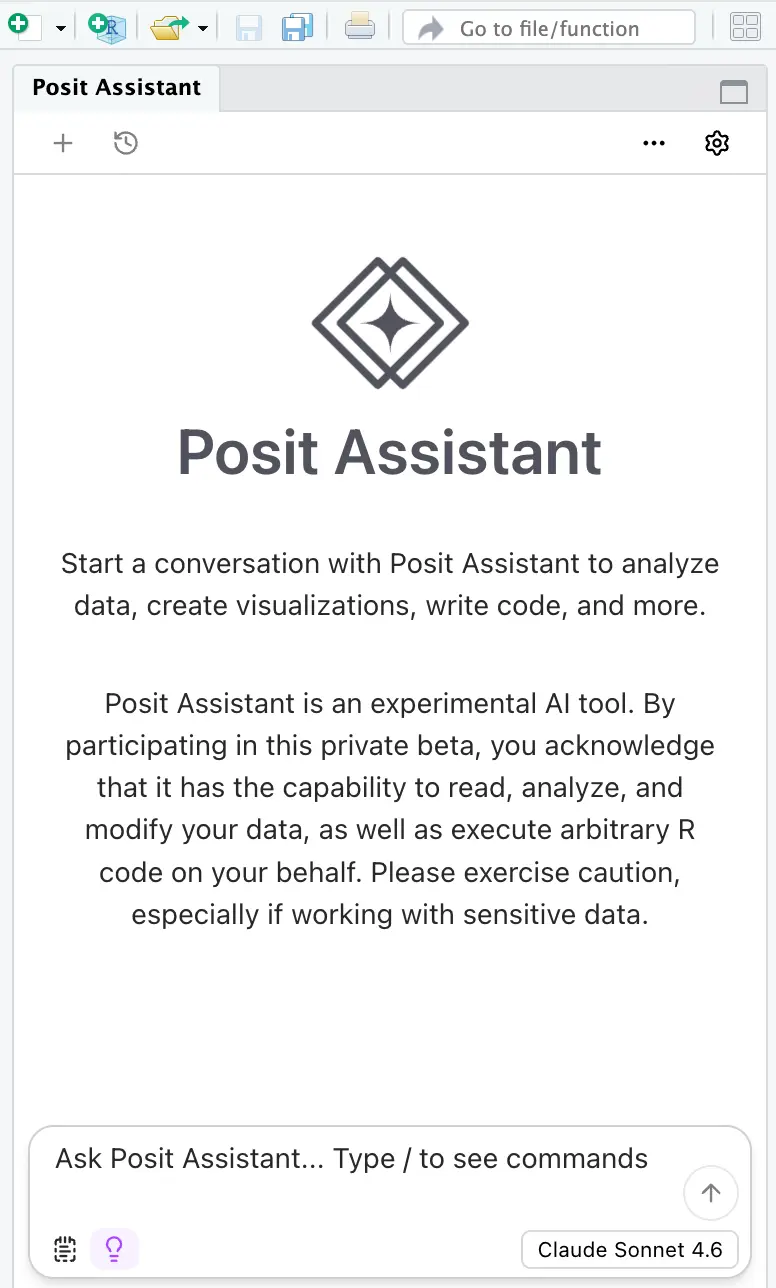
Visit the standalone documentation for Posit Assistant to learn how to use the tool effectively.
Positron
Install Positron
Download and install the current version of Positron.
Open Positron.
Enable Posit Assistant
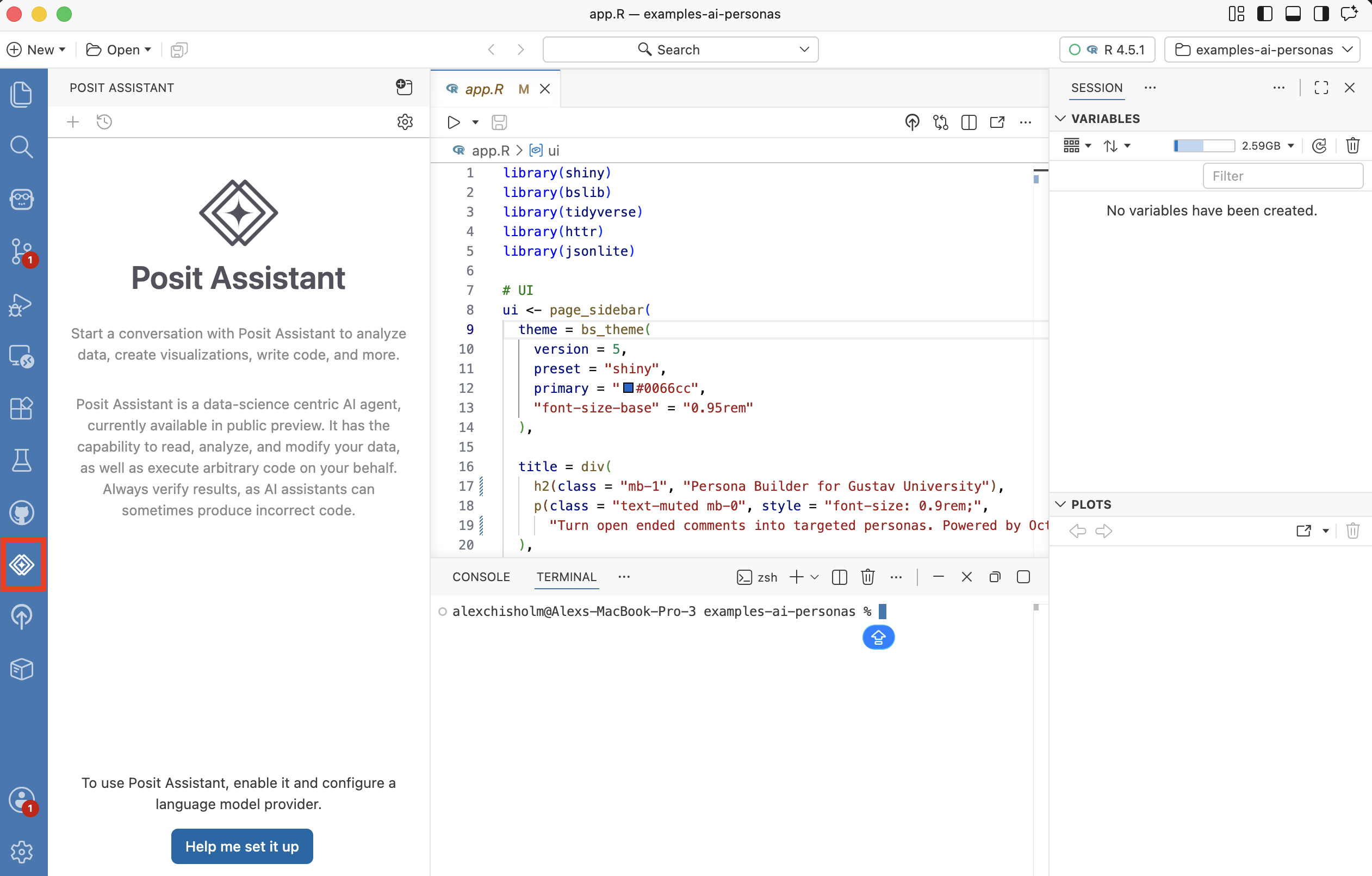
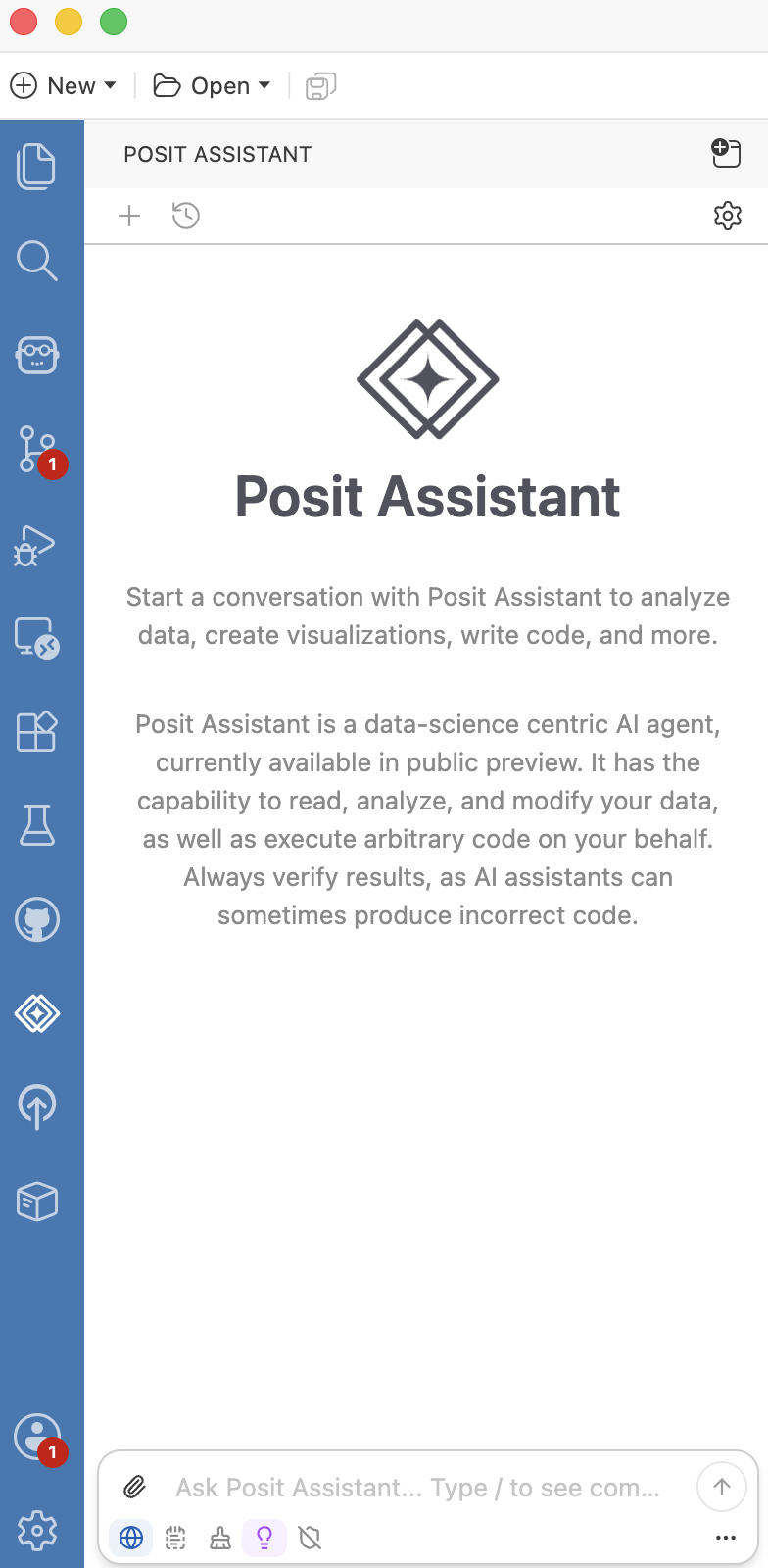
- Open Posit Assistant from the activity bar, then click Help me set it up.
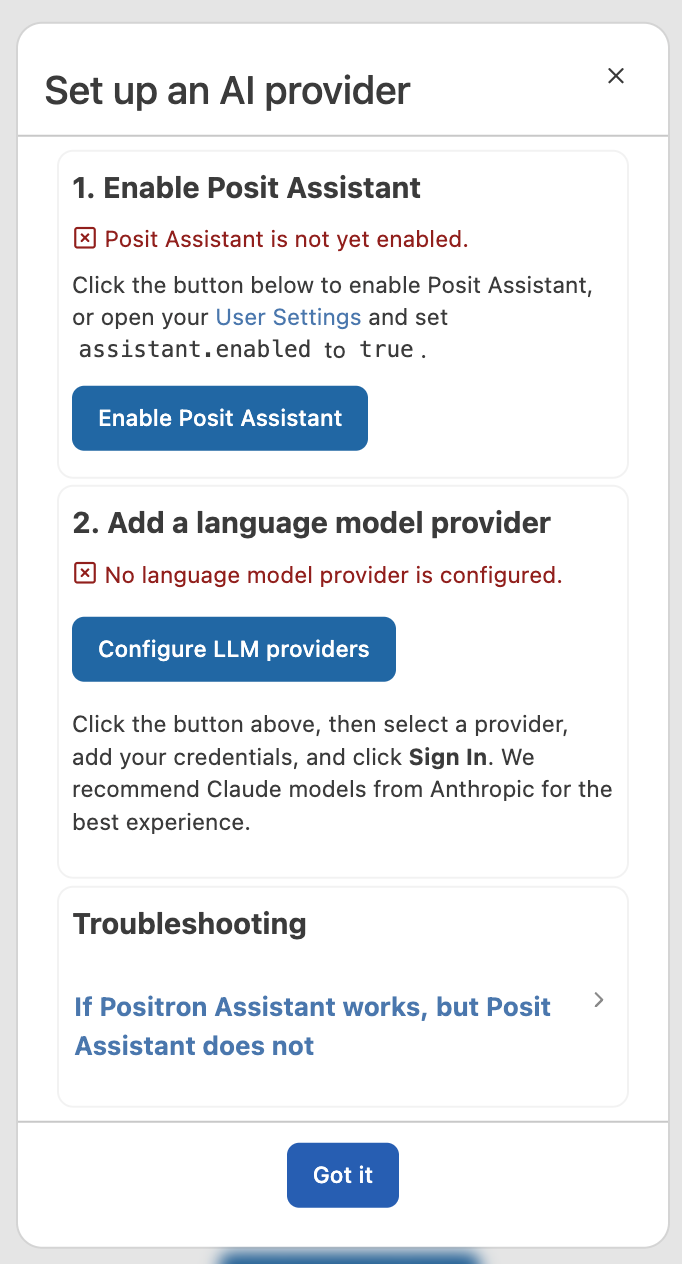
- In the setup dialog, click Enable Posit Assistant.
Sign in to Posit AI Pass
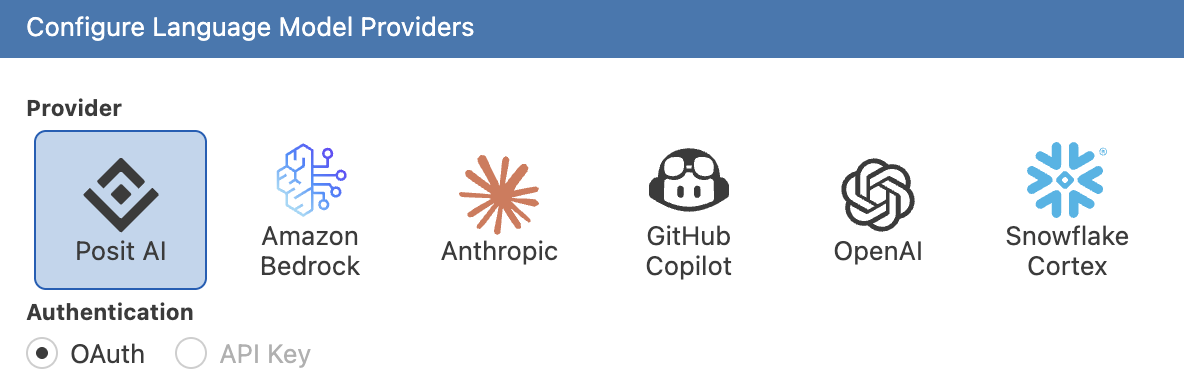
- Click Configure LLM providers, choose Posit AI Pass, and click Sign In.
- Open your browser to authorize.
- Confirm the codes match and authorize access.
If you are already logged in to Posit AI Pass, a prompt asks you to close the window and return to Positron.
If you are not already logged in, create an account or log in with existing credentials. After you create your account or log in, the system redirects you to your Posit AI Pass home page.
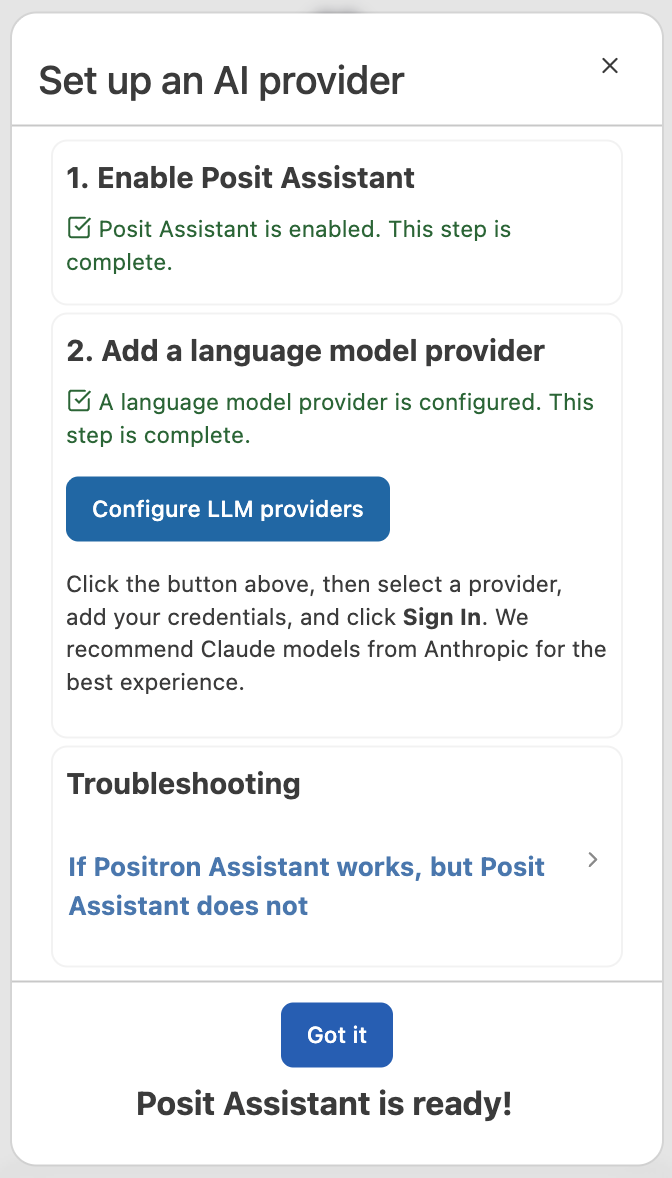
- After successfully authenticating, the setup dialog confirms that Posit Assistant is ready. Click Got it.
Start your work
- Begin working with Posit Assistant.
Visit the standalone documentation for Posit Assistant in Positron to learn more.