User guide
Positron on Amazon SageMaker
Positron is a data science IDE for R and Python from Posit. In Amazon SageMaker, Positron runs as a custom Studio image. You select that image when you create a Space, and Positron opens in your browser.
Your administrator adds the image to your domain before you can use it. If the Positron image is not in your image list, contact your administrator and point them at the administrator guide.
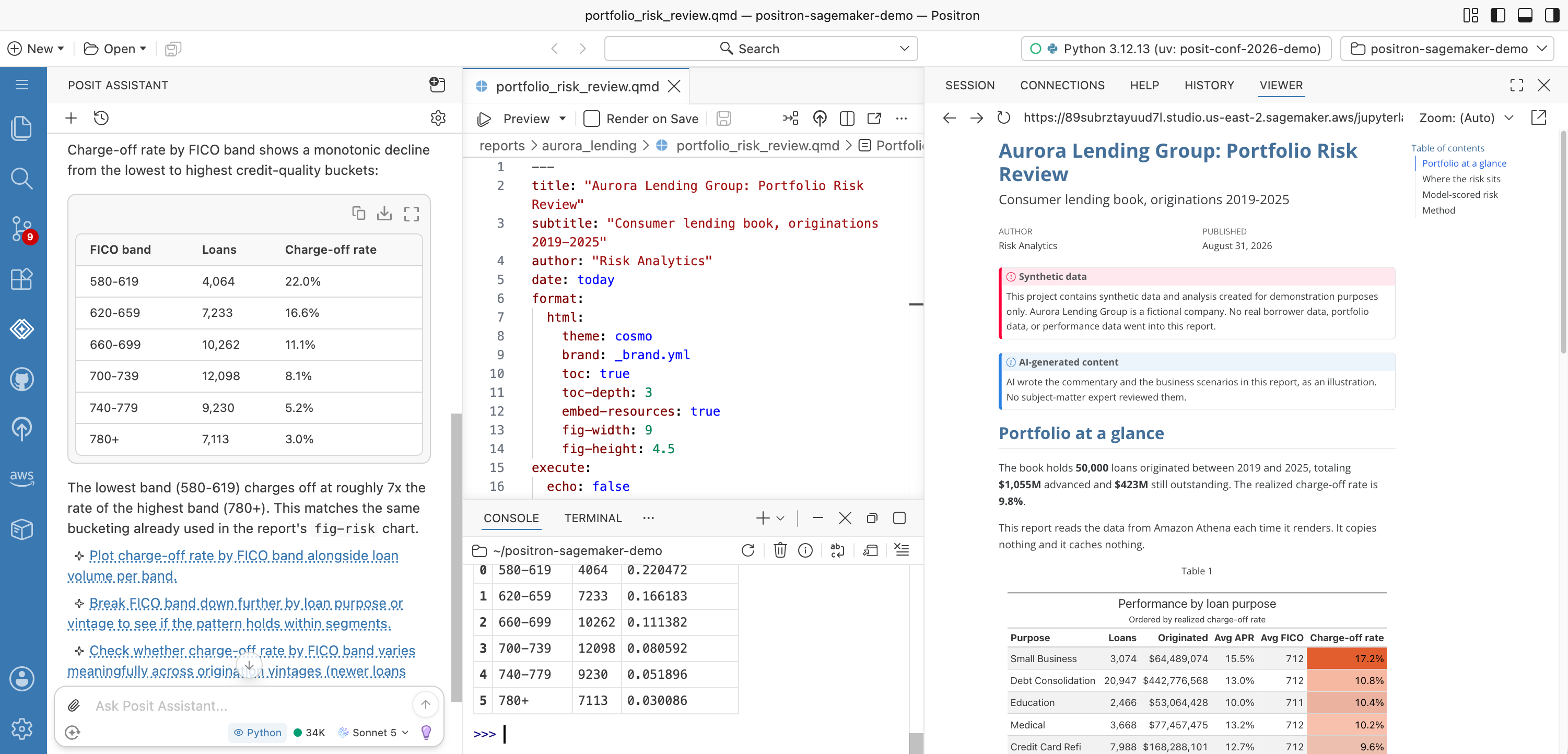
Start a Space
- In SageMaker Studio, create a JupyterLab Space.
- Select the Positron image.
- Select an instance type of
ml.t3.xlarge(4 vCPU, 16 GiB) or larger. See Choose an instance size. - Start the Space. The first launch downloads the image and takes a few minutes. Later launches are faster.
- Open the Space. It opens Positron directly, with R and Python consoles ready.
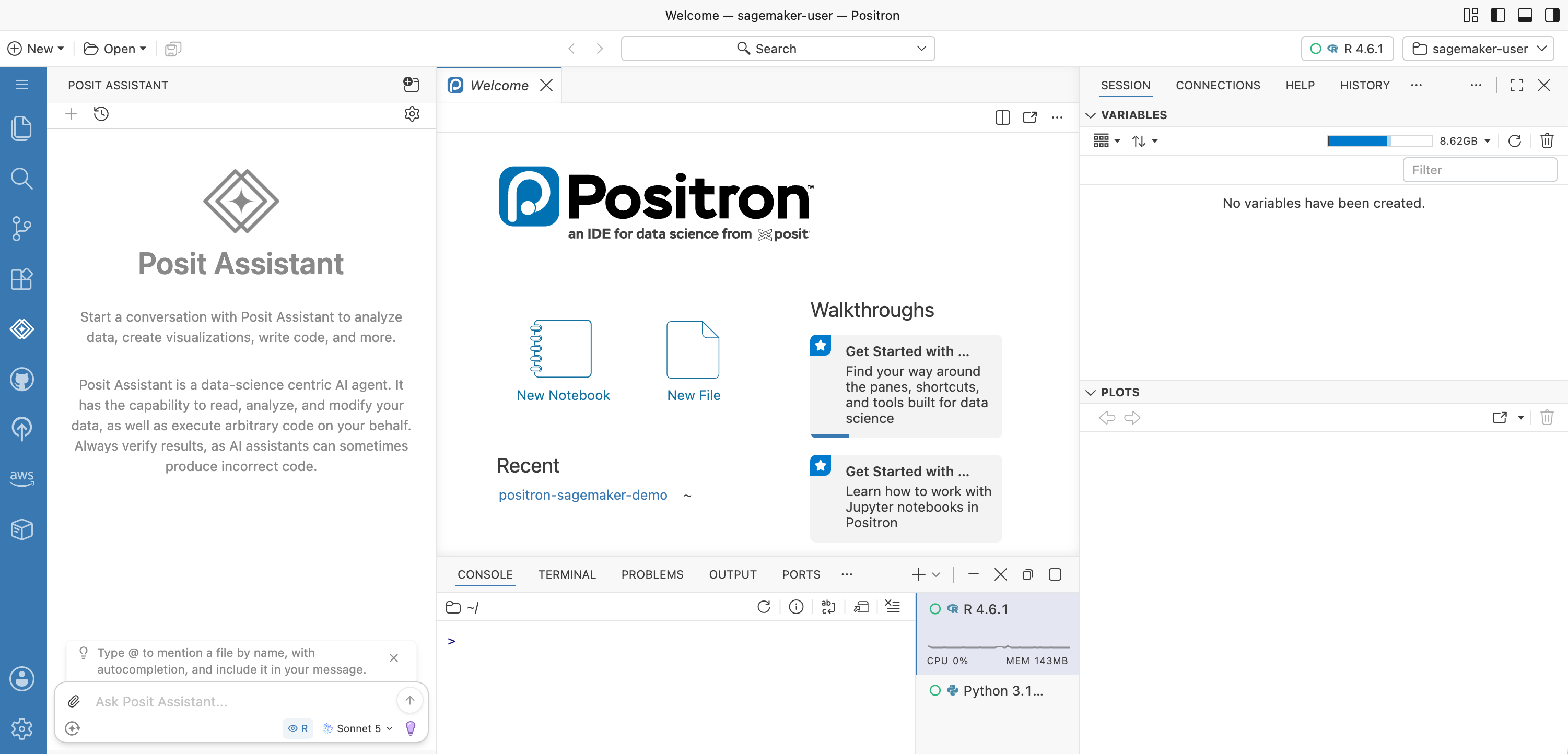
Positron is not yet available in SageMaker Unified Studio.
Your Space keeps the image version that it started with. To move to a newer version, ask your administrator to make a new image available. Once the image is available, stop your space, select the new image, and start the space again. If you delete the Space and create it again, you will lose your home directory and everything in it.
Choose an instance size
Positron itself needs 4 GB to 6 GB of memory for typical work, and your data, packages, and sessions need more on top of that. See Allocate sufficient memory for your Positron session. The image is also approximately 17 GB when uncompressed. An instance that is too small is the most frequent cause of problems:
| Instance | Result |
|---|---|
ml.t3.xlarge (4 vCPU, 16 GiB) |
The minimum. |
ml.t3.2xlarge or ml.m5.xlarge and larger |
More headroom for large data or many packages. |
ml.t3.medium (2 vCPU, 4 GiB) |
Too small. Positron starts and then disconnects repeatedly. |
What is installed
The following tools are already available in the Positron image:
- R
-
Preinstalled and ready to use. Binary packages come from Posit Package Manager and preinstalled packages include
tidyverse,data.table, andshiny. - Python
- From the sagemaker-distribution conda environment, as well as uv for package and environment management.
- Quarto
- Quarto renders and publishes documents, presentations, and dashboards from R and Python.
- Posit Assistant
- An AI assistant in Positron, backed by Amazon Bedrock. See Use Posit Assistant.
- Posit Professional Drivers
- A full ODBC driver set, including Amazon Athena, Snowflake, Amazon Redshift, and SQL Server. See Connect to your data.
- AWS Toolkit
- The AWS Toolkit extension, already authenticated with the execution role of your Space. See Use AWS services.
To install more R or Python packages for yourself, use the Console as you normally would. Your home directory persists across Space restarts. To add a package for everyone, ask your administrator to add it to the image.
Use Posit Assistant
Posit Assistant may be configured to automatically use Amazon Bedrock through the execution role of your Space, so you do not sign in or supply an API key. Open Posit Assistant, select a model, and send a message.
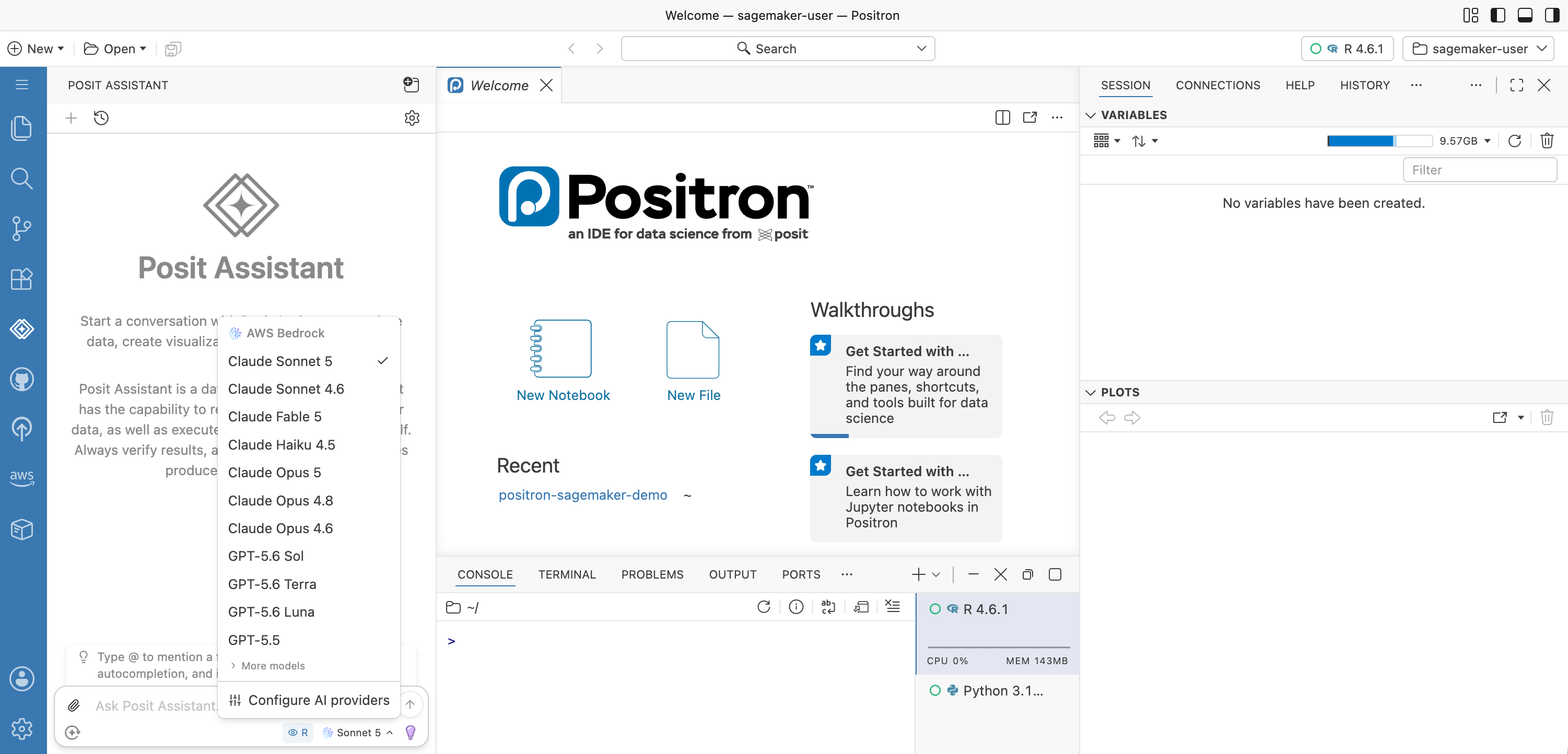
Your administrator enables the model and grants the role access to Bedrock. If Posit Assistant returns an access error, contact your administrator.
If you are using a model provider other than Amazon Bedrock, you can configure it following the directions in the Positron documentation.
Use AWS services
The AWS Toolkit extension is built into the image, and authentication needs no setup. The image supplies a [default] AWS profile that exports the credentials of your execution role. The AWS CLI, boto3, and the AWS SDK in your terminal use the same profile.
The image applies this profile only when you have no ~/.aws/config, so if you add your own profiles, Positron keeps them.
Sign-in through a browser with AWS Identity and Access Management (IAM) Identity Center is difficult behind the JupyterLab proxy. In this image, use the execution role instead.
Your execution role determines what you can reach. If a service call fails with a permissions error, ask your administrator to grant the role access.
Connect to your data
The image includes the Posit Professional Drivers, registered with unixODBC. The R odbc package and the Python pyodbc package both find them. The drivers are ready to use.
Connect to Amazon Athena
Authentication uses your execution role. Set AuthenticationType=Default, and give the AWS region and an Amazon Simple Storage Service (Amazon S3) location for the query results:
Driver=Athena;AwsRegion=<region>;S3OutputLocation=s3://<bucket>/;AuthenticationType=Default;Schema=defaultDo not use Instance Profile. That value selects the Amazon Elastic Compute Cloud (Amazon EC2) instance metadata path, which is not how a Studio app receives its credentials. The connection then fails with an unclear credentials error. Use AuthenticationType=Default.
In R:
library(DBI)
con <- dbConnect(
  odbc::odbc(),
  .connection_string = paste0(
    "Driver=Athena;",
    "AwsRegion=us-east-2;",
    "S3OutputLocation=s3://my-athena-results/;",
    "AuthenticationType=Default;",
    "Schema=default"
  )
)
dbGetQuery(con, "SELECT 1")
In Python:
import pyodbc

con = pyodbc.connect(
    "Driver=Athena;"
    "AwsRegion=us-east-2;"
    "S3OutputLocation=s3://my-athena-results/;"
    "AuthenticationType=Default;"
    "Schema=default"
)
print(con.execute("SELECT 1").fetchall())
Your execution role also needs permissions for Athena, AWS Glue, and S3 on the target workgroup and the results bucket. Ask your administrator to grant them.
Run Shiny apps
With an open Shiny App in the editor, select Run App. Positron serves the app through its own proxy, and the app opens in the Viewer pane.
If you start a server yourself from the terminal, for example with python -m http.server, Positron does not forward it automatically. Use Add Port in the Ports panel.
Troubleshooting
| Symptom | What to do |
|---|---|
| Positron shows “Disconnected. Attempting to reconnect…” repeatedly | Your instance does not have enough memory. Stop the Space, change the instance to ml.t3.xlarge or larger, and start it again. |
A “Positron could not be started” page shows the address sales@posit.co |
Your session could not verify a license. You cannot fix this from the Space. Send the page to your administrator. |
| Posit Assistant returns an access error | The model is not enabled in Bedrock, or your execution role does not have access. Contact your administrator. |
| An AWS command or an ODBC connection fails with a permissions error | Your execution role does not have access to that service. Contact your administrator. |
An R package fails to load with unable to load shared object |
The image is missing a system library. Report the package name to your administrator. |
| The Positron image is not in the image list | Your administrator has not attached the image to the domain, or has not attached it for JupyterLab Spaces. Contact your administrator. |