Administrator guide
Positron on Amazon SageMaker
Posit publishes a prebuilt SageMaker Studio image that runs the Positron IDE. This guide shows you how to copy that image into your own registry and attach it to your SageMaker domain. Your users then select the image when they create a Space, and Positron opens directly.
You do not build the image. If you want to add packages or change the defaults, see Customize the image.
For what your users can do after you attach the image, see the user guide.
Positron on SageMaker is in public preview. Send any feedback to your Posit representative.
What the image contains
The image runs Positron in SageMaker Studio, where JupyterLab proxies it. It contains the following software:
- Positron
- Positron is the data science IDE for R and Python.
- R
- A version pinned by the image definition. Binary packages come from Posit Package Manager and common packages are included.
- Python
- From the sagemaker-distribution conda environment, plus uv.
- Quarto
- Quarto renders and publishes documents.
- Posit Assistant
- Posit Assistant is an AI assistant that uses Amazon Bedrock through your execution role.
- Posit Professional Drivers
- Posit provides ODBC drivers, including Amazon Athena, Snowflake, Amazon Redshift, and SQL Server.
- AWS Toolkit
- The AWS Toolkit extension, configured for your execution role.
Positron verifies against a license from AWS License Manager at launch. See Configure licensing.
For the version of each component and the complete package list, see Appendix: Image inventory.
Positron is not yet available in SageMaker Unified Studio. See SageMaker Unified Studio.
Requirements
From Posit
- Access to the published image. See Set your variables for the location during public preview.
- The AWS License Manager policy for your execution role. See Configure licensing.
From AWS
- A SageMaker Studio domain, with its domain ID (
d-xxxxxxxxxxxx) and its region. - The execution role of the domain.
- Permissions to create an Amazon Elastic Container Registry (Amazon ECR) repository and push to it.
- These SageMaker permissions:
sagemaker:CreateImage,CreateImageVersion,CreateAppImageConfig,DescribeDomain, andUpdateDomain. - The
iam:PutRolePolicypermission on the execution role. - An accepted AWS License Manager grant for RStudio on SageMaker. See Configure licensing.
On your workstation
- Docker
- Docker pulls the published image and pushes it to your registry. It does not build anything, so allow disk space for an image of approximately 17 GB.
- AWS CLI v2
- To enable Bedrock models from the CLI, you need version 2.34 or later.
- jq
- The merge in Step 5 uses jq.
Set your variables
Every aws command in this guide uses these variables. Set them in the shell you work in, and set them again if you open a new terminal:
Terminal
ACCT=<aws-account-id>            # 12 digits
REGION=<domain-region>           # must match your Studio domain, for example us-east-2
DOMAIN=<domain-id>               # d-xxxxxxxxxxxx
ROLE_NAME=<execution-role-name>  # the domain execution role, name only
REPO=positron-sagemaker          # the repository you create in Step 1
TAG=$(docker buildx imagetools inspect public.ecr.aws/posit/positron-sagemaker:latest --raw \
  | jq -r '.annotations."org.opencontainers.image.version"')  # the latest published tag

SOURCE_URI="public.ecr.aws/posit/positron-sagemaker:${TAG}"
URI="${ACCT}.dkr.ecr.${REGION}.amazonaws.com/${REPO}:${TAG}"
Each value written <like-this> is an input that you must have before you start.
The last two lines derive from the ones above them, so leave them as they are. SOURCE_URI is the image that Posit publishes, and URI is your copy of it. Every SageMaker command uses URI.
Step 1: Copy the image into your registry
SageMaker pulls a custom image only from a private Amazon ECR repository, and that repository must be in the same region as the domain. It does not accept any other registry. Posit publishes the image to Amazon ECR Public, so you copy it into your own repository once. SageMaker uses your copy from then on.
Create the repository, then pull the published image and push it to your account. create-repository returns RepositoryAlreadyExistsException when the repository is already there, which is safe to ignore:
Terminal
aws ecr create-repository \
  --repository-name "$REPO" \
  --region "$REGION"   # first time only

aws ecr get-login-password --region "$REGION" \
  | docker login --username AWS --password-stdin "${ACCT}.dkr.ecr.${REGION}.amazonaws.com"

docker pull --platform linux/amd64 "$SOURCE_URI"
docker tag "$SOURCE_URI" "$URI"
docker push "$URI"
The docker login command authenticates you to your own registry for the push. The pull needs no credentials.
Skip the docker login line if your ~/.docker/config.json has a credHelpers entry that maps your registry to ecr-login, as in Troubleshooting. The helper authenticates each push and pull on its own, and docker login then always fails with error saving credentials ... not implemented, because the helper does not implement credential storage. The push still works.
To verify that the copy is in your repository, run:
Terminal
aws ecr describe-images \
  --repository-name "$REPO" \
  --region "$REGION" \
--query 'imageDetails[].imageTags'--platform linux/amd64 matters on Apple silicon. If the image in your registry is not linux/amd64, SageMaker pulls it successfully and the Space then fails at container start with an exec-format error, which looks like a problem with the image configuration rather than with the architecture.
Amazon ECR pull-through cache does not remove this step. You must still pull the image once before Step 4 can register it.
Step 2: Configure licensing
Positron on SageMaker is a paid product and requires a valid Posit Workbench Advanced license from Posit, PBC. This is the same entitlement that RStudio on SageMaker uses. You can buy it from Posit directly or through the AWS Marketplace. Contact your Posit representative to purchase a license or to add Positron on SageMaker to a subscription you already hold. Posit requires the AWS account ID that holds the license. Expect the grant within three business days after you share that account ID.
Positron licenses itself through AWS License Manager. When a user opens Positron, the client uses the credentials of the execution role to confirm that a valid license is present, and Positron starts.
Accept the license grant
If your account already runs RStudio on SageMaker, you do not need a new entitlement and you do not need to accept another grant. The two products consume the same AWS License Manager entitlement, so the grant is already in place and you only need the role permissions in Grant License Manager access to the execution role.
Your entitlement arrives as an AWS License Manager grant, and you must accept it in the account that holds the domain. Check your received grants in the License Manager console under Granted licenses, or from the CLI:
Terminal
aws license-manager list-received-licenses \
  --region "$REGION" \
  --query 'Licenses[].{Name:LicenseName,Status:Status,Issuer:Issuer.Name}'
If no grant is present, contact your Posit representative before you continue.
Grant License Manager access to the execution role
The licensing client runs inside the container as the execution role, so that role needs the following License Manager permissions:
Terminal
aws iam put-role-policy \
  --role-name "$ROLE_NAME" --policy-name PositronLicenseManager \
  --region "$REGION" \
  --policy-document '{
    "Version": "2012-10-17",
    "Statement": [{
      "Effect": "Allow",
      "Action": [
        "license-manager:ListReceivedLicenses",
        "license-manager:GetLicense",
        "license-manager:CheckoutLicense",
        "license-manager:ExtendLicenseConsumption",
        "license-manager:CheckInLicense"
      ],
      "Resource": "*"
    }]}'
These are the same permissions that the RStudio on SageMaker licensing client requires.
The client uses the standard AWS SDK credential chain and needs a region. A Studio Space supplies both, so no extra configuration is necessary.
Verify the role before you launch
Terminal
aws iam simulate-principal-policy \
  --policy-source-arn "arn:aws:iam::${ACCT}:role/${ROLE_NAME}" \
  --action-names license-manager:CheckoutLicense \
  --query 'EvaluationResults[].[EvalActionName,EvalDecision]' --output text
What happens when licensing fails
Licensing fails closed, but the SageMaker health check does not exercise it. The app reaches InService whether the license checkout succeeded or failed, so app status tells you nothing about licensing. The failure appears only in the browser, after a delay, as a LICENSE REQUIRED card reading “Positron could not be started”.
If a running session loses its license, for example because the grant is revoked or the role loses access, Positron waits 10 minutes and then exits. Users lose unsaved work in that session, so treat a revoked grant as a user-visible interruption.
The checkout is also lazy. Nothing about licensing reaches the log until someone opens the Space in a browser, so the log is as uninformative as the app status until first access.
To confirm a successful checkout, look for these lines in the app log:
Acquiring a Positron license through the license manager named by POSITRON_LICENSE_MANAGER_PATH.
Positron license acquired from the license manager (days left: ..., users: ...).
See Read the logs for where to find them.
Step 3: Enable Amazon Bedrock for Posit Assistant
This step is optional. Complete it to use Posit Assistant with Amazon Bedrock. The Bedrock provider is on by default in the image, and other providers also work.
Enable model access
Enable the model you want in Bedrock model access for the region. This is an AWS Marketplace subscription, and it is separate from AWS Identity and Access Management (IAM). A model without a subscription returns AccessDeniedException ... aws-marketplace: Subscribe, even for an account administrator.
Use the Bedrock console at Model access, or use the CLI. The CLI commands need AWS CLI 2.34 or later:
Terminal
BEDROCK_MODEL=anthropic.claude-sonnet-5   # bare ID, for model access

aws bedrock get-foundation-model-availability \
  --model-id "$BEDROCK_MODEL" \
  --region "$REGION"

TOKEN=$(aws bedrock list-foundation-model-agreement-offers \
  --model-id "$BEDROCK_MODEL" \
  --region "$REGION" \
  --query "offers[0].offerToken" --output text)

aws bedrock create-foundation-model-agreement \
  --model-id "$BEDROCK_MODEL" \
  --offer-token "$TOKEN" \
--region "$REGION"create-foundation-model-agreement accepts an end user license agreement and enables pay-per-use charges on your account. To reverse it, use delete-foundation-model-agreement.
Model access uses the plain ID, such as anthropic.claude-sonnet-5. That is the BEDROCK_MODEL variable. The model that Posit Assistant sends requests to (see Change the default Posit Assistant model) is a cross-region inference profile ID instead. A profile ID adds a routing prefix to the plain ID, so anthropic.claude-sonnet-5 becomes us.anthropic.claude-sonnet-5. A global. prefix also exists.
Current Claude models on Bedrock are inference-profile only, so the plain ID enables access but cannot be invoked. Posit Assistant must use the profile ID.
Enabling a model does not change which model Posit Assistant asks for. The image ships with its own default, listed in Settings and files that the image sets. To change what the Assistant requests, see Change the default Posit Assistant model.
If a request fails with an access error although the model is enabled in your region, enable the model in those other regions too. To list the profile IDs available in your account, run aws bedrock list-inference-profiles.
Grant Bedrock access to the execution role
Give the execution role access to Bedrock. Posit Assistant reaches models through three separate IAM namespaces, and the role needs all three:
Terminal
aws iam put-role-policy \
  --role-name "$ROLE_NAME" --policy-name PositronAssistantBedrock \
  --region "$REGION" \
  --policy-document '{
    "Version": "2012-10-17",
    "Statement": [{
      "Effect": "Allow",
      "Action": [
        "bedrock:InvokeModel",
        "bedrock:InvokeModelWithResponseStream",
        "bedrock:Converse",
        "bedrock:ConverseStream",
        "bedrock:ListFoundationModels",
        "bedrock:ListInferenceProfiles",
        "bedrock:GetInferenceProfile",
        "bedrock:GetFoundationModel",
        "aws-marketplace:ViewSubscriptions",
        "aws-marketplace:Subscribe",
        "bedrock-mantle:ListModels",
        "bedrock-mantle:CreateInference"
      ],
      "Resource": "*"
}]}'| Missing | Symptom |
|---|---|
bedrock:* |
No models at all. |
aws-marketplace:Subscribe |
Every model returns a 403 whose text suggests the account subscription is incomplete. |
bedrock-mantle:ListModels |
OpenAI models are silently absent from the model list. No error appears anywhere. |
bedrock-mantle:CreateInference |
OpenAI models are listed, but every request to one returns a 401. |
The bedrock-mantle actions are not in the AWS CLI or the AWS service authorization reference, so you cannot look them up. Copy them from this policy.
Bedrock checks them on the calling principal at request time, even when your account already holds the subscription. Without both, every Posit Assistant request fails with a 403 that names aws-marketplace:ViewSubscriptions and aws-marketplace:Subscribe. The message reads as though the account subscription is incomplete, which sends you to the wrong place.
AmazonSageMakerFullAccess grants ViewSubscriptions but not Subscribe, so a role that looks fully privileged for SageMaker still fails.
To stop the container from subscribing your account to arbitrary paid models, you can keep ViewSubscriptions on "Resource": "*" and add a condition to Subscribe that limits aws-marketplace:ProductId to the models you use. If you do, add every model you subscribe to later to that list, or it returns a 403 despite a valid subscription. You can scope the bedrock-mantle actions the same way, to arn:aws:bedrock-mantle:<region>:<account>:project/default, but "*" avoids breaking a cross-region fallback.
If your organization requires it, limit Resource to specific model Amazon Resource Names (ARNs) or inference-profile ARNs.
Diagnose a Posit Assistant failure
The following command can help distinguish an account problem from a role problem:
Terminal
aws bedrock get-foundation-model-availability \
  --model-id "$BEDROCK_MODEL" \
  --region "$REGION"
It returns four independent fields: agreementAvailability, authorizationStatus, entitlementAvailability, and regionAvailability. If any of them is not available, the account or the region is the problem. If all four are available and requests still fail with a 403, the execution role is missing permissions, most often the two Marketplace actions above.
When models are missing from the list rather than failing, raise the Posit Assistant output channel to debug level and look for lines that begin [Bedrock Mantle].
Posit Assistant reaches OpenAI models only through the bedrock-mantle endpoint, and it does not use that endpoint when Federal Information Processing Standards (FIPS) endpoints are on. Setting AWS_USE_FIPS_ENDPOINT, or use_fips_endpoint in the AWS configuration file, therefore removes OpenAI models. Anthropic models are unaffected.
A running app keeps the credentials it started with, so an IAM change does not reach it. Delete the app and start it again. Bedrock also caches a denied authorization for about five minutes, so wait five minutes after recycling the app before you conclude that the fix did not work.
Step 4: Register the image with SageMaker
Registering the image tells SageMaker that your ECR copy is available as a custom image. ROLE_NAME must trust sagemaker.amazonaws.com, and the execution role of the domain has this trust.
Register one SageMaker image for each Positron release. The Studio image selector shows the display name of the image and the number of the version, so an image for each release reads Positron <tag> v1 rather than Positron v3. This also lets you keep more than one release attached at the same time, which a single image cannot do, because the display name belongs to the image rather than to the version.
Terminal
IMAGE_NAME="positron-sagemaker-${TAG}"   # one image for each release
DISPLAY_NAME="Positron ${TAG}"           # what the Studio selector shows
CONFIG=positron-sagemaker-config         # one config serves every release

aws sagemaker create-image \
  --image-name "$IMAGE_NAME" \
  --display-name "$DISPLAY_NAME" \
  --role-arn "arn:aws:iam::${ACCT}:role/${ROLE_NAME}" \
  --region "$REGION"   # once for each release

VERSION_ARN=$(aws sagemaker create-image-version \
  --image-name "$IMAGE_NAME" \
  --base-image "$URI" \
  --region "$REGION" \
  --query ImageVersionArn --output text)
VERSION="${VERSION_ARN##*/}"   # create-image-version returns only the ARN; N is its last segment
echo "image version: $VERSION"

aws sagemaker create-app-image-config \
  --app-image-config-name "$CONFIG" \
  --jupyter-lab-app-image-config '{}' \
  --region "$REGION"              # first time only
IMAGE_NAME comes straight from TAG. A SageMaker image name accepts letters, digits, and single - or . separators, so the tag needs no change.
create-image uses a new name for each release, so it succeeds for a release you have not registered before. Run it again for the same release and it fails with ResourceInUse and changes nothing. create-image-version is different. It mints a version on every run, so a block you run twice leaves an unused version behind, and $VERSION then holds the newest one, which is what Step 5 attaches. A new release image gives $VERSION of 1. Check it before you continue.
To verify that SageMaker registered the version, run this command. ImageVersionStatus must become CREATED. CREATE_FAILED means that SageMaker cannot read the image from ECR, and FailureReason gives the cause:
Terminal
aws sagemaker describe-image-version \
  --image-name "$IMAGE_NAME" --version-number "$VERSION" \
  --region "$REGION" \
--query '{Status:ImageVersionStatus,Base:BaseImage}'The parameter is --version-number, not --version. The global --version flag of the AWS CLI hides the parameter, so --version 13 prints the version of the CLI and exits with status 0. It describes nothing, and it gives no error.
Keep $VERSION. Step 5 needs it. If it is empty later, for example because you opened a new terminal, read the latest version back:
Terminal
VERSION=$(aws sagemaker list-image-versions \
  --image-name "$IMAGE_NAME" \
  --region "$REGION" \
  --query 'max_by(ImageVersions,&Version).Version' --output text)
Step 5: Attach the image to your domain
You can attach the image in the SageMaker console or with the CLI.
Use the console
This method is easier. In the SageMaker AI console, open your domain, then go to Environment. At the top of the page, under Custom images for personal Studio apps, select Attach image. Select Existing image, search for the image you registered in Step 4, which is positron-sagemaker- followed by your tag, and select its version.
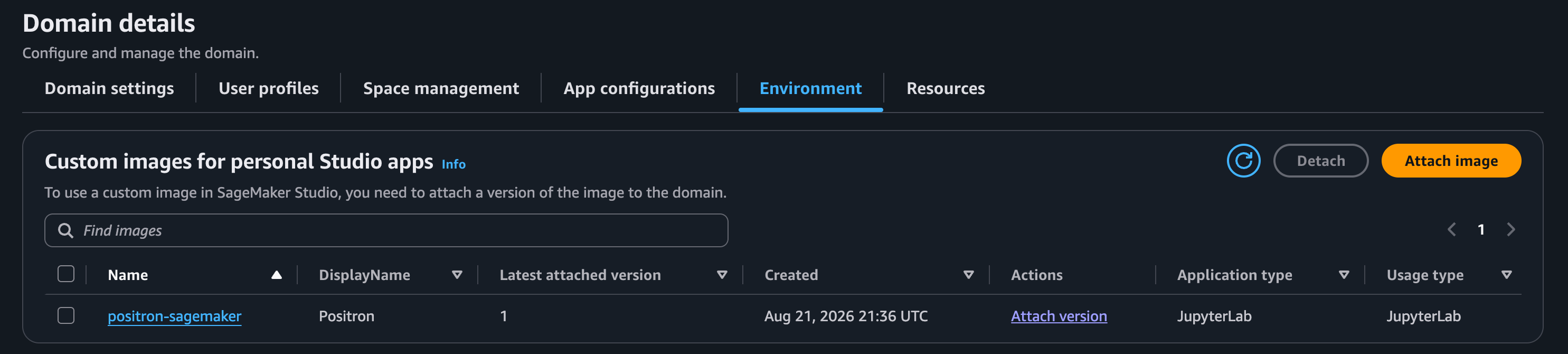
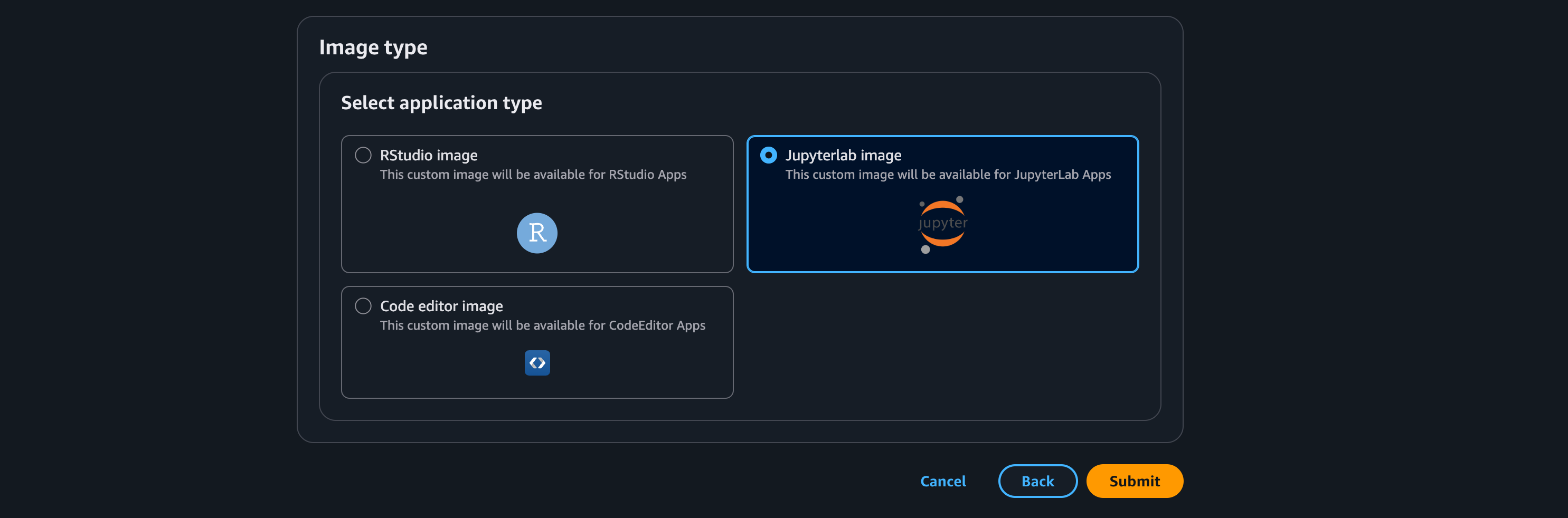
On the next page, check the image name, the display name, the IAM role, and the Amazon Elastic File System (Amazon EFS) mount path /home/sagemaker-user. Leave Advanced configuration at its defaults. Under Image type, select the Jupyterlab image tile, then select Submit.
Use the CLI
update-domain --default-user-settings replaces the full DefaultUserSettings object. A command that sends only the new image deletes everything else in that object, and it gives no warning. The deleted values include:
- The execution role
- The Amazon EFS and Amazon Simple Storage Service (Amazon S3) mounts
- The Amazon Elastic Block Store (Amazon EBS) settings
- The security groups
Always read the current settings, change them, then write them back. The commands below keep every other DefaultUserSettings key. They also keep your other custom images, and replace any Positron entry that is already there:
Terminal
WORK=$(mktemp -d)   # keep domain config out of your git tree

aws sagemaker describe-domain \
  --domain-id "$DOMAIN" \
  --region "$REGION" \
  > "$WORK/domain-BACKUP.json"

jq --arg d "$DOMAIN" --arg base positron-sagemaker \
   --arg img "$IMAGE_NAME" --arg cfg "$CONFIG" --argjson n "$VERSION" '
  {DomainId: $d,
   DefaultUserSettings: (.DefaultUserSettings
     | .JupyterLabAppSettings.CustomImages =
        (((.JupyterLabAppSettings.CustomImages // [])
          | map(select(.ImageName | startswith($base) | not)))
         + [{ImageName:$img, ImageVersionNumber:$n, AppImageConfigName:$cfg}]))}' \
  "$WORK/domain-BACKUP.json" > "$WORK/update-domain.json"

diff <(jq -S '.DefaultUserSettings' "$WORK/domain-BACKUP.json") \
     <(jq -S '.DefaultUserSettings' "$WORK/update-domain.json")

aws sagemaker update-domain \
  --cli-input-json "file://$WORK/update-domain.json" \
  --region "$REGION"
This offers one release at a time. The filter drops every entry whose image name starts with positron-sagemaker. That covers the release images and the single positron-sagemaker image that earlier versions of this guide used. It then adds the release from Step 4.
To offer more than one release at the same time, replace the map(select(...)) line with the following, which removes only the release you are attaching. Users can then test a new release before you retire the one they use now:
Terminal
| map(select(.ImageName != $img)))Decide how many releases you keep before you choose. This is not only about what the selector shows. A Space is pinned to the image it started with, and it cannot start when the domain no longer lists that image, so the first form makes every Space on a previous release unlaunchable.
An image for each release behaves differently here from the single image that earlier versions of this guide registered. Under a single image, replacing the entry moved the version within one image name, and Spaces on earlier versions of that name kept starting. Under an image for each release, every release is a different image name, so replacing the entry removes the only entry that release had.
Carry the older intuition across and you retire a release without meaning to. Keep a release attached for as long as any Space might start on it. An environment you preserve for a past analysis has to stay attached. See Retire a release.
Read the output of diff before you run update-domain. It must show only the CustomImages change. If anything else disappears, stop.
The diff shows more changed lines when you first attached the image through the console. The console generates its own app image config name, such as app-image-config-1787348253316, and the command above rebinds the domain to $CONFIG. This is safe, and it leaves the console-created config in the account, unused. Delete it with delete-app-image-config, or change --arg cfg to the existing name to keep it.
To verify the result, check that the image is in the list and that the set of keys still matches domain-BACKUP.json. describe-domain can lag behind update-domain by a minute or two, so re-run these before you conclude that the update failed:
Terminal
aws sagemaker describe-domain \
  --domain-id "$DOMAIN" \
  --region "$REGION" \
  --query 'DefaultUserSettings.JupyterLabAppSettings.CustomImages'
aws sagemaker describe-domain \
  --domain-id "$DOMAIN" \
  --region "$REGION" \
  --query 'DefaultUserSettings | keys(@)'
Step 6: Launch and verify
Create a Space from the image, start it, and open Positron. You can create the Space in the console or with the CLI. Either way, the check that matters is loading the Space in a browser.
Select the instance size with care. Positron itself needs 4 GB to 6 GB of memory for typical work, and the data, packages, and sessions of your users need more on top of that. See Allocate sufficient memory for your Positron session. An instance that is too small is the most frequent cause of a bad first experience:
| Instance | Result |
|---|---|
ml.t3.xlarge (4 vCPU, 16 GiB) |
The minimum. |
ml.t3.2xlarge or ml.m5.xlarge and larger |
More headroom for large data or many packages. |
ml.t3.medium (2 vCPU, 4 GiB) |
Too small. Positron alone wants most of the memory, and it starts and then disconnects repeatedly. |
Use the console
In Studio, create a JupyterLab Space. The selector lists the image by its display name and its version, as Positron <tag> v1. Select it, select an instance from the table, and start the Space. The first launch downloads the image and takes a few minutes.
Use the CLI
Create the Space against the image version you registered, then start a JupyterLab app on it:
Terminal
SPACE=positron-test
USER_PROFILE=<user-profile-name>       # aws sagemaker list-user-profiles
INSTANCE=ml.t3.xlarge

aws sagemaker create-space \
  --domain-id "$DOMAIN" --space-name "$SPACE" \
  --region "$REGION" \
  --ownership-settings "OwnerUserProfileName=${USER_PROFILE}" \
  --space-sharing-settings "SharingType=Private" \
  --space-settings "AppType=JupyterLab,JupyterLabAppSettings={DefaultResourceSpec={SageMakerImageArn=arn:aws:sagemaker:${REGION}:${ACCT}:image/${IMAGE_NAME},SageMakerImageVersionArn=arn:aws:sagemaker:${REGION}:${ACCT}:image-version/${IMAGE_NAME}/${VERSION},InstanceType=${INSTANCE}}}"

until [ "$(aws sagemaker describe-space \
    --domain-id "$DOMAIN" --space-name "$SPACE" \
    --region "$REGION" --query Status --output text)" = "InService" ]; do sleep 5; done

aws sagemaker create-app \
  --domain-id "$DOMAIN" --space-name "$SPACE" \
  --app-type JupyterLab --app-name default \
  --region "$REGION"
The wait is necessary. A create-app that follows create-space immediately fails with ValidationException ... because space [<name>] is not in InService state.
Wait for the app to reach InService:
Terminal
aws sagemaker describe-app \
  --domain-id "$DOMAIN" --space-name "$SPACE" \
  --app-type JupyterLab --app-name default \
  --region "$REGION" \
  --query '{Status:Status,FailureReason:FailureReason}'
Poll this rather than trust the exit code of create-app. create-app returns success and an ARN before the container starts, and a launch that cannot succeed still returns success. The app then reaches Failed a minute or two later, and only FailureReason says why. A script that checks the exit code of create-app and moves on reports a Space that never started.
Then get a sign-in URL to open the Space in your browser:
Terminal
aws sagemaker create-presigned-domain-url \
  --domain-id "$DOMAIN" \
  --user-profile-name "$USER_PROFILE" \
  --space-name "$SPACE" \
  --region "$REGION" \
  --query AuthorizedUrl --output text
--space-name opens the Space itself. Without it, the URL lands on the Studio home page and you navigate to the Space by hand.
Confirm that it works
- Open the Space. It opens Positron directly, with working R and Python consoles.
- (Optional) Open Posit Assistant and send a message. A reply shows that Bedrock works.
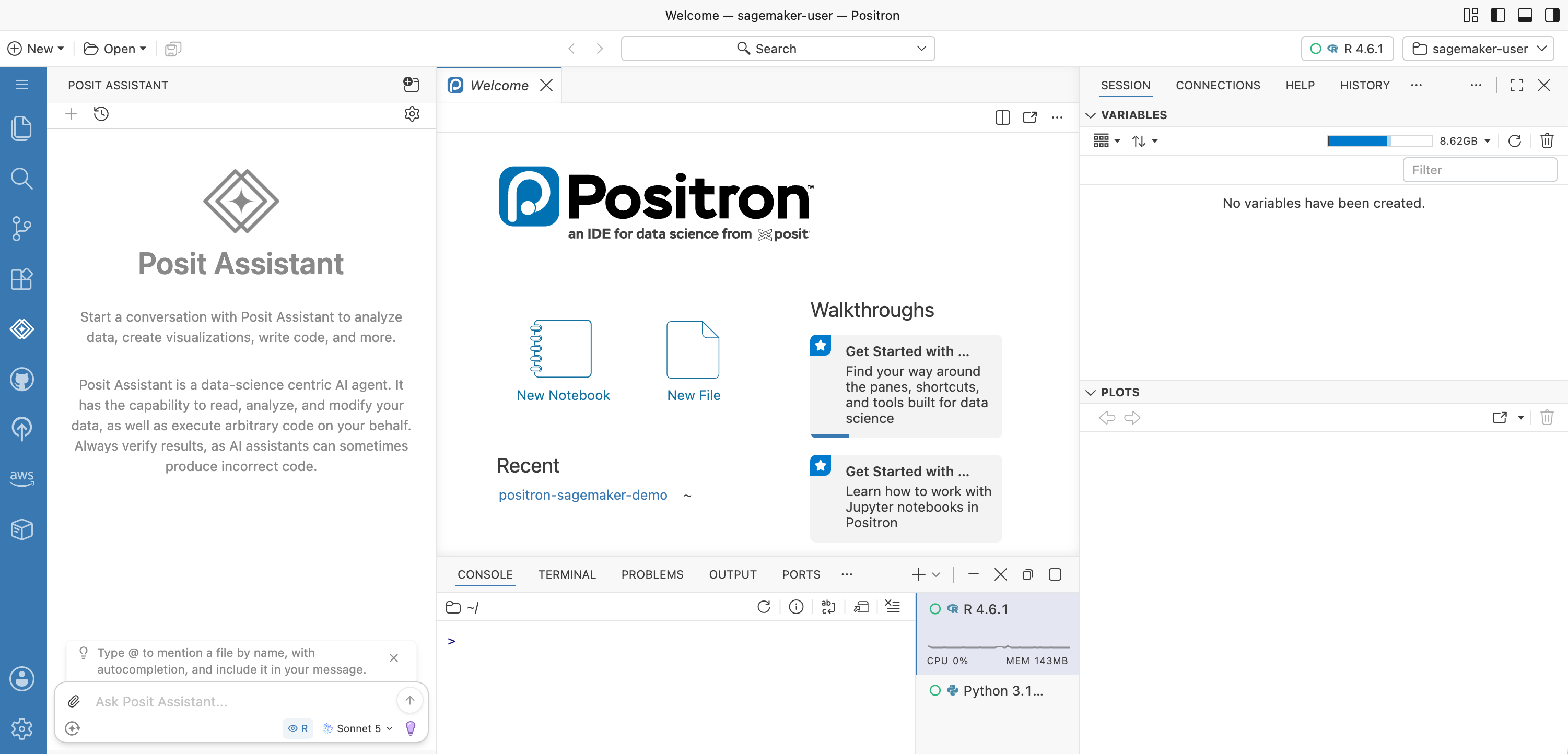
If Positron opens, the installation is complete. Point your users at the user guide.
Update the image
Find the tag of the latest published image:
Terminal
docker buildx imagetools inspect public.ecr.aws/posit/positron-sagemaker:latest --raw \
  | jq -r '.annotations."org.opencontainers.image.version"'
Set TAG to this value. Then copy the new tag as in Step 1, register it as its own image as in Step 4, and attach it as in Step 5. Each release is a separate image with its own display name, so the selector names the release rather than a sequence number.
This procedure does not change an existing Space. A Space keeps the image that it started with, and it records that image differently from a domain. The domain holds a CustomImages list, which fills the image selector. The Space holds one specific image ARN and one specific version ARN:
Terminal
aws sagemaker describe-space \
  --domain-id "$DOMAIN" --space-name <space-name> \
  --region "$REGION" \
  --query 'SpaceSettings.JupyterLabAppSettings.DefaultResourceSpec'
# -> {"SageMakerImageArn": ".../image/positron-sagemaker-2026.08.2-4",
#     "SageMakerImageVersionArn": ".../image-version/positron-sagemaker-2026.08.2-4/1",
#     "InstanceType": "ml.m5.xlarge"}
To move an existing Space to a new release, follow these steps in order:
- Stop the Space. This action interrupts the person who uses it, so inform them first.
- Run
update-spacewith bothSageMakerImageArnandSageMakerImageVersionArninDefaultResourceSpec. Both change, because the release is a different image rather than a later version of the same one. A JupyterLab Space has noCustomImagesfield. - Start the Space again.
Do not delete a Space and create it again. That action erases the EBS home directory of the user.
Retire a release
Images accumulate. A release stays in your account after you stop offering it, because Spaces that still run it need it. Removing it from the domain only takes it out of the selector.
A Space that is already running keeps running. Starting it again is what fails. Three things must still exist when a Space starts: the image version, the ECR tag, and an entry for that image in the CustomImages list of the domain.
The entry does not have to name the version that the Space uses. One entry for the image name covers every version of that image, and the version in the entry only sets what the selector offers for a new Space. A Space pinned to version 1 starts against an entry that names version 3. The domain entry is the part that surprises people, because it looks like nothing more than what fills the selector. It also carries the app image config that the image is bound to, and a launch resolves the config there. Remove the entry and the Space fails to start with:
ResourceNotFoundError: Unable to launch App with Image [<image-name>] because
there is no AppImageConfig associated with this image in AppSettings.
Nothing warns you when you remove the entry, and nothing fails at the moment you remove it. The Space stays InService. Starting it again also looks like it works: create-space accepts a pinned image with no domain entry, and create-app returns success and an ARN. The app then reaches Failed about a minute later, carrying the message above in FailureReason. So the damage surfaces later, to a user rather than to you, and an automated relaunch reports success. SageMaker has no query for which Spaces use a given image, so audit before you change anything:
Terminal
for s in $(aws sagemaker list-spaces --domain-id "$DOMAIN" --region "$REGION" \
             --query 'Spaces[].SpaceName' --output text); do
  arn=$(aws sagemaker describe-space \
    --domain-id "$DOMAIN" --space-name "$s" --region "$REGION" \
    --query 'SpaceSettings.JupyterLabAppSettings.DefaultResourceSpec.SageMakerImageVersionArn' \
    --output text 2>/dev/null)
  printf "%-28s %s\n" "$s" "${arn##*image-version/}"
done
The output names the image and the version, such as positron-sagemaker-2026.08.2-4/1. A Space that someone created before this guide registered an image for each release shows positron-sagemaker/N instead.
Retire a release in this order:
- Run the audit above. If any Space names the release, stop. Move that Space to a release you keep, as in Update the image, or keep the release. Removing the entry is the breaking step, not deleting the image, so this audit comes before step 2 rather than before step 3.
- Remove the entry from the domain, with the same read-modify-write procedure as Step 5. Drop the entry rather than replace it.
- Delete the image with
aws sagemaker delete-image --image-name <name>. This deletes every version of the image, and leaves the container images in ECR. It fails withResourceInUsewhile the domain still lists the image, which is why the previous step comes first. - Delete the ECR tag, if you no longer want the copy.
Keep the app image config. One config serves every release, so deleting it breaks the releases you kept.
Customize the image
Most deployments use the published image as it is, and this section is optional. Build your own image when you need extra R packages, extra Python packages, extra system dependencies, or a different default Posit Assistant model.
Build on top of the published image. Do not rebuild it from its source definition. A derived image keeps the Positron Server installation and the AWS License Manager client exactly as Posit ships them, so the licensing path is unchanged, and it inherits the proxy configuration that a Space needs to start. It also builds more efficiently.
Before you start, set REPO in Set your variables to a name of your own, such as positron-sagemaker-custom. URI then points at a repository of your own, and your build cannot overwrite the unmodified copy.
Give your build its own image name and display name in Step 4 as well, for example IMAGE_NAME="positron-sagemaker-custom-${TAG}" and DISPLAY_NAME="Positron ${TAG} (custom)". The defaults there derive from TAG alone, so a build that keeps them collides with the Posit release of the same tag. Everything else in Step 4 and Step 5 works without change.
Write a Containerfile
Everything that the image already provides is available to your build: apt-get for system packages, R with Posit Package Manager as the default repository, and pip for the conda environment that Positron uses. Install as root, and return to sagemaker-user at the end:
Containerfile
FROM public.ecr.aws/posit/positron-sagemaker:2026.08.2-4

USER root

# System packages.
RUN apt-get update -yqq \
    && apt-get install -yqq --no-install-recommends libxml2-dev \
    && apt-get clean -yqq && rm -rf /var/lib/apt/lists/*

# R packages. Posit Package Manager is already the default repository.
RUN R -e 'install.packages(c("arrow", "targets"))'

# Python packages, into the conda environment at /opt/conda.
RUN pip install --no-cache-dir polars duckdb

USER sagemaker-user
The FROM line is the value of SOURCE_URI from Set your variables. To move to a later Posit image, change this line and build again.
Install into system locations, as the example does. SageMaker mounts a persistent volume over the home directory of the user when a Space starts, so anything that a build writes to /home/sagemaker-user disappears at that point.
Change the default Posit Assistant model
The default model is a key in /etc/positron/enforced-settings.json. Rewrite that key rather than the file, which leaves the other enforced settings as they are. The image already contains jq:
Containerfile
RUN jq '.["positron.assistant.models.preference.amazonBedrock"] = "us.anthropic.claude-sonnet-5"' \
      /etc/positron/enforced-settings.json > /tmp/settings.json \
    && mv /tmp/settings.json /etc/positron/enforced-settings.json
This value is a cross-region inference profile ID, not a plain model ID. Enable the model first, as in Step 3.
Disable Posit Assistant
Set positron.assistant.enable to false to turn off Posit Assistant for everyone who uses the image. This is an enforced setting, so a user cannot turn it back on:
Containerfile
RUN jq '.["positron.assistant.enable"] = false' \
      /etc/positron/enforced-settings.json > /tmp/settings.json \
    && mv /tmp/settings.json /etc/positron/enforced-settings.json
The Posit Assistant sidebar stays in place and explains that the feature is off, and the Posit Assistant commands become unavailable. That explanation names the positron.assistant.enable setting, but a user who changes it gets no result, because an enforced setting overrides the settings of the user.
If you disable Posit Assistant, the execution role no longer needs the Bedrock permissions from Step 3, and the Posit Assistant check in Step 6 no longer applies.
Add Positron extensions
Put extra Positron extensions in /opt/positron-server/extensions/, in one directory for each extension. A VSIX file is a zip archive, and the directory takes the contents of its extension/ directory.
Build and push
Create the repository and sign in to it as in Step 1. You do not pull or tag the published image, because your build does that for you:
Terminal
docker build --platform linux/amd64 -f Containerfile -t "$URI" .
docker push "$URI"
Then continue from Step 4. Nothing else in this guide changes.
Docker must build linux/amd64, so enable Rosetta on Apple silicon. A derived build needs much less memory than a full build, because it installs your additions rather than the whole toolchain.
The image does not start without them:
- Do not set
ENTRYPOINTorCMD. Your build inheritsCMD ["entrypoint-jupyter-server"], and settingENTRYPOINTclears that inheritedCMD. Without a long-runningCMD, the app does not start. - End with
USER sagemaker-user. A Space that runs asrootcannot use its home directory. - Do not overwrite
/usr/local/etc/jupyter/jupyter_server_config.py, which holds the proxy corrections and the license handling. - Do not unset
ODBCSYSINI=/etc, which points both ODBC driver managers at the bundled drivers. - Build
--platform linux/amd64.
A derived image inherits the labels of the image it is built from, so co.posit.image.version still reports the Posit image underneath rather than your build. See Read the versions from an image. Record your own additions separately.
Networking
A domain in PublicInternetOnly mode needs nothing from this section. A domain in VpcOnly mode reaches AWS services through your VPC, either through a Network Address Translation (NAT) gateway with internet access, or through interface VPC endpoints.
AWS documents what any Studio domain needs in that mode, including the sagemaker.api, sagemaker.runtime, and s3 endpoints, in Connect Studio notebooks in a VPC to external resources. Start there. This image then adds the following:
| Service | Endpoint | Result when unreachable |
|---|---|---|
| AWS License Manager | com.amazonaws.<region>.license-manager |
Positron does not start. The license checkout fails, and the Space shows the LICENSE REQUIRED card. |
| Amazon ECR | com.amazonaws.<region>.ecr.api and com.amazonaws.<region>.ecr.dkr |
The Space cannot download the image. ECR reads the layers themselves from Amazon S3, so the S3 endpoint above serves this too. |
| Amazon Bedrock | See the Amazon Bedrock documentation for its endpoint names. | Posit Assistant fails. Positron starts, and everything else works. |
License Manager is the one that stops a Space from opening at all, so check it first when a VpcOnly domain fails after a change to the network.
SageMaker Unified Studio
Positron is not yet available in Amazon SageMaker Unified Studio. Public preview supports SageMaker Studio only.
Posit and AWS are working on Unified Studio support. This section will hold the procedure when that support is available. For the current status, ask your Posit representative.
Troubleshooting
| Symptom | Cause and correction |
|---|---|
| The Space starts but Positron does not open | The license checkout failed. Either no grant is accepted in this account, or the execution role cannot call License Manager. See Step 2 |
| The logs show that the license manager could not acquire a license | The same causes as the row above. Check the grant first, then the role policy. See Step 2 |
| Positron exits about 10 minutes into a session | The session lost access to its license. The grant was revoked, the role lost its License Manager permissions, or License Manager became unreachable. See Step 2 |
A “Positron could not be started” page shows the address sales@posit.co |
This page is the correct behavior for any license failure. Check the rows above, then send the log stream to your Posit representative. |
| Positron shows “Disconnected. Attempting to reconnect…” repeatedly | The instance does not have enough memory, which happens on ml.t3.medium. Change the instance to ml.t3.xlarge or larger before you examine anything else. |
Posit Assistant returns AccessDeniedException ... aws-marketplace: Subscribe |
The model is not enabled in Bedrock model access for the region. The us. profile can also send the request to a region where the model is not enabled. See Step 3 |
Posit Assistant returns a 403 naming aws-marketplace:ViewSubscriptions and aws-marketplace:Subscribe |
The execution role is missing the Marketplace actions. The account subscription is not the problem. See Step 3 |
| Posit Assistant fails only when it streams a reply | The policy does not have InvokeModelWithResponseStream or ConverseStream. See Step 3 |
The app fails with ContainerExecutionFailedError ... exit code [0] |
A customized image lost the long-running CMD. Keep CMD ["entrypoint-jupyter-server"]. See Customize the image |
| The Space pulls the image and then fails at container start with an exec-format error | The image in your registry is not linux/amd64. This happens most often when you build on Apple silicon without --platform linux/amd64. See Step 1 |
docker login fails with error storing credentials and names a missing docker-credential-... helper |
Docker configured a credential store that is not on your PATH. On macOS, Docker Desktop does not always link every helper it ships. Either link the named helper, or add a credHelpers entry for your registry that uses ecr-login. See Step 1 |
The app reaches Failed with ResourceNotFoundError ... no AppImageConfig associated with this image |
The domain does not list the image that the Space is pinned to. Attach that image again, as in Step 5. See Retire a release |
delete-app on a failed app returns App ... previously failed and was automatically deleted |
SageMaker deletes a failed app for you, and reports it for 24 hours afterward. It never reaches Deleted, so a loop that waits for that state never ends. Call create-app again instead. |
An aws ecr or aws sagemaker command returns an empty list and no error |
You are querying a different region from the one that holds your resources. An empty list is region-scoped and is not an error. Pass --region "$REGION" on every command. |
Read the logs
The app logs are in CloudWatch, in the log group /aws/sagemaker/studio. The stream is <domain-id>/<space-name>/JupyterLab/default, and this stream contains the license lines.
Search the stream for Positron license and positron-server. When you report a problem to your Posit representative, send this stream.
The search above returns lines that read like failures, before the success lines above. On the AWS License Manager path they are expected, and the checkout succeeds immediately after them. Two forms appear:
WARNING:jupyter_positron_server:Neither POSITRON_LICENSE_MINTING_ENDPOINT nor POSITRON_LICENSE_KEY_FILE is set; positron-server requires a signed license token and will fail to start without one.ERROR ... Positron license: could NOT install license file ... positron-server will not be licensed
ERROR ... Positron license: could NOT load signing key ...Both come from the older licensing path, which the image keeps as a fallback. They name environment variables and AWS Secrets Manager secrets that this guide does not use. Judge licensing by the two success lines in What happens when licensing fails, not by these.
Studio Spaces send no CPU or memory metrics to CloudWatch, so you cannot use metrics to find a resource problem. Change the instance size and test again.
Security
In a Studio app, the end user is also the container user, and that user holds the execution role. This property follows from the SageMaker single-container model rather than from the Positron image.
Licensing through AWS License Manager limits what that gives the user. The entitlement lives in AWS License Manager and is checked out per session through an API call that AWS Identity and Access Management gates, so CloudTrail records each checkout like any other AWS call.
A user who holds the execution role can still call License Manager as that role, which is the same position an RStudio on SageMaker user is in. Scope the policy in Step 2 to your grant, and do not attach broader License Manager permissions than the licensing client needs.
Appendix: Image inventory
This appendix records what the published image contains, as of tag 2026.08.2-4. Set your variables resolves TAG to the latest published tag, which is usually a newer one. Every tag pins its own versions, so read the versions back from your own copy as in Read the versions from an image.
Base and runtime environment
| Item | Value |
|---|---|
| Base image | public.ecr.aws/sagemaker/sagemaker-distribution:4.4.1-cpu |
| Operating system | Ubuntu 24.04 |
| Architecture | linux/amd64 |
| Container user | sagemaker-user (user ID 1000, group ID 100) |
| Start command | entrypoint-jupyter-server |
| Download size | Approximately 5.8 GB compressed, across 41 layers. For the uncompressed size, see Requirements. |
Posit software
| Component | Version | Location |
|---|---|---|
| Positron Server | The same string as the image tag | /opt/positron-server, on PATH as positron-server |
| AWS License Manager client | 1.2.6-89 | /usr/lib/positron-server/bin/license-manager-aws-sagemaker |
| R | 4.6.1 | /opt/R/4.6.1, on PATH as R and Rscript |
| Quarto | 1.10.18 | /opt/quarto, on PATH as quarto |
| Posit Professional Drivers | The release current at build time | /opt/rstudio-drivers |
| AWS Toolkit extension | 4.6.1 | /opt/positron-server/extensions/amazonwebservices.aws-toolkit-vscode |
The image tag is the Positron version, so the tag tells you which Positron release the image holds. Posit publishes release builds rather than daily builds, and the latest tag points at the newest published image, which carries the current Positron release. For what each release changed, see the Positron release notes.
The Posit Professional Drivers are deliberately unpinned, so each build installs the release that the Posit repository serves at that moment. This is the one component in the table whose version can differ between two images that are otherwise identical.
R packages
The image installs these packages, and Package Manager resolves their dependencies as binaries for Ubuntu 24.04:
tidyversedata.tableshinyodbcDBIIRkernel
Rprofile.site sets Package Manager as the default repository for install.packages():
options(repos = c(P3M = "https://p3m.dev/cran/__linux__/noble/latest"))Python packages
Python 3.12 comes from the conda environment of the base image, at /opt/conda. The base contributes most of the environment, including pandas, NumPy, SciPy, scikit-learn, Matplotlib, seaborn, Altair, PyArrow, PyTorch, TensorFlow, Keras, MLflow, s3fs, boto3, and uv. It also contributes the SageMaker Python packages, sagemaker-train and sagemaker-serve.
The base image pins every one of these versions, and they change when the base changes. Read them back from your own copy as in Read the versions from an image rather than from this page. For the complete environment, see the package manifest for sagemaker-distribution v4.4.1.
On top of that environment, the image installs jupyter-server-proxy, jupyter-positron-server, shiny, ipykernel, matplotlib, pyodbc, cryptography, and uv with pip. Several of these are already in the base, and pip keeps the version that is there when it satisfies the requirement. The two that the base does not have are jupyter-positron-server, which proxies Positron through JupyterLab, and pyodbc, which reaches the drivers below.
ODBC drivers
The rstudio-drivers package installs the complete Posit Professional Drivers set and registers every driver in /etc/odbcinst.ini. The image sets ODBCSYSINI=/etc so that the R odbc package and Python pyodbc read this registration rather than a driver manager configuration inside conda.
Settings and files that the image sets
Positron reads these settings as enforced settings, which means a user cannot change them:
| Setting | Value |
|---|---|
positron.assistant.enable |
true |
positron.assistant.provider.amazonBedrock.enable |
true |
positron.assistant.models.preference.amazonBedrock |
us.anthropic.claude-sonnet-4-20250514-v1:0 |
remote.autoForwardPorts |
false |
To change the Bedrock model, see Customize the image. The image turns off automatic port forwarding because the Positron runtimes open more than a dozen local ports that were never reachable from outside the Space. Application preview is unaffected, because Positron proxies it separately.
The image also writes these files and environment variables:
| Item | Purpose |
|---|---|
/usr/local/etc/jupyter/jupyter_server_config.py |
Registers Positron with jupyter-server-proxy and corrects the proxy behavior. The Space does not start without it. |
/etc/positron/enforced-settings.json |
The settings in the table above. |
/etc/positron/aws-config |
A default AWS profile that bridges the execution role into tools that resolve a profile, such as the AWS Toolkit. It holds no static credentials. Positron reads it only when the user has no ~/.aws/config. |
ODBCSYSINI=/etc |
Points both ODBC driver managers at the registration above. |
JSP_POSITRON_LAUNCHER_DISABLED=1 |
Suppresses a duplicate launcher tile. |
Read the versions from an image
The image carries its own versions as labels, so you can read them from your copy without starting a Space:
Terminal
docker pull --platform linux/amd64 "$URI"   # not needed if you still have the copy from Step 1
docker inspect --format '{{json .Config.Labels}}' "$URI" | jq
The result reports the image version, the base image version, and the R and Quarto versions:
{
  "co.posit.image.version": "2026.08.2-4",
  "org.amazon.sagemaker-distribution.image.version": "4.4.1-cpu",
  "co.posit.image.tools.R": "4.6.1",
  "co.posit.image.tools.quarto": "1.10.18",
  "co.posit.image.os": "Ubuntu 24.04"
}
In a running Space, the Positron terminal reports the rest:
Terminal
positron-server --version
R --version
quarto --version
python --version
pip list
cat /etc/odbcinst.ini

# The AWS Toolkit extension reports its version in its manifest.
jq -r .version /opt/positron-server/extensions/amazonwebservices.aws-toolkit-vscode/package.json

# The License Manager client has no --version flag. Read it out of the binary.
strings /usr/lib/positron-server/bin/license-manager-aws-sagemaker \
  | grep -Eo '^[0-9]+\.[0-9]+\.[0-9]+-[0-9]+$' | head -1