Validating the launcher-sessions-callback-address in Posit Workbench
How to validate that your launcher-sessions-callback-address is correct
Description
Setting launcher-sessions-callback-address correctly in /etc/rstudio/rserver.conf is crucial to ensure proper operation of the Job Launcher. It specifies the address of the Workbench server that launcher sessions communicate with. The value that you set here must be reachable by all sessions, including both locally run sessions and remote nodes or pods. In most cases, this correct value of launcher-session-callback-address will be URL that Workbench users type into the web browser to access your Posit Workbench installation.
Solution
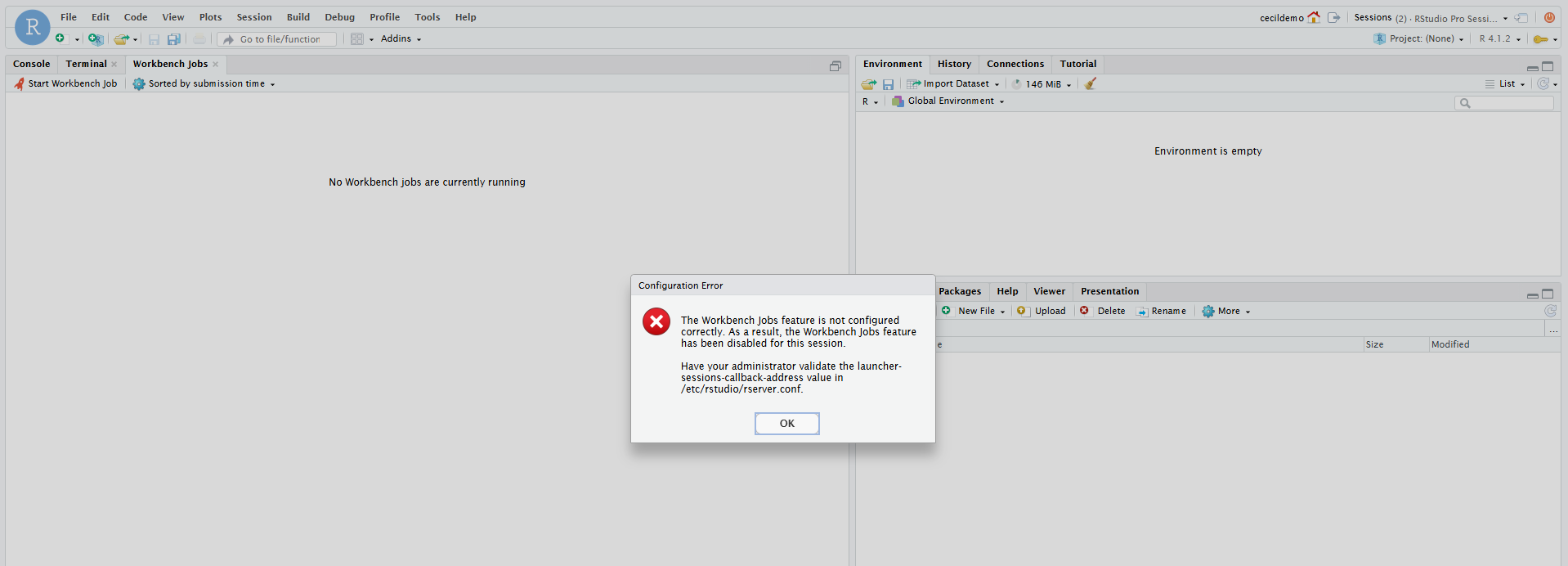
To test if the value is set correctly, open the Workbench jobs tab. If launcher-sessions-callback-address is set incorrectly, you will see the message below:
Alternatively, start an editor sessino on Posit Workbench. The examples below use the RStudio IDE:
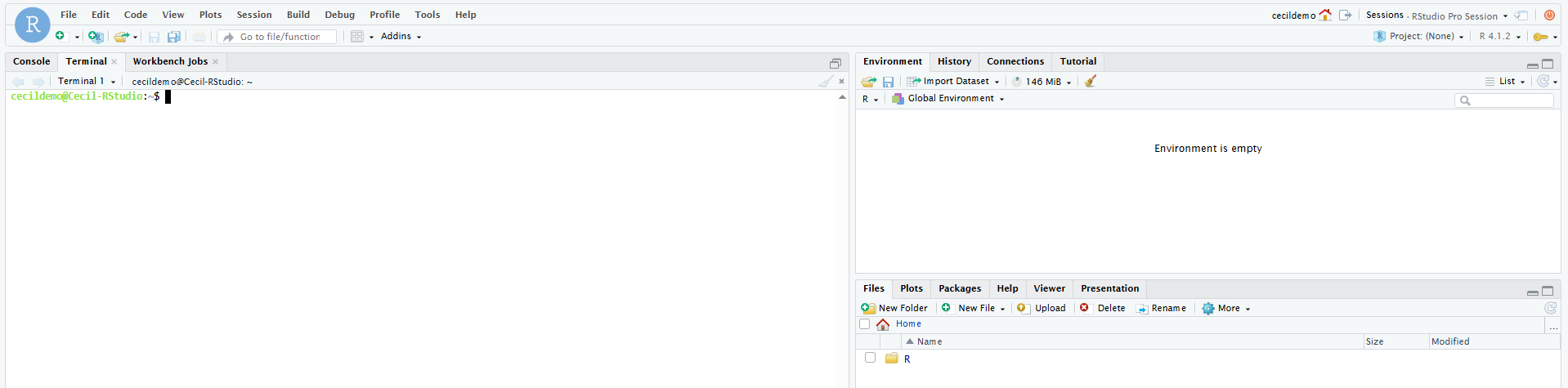
Check the value currently set as our launcher-sessions-callback-address by running the following in the Terminal:
Terminal
echo $RS_SERVER_ADDRESSIn this example, we can see that it is set with the following value:
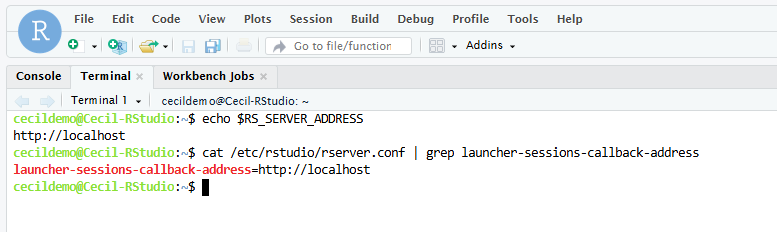
The most accurate test to validate the launcher-sessions-callback-address, is to simulate the running of a Workbench job using curl. A command to do so is below:
Terminal
curl -X POST -d '{"method":"jobs_feature_available"}' -H "X-RS-Session-Server-RPC-Cookie: $RS_SESSION_RPC_COOKIE" $RS_SERVER_ADDRESS/job_launcher_rpc/jobs_feature_availableThis command simulates the process that Posit Workbench initiates when checking if Launcher jobs are available. It uses the same secure-cookie-key and launcher-sessions-callback-address value set in /etc/rstudio/rserver.conf.
Running this command in our scenario, we see a connection failure:
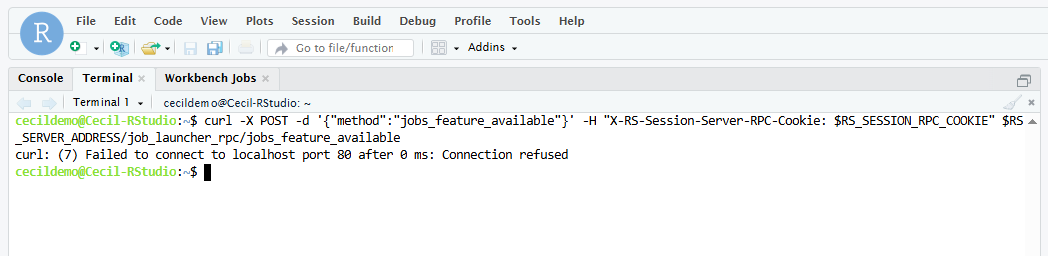
In this example, my host exists on http://localhost:8787, however, the launcher-sessions-callback-address is set to http://localhost. Let’s change this value in our /etc/rstudio/rserver.conf to reflect this correct URL:
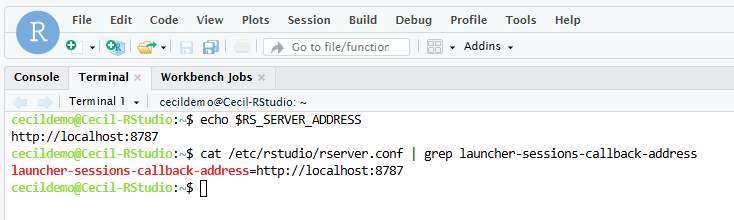
If this is set correctly, you will see an output like this:
Terminal
{"result":true}This can also be seen below:
