Troubleshooting RStudio IDE rendering errors
How to resolve rendering errors in RStudio IDE.
Description
The RStudio IDE uses a new rendering engine based on Chromium and takes advantage of hardware-accelerated rendering when available. This typically improves rendering and editing performance compared to earlier versions. However, differences in graphics cards and drivers across systems can cause rendering issues for some users. For example, some users have seen:
- RStudio content may render offset from its true location in the window.
- RStudio may crash, with device driver routines appearing in the stack trace.
- Rendering glitches may occur, causing bands of color to flash briefly at rare intervals.
This article describes some remedies for such issues.
Solution
Software rendering
While software rendering can often be slower, it is the most reliable of the different rendering engines. You can enable software rendering in a couple ways.
In Tools > Global Options > General > Advanced, you can explicitly select the rendering engine. The changes take effect after you restart RStudio.
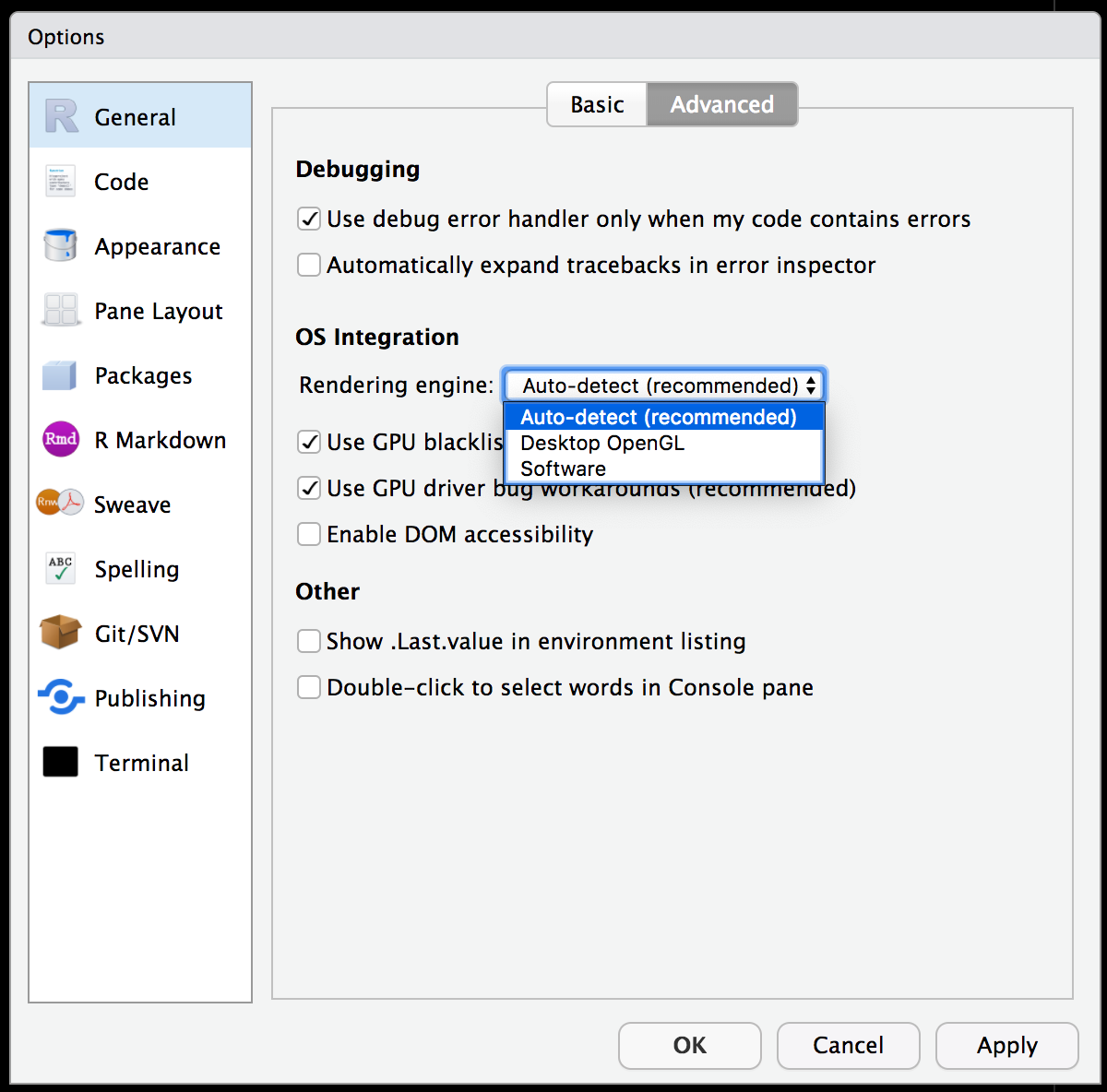
If you’re unable to access the Global Options pane (for example, because the RStudio IDE only displays as a white screen on launch), launch RStudio from a terminal with the GPU disabled. For example:
# macOS
export RSTUDIO_CHROMIUM_ARGUMENTS="--disable-gpu"
/Applications/RStudio.app/Contents/MacOS/RStudio

# Linux
export RSTUDIO_CHROMIUM_ARGUMENTS="--disable-gpu"
/usr/lib/rstudio/bin/rstudio
Launching RStudio this way disables GPU rendering only for that session. To make this change permanent, edit the RStudio Desktop options file. The options file is located at:
# macOS
$HOME/Library/Preferences/com.rstudio.desktop.plist

# Linux
~/.config/RStudio/desktop.ini  # $XDG_CONFIG_HOME/RStudio/desktop.ini

# Windows
%APPDATA%\Roaming\RStudio\desktop.ini
To force software rendering, set the desktop.renderingEngine entry to software.
[General]
desktop.renderingEngine=software
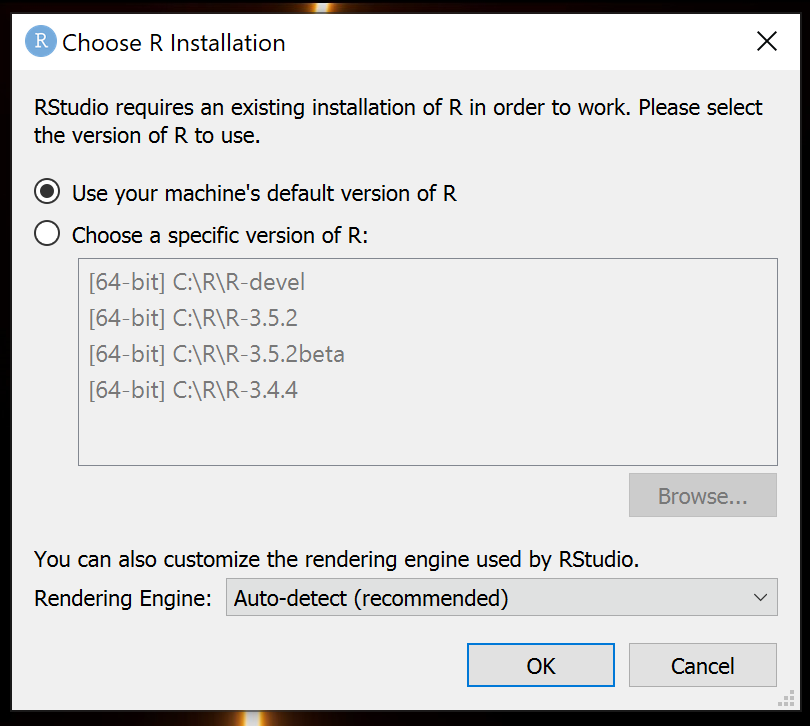
For Windows operating systems, hold down the Ctrl key while launching RStudio. A dialog appears, prompting you to select a version of R and the rendering engine to use when RStudio is launched.