Submitting a Posit Support ticket for the first time
How to submit a Posit Support ticket for the first time
Description
I am a new Posit user and I need to contact Support for the first time.
For details on our support coverage, see the Posit Support Agreement.
Solution
Your Posit Support account is separate from other Posit accounts you might have (e.g., shinyapps.io, posit.cloud, Connect Cloud, Posit AI).
Go to the Posit Support site and click Premium email support in the top right corner to open the support form. Fill out the form with your product, version, operating system, business impact, and any additional diagnostic information.
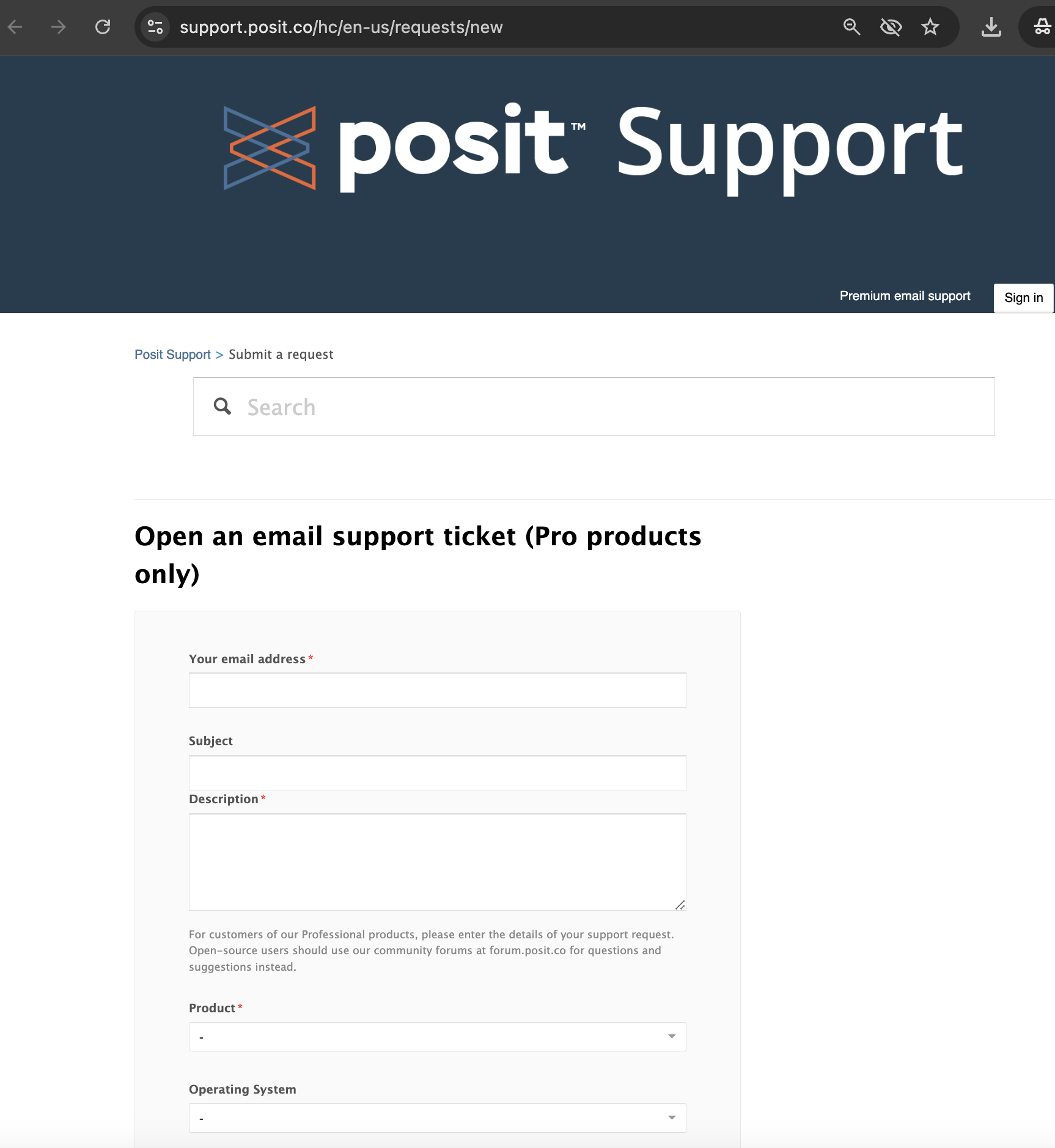
Posit Support ticket form A message appears letting you know the AI Assistant will check if it can help before routing your ticket. Click Next Step to continue.
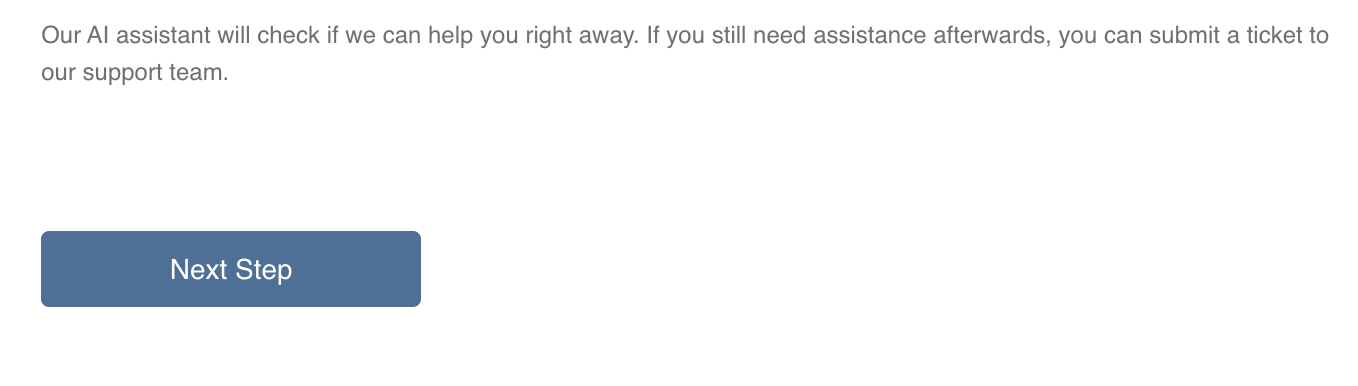
AI Assistant introduction message The AI Assistant analyzes your issue and displays a suggested response with a likely cause and solution. Select View AI answer to return to the response.
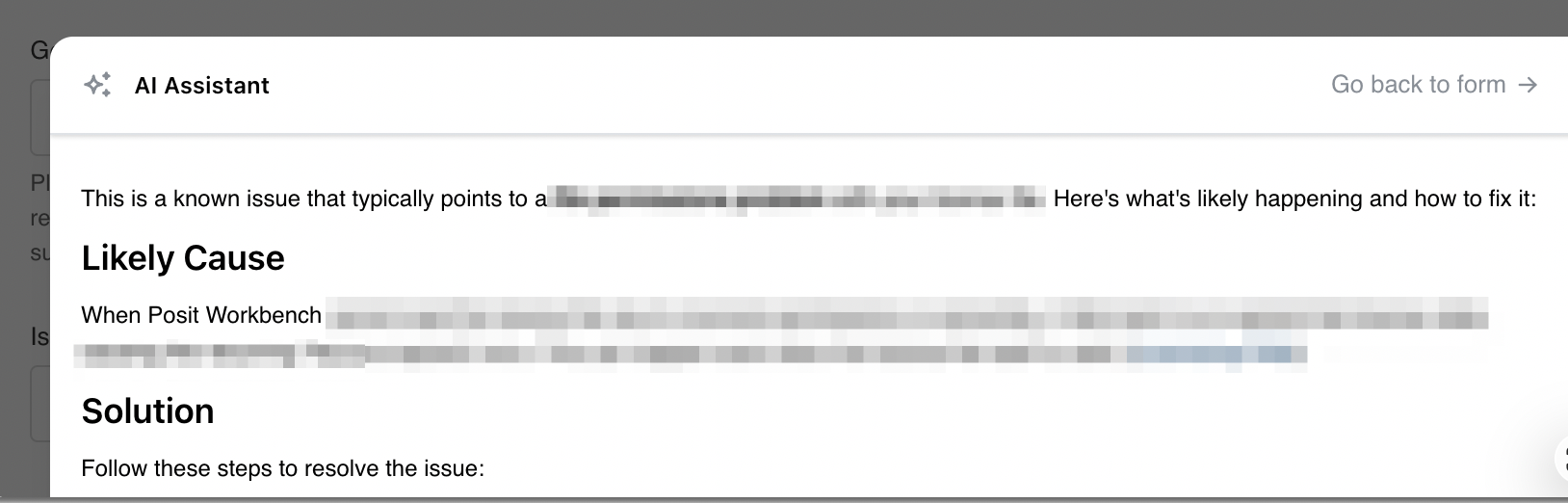
AI Assistant response panel If the AI-provided response does not resolve your issue, select Submit to send your ticket to the support team.
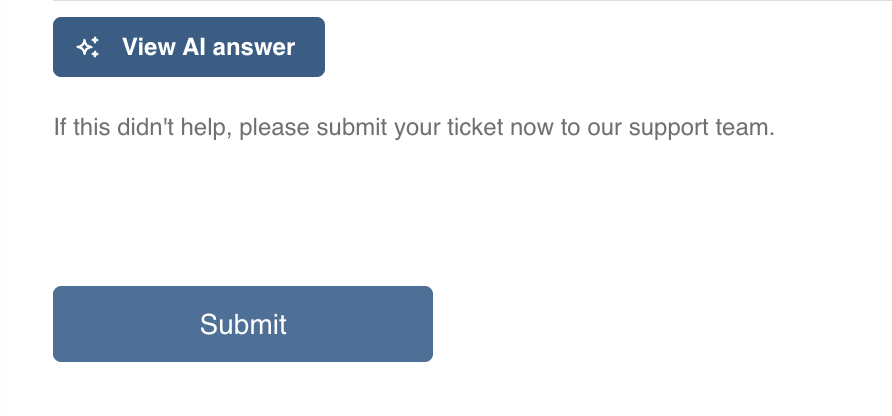
View AI answer and Submit options After clicking Submit, you will see a warning indicating that you need to verify your email address. Check your email for one from Posit Support (support@posit.co) that contains a verification link.

Email verification warning after ticket submission Click the verification link in the email. A dialog appears prompting you to set a password for your new Posit Support account.
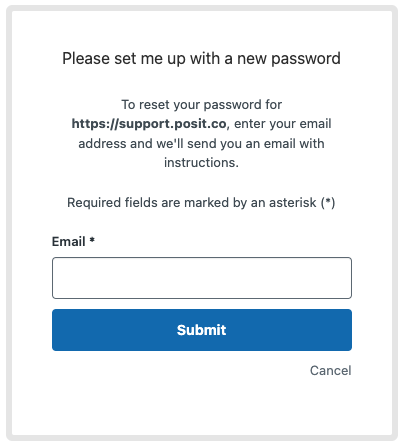
Set new password dialog
The ticket will be suspended and not visible to the Support team until verification is complete.
Signing up before submitting a ticket
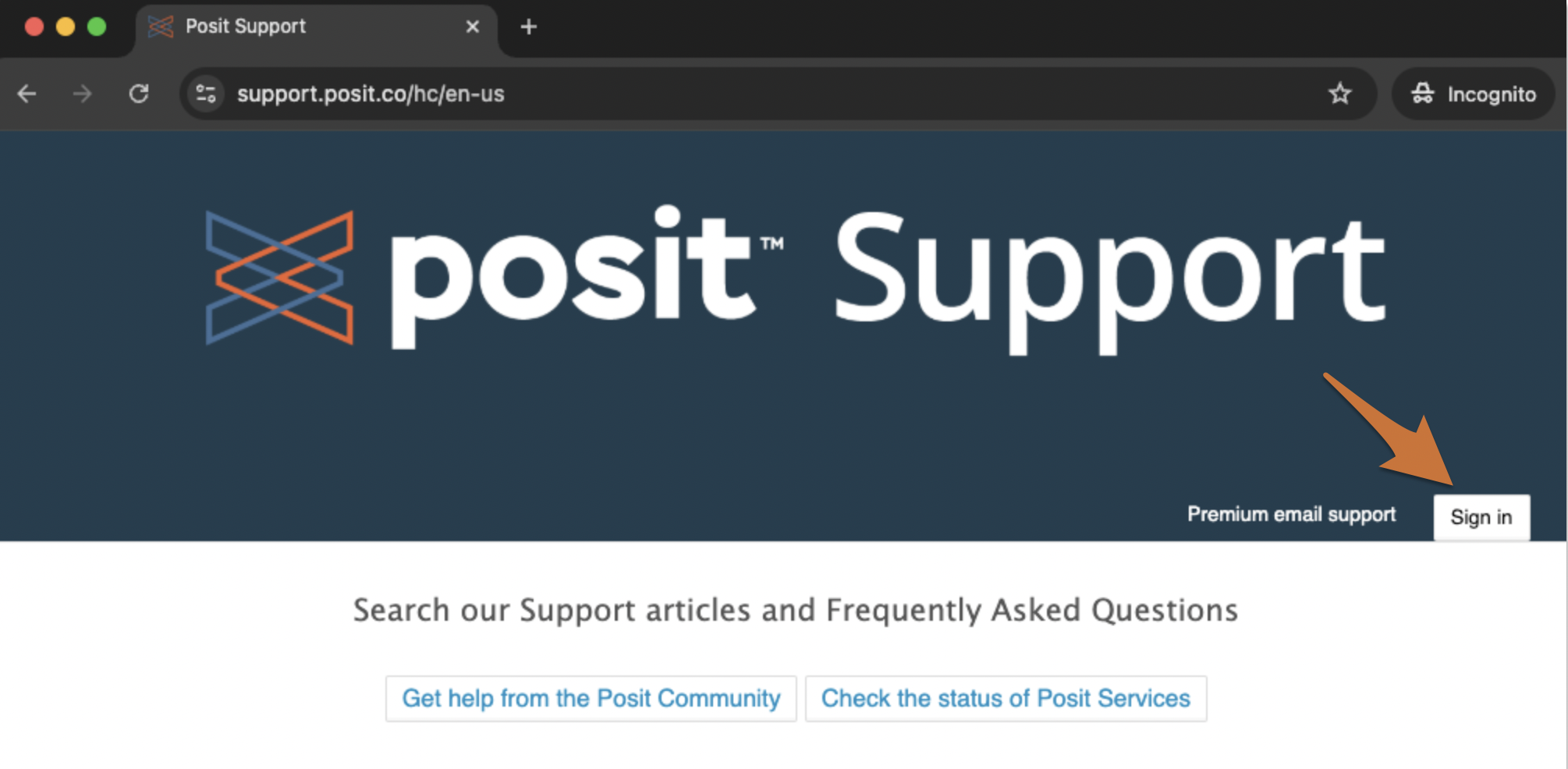
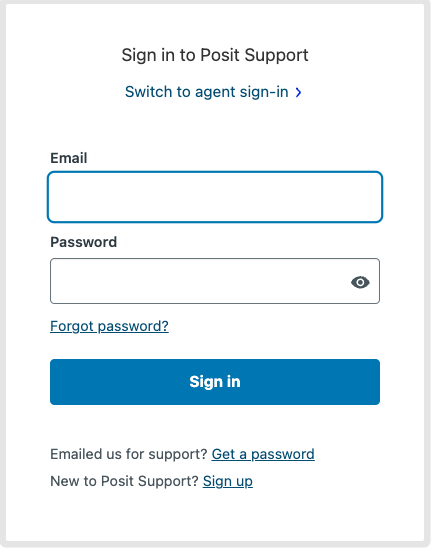
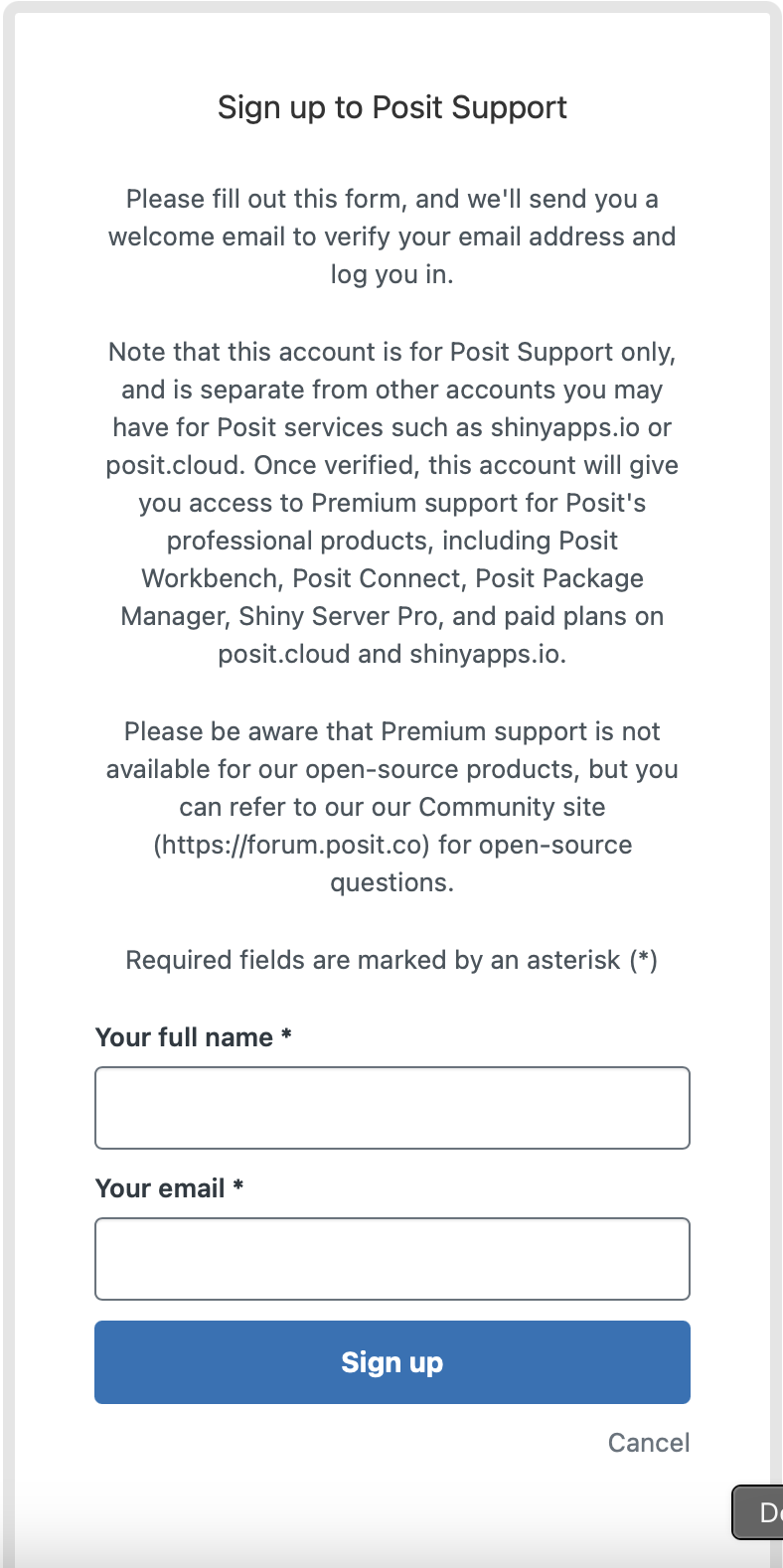
You can also create a Posit Support account before submitting a ticket by clicking Sign in on the support site and then selecting Sign up.