Capturing a HAR file
A guide on how to capture HAR files for troubleshooting
What is a HAR file?
HAR stands for HTTP Archive and is a file containing information about HTTP events that occur within your web browser. It is essential for troubleshooting issues that may not show any output in log files but present themselves within the web browser.
Sanitizing HAR files
Cloudflare hosts a HAR file sanitizing application that can remove sensitive information:
- Application: https://har-sanitizer.pages.dev/
- Source: https://github.com/cloudflare/har-sanitizer
All Chromium-based web browsers above version 130 automatically sanitize sensitive information, like Cookie, Set-Cookie, and Authorization headers, by default. Access to these headers is often required to troubleshoot problems with Posit products. Please follow the steps below to export the HAR file with all sensitive information intact:
How do I generate a HAR file?
Generally, if you are experiencing an issue where a HAR file is needed, we would suggest trying to reproduce the issue in different web browsers, and with all extensions disabled first. That said, the process to generate a HAR file will be different depending on the web browser that you are using.
Microsoft Edge
Open the Developer Tools from the menu (Menu > More Tools > Developer tools), or by pressing F12 (or Fn-F12) on your keyboard.
Select the Network tab (you may need to select the >> button to show more options).
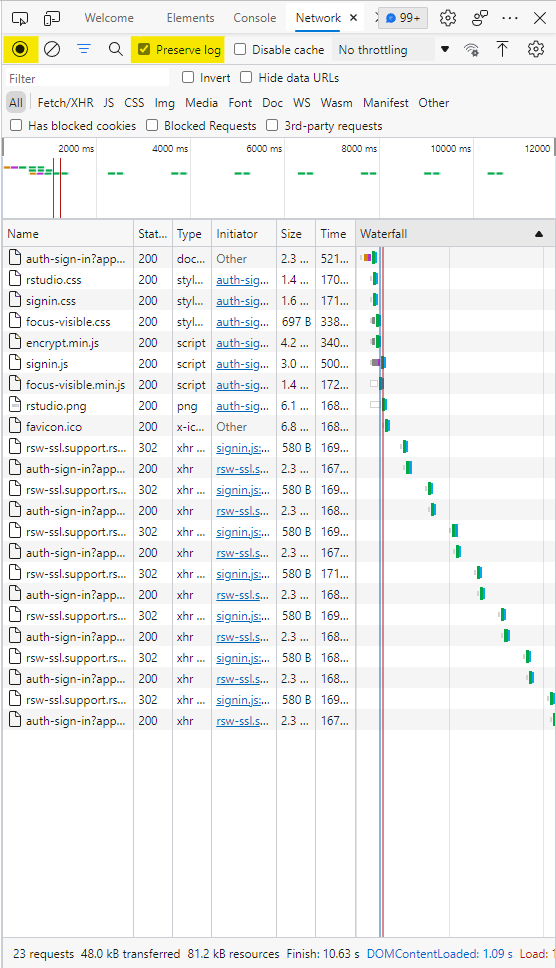
Look for a round button at the top left of the Network tab. Make sure it’s red. If it’s grey, select it once to start recording.
Select Preserve log.
Reproduce the issue.
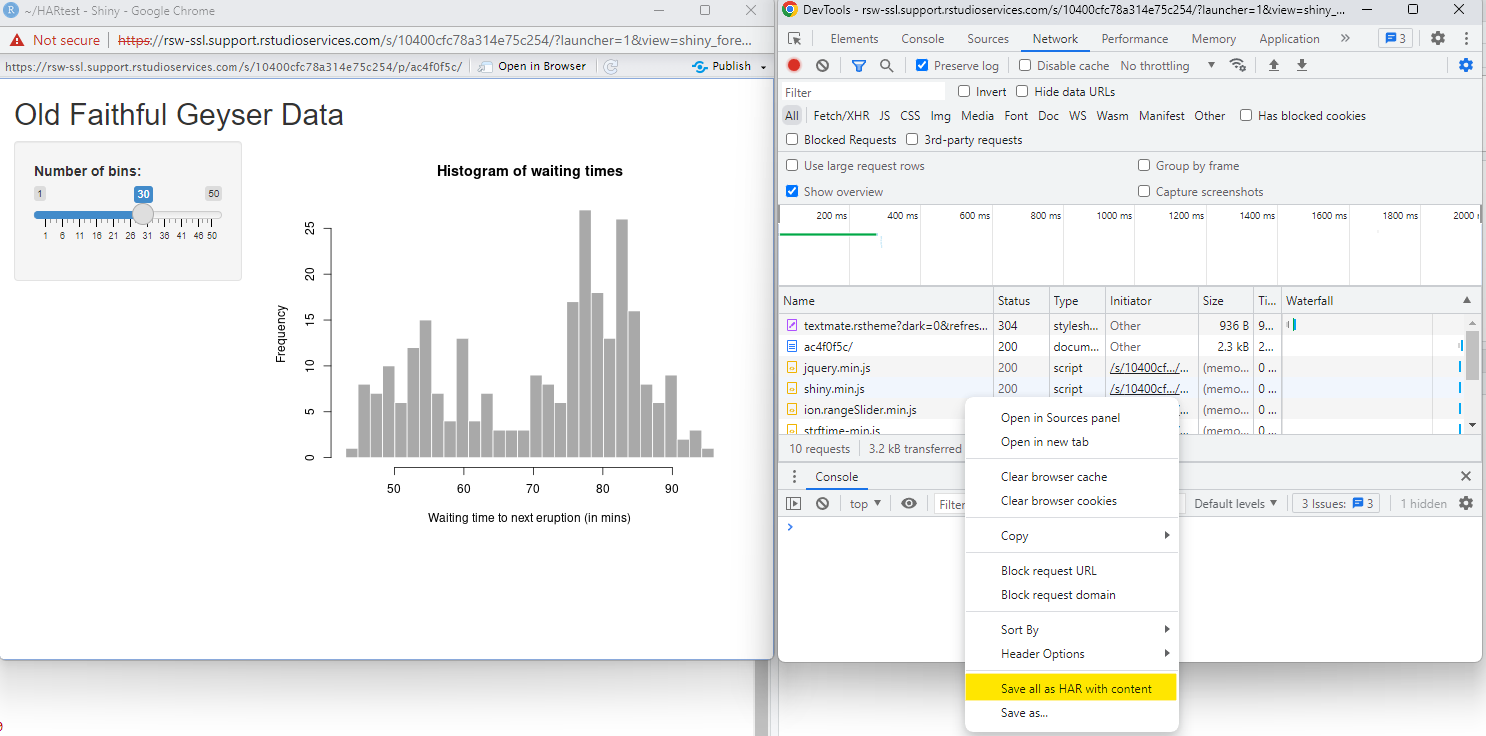
Right-click on the grid and select Save as HAR with Content.
Google Chrome
Open the Developer Tools from the menu (Menu > More Tools > Developer tools), or by pressing F12 (or Fn-F12) on your keyboard.
Select the Network tab (you may need to select the >> button to show more options).
Look for a round button at the top left of the Network tab. Make sure it’s red. If it’s grey, select it once to start recording.
Select Preserve log.
You can use the clear button (a circle with a diagonal line through it) right before trying to reproduce the issue to remove unnecessary header information.
Reproduce the issue.
Right-click on the grid and select Save as HAR with Content.

Mozilla Firefox
Start Firefox Developer Tools in Network mode (Top right menu > Developer > Network, or Ctrl-Shift-E / Cmd-Alt-E on macOS).
Select Persist logs on the right.
Reproduce the issue.
Right-click on the grid and select Save all as HAR.

Safari
With Safari open, select the Safari menu.
Open the Preferences and select the Advanced tab.
Select Show Develop menu in menu bar.
Open the Develop menu and select Show Web Inspector.
Select the Network tab.
Complete the activity that is causing issues.
Select the Export icon and save the .har file.
Send us the file via your support ticket.
Positron
Positron is open source software. Posit only supports Professional product customers using Positron.
With Positron open, open the Developer Tools
Select the Network tab and select the Preserve log checkbox.
Complete the activity that is causing the issue.
Select the download button with the tooltip Export HAR (sanitized)…
Send us the file via your support ticket.

Obtaining a HAR file from pop-up windows
There may be times when you need to obtain a HAR file for a window that has popped up. It’s worth noting that the HTTP traffic that occurs in popup windows that have spawned from main windows are not collected in the HAR file. If you wish to obtain a HAR file from a popup window, then you will need to perform the below:
- Run the application, or perform the action that generates the popup window:

- Once the popup window has presented itself, right-click on it and select Inspect as you would in the steps mentioned above, to collect a HAR file:

- From there, browse to the Network tab on the Developer Tools window and reload the popup window:
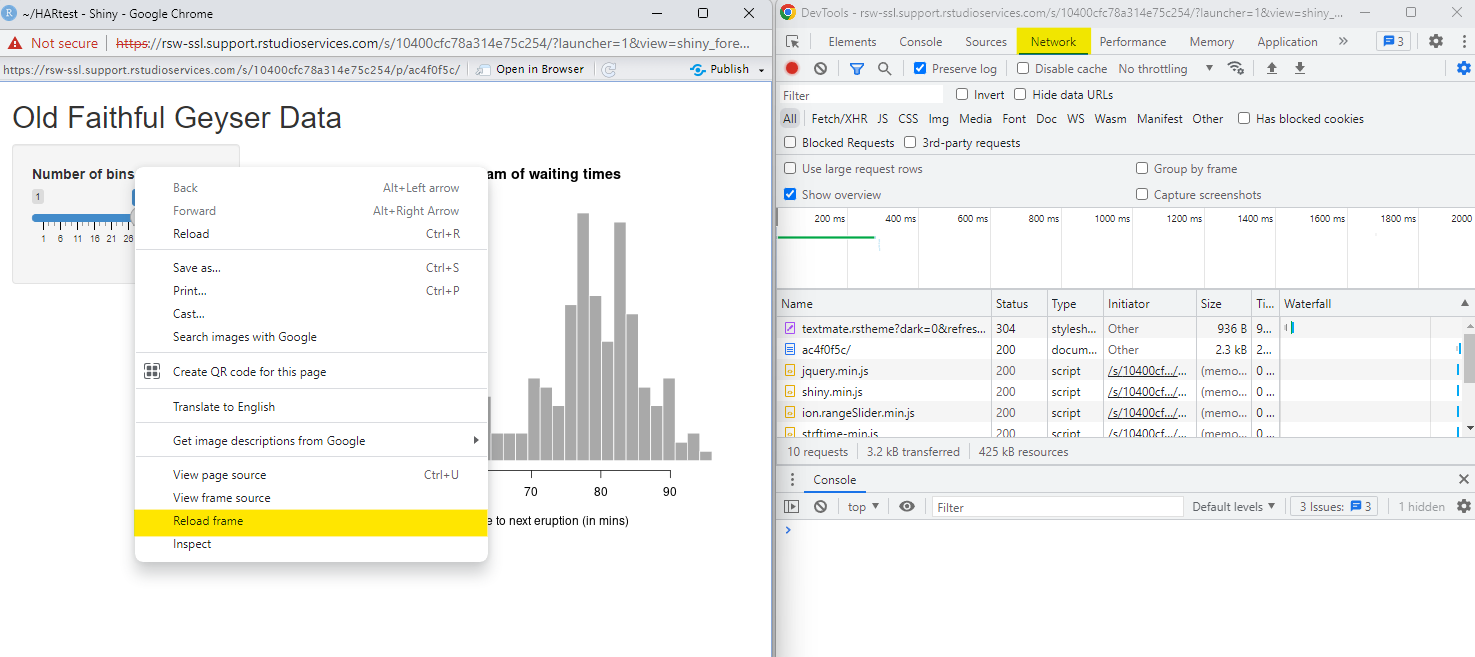
- You’ll notice that the HTTP traffic from reloading the application specifically, has since populated the HTTP response sections. Now, you can save the application-specific traffic by right-clicking on the Developer Tools window and saving: